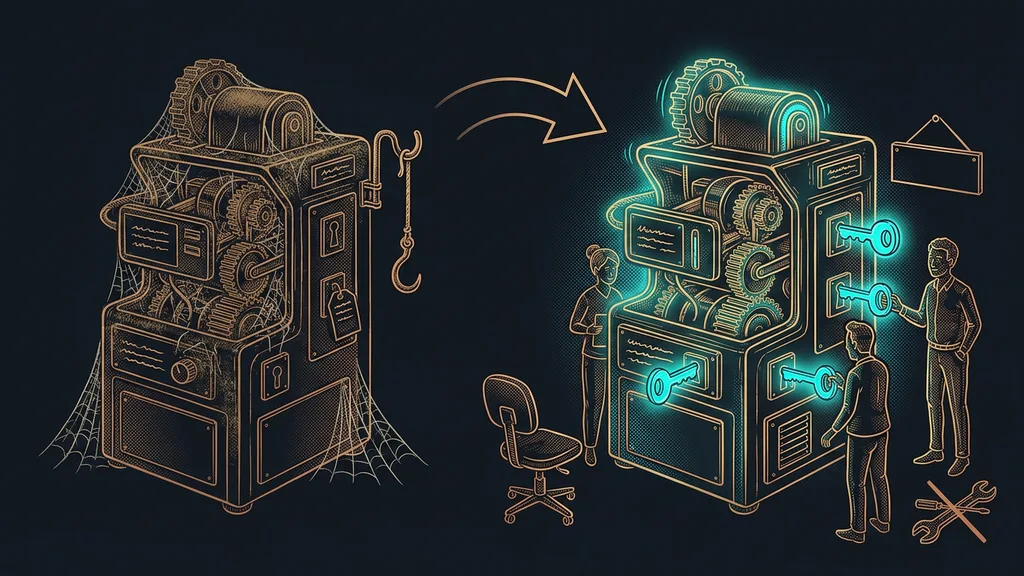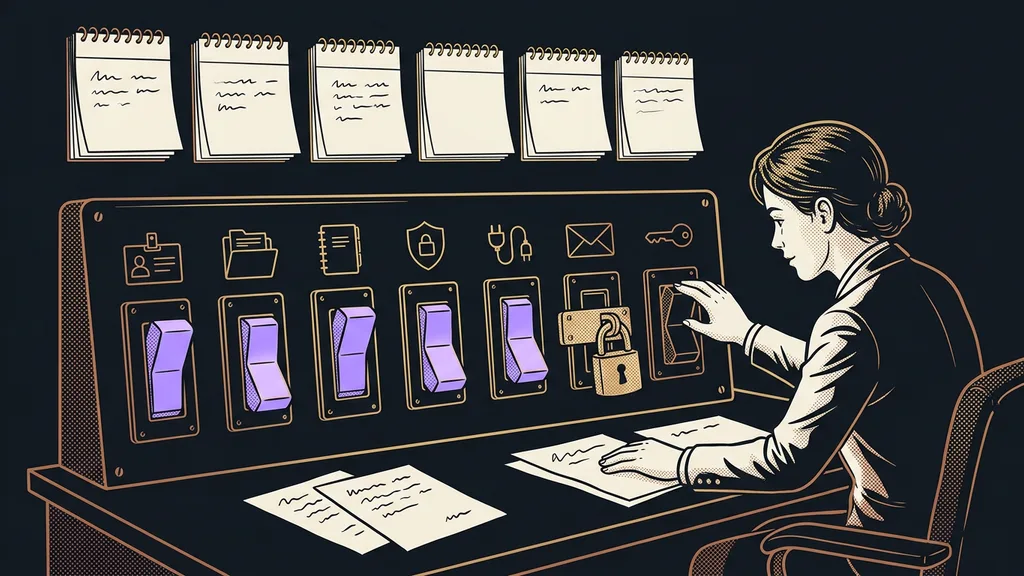
Setting up Claude for a business usually gets done in a minute. Someone pays for the plan, everyone logs in, and the first task goes in right away. The options that decide what Claude knows about the company, what it remembers, and what it’s allowed to touch stay the way the vendor left them. Claude then writes in every conversation as if it had never heard of your company.
Seven steps for the first week, and how long they take
Work from what Claude needs to know in every conversation toward what it may do on its own. The connector, meaning the link to your email or calendar, comes last. The times are my estimates and add up to roughly two and a half hours. Option names are current as of October 11, 2026.
| Step | Where to find it | Time |
|---|---|---|
| 1. Plan | pricing page on Anthropic’s website | 15 minutes |
| 2. Standing instructions | Settings, the Instructions for Claude field | 20 minutes |
| 3. First Project | Projects | an hour |
| 4. Memory | Settings › Memory | 5 minutes, plus 10 to review after a week |
| 5. Privacy | Settings › Privacy | 10 minutes |
| 6. First connector | Customize › Connectors | 15 minutes and a few days of testing |
| 7. Permissions | the Auto or Manual option by the message field | 15 minutes |
First tell Claude who you are. Then give it your materials. And only at the very end let it into your email, calendar, and shared folders.
I break down plan prices in the article on what Claude costs. For setup, one thing matters: Pro or Team. On Pro, you turn everything on yourself. According to Anthropic’s help center as of October 11, 2026, Team needs at least two members, and the organization owner unlocks some of the options for everyone else.
Organization owner (Owner)
The person who manages the company account on the Team plan. They enable connectors and, for each one, decide what Claude does on its own, what only with approval, and what not at all.
Standing instructions and your first Project
Standing instructions say who you are; a Project holds the materials for one area of work.
You’ll find the instructions by clicking your initials in the bottom left: Settings, the Instructions for Claude field. They apply to all conversations, so they should hold only what Claude always needs to know: what the business does, whether you’re on first-name terms with clients, and what to avoid. I explain separately why fewer rules get you more. On October 4, I cut my own main instructions by about 36 percent. The rules stayed; the repetition and outdated exceptions went.
On day two, create a Project for the work you do most often, such as quotes or replies to customers. In the Project instructions, write what it’s for, and upload your price list and sample texts, up to 30 MB per file according to the help center. Each Project has its own memory, so Claude won’t start mixing up your price list with complaints. The effort setting also affects your usage limits: a higher level does more thorough work but burns through your limit sooner. For the first week, leave it at the default.
Memory and privacy: two toggles, fifteen minutes
On day three, check two toggles: memory and training on your conversations.
You turn memory on in Settings › Memory with the Generate memory from chats toggle. According to the help center, it’s on automatically on Free, Pro, and Max; on Team, each member has it off until they turn it on themselves. You can bring over your old ChatGPT memory with an import, which Anthropic still labels experimental. After a week, look under Topics to see what Claude has remembered, and correct anything that’s off.
On Pro and Max, the Help improve Claude toggle in Settings › Privacy decides about training. With it on, Anthropic may use your conversations to improve its models and keeps them for up to five years; with it off, for 30 days. On team plans, Anthropic doesn’t use content for training by default, and a data processing agreement is automatically attached to the commercial terms. That makes a team account the more sensible choice for customer data.
Before you paste in your first contract
Passwords, card numbers, and national ID numbers don’t belong in Claude. I keep my passwords in a separate vault on my disk, not in a conversation with AI. For something confidential, open an incognito chat outside any Project using the ghost icon in the top right: it isn’t saved to your history or memory and isn’t used for training. Anthropic does keep it for 30 days, though.
Connectors and permissions at the end of the week
Plug in a connector once Claude knows who you are. From that moment on, it also reads your email or calendar.
Connector (MCP)
A link between Claude and another app, such as Gmail, your calendar, or Drive. It runs over MCP (Model Context Protocol), a shared way for AI to talk to other programs. Through it, Claude reads, and if you allow it, also writes, sends, and deletes.
You connect it in Customize › Connectors; on the Team plan, only after the owner enables it. Pick the one app where you spend the most time. According to the help center as of October 11, 2026, the official Google Workspace connector can even send an email in Gmail, delete events in Calendar, and share files on Drive. So for the first few days, give it tasks that don’t send anything: summarize a thread, find a time slot, prepare a draft.
For a connector’s tools, Claude asks for approval. According to the help center, click Allow always only for a tool you’ll let work unsupervised. On Team, the owner chooses Always allow, Needs approval, or Blocked for each group of permissions. Claude never gets more rights than the person it’s working for. Since September 23, I’ve had a rule of my own: no email goes out in my name until I approve its exact wording.
Where chat has already merged with Cowork (the mode in which Claude takes over an entire task), there’s an Auto or Manual option by the message field. In the default Manual, Claude asks before every action. In Claude Code (the version of Claude that works directly with files on your computer), the default mode since version 2.1.283 is auto, where a second model reviews actions. So after installing it, check the mode (Shift+Tab) and turn off the toggles that send several agents at a single task at once. They burn through your usage limit faster than you’d expect. And even a willing agent needs clear boundaries; otherwise it does more than you asked for.
When instructions and one toggle are enough
If you open Claude once a week for an email, you don’t need a whole week of setup. Standing instructions and ten minutes in Settings › Privacy will do. And a company that doesn’t yet know what it’ll use Claude for shouldn’t buy Team for everyone at once. Let one person fine-tune it on their own work for a month first.
The whole first week in a nutshell
- Choose a plan: Pro for one person, Team for more.
- Write short standing instructions in the Instructions for Claude field.
- Create your first Project for your most frequent work and upload your materials to it.
- Check memory in Settings › Memory.
- In Settings › Privacy, decide on the Help improve Claude toggle.
- Connect one connector, and for the first few days use it only to read and write drafts.
- Decide what Claude may do on its own, and check the mode in Claude Code.
Paying for Claude takes a minute. A week later, it’s an assistant that knows the company, has the price list at hand, and knows which inbox it may only peek into. A new conversation starts with the quote in progress instead of with you explaining who you are. If you’d rather not fine-tune that week yourself, I’ll go through it with you in a 1:1 Claude setup, on your computer and in your account.