Setting up a meeting should take two minutes. With two full calendars, though, it often turns into days of work, even when it’s just a twenty-minute call.
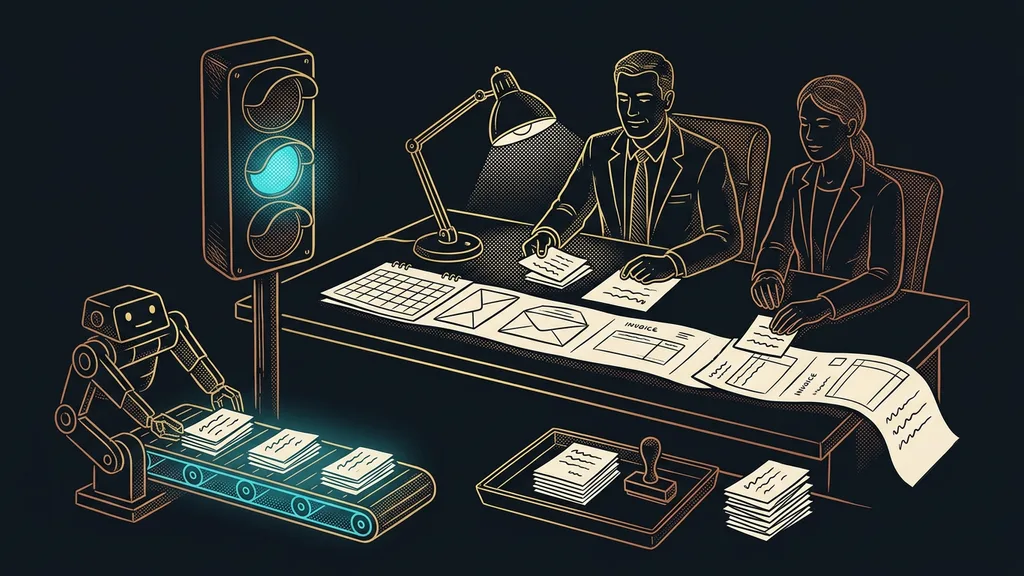
“Does Thursday at ten work for you?” The answer comes the next evening: Thursday’s no good, unfortunately, could you do Friday? But Friday’s already full, so you suggest Monday. By the time Monday is confirmed, it’s Wednesday. You’ve traded five emails and lost a week over one twenty-minute meeting.

I see this ping-pong at businesses all the time. I set up calendars in GoHighLevel for clients almost daily, and how they book meetings is one of the first things I ask about. The answer is nearly always the same: dates get passed around by email, because “that’s how we’ve always done it.”
Work nobody pays you for
The core of the problem is simple: two full calendars can’t see each other’s free time. You don’t know when the client can make it, the client doesn’t know when you can, and so you try to hit a slot blind, one round a day. Email is a lousy tool for this, and no amount of care will fix that.
“Setting up a meeting sometimes took us longer than the meeting itself. Three days of emailing over a twenty-minute call.”
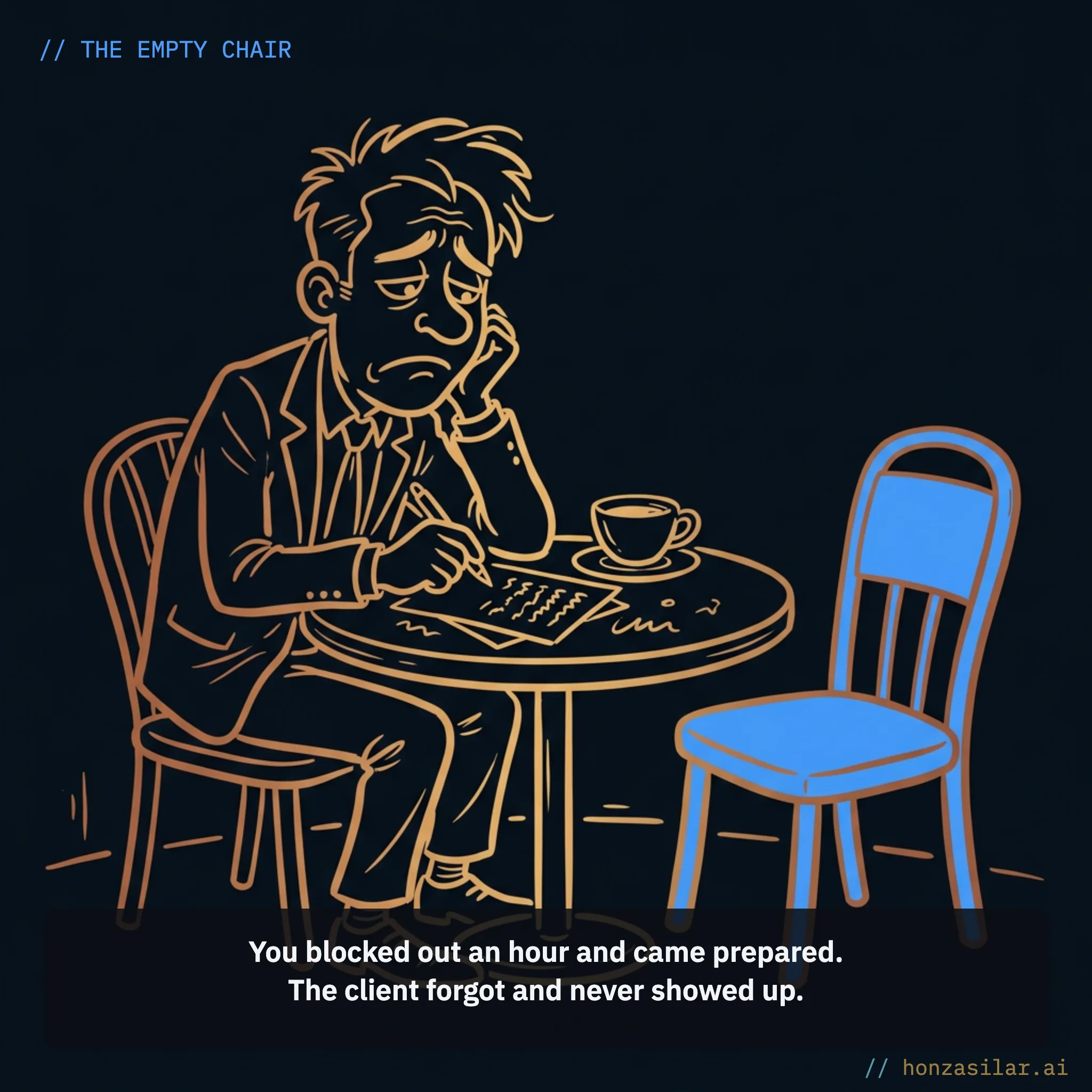
That’s how a client described it to me before we rebuilt their booking. The lost time is only half the damage, though. Worse is what happens to the inquiry in the meantime: someone who eagerly emailed you on Monday has cooled off by Thursday. Each extra round of emails gives them another day to change their mind or find someone faster. And when you finally agree on a time, a second trap is waiting: the client forgets and doesn’t show up. You blocked out an hour, prepared, and now you’re staring at an empty Zoom call.
A link instead of the back-and-forth
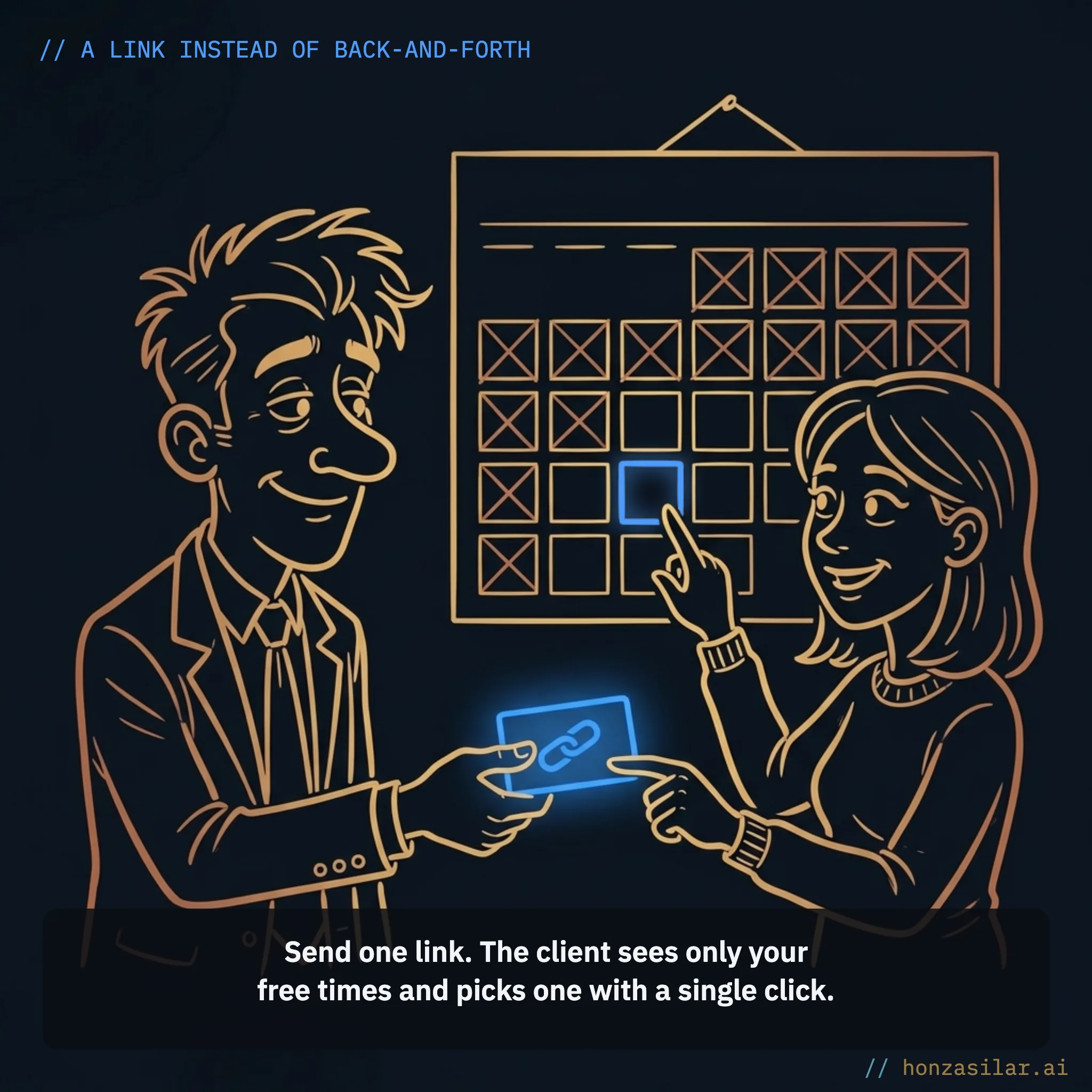
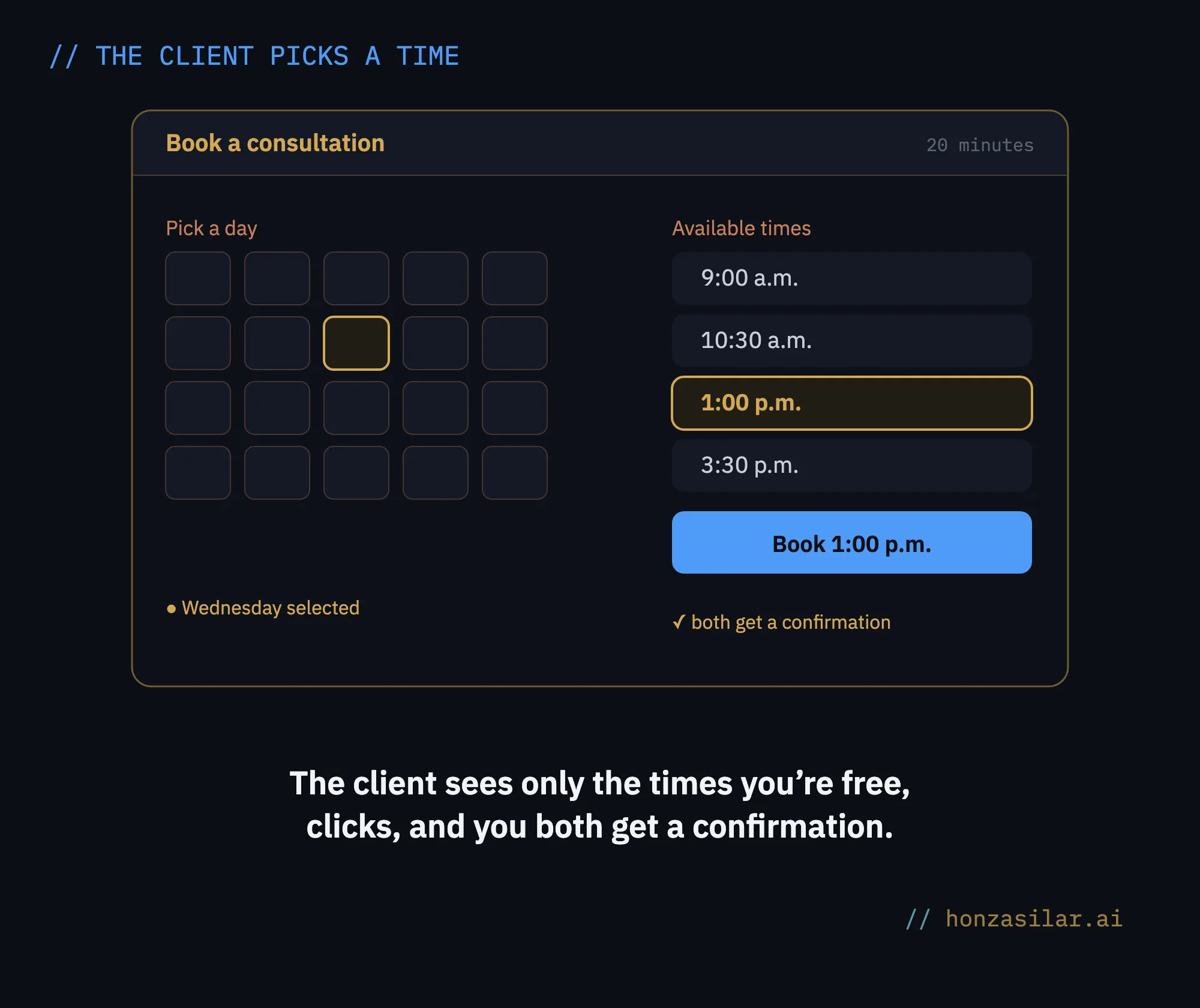
The solution sounds almost too simple: let the client pick the time. You send them a link, they see only the times you’re actually free, they book with one click, and you both get a confirmation. That’s exactly what made Calendly famous. In GoHighLevel, though, the booking calendar is built right into the platform, so if you pay for Calendly separately today, that line item goes away when you switch to GoHighLevel.
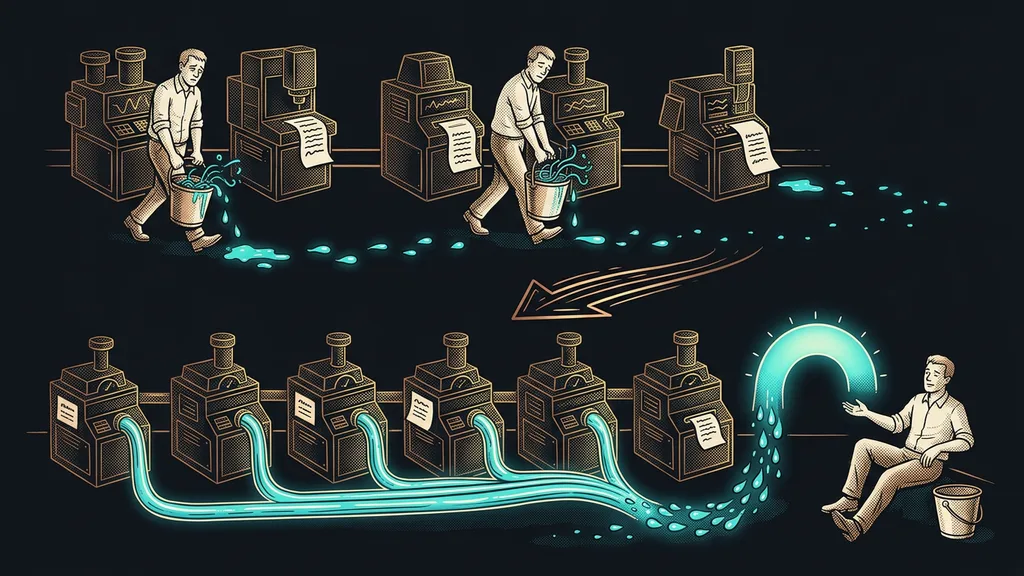
Email ping-pong vs. one booking link
By email
Two full calendars can’t see each other’s free time.
You aim for a slot blind, one round a day.
Five emails and a lost week over 20 minutes.
By link
The client sees only the slots you really have open.
They book with one click, and you both get a confirmation.
Booked without a single email.
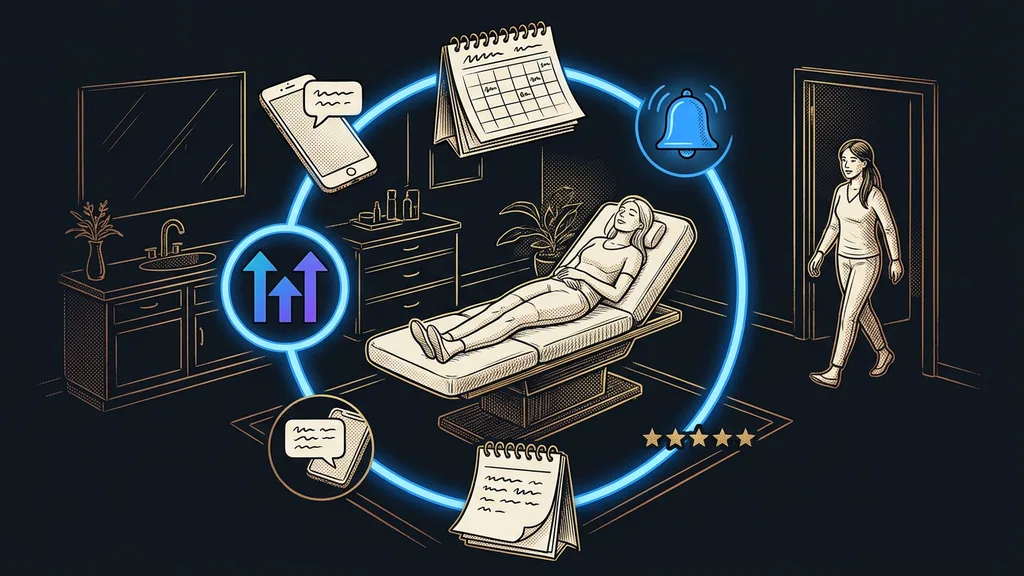
The saving isn’t the main point, though. What matters more is that the calendar sits right inside your data rather than next to it. Every booking creates a contact in your CRM with the full communication history, logs the meeting, and kicks off the next steps: a confirmation, reminders, even a short questionnaire before the meeting. You don’t retype anything between three tools, because you don’t need three tools.
What the calendar takes care of for you
So this doesn’t stay at the level of vague promises, here’s the most important work the booking system takes over:
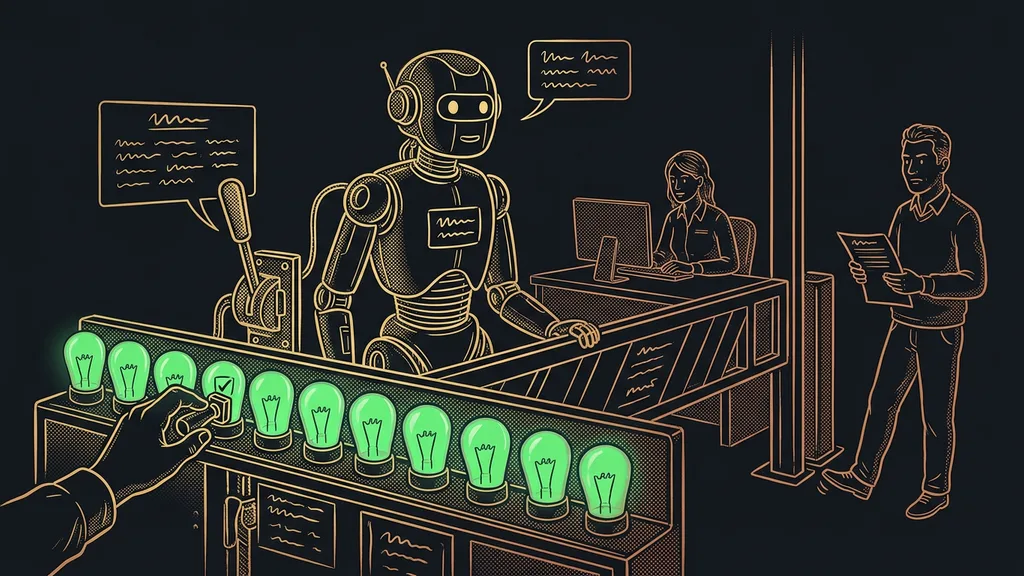
- Your free time. The client picks only from times when you’re really free. Anything already booked in your personal Google or Outlook calendar never shows up in the widget, so double bookings are over.
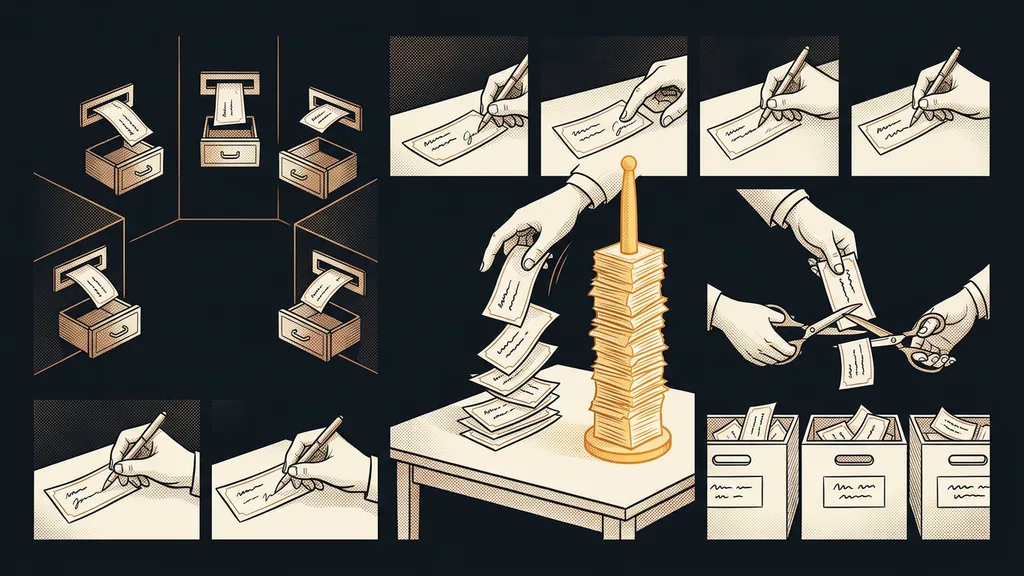
- Team distribution. Meetings get split among your salespeople automatically: either whoever is free first gets them, or colleagues take turns fairly.
- Exceptions and holidays. You set up a vacation or working only every other week, and the widget simply stops offering those times.
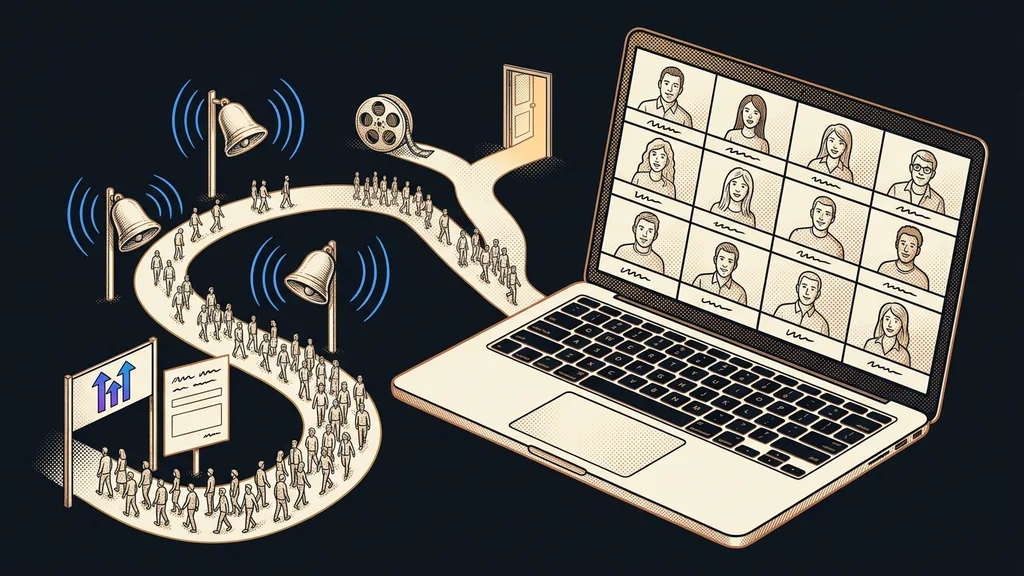
- Confirmations and reminders. A confirmation goes out right after booking, and reminders go out before the meeting, for example an email the day before and a text two hours before. They’re built with the same workflow automation you use for everything else.
- No-shows. When a client doesn’t show up, they get a message with a link to a new time, so a missed hour often just gets postponed.
- Payments and returning clients. For paid consultations, the calendar can take payment right at booking, and anyone who has booked with you before gets their details filled in automatically.
Round robin (team distribution)
A way to split incoming meetings fairly among several people. The client sees one shared booking page, and the system decides who gets the appointment: either whoever is free first, so the client gets in as soon as possible, or each person in turn, so the whole team carries the load evenly.
The result
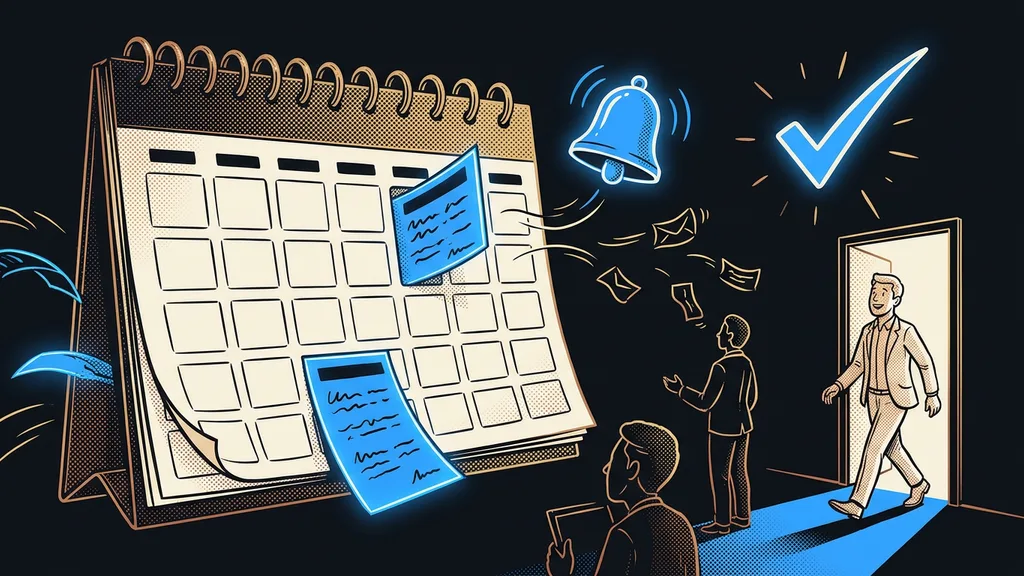
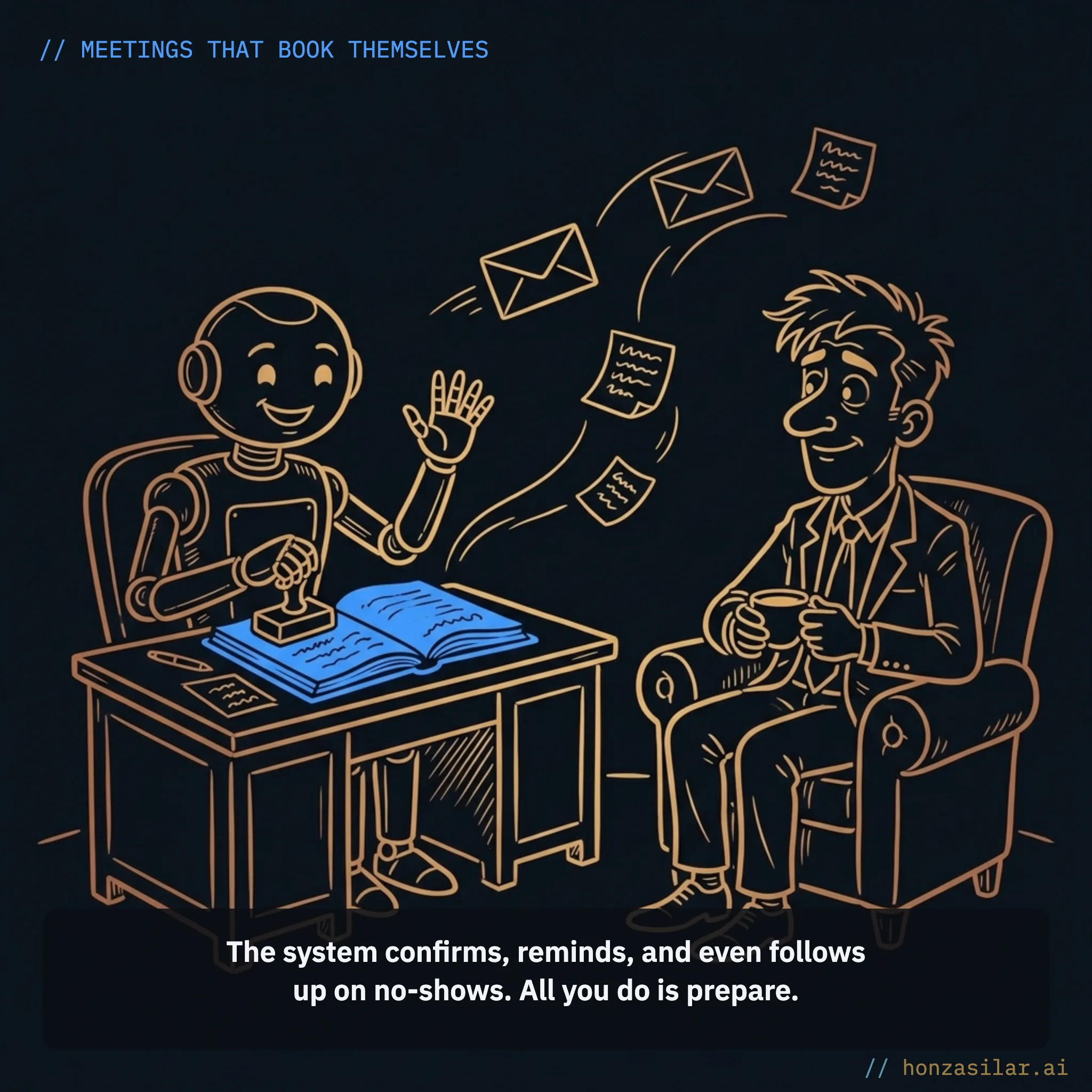
The meeting gets booked without a single email. The client picks a time, the system confirms it and sends reminders, and the meeting lands in your calendar along with the contact and the full history. All you do is prepare and join, whether in person or online.
What the booking calendar takes care of for you
- Your free time: the client picks only from open slots, so double bookings are over.
- Team distribution: meetings get split among salespeople automatically (round robin).
- Exceptions and holidays: the widget simply stops offering vacation days or off weeks.
- Confirmations and reminders: right after booking, then a day and two hours before the meeting.
- No-shows: they automatically get a link to a new time.
- Payments and returning clients: payment at booking, details filled in automatically.
Three details from practice to finish
I promised to save the technical stuff for the end. Here are three things people trip over most often during setup.
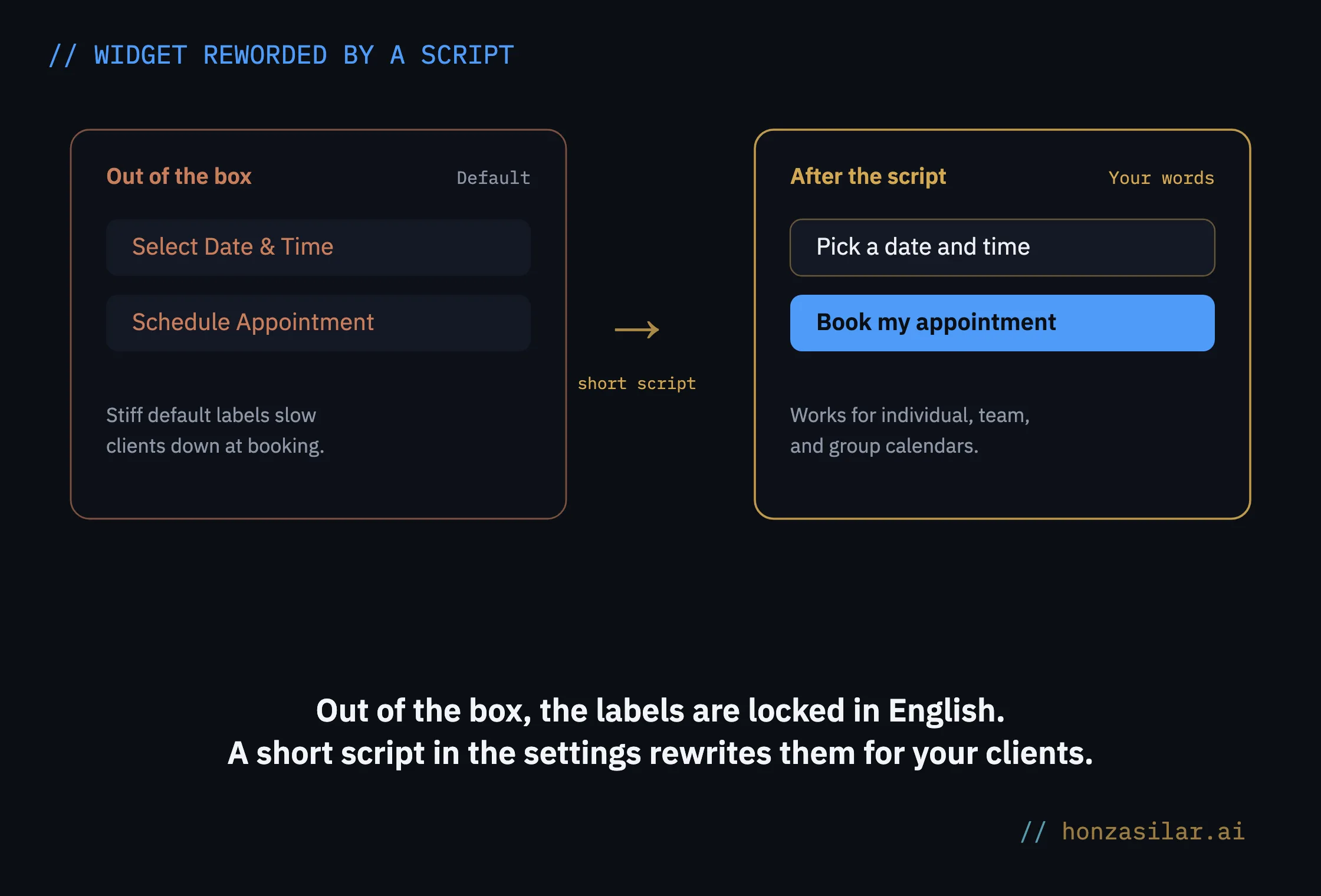
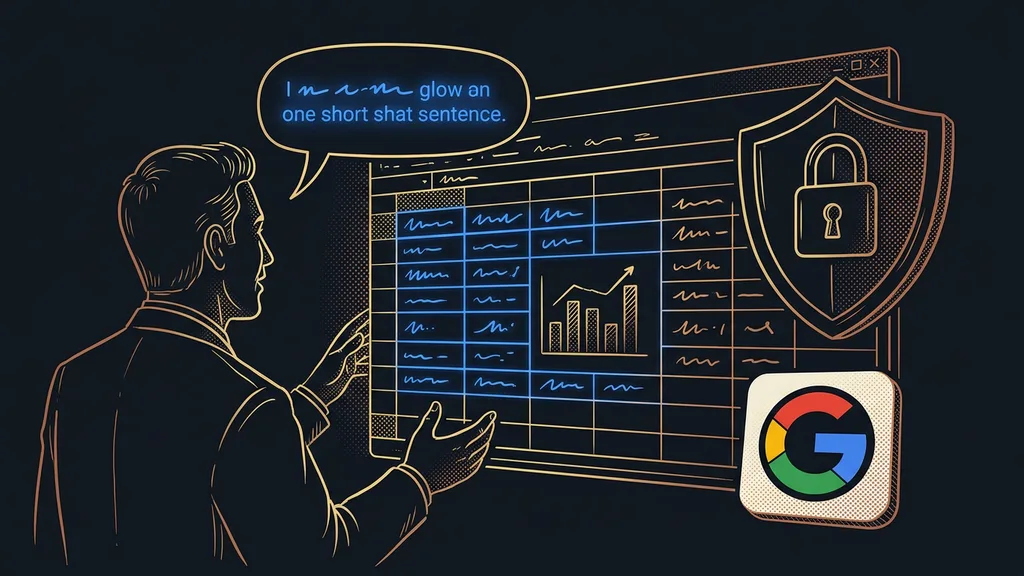
Czech. The booking widget has no official Czech translation, so “Select Date & Time” or “Schedule Appointment” stay hard-wired in English, and that slows Czech clients down when they book. The fix is a short script added to the calendar settings that translates the text on the page. It works for individual, team, and group calendars. Just keep in mind that the calendar invitation (the .ics file) stays in English.
Time zones. The system distinguishes three: the business time zone, the logged-in user’s time zone, and the client’s time zone, which the widget detects on its own. When the first two drift apart, you get the classic “meeting shifted by an hour.” For local services where the client comes in person (a hair salon, a car repair shop), turn off detection of the client’s time zone and keep the times fixed in your own zone. For online consultations, leave it on.
Personal Google Calendar. Connect it as a so-called conflict calendar: private events block out your free time and nothing else happens. Two-way sync looks tempting, but then your private “dentist” entry turns into a contact in your CRM, and you’ll be cleaning up.
Three details people trip over
| Detail | How to handle it |
|---|---|
| Widget in Czech | a short script in the settings translates the page |
| Time zones | on for online, off for in-person services |
| Personal Google Calendar | connect it only as a conflict calendar |
The whole system in a nutshell
- Send the client a single booking link.
- The client sees only your free times and picks one with a single click.
- The booking creates a contact in your CRM and puts the meeting in your calendar.
- The system sends a confirmation and reminders before the meeting.
- Anyone who doesn’t show up gets a link to a new time.
The whole system in a nutshell
And the ping-pong from the intro? It’s the first thing I get rid of for clients, and nobody has complained yet. Instead of “does Thursday at ten work for you?”, a single link goes out. The client clicks, and the calendar confirms, reminds, and even follows up on no-shows. Meetings book themselves. And you go back to writing emails only when you have something worth saying.