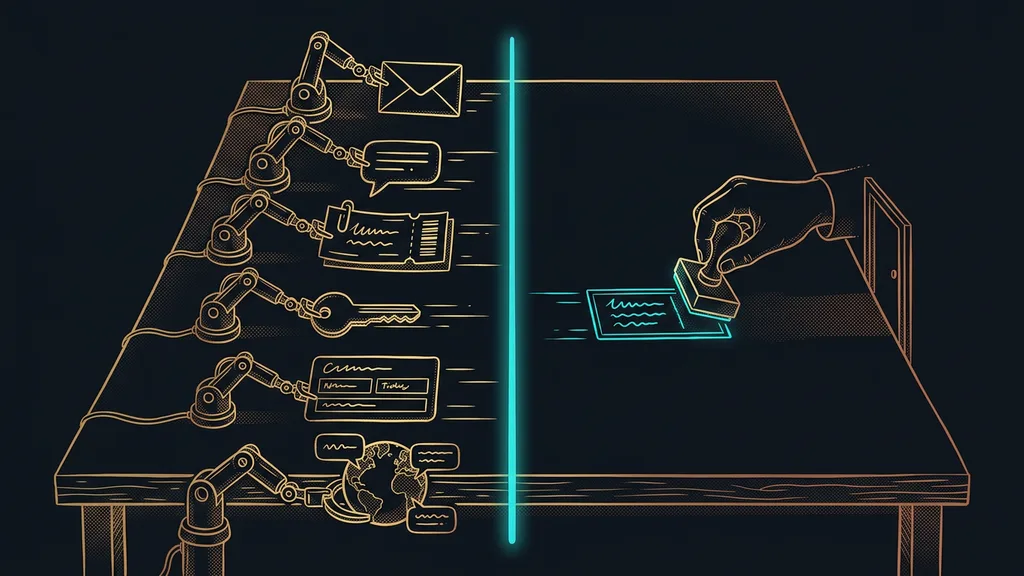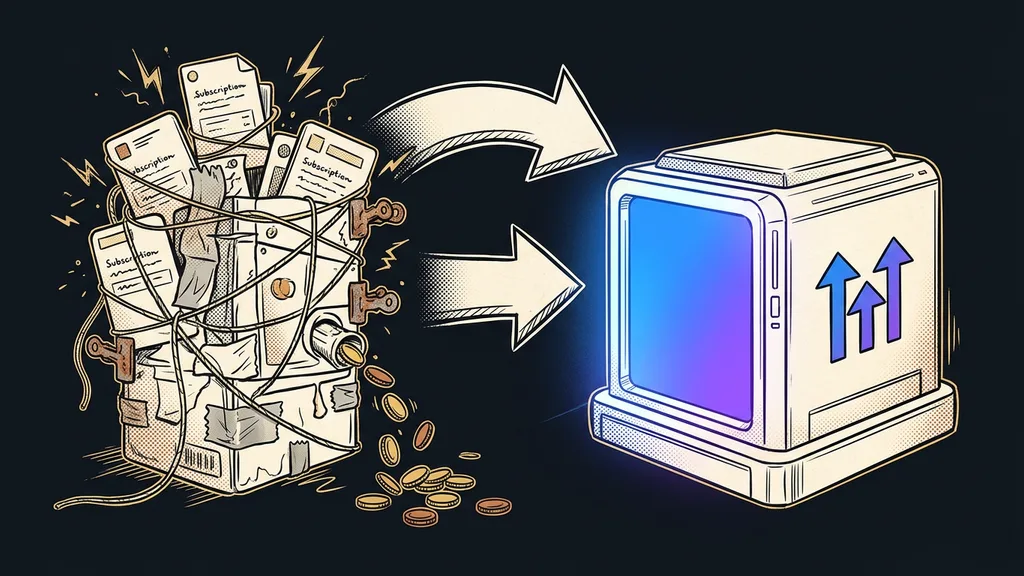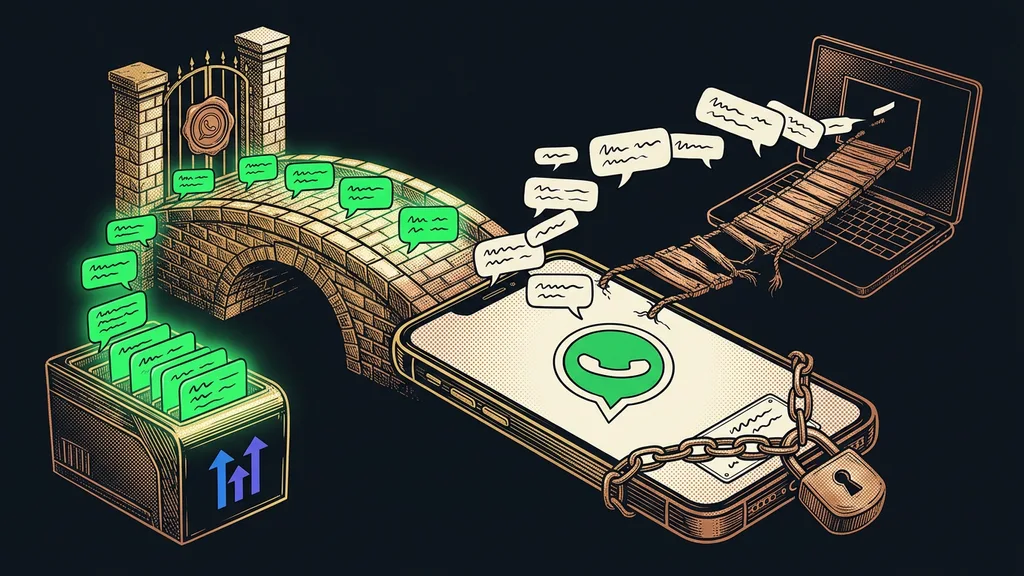
There are two ways to connect WhatsApp to GoHighLevel. Officially, through the interface Meta runs, or with a cheap third-party add-on that logs in to your number as another computer running WhatsApp Web. At first glance, both do the same thing: customer messages show up in the CRM next to emails and SMS. The difference may only show the moment Meta bans your number.
I made this decision myself this July, for my own number. Clients have been messaging me on it for years, so I didn’t want to lose the conversation history or the ability to reply from my phone wherever I am. The cheap add-ons promised exactly that. In the end, it turned out the official route can do it too, just without the risk to the number.
The official integration, or an add-on through WhatsApp Web
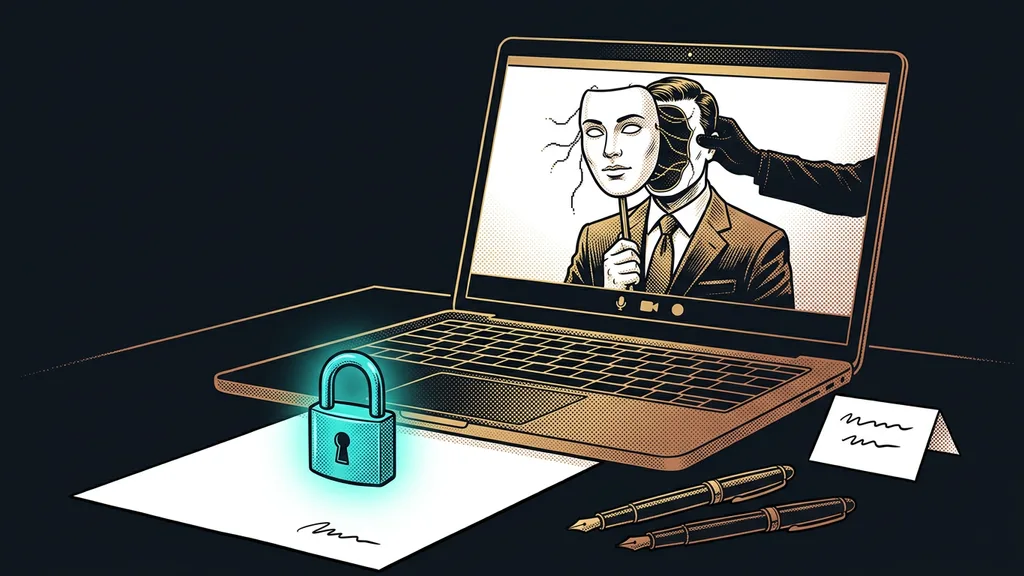
The official integration runs through the WhatsApp Business Platform, the interface Meta itself runs and bills for businesses. An unofficial add-on does something else: it connects to your number as another device and sends messages as if a person were typing them at a computer.
WhatsApp Business Platform
WhatsApp’s official business interface, run by Meta. It’s how WhatsApp connects to a CRM like GoHighLevel. You pay for delivered messages, and it has its own rules for templates and the 24-hour window. It’s the only route Meta supports for automated sending.
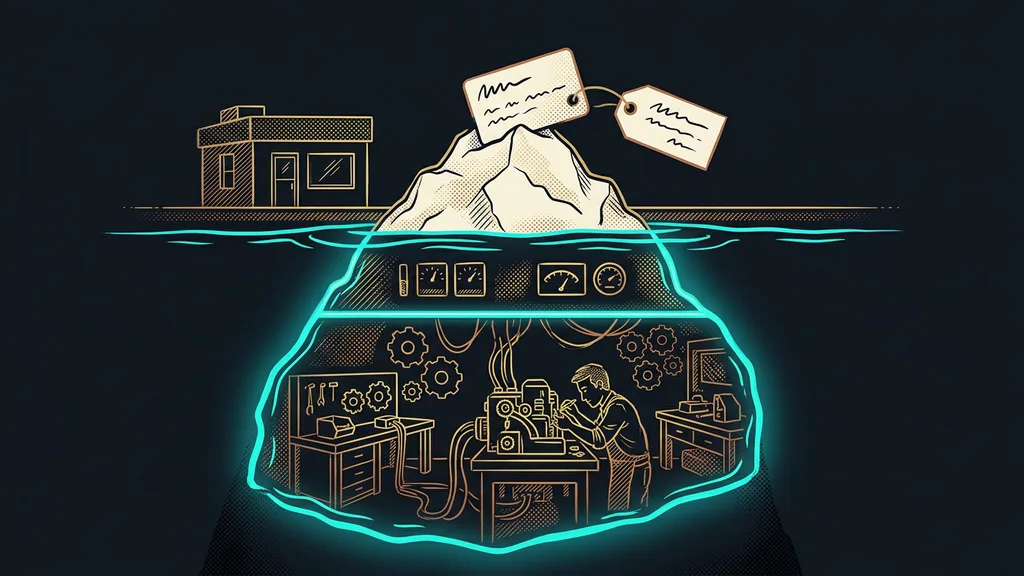
So WhatsApp Web add-ons go around the rules and count on Meta not noticing. That’s why the same question keeps coming up in GoHighLevel user discussions on Reddit: are these add-ons safe, or will I lose my number? The honest answer is that the risk of a ban is real, and no vendor can remove it for you.
An add-on saves you a few dollars a month. A banned number takes away the channel where your customers have been finding you for years.
How I connected my own number
For a small business, the simplest official route is Coexistence mode. The number keeps running in the WhatsApp Business app on your phone, and every conversation is mirrored into GoHighLevel at the same time. I described it in detail in the piece about the assistant that drafts replies in my tone.
The connection itself takes a few minutes. In your sub-account, open Settings and the WhatsApp section, choose to connect an existing WhatsApp Business app, and scan the QR code on your phone. According to HighLevel’s help docs, chat history up to six months back comes over too. So conversations in the CRM don’t start from zero.
With my own number, I then ran into small things that are easy to forget. You have to open the app on your phone at least once every fourteen days, or the connection falls apart. You change the profile photo and name in the app, not in the CRM. And some message types, like reactions or polls, don’t come through to GoHighLevel. For those, the CRM just shows a notice that it can’t display the message.
Before you scan the QR code
Have a phone with the WhatsApp Business app in your hand, because Coexistence doesn’t work with regular WhatsApp. Update the app beforehand. And decide which sub-account the number belongs to. Moving it later means extra work.
Hardly anyone plans for a move, though. When you transfer a sub-account to another agency, contacts, conversations, and automations go along with it, but WhatsApp doesn’t and has to be connected again.
Templates and the 24-hour window
The rule is simple. Within 24 hours of a customer’s last message, you can reply from the CRM with free-form text. After that, only with a template that Meta approved in advance.
Message template
A pre-written message you create in GoHighLevel and Meta approves. It can contain variables, such as a first name or an appointment time. It’s the only way you can reach a customer outside the 24-hour window. Meta sorts templates into the marketing, utility, and authentication categories and bills them by category.
In practice, it looks like this. A reminder of tomorrow’s appointment is a utility template, an offer for a fall sale is a marketing one. Templates can be written in Czech, diacritics and all. But you can only send them from the CRM. You can’t pick them in the app on your phone. By hand from your phone, on the other hand, you can keep writing to anyone. The window only governs sending from GoHighLevel.
It’s the customer’s message that opens the window. That’s why it pays to answer inquiries within a few minutes: as long as the conversation is alive, you write freely, without templates.
How much does WhatsApp in GoHighLevel cost from October 2026?
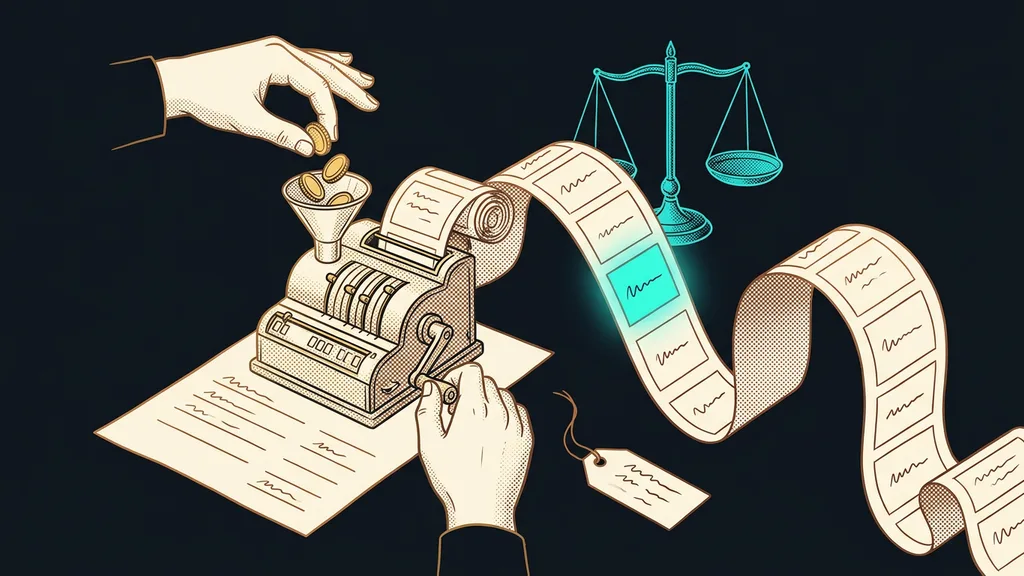
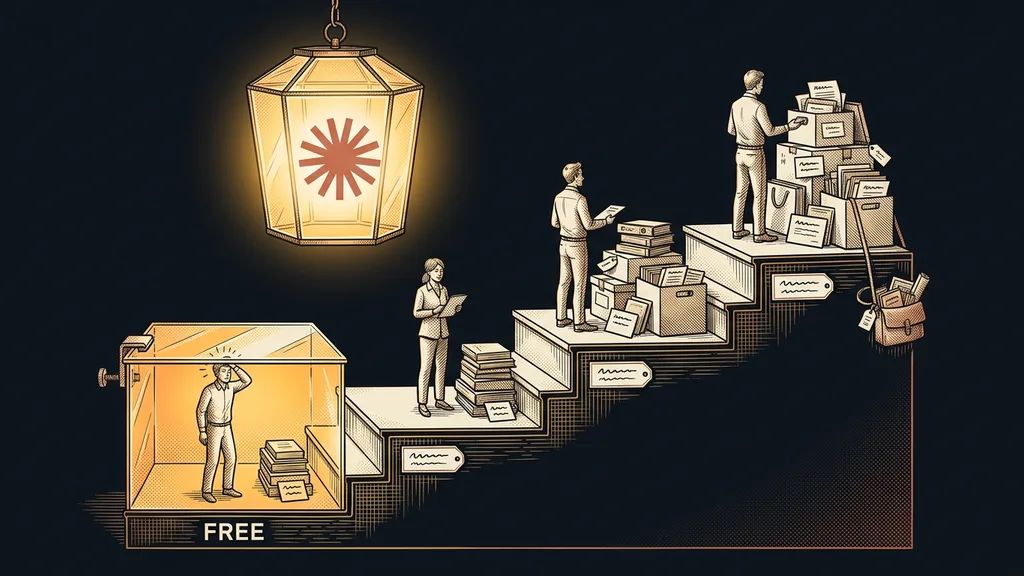
You pay for WhatsApp twice: HighLevel for the channel and Meta for the messages. According to its help docs, HighLevel charges $10 a month for every sub-account with WhatsApp turned on (as of October 8, 2026). On top of that, Meta charges for delivered messages by category and the recipient’s country. And according to the same help docs, on October 1, 2026, it changed which messages are free:
| Message from the CRM | Until September 30, 2026 | From October 1, 2026 |
|---|---|---|
| Reply in an open window | free | first 1,000 per number per month free, then per message |
| Utility template inside the window | free | per message |
| Utility template outside the window | per message | per message |
| Marketing template | per message | per message |
| Anything within 72 hours of a message from an ad or a Facebook page button | free | free |
For a small business, the math is simple. If you send fewer than a thousand replies a month, you stay within the free limit and pay mainly for templates, meaning reminders and offers.
What to avoid
Most of the trouble comes from a few habits carried over from regular WhatsApp, not from the technology:
- Messaging people who don’t know you. People report messages from businesses they don’t know, your number’s quality rating with Meta drops, and Meta then limits how many templates you can send.
- Blasting a marketing template to your whole database. People who never agreed to receive offers are the quickest to report you.
- Letting the chatbot go live on day one. Conversation AI on WhatsApp can even handle voice messages, but it should first run in suggestion mode, only proposing replies. And decide in advance when the bot answers and when you do.
- Forgetting about the app on your phone. After fourteen days without opening it, mirroring stops.
Not everyone should connect it, though. If you get a few messages a week and handle them all yourself from your phone, the CRM just adds another window and an extra $10 a month. It makes sense where several people in the business read the messages, where you want to send appointment reminders, or where a chatbot should answer on WhatsApp.
The whole setup in a nutshell
- Choose the official route through the WhatsApp Business Platform and skip WhatsApp Web add-ons.
- In your sub-account, connect the WhatsApp Business app via QR code in Coexistence mode.
- Create templates for reminders and offers, and have Meta approve them.
- Within 24 hours, reply freely. After that, only with a template.
- Open the app on your phone once every fourteen days, and keep an eye on how many replies you send each month.
Customer messages then stop ending up in the pocket of one phone. They sit in the CRM on the contact record, a colleague can see them, a reminder follows up on them, and nobody retypes an appointment from the chat into the calendar anymore. If you don’t want to set up the integration yourself, I’ll set up WhatsApp in GoHighLevel for you, including the first templates, and from the QR code to the first reminder sent, you’re talking to me the whole time. But it always starts the same way: with a phone running the WhatsApp Business app and one scanned QR code.