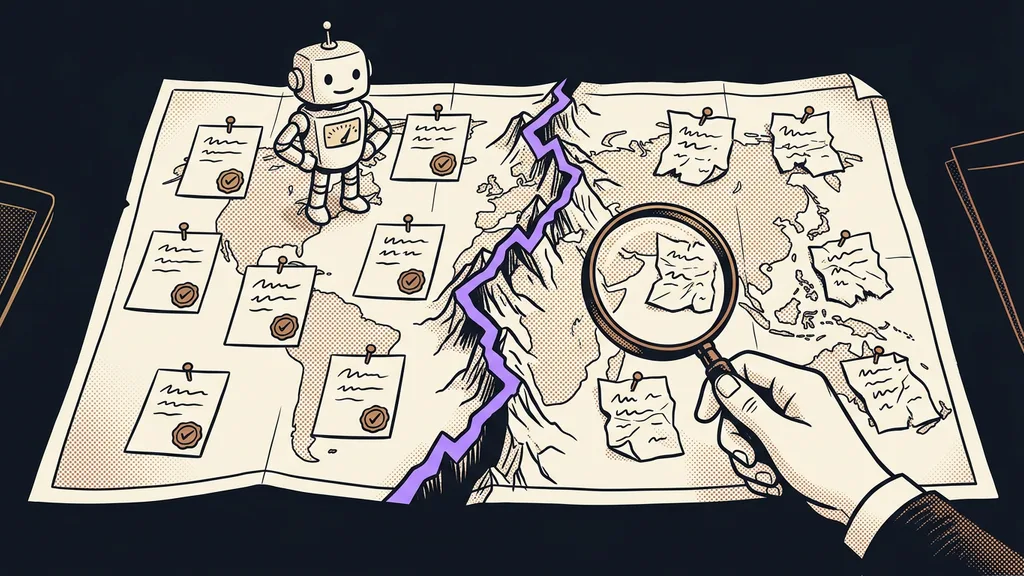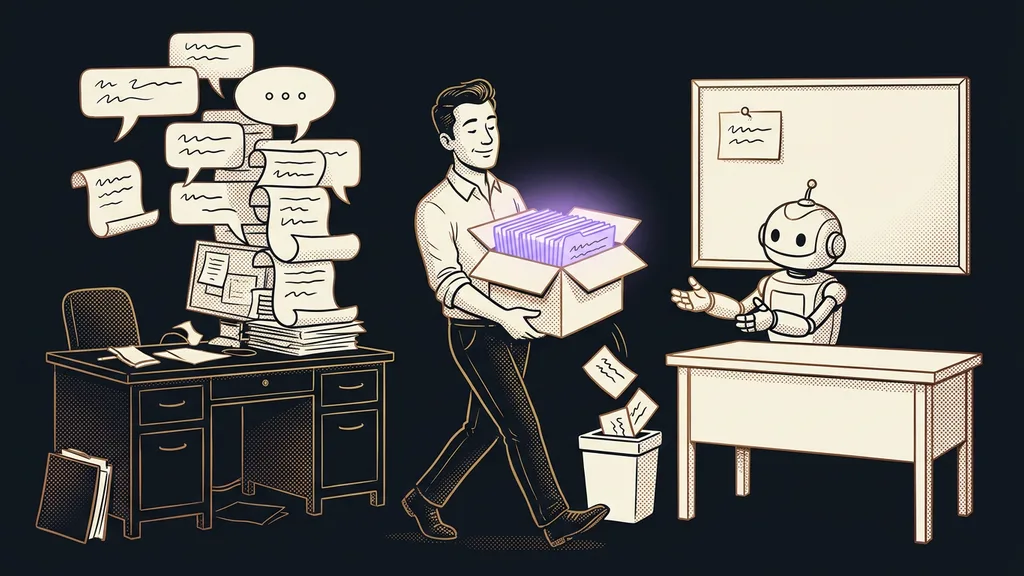
What mostly holds people back from switching from ChatGPT to Claude is one fear. The new tool won’t know anything about you: how you write, what you do for a living, what you kept correcting the old AI on over and over. Anthropic has an official memory import for exactly that. You move your memory in two steps. You just need to know what transfers on its own and what’s left to you.
For months, you taught ChatGPT which language you write in, that you keep it short, and that you’re formal with clients. Then you open Claude, give it your first task, and the answer comes back as if you’d never met. Which AI to choose is covered in a separate comparison of the two tools. Here, the choice is made, and this is about the move.
What moves over from ChatGPT, and what doesn’t?
The import moves your memory: what ChatGPT has remembered about you and what it picked up from earlier conversations. Instructions, projects, and files move another way.
Memory
Notes the AI keeps about you on its own: how it should write, what you’re working on, what it should avoid. They survive closing the window, and the AI draws on them in every new chat. In Claude, you can read and correct them at any time.
What you take from ChatGPT is what the old AI knows about you. It fits in one block of text, and the conversation archive stays behind.
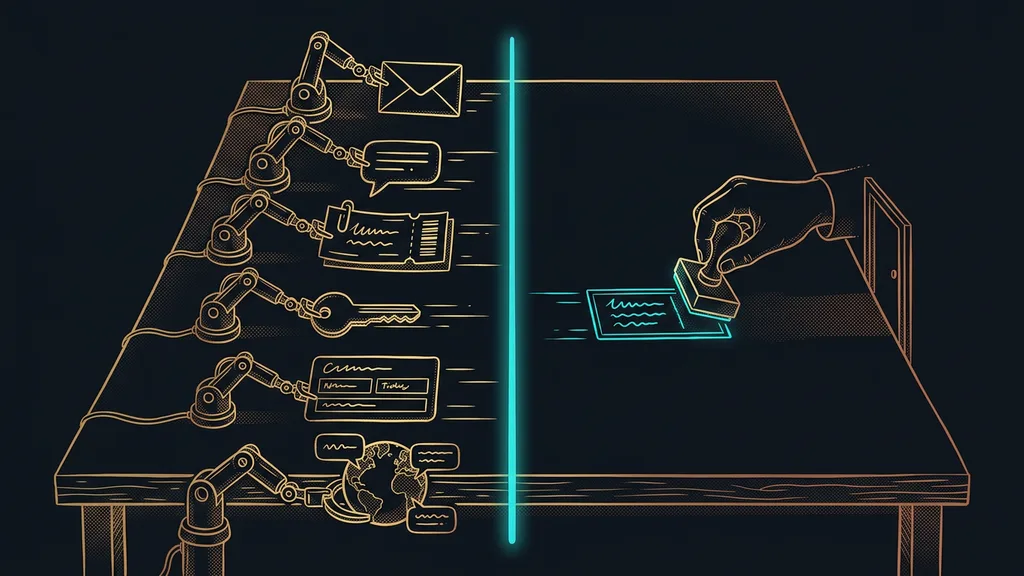
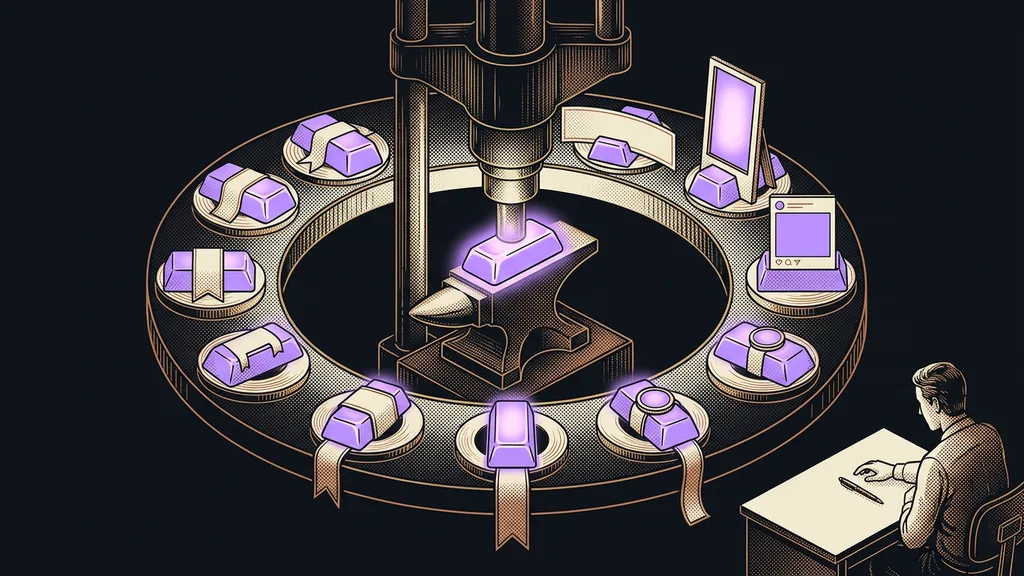
What an AI knows about you sits in three layers. It keeps the memory itself, you wrote the standing instructions, and projects hold the material for individual pieces of work. The official import moves only the first layer.
| What you have in ChatGPT | How it gets into Claude |
|---|---|
| Memory | official import in two steps |
| Custom instructions | by hand, into the Instructions for Claude field |
| Projects and uploaded files | a new Project, with the files uploaded again |
| Custom GPTs | copy its instructions into a Project |
| Conversation history | stays in ChatGPT |
How to move your memory in two steps
You give ChatGPT Anthropic’s prompt and paste its answer into Claude. That’s all the steps the official import has.
I’m giving the option names as they appear on October 10, 2026. In Claude, open Settings > Memory and click Start import. Claude shows a ready-made prompt and a field to paste into. Copy the prompt into ChatGPT. It starts with the sentence “I’m moving to another service and need to export my data.” ChatGPT then writes out, in one block, what it knows about you: how it should write, personal details, projects, tools, and every correction you’ve ever given it.
You paste the export into the field in Claude and click Add to memory. Claude turns it into individual memory entries. According to Anthropic’s help center, updated September 2, 2026, the Free, Pro, Max, and Team plans all have it, so your choice of Claude plan doesn’t matter here. But it only works on the web and in the desktop app, and the help center doesn’t mention mobile. Anthropic also labels it an experimental feature that may not carry everything over.
Read the export before you paste it
The export gathers everything you’ve ever told the old AI, including things that don’t belong in the new one. So go through it line by line before you paste it. You’ll find things that only came up in passing: a client’s name, an account number from an invoice, a health issue. Anthropic expects this and says you can edit the prompt so it leaves out sensitive details. I recommend both: edit the prompt and read the export anyway.
What to delete from the export
Delete personal ID numbers, account and card numbers, and passwords. Health and family matters go too, unless Claude is supposed to work with them, along with client details it doesn’t need for its work. Also delete old projects that would only confuse it.
According to Anthropic, Claude focuses its memory on work context and doesn’t store sensitive topics like health or religion by default. I wouldn’t rely on that, though. Also save the export to a file as a backup, so you still have your old memory even if the import misses something.
Move standing instructions and projects by hand
Move your standing instructions into Claude by hand, even if some of them show up in the memory export. In Claude, they have their own field, and the import doesn’t write anything into it.
Custom instructions
Text you write for the AI once, which it then follows in every conversation: who you are, how it should write, what it mustn’t do. The AI builds its memory on its own, while you write the instructions yourself and know exactly what they say.
Here’s where to find them: click your initials in the bottom left, then Settings, and there’s the Instructions for Claude field. According to the help center, Claude applies whatever you write there in all your conversations. When you move them, throw out repetition and exceptions that no longer apply. For writing copy, your tone instructions are the most valuable thing you bring along.
For each larger area of work, create a Project in Claude, put the context in its Project instructions, and upload your files again. Each Project has its own separate memory, so your proposals don’t get mixed up with your accounting. You convert a custom GPT the same way: copy its instructions into a new Project. For longer work, you can go even further, to an agent that keeps its own log.
What Claude took, and how to fix it
Right after the import, click See what Claude learned about you. A new chat opens, and Claude sums up what it took from the export.
You’ll find the whole memory under Settings > Memory, in Topics. You can read a topic, edit it with the pencil icon, remove it with Delete, or simply tell Claude what to forget. Watch out for two similar buttons: Pause memory only puts memory to sleep, while Reset memory deletes everything, including Project memory, and you can’t undo it. That’s how the help center, updated in early October 2026, describes it.
On the Free, Pro, and Max plans, memory is on automatically. On Team, an admin has to enable it first (in a business, whoever is in charge of AI), and then each person turns it on for themselves. To open a conversation without memory, switch off the Memory toggle under the “+” button in the message field before your first message.
When moving your memory isn’t worth it
Moving makes no sense where there’s no memory to move. If you only opened ChatGPT now and then for an email, you’ll find a few lines in the export and can just start fresh in Claude. It isn’t worth it either where the memory is full of old projects and mistakes. I wouldn’t move that kind. Instead, write your standing instructions again from a clean slate. Claude’s memory will fill up on its own as you work with it.
The whole move in a nutshell
- In Claude on the web or in the desktop app, go to Settings > Memory and click Start import.
- Paste the prompt into ChatGPT and save the export to a file as a backup.
- Delete sensitive details, client information, and old projects from the export.
- Paste it into Claude, click Add to memory, and check what it took.
- Copy your custom instructions by hand into Instructions for Claude.
- Create a Project for each larger area of work and upload your files into it.
And that first answer that made you feel like you and the tool were meeting for the first time? After the move, it comes from someone who knows how you write and what to avoid. I work with Claude every day, and I’m happy to go through the move and the Project setup with you in a Claude training session. After that, you just give it work, and the explaining stays behind in ChatGPT.