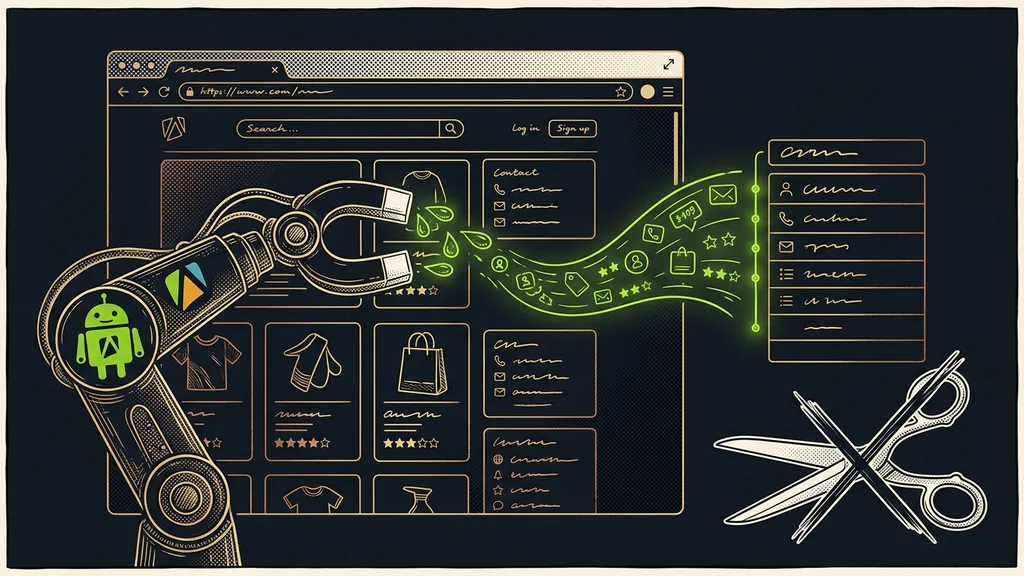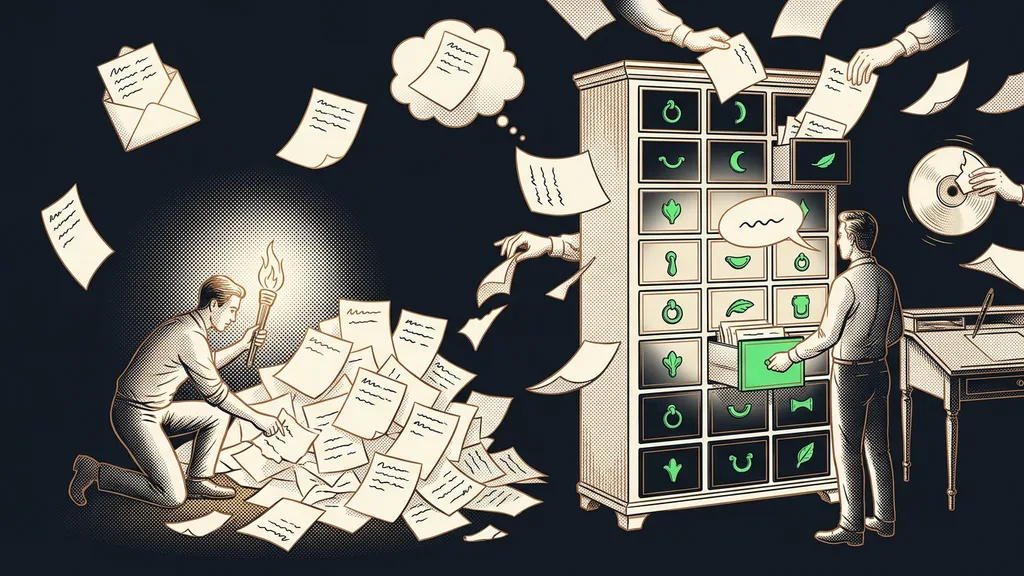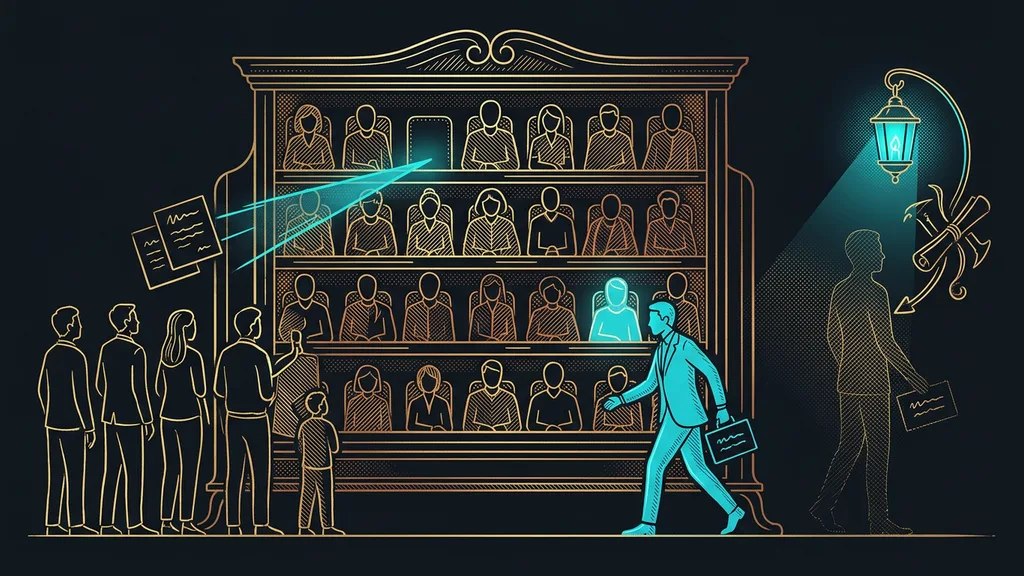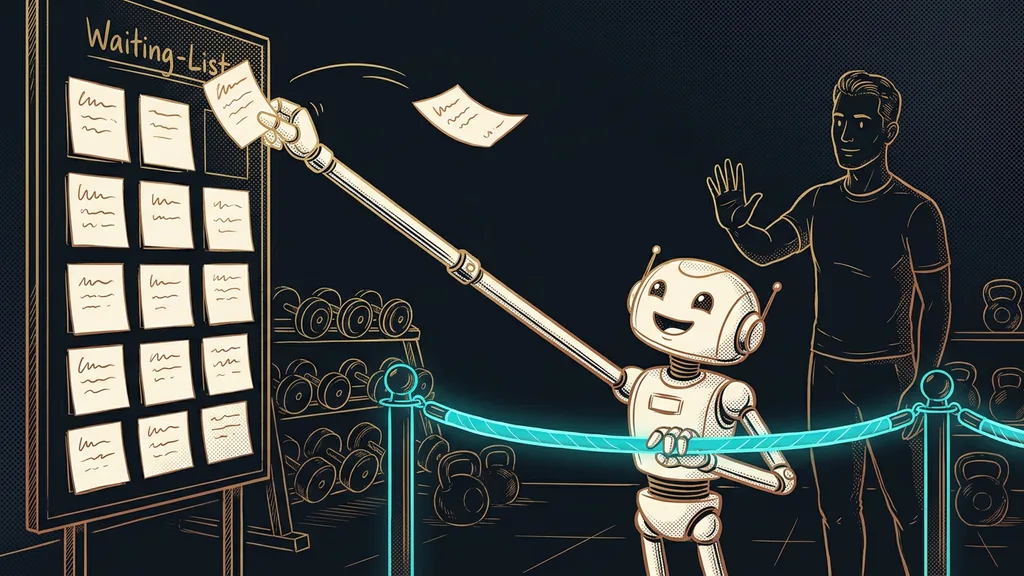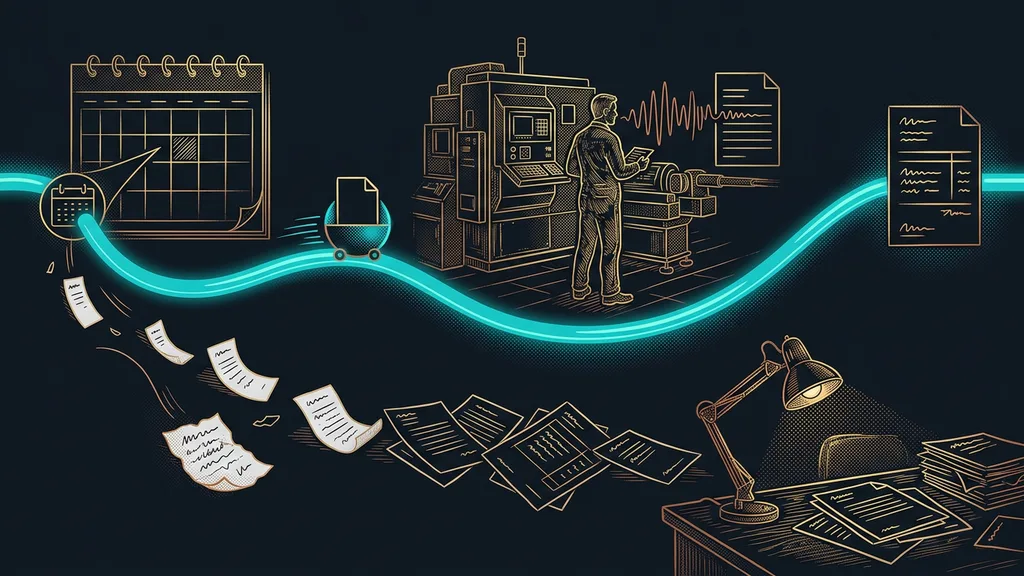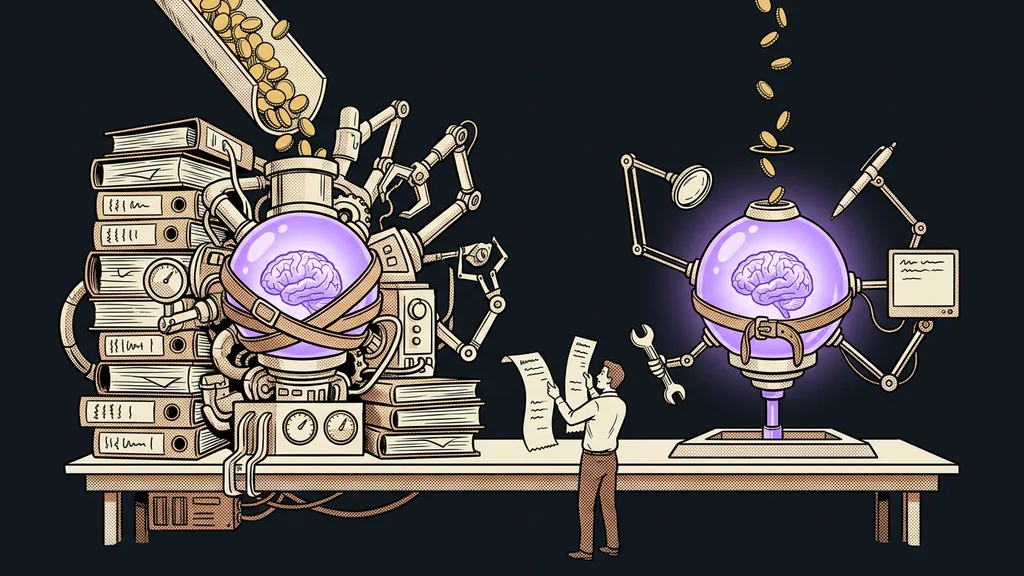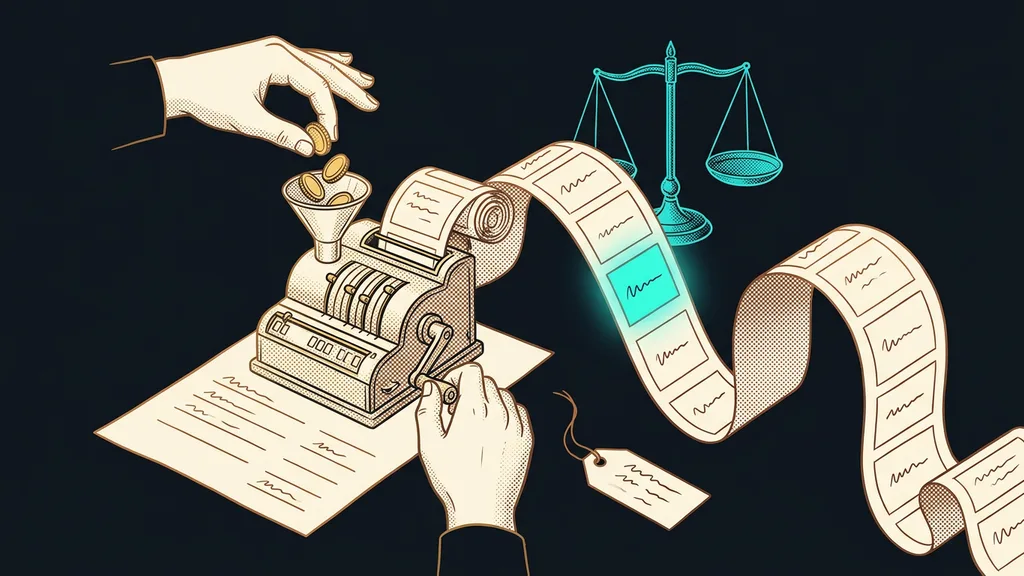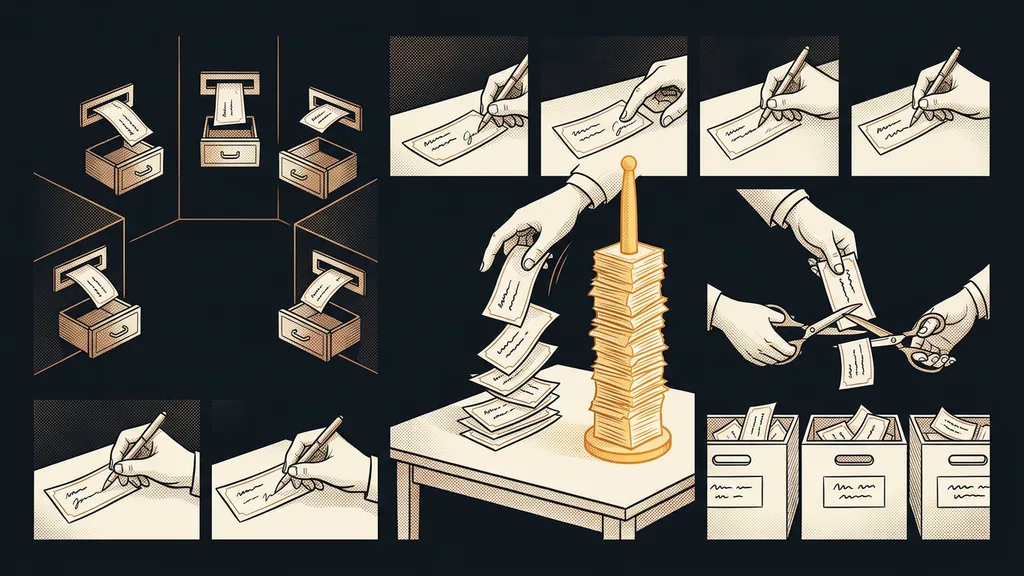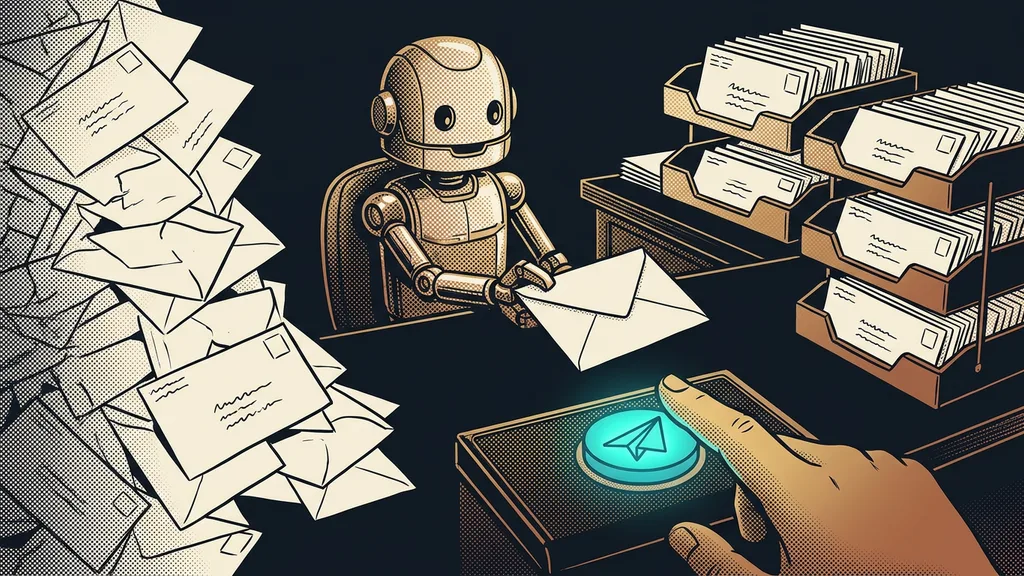
Connecting Claude to Gmail takes a few minutes. Deciding what it may do in your inbox on its own takes longer. Today, the connector searches and reads messages, sorts them into labels, writes drafts, and can send them too. So go ahead and hand over the reading and the prep, but keep the last click on Send for yourself.
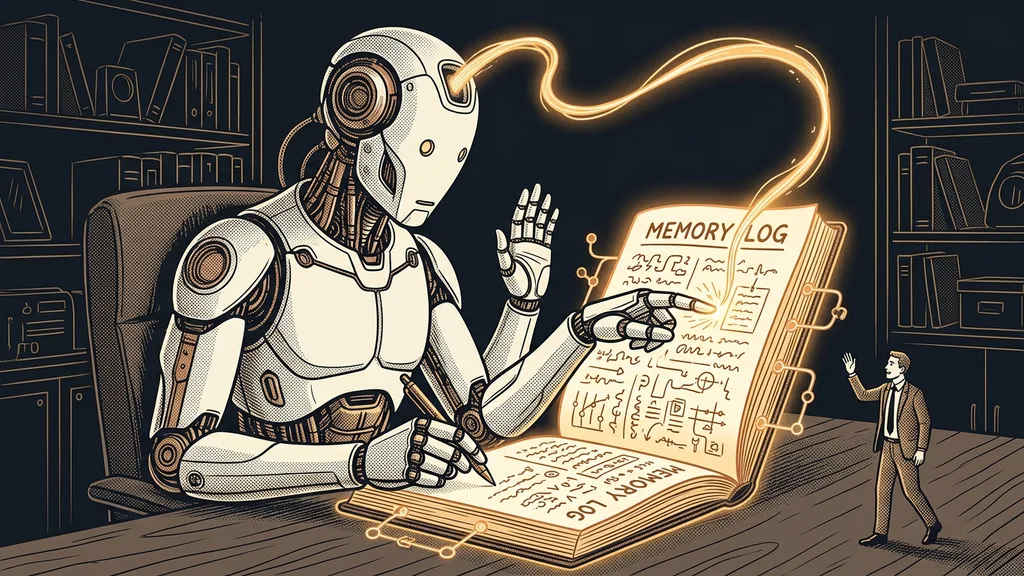
I work with Claude every day, and it drafts emails for me too. Before any of them goes out, I read the whole thing, because my name is at the bottom. I recommend the same split to anyone who lets Claude into their email. Claude does the work that stays in the inbox, and a person decides what leaves it.
What can Claude do in Gmail, and what can’t it?
According to Anthropic’s help center as of October 11, 2026, the Gmail connector handles almost everything you do in your inbox by hand. It finds and reads messages based on a plain-language request, sorts them with labels, writes drafts, and can list the ones you’ve saved. It sends, replies, and forwards. Whether it asks first depends on your settings, so never click Allow always for sending.
Connector
A link that lets Claude work directly in your app, so you don’t have to copy text into the chat. It’s built on MCP (Model Context Protocol), a shared language AI uses to talk to other software. The Gmail connector is part of the Google Workspace set, along with Calendar and Drive.
One limit is worth knowing up front: Claude can’t get into attachments through Gmail. It sees only their details, not what’s inside. According to the help center, the Google Workspace connectors are available to every user on the web and in the Claude Desktop app. On Team and Enterprise plans, though, the organization owner has to turn them on first.
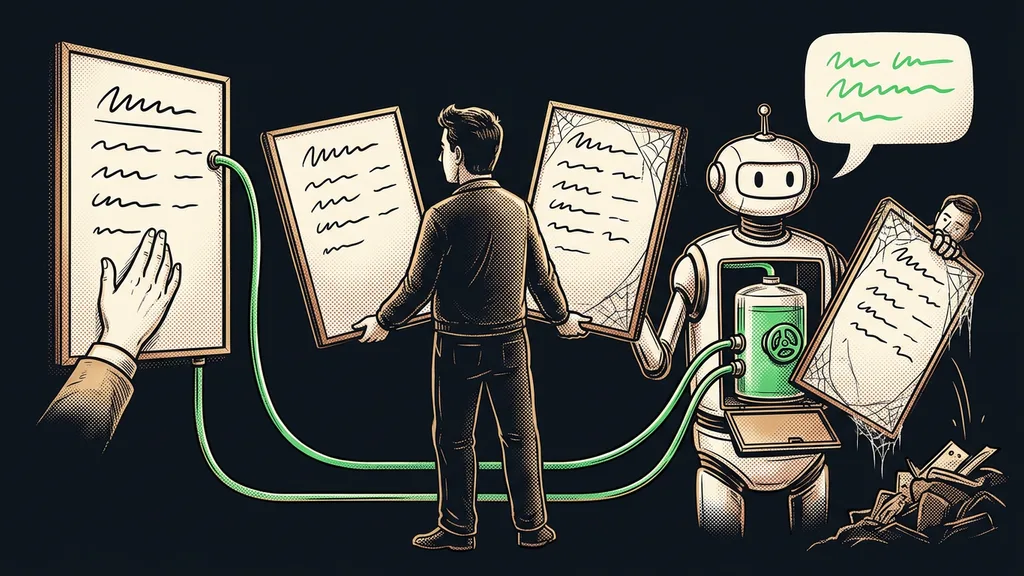
Claude may read, sort, and write in your inbox. The Send button belongs to whoever signs the message.
Four email jobs you can safely hand over
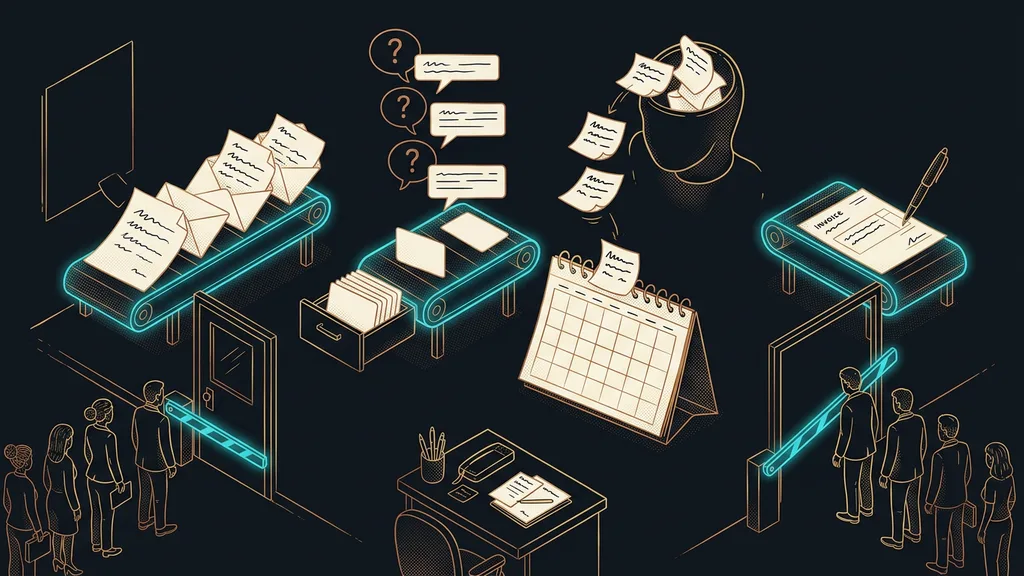
The jobs that pay off most are the ones you can undo or rewrite at any time. If Claude gets the sorting or a draft wrong, you’re the only one who sees the mistake.
| Job | How to ask | What to watch for |
|---|---|---|
| Sorting | “Sort this week’s email into the labels Inquiries, Invoices, and Other.” | Give it the labels yourself so it doesn’t invent its own |
| Thread summary | “Summarize the thread with the supplier: what stands today and who promised what.” | Check the messages it drew from |
| Tasks and deadlines | “Go through this week’s email and list what I need to do by Friday.” | Verify dates in the original message |
| Reply draft | “Draft a reply and leave the price blank.” | Fill in numbers and promises yourself |
I’d start with a summary of a long thread where the price and the deadline changed several times. According to the help center, Claude lists the messages it drew from in its answer and, where possible, links to the original. So you can check the summary with one click instead of reading the whole thread.
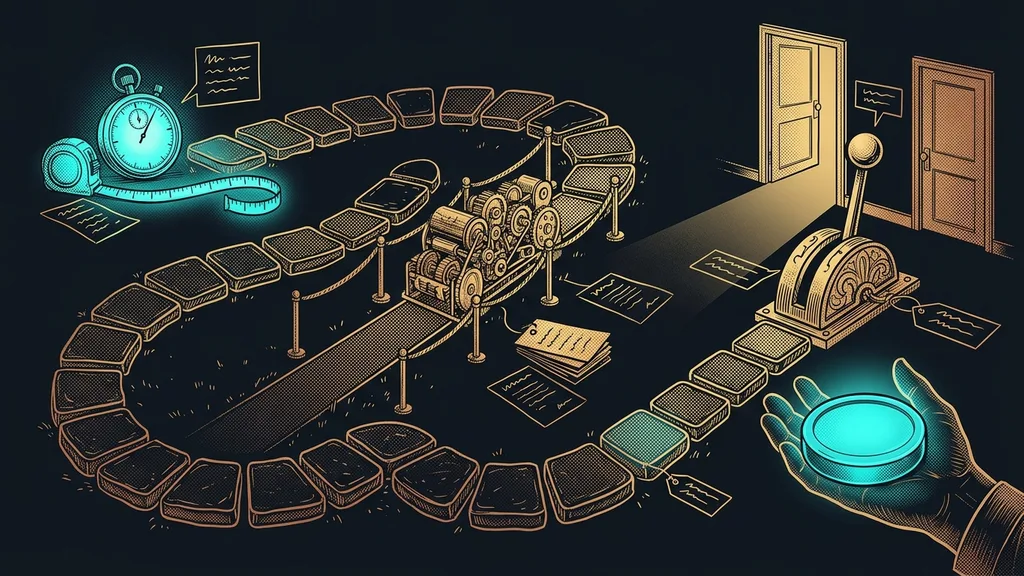
Be stricter with deadlines. AI can be excellent at one task and get the one right next to it wrong. Researchers call this the jagged frontier. So before you put a date Claude pulled from your email into your calendar, check it in the original message. The connector isn’t enough for invoices in attachments, because it doesn’t read their contents. If they arrive regularly, they need a separate invoice automation.
A test on one thread
Find a thread from last week that took a lot of digging to track down. Ask Claude to summarize it: what stands, who promised what, and by when. Compare the summary with what you know yourself. If it matches, you’ve found your first email job that Claude can do for you.
It can send, but keep the last click anyway
Keep every send subject to your approval, even though the connector can do it on its own. On Team and Enterprise plans, the organization owner picks Always allow, Needs approval, or Blocked for each permission. For sending email, I’d choose Needs approval. The connectors help page also advises clicking Allow always only for a tool you trust enough to let it run unsupervised. Email going out under your name isn’t one of those tools.
My own rule is even stricter. Since September 23, 2026, an email goes out under my name only after I’ve approved its exact wording. Approval covers one text and one set of recipients, so a different sentence or a different recipient means a new approval. I’ve covered separately why you shouldn’t forward text from the chat without reading it.
The second reason comes from outside. A stranger wrote the incoming email. If it contains a sentence addressed to the AI, Claude should treat it as the content of the message, not as an instruction. I write more about this in the piece on an AI agent’s boundaries. And a fake invoice with a new bank account number looks just as believable in a summary as it does in the original. So the same checks against scams apply as without AI.
Shared inboxes and passwords: decide up front
The connector sees only the Google account you connect, and in it exactly what you see. If a shared address like info@ is a separate account, connecting it opens the whole thing to Claude, history included. So I’d connect a personal work account first, and the shared inbox only after agreeing on who’s responsible for it. The help center doesn’t say whether the connector can see a delegated inbox too, so test that before you roll it out.
Sign in with Google (OAuth)
A way of connecting where you sign in directly with Google and Claude gets permission to access your email, never your password. Google’s sign-in screen also shows the permission to send. You revoke it in Claude under Customize › Connectors with the Disconnect button.
So never type your email password into the chat, not even when the connection won’t work. Passwords belong in a password manager, not in a conversation with AI. Mind what’s sitting in the inbox too: login details from suppliers or password reset links. According to the help center, whatever Claude loads from your email while working is stored on Anthropic’s servers along with that conversation. When you delete the conversation, it disappears from your history right away and from Anthropic’s servers within 30 days.
In a company on Google Workspace, an admin may block the connection. In that case, the admin has to mark Claude as a trusted app in the Admin console, under Security › Access and data control › API controls.
Who the email connector won’t help
If you get a few emails a day and deal with them in a minute, the connector won’t save you much. It won’t help if your email lives somewhere other than Gmail either, because this connector works only with a Google account. If your inbox holds health or other sensitive client data, go through Claude’s data settings first. Only then let it into your email.
The whole email setup in a nutshell
- Connect one work Google account by signing in directly with Google. Your password doesn’t belong in the chat.
- Start with reading: thread summaries, sorting into your labels, tasks, and deadlines.
- Let it write drafts, but fill in numbers, prices, and promises yourself.
- Approve every send, reply, and forward.
- Connect a shared inbox only after agreeing on who’s responsible for it.
So the few minutes of connecting are the easy part. What makes the connector useful is the split you set up: Claude reads, sorts, and writes; you read the draft and click. If you’d like to go through the connector, labels, and approvals together on your computer, I do that as a 1:1 Claude setup. You can take the first step on your own today, though: pick last week’s longest thread and have Claude summarize it.