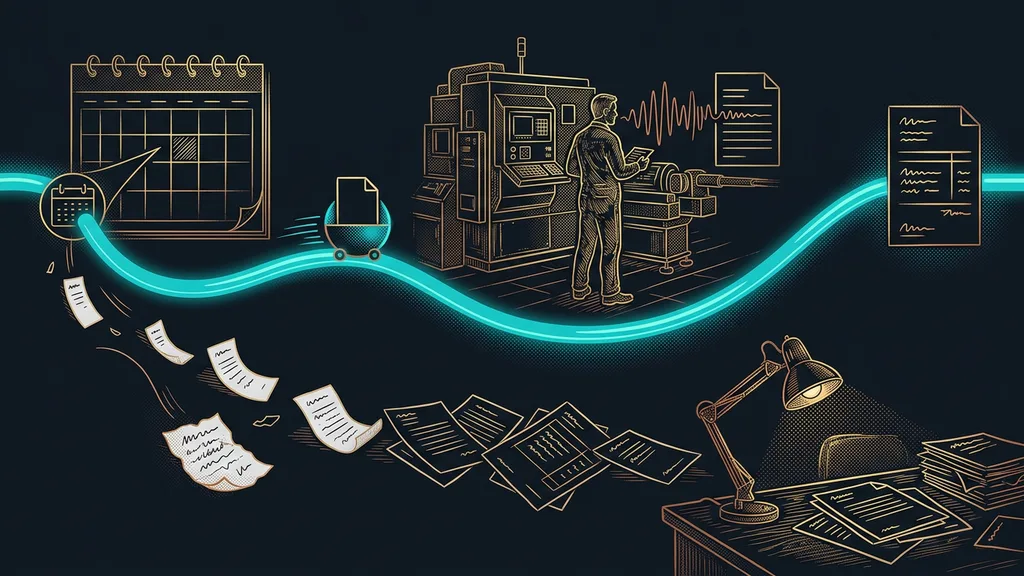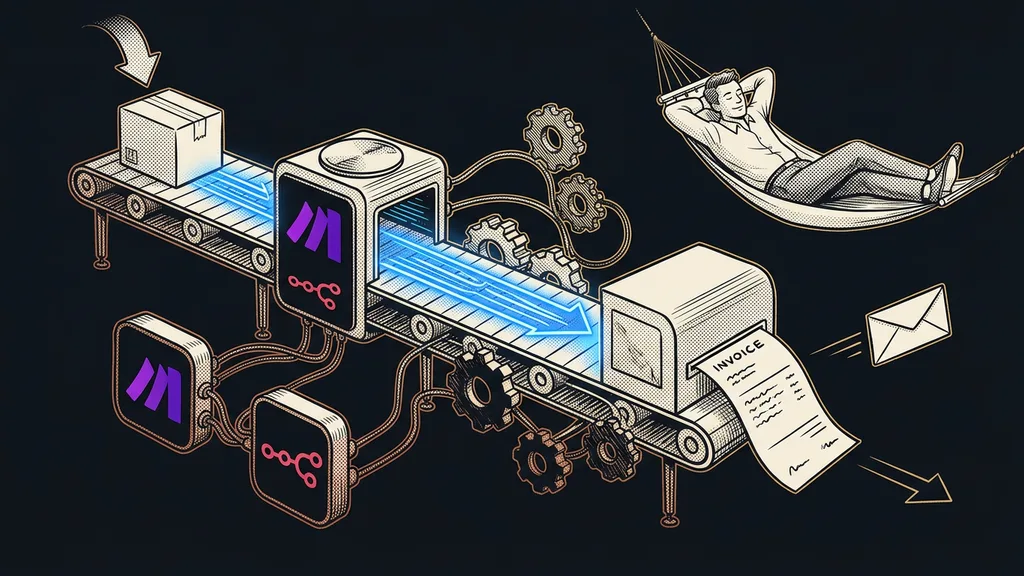
You can turn on a connector in Claude in a minute. Thinking through what you’ve just allowed Claude to do takes longer. The directory offers email, calendar, cloud storage, and a whole range of business apps, and every one of them looks useful. Turn on five at once, and a week later you won’t know what Claude may only read and what it can already send, share, or delete on its own.
I work with Claude every day and set it up for clients, including connections to their tools. During a 1:1 Claude setup, we agree on what Claude may do on its own and what it only prepares for your approval. The order of connectors follows almost by itself: reading first, then writing to your own stuff, and finally actions that go out into the world.
What is a connector in Claude, and what is MCP?
A connector is an integration that lets Claude read data in your app and, depending on your settings, act in it too. That’s how Anthropic’s help center describes it as of October 11, 2026.
You open the directory of ready-made connectors via Customize › Connectors and the “+” button next to the heading. Each connector has its own page in the directory that says what it can read and what it can write. Read it before you click Connect. Connectors are part of what I call the harness around the model: what the model can see and touch depends on what you switch on around it.
With every connector, I ask just one question: what can be undone if Claude gets it wrong?
MCP (Model Context Protocol)
A shared language AI uses to talk to apps. A connector in the directory is an integration built on MCP and packaged so you can turn it on without any coding. A web connector runs as a server on the internet, a desktop extension directly on your computer.
What Gmail, Calendar, and Drive can do in Claude today
According to Anthropic’s help center as of October 11, 2026, the official Google connectors can do much more than read. Gmail can also send an email, Calendar can delete an event, and Drive can share a file or move it to the trash.
| Connector | Reads and searches | Writes and acts | What it can’t do |
|---|---|---|---|
| Gmail | searches and reads emails, works with labels | writes drafts, sends, replies, forwards | can’t read attachment contents directly |
| Google Calendar | sees events and shared calendars, finds common free time | creates, edits, and deletes events | the help center doesn’t say |
| Google Drive | searches and opens documents | saves, moves, and shares files, moves them to the trash | doesn’t process images in documents |
| Docs, Sheets, Slides | opens them via Drive | edits live in a panel next to the chat (still experimental), comments, suggests changes | can’t add a chart to Slides |
So each of these connectors can both read and act. It depends on which of its tools you allow Claude to use. Claude never gets more than you have: it can’t reach a file you don’t have access to in Google, not even through a connector. With my own connection to my Google account, I have a rule that nothing gets overwritten or deleted without my approval. That’s my own safeguard, and with the official connector, you have to set it up that way yourself.
Irreversible action
A step you can’t take back once you click. A sent email is already with the recipient, and someone may have opened a shared file in the meantime. You can restore a file from the trash, but not a sent message. Claude should only prepare irreversible actions for your approval.
An order based on what can be undone
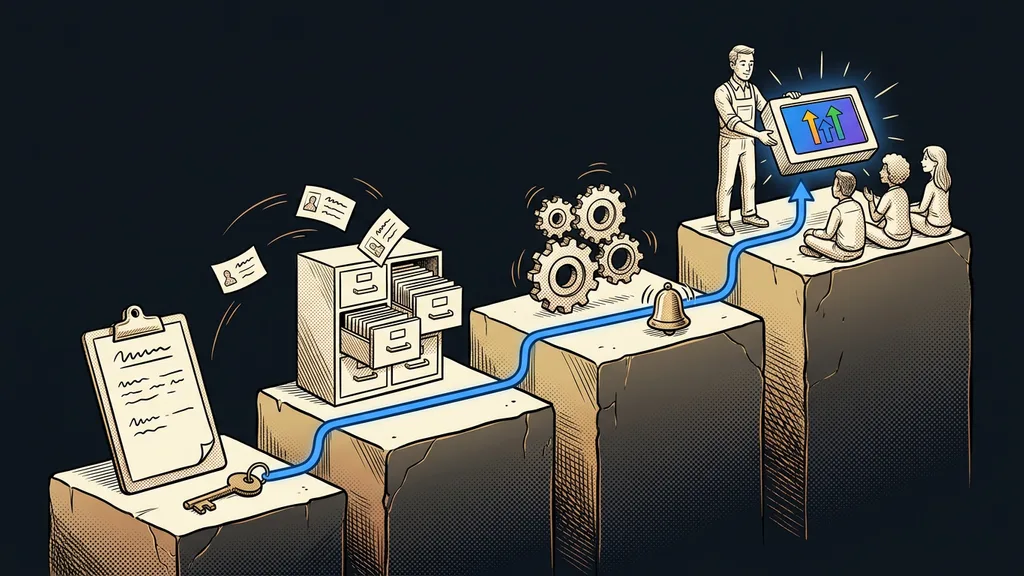
Turn connectors on one at a time, from those where a mistake costs nothing to those where there’s no going back. For a small business, I recommend this order.
Calendar first. Ask what’s coming up this week and where you have a free hour for a meeting. You can check the answer at a glance, because you know your own calendar. And finding common free time across several calendars is exactly the kind of work nobody needs to do anymore.
Drive second, and at first just for searching. For example: “Find the contract where we dealt with the late-delivery penalty.” Saving, moving, and sharing can come later, once you trust the search.
Email only third. Gmail holds the most text from strangers, and any of them can hide an instruction for AI in a message. Claude should treat that text as material to work with, never as instructions. What keeps it there is firm agent boundaries, not a polite request in the chat.
A test before the next connector
Let the first connector run for at least a week and ask Claude three questions you already know the right answers to. For example, when your next meeting with a particular client is. Only when all three answers are right should you add another one.
According to the help center, Claude brings a connected app into the conversation on its own whenever it fits your question. You can turn it off in each conversation separately, via the “+” in the bottom left and the Connectors menu. Once you have ten or more active connectors, the help center recommends switching Tool access to On demand in the same menu.
After switching from ChatGPT, this goes double: you can bring your memory over with an import, but you have to turn on your app connections in Claude again. Only turn on the ones you really need.
How to make Claude ask before it acts
In a company, the organization owner sets this up for everyone. On a personal account, you decide yourself. When Claude asks for permission to use a connector’s tool, it also offers you an Allow always button. Anthropic’s help center advises clicking it only for a tool you trust enough to let it run unsupervised. Go ahead for reading. For sending, sharing, and deleting, I wouldn’t. Since September 23, 2026, I’ve had a rule that no email goes out in my name until I approve its exact wording.
On the Team and Enterprise plans, the organization owner (Owner or Primary Owner) has to enable a connector first, and each member then signs in with their own account. In Customize › Connectors, the owner opens Tool permissions for the connector, where the tools are split into read tools and write-and-delete tools. They can then set a whole group or an individual tool to Always allow, Needs approval, or Blocked. This applies to the whole company, and members can’t change it themselves.
For the first month, I recommend setting reading to Always allow and everything else to Needs approval. Block anything you don’t need yet right away. On a personal account, follow the same logic.
Who connectors won’t help yet
If you open Claude twice a week for a single text, you don’t need a connector. Pasting one email into the chat is faster than keeping an eye on what Claude may do in your inbox. Caution also pays where nobody has cleaned up the shared folders in years: Claude will see everything you have access to, including folders you forgot about long ago. And when the app your business runs on is missing from the directory, it’s time for a custom connector. That’s a different job with different rules.
The whole process in a nutshell
- Before anything else, read a connector’s directory page to see what it can read and what it can write.
- Start with Calendar, then add Drive, and turn on email only third.
- Leave a week between connectors, and in a conversation, turn on only the one the task needs.
- Give Allow always to reading only. Approve sending, sharing, and deleting every time.
- In a company, the organization owner sets tool permissions for everyone.
- Disconnect whatever you don’t use in Customize › Connectors.
A connector takes a minute to turn on and just as long to disconnect. But in between, one careless click on Allow always is enough, and disconnecting won’t undo the damage. We can go through this on your own apps in a 1:1 Claude setup: over a shared screen on your computer, we’ll turn on only what pays off for you. Then in the morning, Claude finds a free hour in your calendar on its own and leaves the email to your client for you to approve.