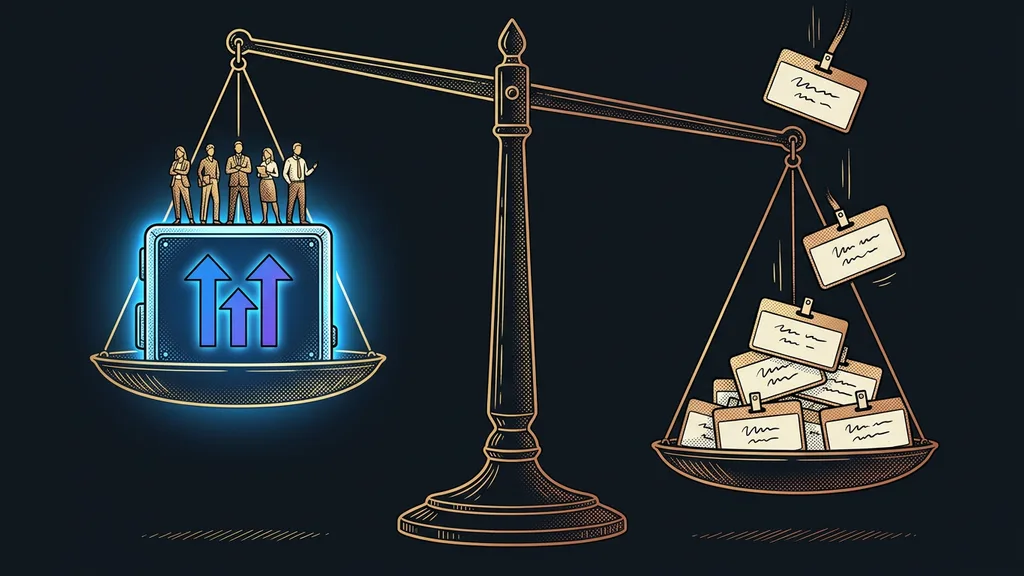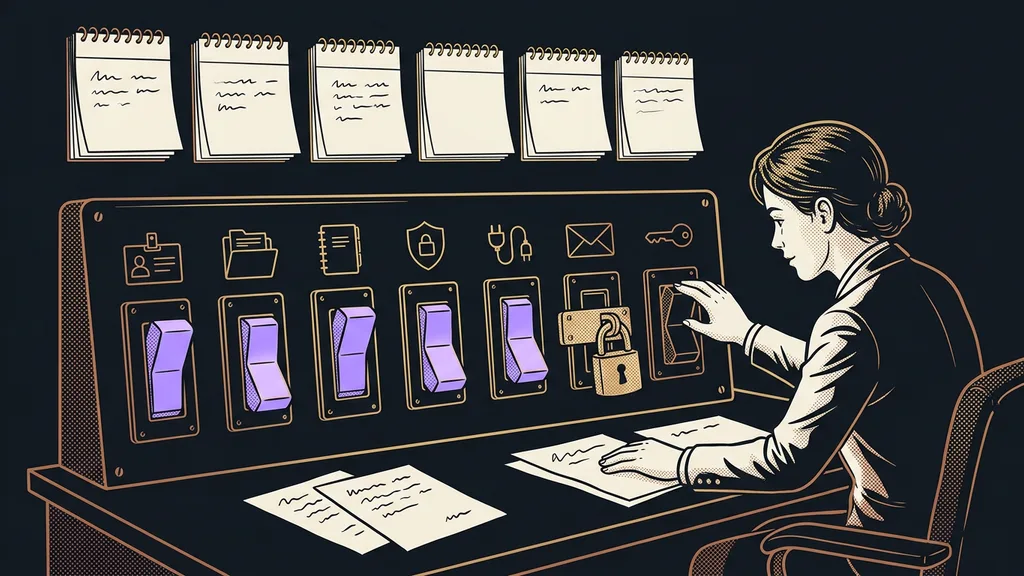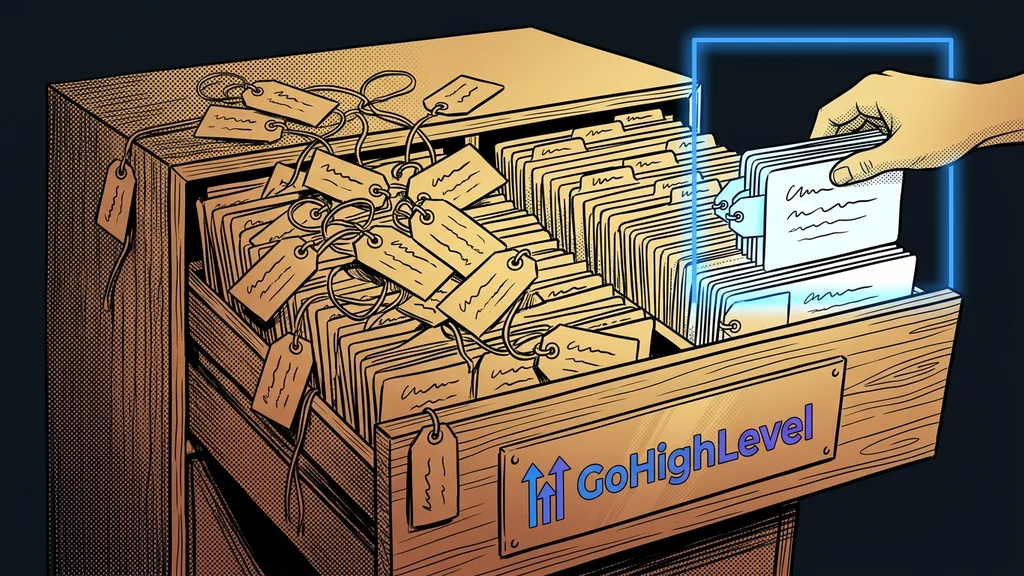
Contacts in GoHighLevel get cluttered quietly. Every form adds a tag, every campaign adds another, and every import throws in a few custom fields. A year later, the account is full of labels nobody understands, and a campaign goes out to people nobody meant to pick. Yet one rule is all it takes: a tag answers yes or no, a custom field holds a value, and a segment is a saved filter.
With accounts I take over from someone else, the tag list is one of the first screens I open. I almost always find the same mix. Tags for the cities where the business sells. Tags for every month a campaign ran. And among them, an inconspicuous “do-not-send” tag that’s supposed to protect people who don’t want more emails. But a tag on its own doesn’t stop anything, so the emails keep coming.
A tag answers yes or no. A field holds a value
Before you create a new tag, ask yourself one question: can it only be answered with yes or no? If so, it’s a tag. If the answer is “Brno,” “October,” or “from Facebook,” it belongs in a custom field.
A tag is a yes to one question. If you store answers to where, when, and where from in tags, you’re building an archive you can’t search.
Tag in disguise
A tag that actually carries a value (a city, an industry, a source, a month) or serves as a one-off selection of people for a campaign. GoHighLevel doesn’t mind, but you can’t sensibly sort or count by it. It typically has siblings, such as “brno,” “prague,” and “ostrava,” and every new customer from another city adds one more.
| What you want to know about a contact | Where it belongs | Example |
|---|---|---|
| A status that holds until it changes | tag | “status-customer” |
| Attending a specific event | tag with the year and month | “event-webinar-2026-10” |
| Information with several possible values | custom field with fixed options | industry, city, lead source |
| A date or a number | date or number custom field | last purchase, number of people |
| Details about a specific deal | opportunity field | budget, delivery date |
| A group of people for a campaign | Smart List | this year’s customers from Brno without an order |
Be especially careful with deal details. Neither the budget nor the delivery date belongs to the contact. They belong to the opportunity, because one person can have several deals in progress. GoHighLevel supports custom fields on cards in the pipeline too, so two requested dates won’t overwrite each other.
Lead source works much the same way. One “source” field with fixed options can cover the website, referrals, and ads, and you can count by it. If you want to know the source precisely, rather than from whatever someone ticked in a form, short branded links that record the channel will help.
Save a filter instead of creating a campaign tag
A group of people you want to send something to is a segment. In GoHighLevel, it’s saved as a Smart List: a filter over your contacts that remembers the conditions and shows the current selection every time you open it.
Smart List (saved segment)
A view of the contacts in the Contacts section built from conditions: has a tag, a field has a certain value, the last activity was before a given date. Contacts don’t get copied anywhere. Whoever meets the condition tomorrow shows up in the list tomorrow on their own, and whoever stops meeting it disappears.
You can run a bulk action straight from a Smart List: an email, a text, adding people to a workflow, or an export. So you don’t need a “campaign-october-reach-out” tag. A month later, it would be one more tag in disguise that nobody deletes, because nobody knows whether something still depends on it. Hand-picking people for a campaign through an export and a spreadsheet goes away completely. This is exactly where the line runs between a contact list and a CRM that does something with a record on its own.
Five minutes in your tag list
Open the tag list in the settings (Settings, Tags) and go through it from top to bottom. Put a check mark next to every tag that contains a city, a month, an industry, or a campaign name. Every check mark is a field or segment in disguise and a candidate for your first cleanup.
A prefix in the name tells you what the tag is for
Naming keeps things tidy better than any amount of discipline, because everyone who adds a tag sees it. Tags without rules are among the mistakes almost every GoHighLevel beginner makes. Lowercase letters with no accents are the basics. On top of that, I add three prefixes, and each one says how long the tag should live:
- status- for what holds until it changes (“status-customer” or “status-vip”).
- event- with the year and month for attending something (“event-webinar-2026-10”). After a year, you can clean it up without worry.
- auto- for a tag that only triggers an automation. The workflow removes it at the end, so it doesn’t stay on the contact.
There’s one thing you should never handle with a tag: who doesn’t want emails or texts. For that, GoHighLevel has the Do Not Disturb (DND) setting on each contact, separately for each channel, and an email unsubscribe turns it on automatically. A “do-not-send” tag stops only the campaigns that remember to check for it.
For custom fields, fixed options do the same job. A dropdown won’t let “Prague,” “prague,” and “Prague 4” in side by side. You can also sort fields into folders in the settings, based on what they’re for.
Cleaning up after a year: reconnect first, delete last
Cleaning up tags has an order that breaks nothing: find out what depends on a tag, reconnect it, and only then delete it. Doing it in reverse is the fastest way to quietly switch off your welcome series.
For each tag, you need to know what adds it and what it triggers. If you keep track of this in an automation register, it’s a few minutes of reading. If not, you’re in for going through workflow triggers one by one.
You merge two tags with the same meaning through a Smart List. Filter the contacts with the old tag, add the new one to all of them in bulk, reconnect the workflows, and delete the old tag. You convert a tag in disguise into a field the same way, except that a one-off workflow with an update-field step fills in the value for you. Tags with the “event-” prefix that are older than a year and have nothing depending on them can go right away.
Safety net
Before you delete any tag, export the contacts that carry it from a Smart List to a spreadsheet. If it turns out a week later that something did depend on it after all, you’ll know exactly who to give it back to.
When not to worry about it
An account with a few hundred contacts, one form, and two automations doesn’t need tag rules. All of it fits on one screen, and cleaning up takes a moment. If all you use in GoHighLevel is the booking calendar, you’ll hardly ever run into tags. The turning point comes with the second person in the account or with the first campaign to your entire database. From then on, other people’s labels pile up faster than you can read them.
The whole system in a nutshell
- Before you create a tag, ask whether it can be answered with yes or no.
- Store values like city, industry, or source in custom fields with fixed options.
- Put deal details on the opportunity, not on the contact.
- Save groups for campaigns as Smart Lists.
- Name tags with the status-, event-, and auto- prefixes, and leave unsubscribes to DND.
- Clean up your tags once a year: find out, reconnect, export, delete.
In a well-built account, a “do-not-send” tag is never born in the first place. DND handles unsubscribes, a Smart List picks the campaign audience, and you can read through the tag list in a few minutes, even when you open it a year later. If you want your contacts in that shape from day one, I’ll set up GoHighLevel for you as a done-for-you service. Along with the account, I hand over a list of tags and fields where each item has one sentence about what it’s for. A year from now, all it takes is opening the settings and going through the check marks.