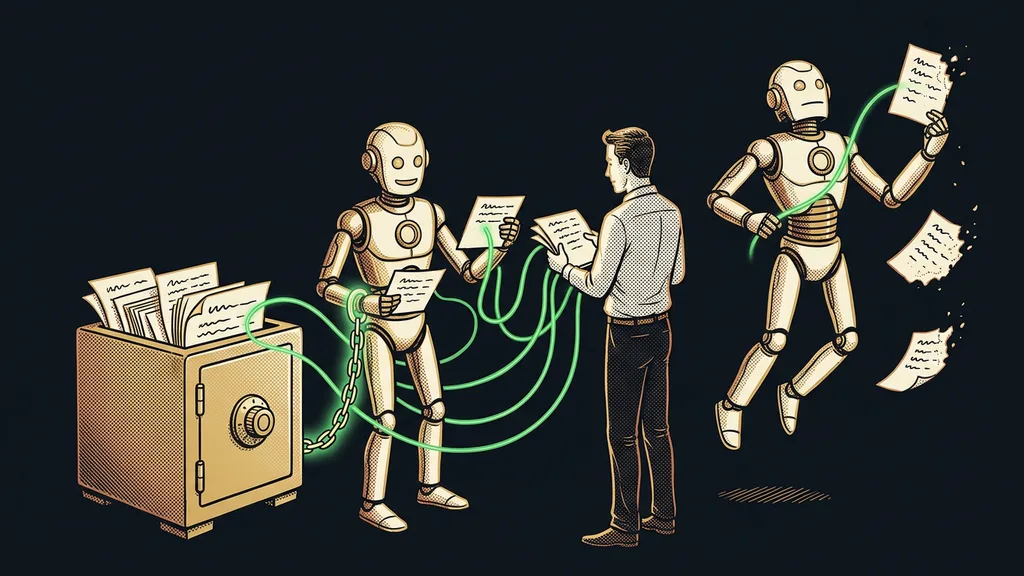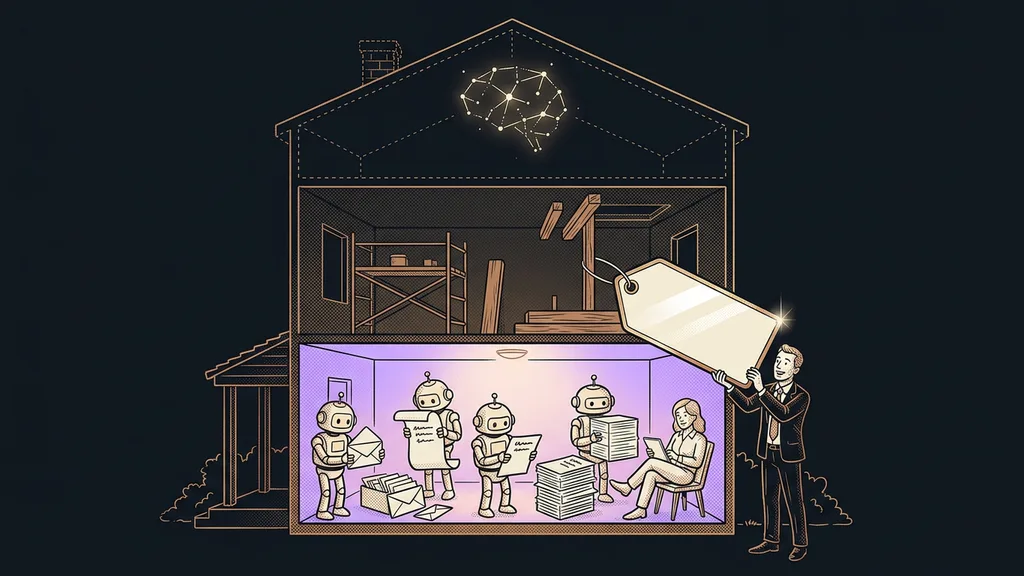
Preparing for an AI consultation decides how the first hour goes more than the consultant does. Whatever you don’t prepare at home, you deal with during the session: the password to your company email, the code from your phone, a system update, a sample of finished work. Meanwhile the clock is running, and instead of Claude, everything around it is getting set up.
I set Claude up myself, usually online via a shared screen, on your computer and in your account. That’s why you enter the passwords, and you confirm permissions and updates too. When a password gets hunted down during the session, we both wait. And the paid time goes to rummaging through drawers instead of to your work.
Three tasks where you know what finished work looks like
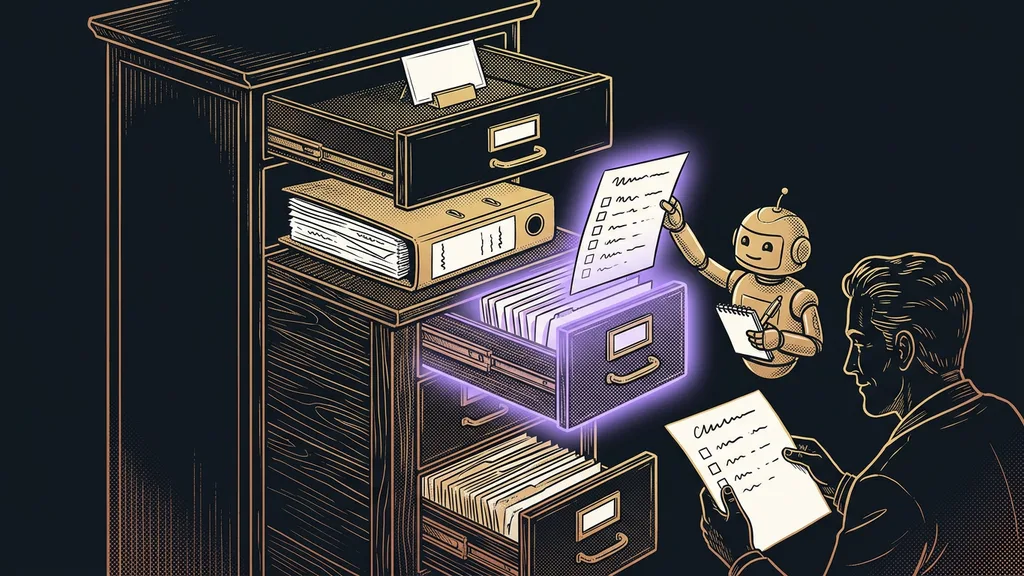
The core of your preparation is three recurring tasks, each with one sample of finished work. Without them, Claude has nothing to work on, and the session slides into a demo of features. On the first sheet, note for each task how often you do it, how many minutes it takes, and where you get the inputs. Attach a piece of work you were happy with: a proposal you sent, a reply to a complaint, a monthly report.
Sample output
A piece of finished work from your business that turned out well: a proposal, an email to a client, a spreadsheet for your accountant. From it, Claude picks up the tone, length, and structure you’d otherwise have to describe at length. In the session, it serves as the benchmark: a new version is done only when it holds up next to the sample.
A task description tells Claude what you want. A sample output shows it what success looks like in your business.
If you don’t know yet which tasks to pick, you’ll find them in an admin map or an AI audit. For your three, prefer data entry and reports over replies to customers. With data work, a mistake shows up right away and costs nothing, so it’s the best way to tell whether a task really works.
Tools and accounts on one sheet of paper
On a second sheet, list the tools you work in and the accounts you use to log into them. That includes email, calendar, shared documents, spreadsheets, CRM, and invoicing, plus ChatGPT if you use it. Switching from ChatGPT has its own procedure, and your memory can be transferred. For each tool, add the login email and whether the account is yours or the company’s.
That difference matters. According to Anthropic’s help center as of October 11, 2026, the Microsoft 365 connector works only with a work account. A personal outlook.com or hotmail.com address won’t do, and an administrator has to set it up. If your company pays for the Team plan, its owner first has to enable connectors for the organization.
Connector
A link between Claude and another app, such as your email, calendar, or drive. It runs over MCP (Model Context Protocol), an agreed-upon way for AI to communicate with other programs. According to Anthropic’s help center, Claude can’t use it to change anything you don’t have permission to change yourself.
A computer with an up-to-date system and permission to install
Claude Code, the version of Claude that works with files directly on your computer, has a clear minimum according to Anthropic’s documentation as of October 11, 2026. It needs macOS 13 or later, Windows 10 version 1809 or later, at least 4 GB of RAM, and an internet connection. The Claude app on its own is fine with macOS 11 and Windows 10.
You can check your version right away. On a Mac, click the Apple menu in the top-left corner and choose About This Mac; on Windows, type winver into the search box. A Mac that can’t be updated to macOS 13 won’t run Claude Code. Better to know that a week ahead than halfway through the session.
Admin rights tend to be less of a hassle than people expect. On Windows, according to the documentation, you don’t need to run the Claude Code installation as an administrator. A computer managed by your company or an outside IT provider is a different story: a policy you don’t know about can block the installation. Ask in advance. If you’re not allowed to install software, arrange for the administrator to be on hand during the session.
The evening before the session
Run your system updates and restart the computer. In your browser, log into your email, calendar, and the other tools on your list, so you know the passwords work. Charge the phone that receives your verification codes. And open the folder with your three sample outputs.
Subscription paid in advance, passwords only in your hands
Claude Code isn’t available on the free plan, so a paid subscription is a must. According to Anthropic’s pricing as of October 11, 2026, the Pro plan costs $20 a month ($17 billed annually), and Max 5x costs $100 a month. These are US prices before tax, and they may differ where you are. For demanding daily work, plan on a higher tier, because on the cheapest paid plan you’ll hit the usage limit sooner than you expect.
Pay for the subscription yourself, with your own card, and set it up under an email address you want to use long-term. You pay Anthropic directly, so the account and everything in it stays yours.
Don’t send me passwords in advance, by email or over WhatsApp. A password in a message stays in the history on both your side and mine. In the session, you type them into the login window yourself, never into the conversation with Claude. I keep my own keys and passwords in separate storage and never type them into a chat with AI.
What Claude may not do, and who sits at the computer
Two things remain that nobody can decide for you: what Claude may not do, and who will sit at the computer. According to Anthropic’s help center as of October 11, 2026, the Google Workspace connector can send an email in Gmail, delete an event in your calendar, and share files on Drive or move them to the trash. So write down in advance which of these Claude may do on its own and which it should only prepare for your approval.
Since September 23, 2026, I’ve had a rule that no email or message goes out in my name until I approve the exact wording. Your list should also cover payments and folders Claude has no business poking around in. The gym agent that helped more than it should have shows why keeping limits in your head isn’t enough.
The person at the computer should be the one who actually does the tasks. An owner who only assigns them may not know where the inputs are or where a task gets stuck. And if someone else manages your email or the Team plan, make sure they’re reachable that day. Without them, you can’t turn the connector on.
When you can skip the list
You don’t need the list if you just want to try Claude out: the chat runs on the web and on the free plan, and nothing gets installed. It also won’t help if you come without a single recurring task. In that case, postpone the setup and go through your week first. And if your Mac can’t get to macOS 13, sort out the computer first, or stick with the Claude app without Claude Code.
The whole preparation in a nutshell
- Pick three recurring tasks and attach a sample output to each.
- List your tools and accounts, including who manages them.
- Check your system version and run updates the day before.
- Pay for the subscription on your own account and charge the phone for verification codes.
- Write down what Claude may not do without your approval.
- Agree on who will sit at the computer and who’s reachable for access.
With a 1:1 Claude setup, you pay €200 an hour, usually starting from five hours; the total depends on how things go and how much you want done. That’s why your email password, the code from your phone, and system updates belong to the evening before. Then the paid time goes to the setup and to the tasks you picked at home, not to passwords and updates.