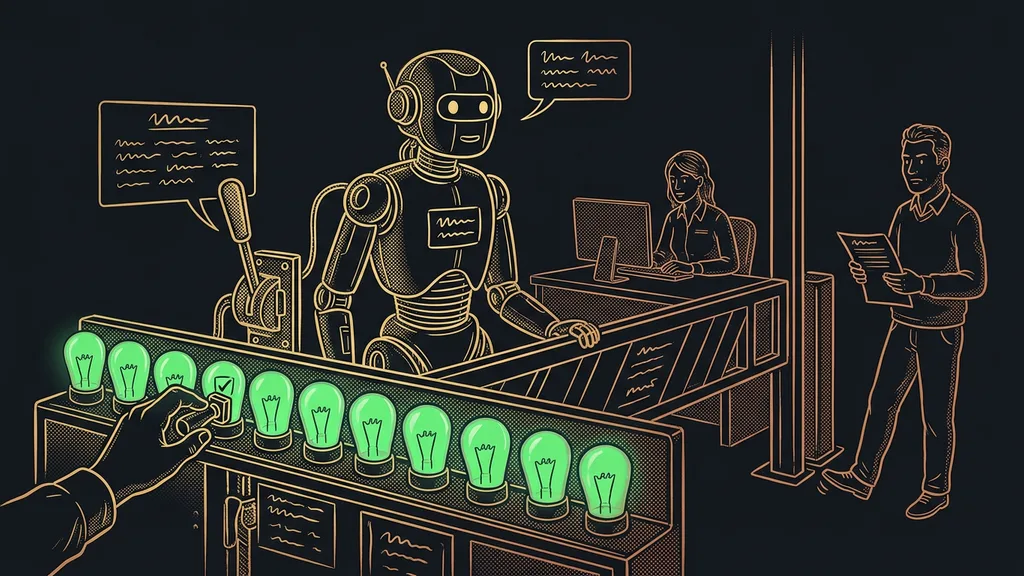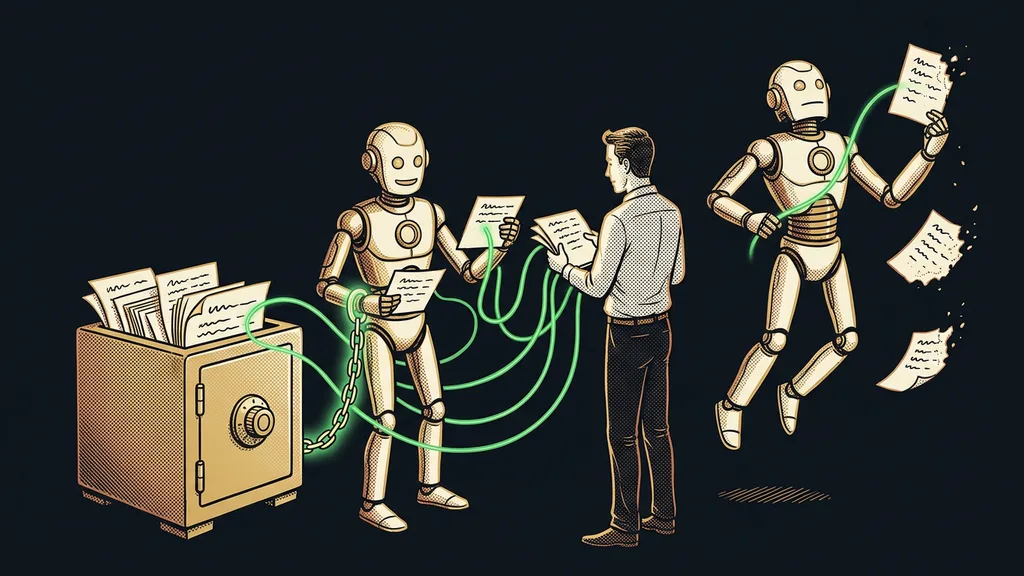
Maintaining an AI setup starts the day after installation. Within a month, the app updates, a new model comes out, and you discover that some connector can do more than you expected. Your instructions and skills, meanwhile, stay exactly as you wrote them. Keeping them in shape takes three things: a backup, a test task, and a person who keeps an eye on it.
The last three weeks are a textbook example. According to Anthropic’s announcements, Claude Opus 5.5 came out on September 22, Sonnet 5.5 six days later, and Haiku 5.5 on October 7. Since October 6, new Cowork tasks on the Pro and Max plans have been running in the cloud. If you set up Claude in September, you didn’t have to click on any of this, and your environment changed anyway. Even I readjusted my effort level on September 26, because the highest one was eating more of the subscription limit than it needed to.
What changes in Claude even if you don’t touch a thing
Four layers under your setup change: the app, Claude Code, the models, and the connectors.
Configuration drift
The slow divergence between how you set up a tool and how it behaves today. Nobody broke anything: the vendor just changed a default, added a feature, or removed an option.
Every update is a small change to your brief that nobody told you about.
| Layer | What applies as of October 11, 2026 | What to check |
|---|---|---|
| Claude app | On October 6, the Only on your computer option disappeared from Settings › General, and new Cowork tasks on Pro and Max run in the cloud | Where tasks with sensitive files run |
| Claude Code | Since version 2.1.283, the default permission mode is auto: a second model judges actions on your behalf | The mode (you switch it with Shift+Tab) |
| Models | In Claude Code, Opus 5.5 has a different default effort level than Opus 5 | The results of important tasks |
| Connectors | According to the help center, Google Workspace can send an email in Gmail and delete an event in Calendar | What you’ve allowed permanently |
The change is hardest to spot in the last two rows. If you switched from Opus 5 to Opus 5.5 in Claude Code, you’re working at a lower default effort level: according to Anthropic’s documentation, Opus 5.5 defaults to medium, while Opus 5 defaulted to high. Anthropic does claim that the new model on medium matches the old one on high in its programming and knowledge-work tests, but only your own check will confirm that for your proposals.
With connectors (Claude’s connections to your email or calendar via MCP, a common language between AI and apps), more is at stake. If you turned on the Google Workspace connector thinking Claude would only read, you now have a more powerful tool in your hands. So once a month, go through every place where you clicked Allow always.
Skills: a shared library, or deliberately leave them alone
Skills (instructions Claude follows to do repeated work the same way every time) need a clear decision after setup. There are two honest paths. A third one appears on its own, and it’s the worst.
A shared library. Skills live in one place, someone fixes them, and Claude downloads new versions on its own. On the Team and Enterprise plans, according to the help center as of October 11, 2026, the organization owner can handle this too, deploying skills to all members at once.
Deliberately leave them alone. What works, you don’t update. I chose this path for a social media content creator, where stability takes priority over new features. Deliberately means you know which version you have and why.
The third path: skills get edited haphazardly, and nobody knows which version is current. According to the documentation, a skill uploaded to the Claude app doesn’t carry over to Claude Code, so you soon end up with two versions of the same procedure. A library pays off where a procedure changes often or several people use it. Everywhere else, peace and quiet wins.
What to back up so your setup survives a new computer
Back up what you wrote yourself. You can download the app and the models again, but your instructions and procedures exist nowhere else.
- Standing instructions: the text from the Instructions for Claude field in Settings, copied into a document.
- Projects: their instructions and the originals of uploaded files.
- Skills: the folder or ZIP file you uploaded them from via Customize › Skills.
- Claude Code: instructions in the CLAUDE.md file; skills and settings are ordinary files on disk, so they belong in a backed-up folder.
- A list of connections: connectors, what they’re allowed to do, and tasks that run on their own. In a company, this grows into an automation register.
Don’t count on memory as a backup. According to the help center, the Reset memory button in Settings › Memory deletes it irreversibly. Important things belong in your instructions or in a project. Passwords don’t belong in a backup of your instructions; I keep mine out of AI conversations too.
The new computer test
Tomorrow you’re sitting at a new computer. Can you restore your standing instructions, projects, and skills from the files in your backup by evening? Whatever you’d have to rewrite from memory isn’t backed up.
How can you tell your Claude setup has stopped working?
First, by the test task: a piece of ordinary work Claude does every week, whose successful result you’ve kept.
Test task
One fixed brief from your regular work, saved along with a good result. After an update, or once a month, you run it again and compare. That way, you’ll see a difference before your customer does.
Chatbot tests before launch work the same way: they’re repeated after every change. Also watch for three signals:
- A skill stopped kicking in. The documentation says Claude picks a skill based on its short description, so after you add similar skills, make the description more precise.
- Your limit runs out sooner than usual. Settings › Usage shows how much of the five-hour and weekly limits you’ve used.
- Claude asks noticeably fewer, or more, questions than before. Check the permission mode.
Claude can do the second check itself. Ask it to go through the connections and the programs on your computer and write down what it verified and how. That way, it may even find an outdated tool on your computer that would make connections to your systems fail. I recommend repeating this check after every bigger update. Cleaning up your instructions belongs to it too, because rules added after every mistake eventually start contradicting each other.
Who can just let Claude run
If you only use Claude as a chat with a few lines of standing instructions, there’s nothing to maintain. Without skills, Projects, and connectors, there’s nothing to back up, and you’ll try a new model when you happen to run into it.
Maintenance pays off as soon as repeated work depends on the setup or several people use it. Then it needs a person in charge of it. I cover who that should be in a company without its own IT department in the article on roles around AI.
All of maintenance in a nutshell
- Write down what you have set up, including connectors and tasks that run on their own.
- Keep instructions, projects, and skills as files in a backed-up folder.
- Decide on your skills: a shared library, or a deliberately frozen version with a date.
- Save a test task along with a successful result.
- Once a month, run it again and check the mode, the effort level, and the limit.
- Go through the tools you’ve allowed permanently and remove what you don’t need.
Three new models in less than three weeks and Cowork moved to the cloud show how fast Claude changes these days. You can get used to that pace, but you can’t stop it. That’s why, at the end of a 1:1 Claude setup, I show you how to tell that something isn’t working and what to try first. But save your test task today: pick a piece of work Claude did well for you this week, and keep both the brief and the result.