Almost anyone can put together a GoHighLevel form in their first hour. You drag fields around with the mouse, and getting it onto your website takes one embed code. The trouble starts afterward: the answers sit in the submissions list, the contact has no tag, and nobody knows what’s supposed to happen after someone hits submit.
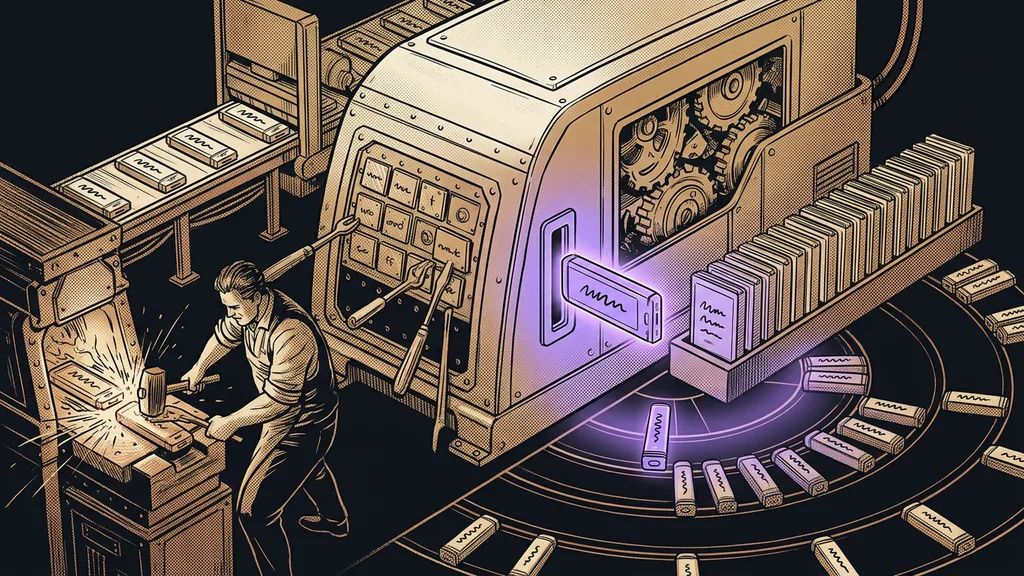
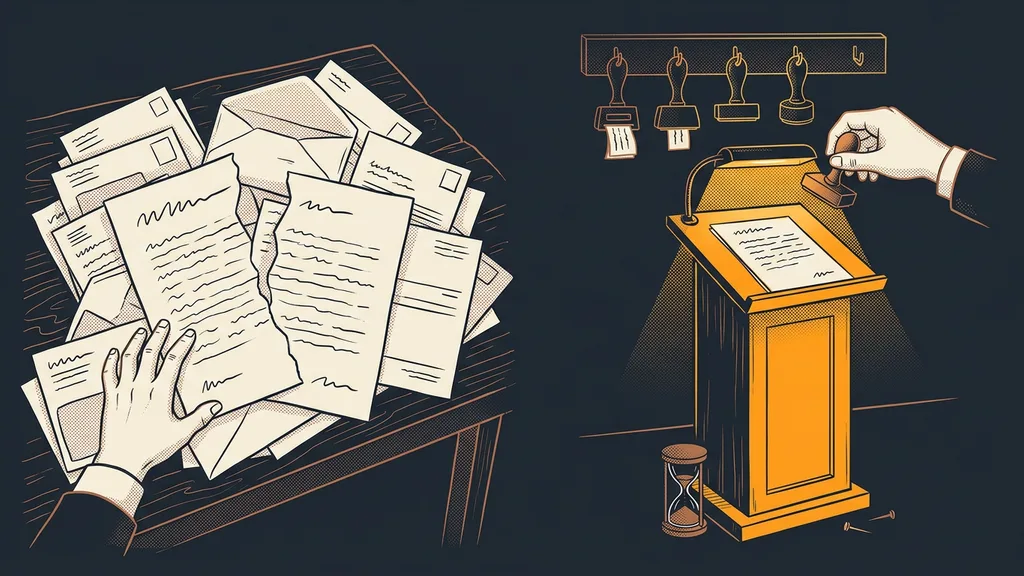
When I take over an account someone else set up, the first thing I open is the list of form submissions. It’s usually full. Inquiries where the answer to the most important question is buried in a general message. No automation picks up any of them, so someone had to read and retype each one by hand. The form collected the data perfectly. Nobody knew what to do with it afterward.
Form or survey: it depends on how much you need to know
A form suits a short contact request on one screen; a survey suits a longer, step-by-step conversation. GoHighLevel has them as two separate tools in the Sites menu: Forms and Surveys.
Every field in a form is a question you’re asking a stranger. If the answer then goes nowhere, they filled it in for nothing.
The customer sees a form all at once. Name, email, phone, two or three questions, and a button. A survey shows one screen after another and can skip whole sections based on the answers. It’s the right tool when you need to qualify someone before you get in touch: what job they want, what their budget is, and when they want to start. The admin interface is in English, but you can write the labels, questions, and thank-you texts in Czech or any other language.
| Forms | Surveys | |
|---|---|---|
| What it looks like | all fields on one screen | questions split across screens |
| Typical use | contact, download, order | detailed inquiry, application |
| Conditional logic | hides and shows fields | skips screens, can screen people out |
| Workflow trigger | Form Submitted | Survey Submitted |
Answers belong in custom fields, not in the message
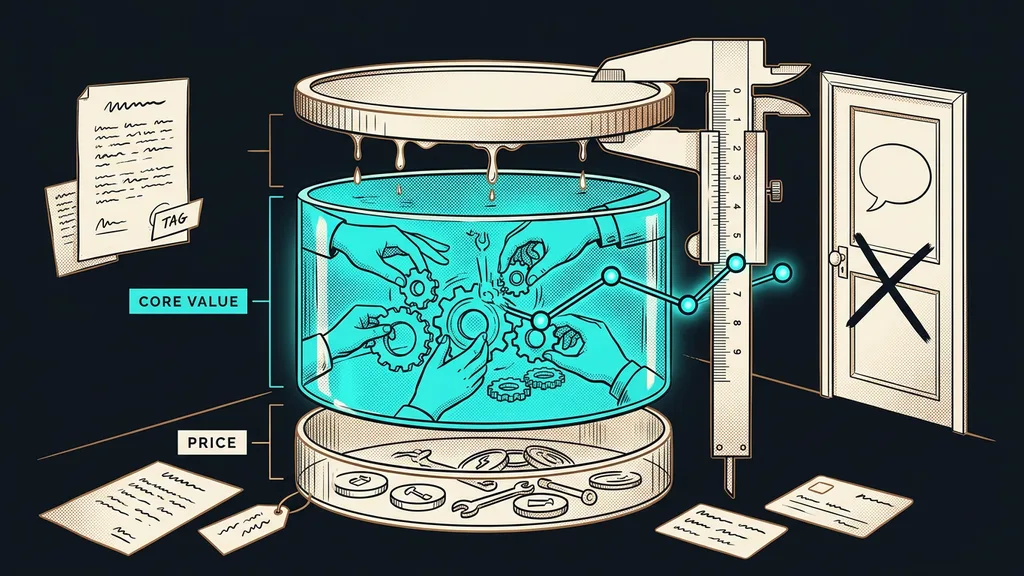
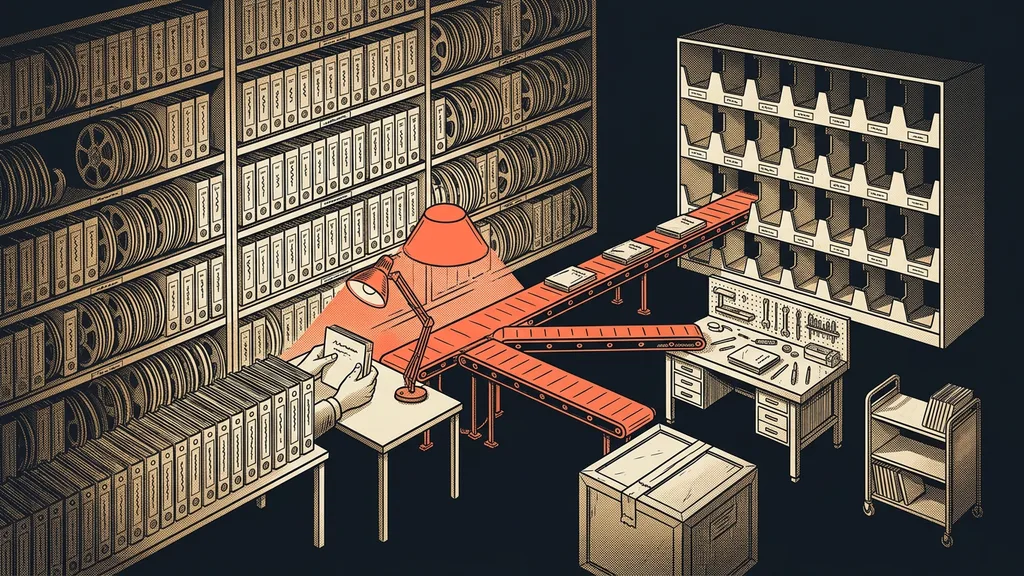
Every form field is mapped to a field on the contact record, and that mapping decides everything that follows. Name, email, and phone go into the standard fields on their own. For the other questions, you have to create a custom field first and only then drag it into the form.
Custom field
A field on the contact record that you create yourself, based on what your business needs to know: job type, budget, timeline. Unlike a note, you can filter by it, sort by it, and trigger automations from it. Automation can work with an answer in a custom field; an answer in a note has to be read by a person.
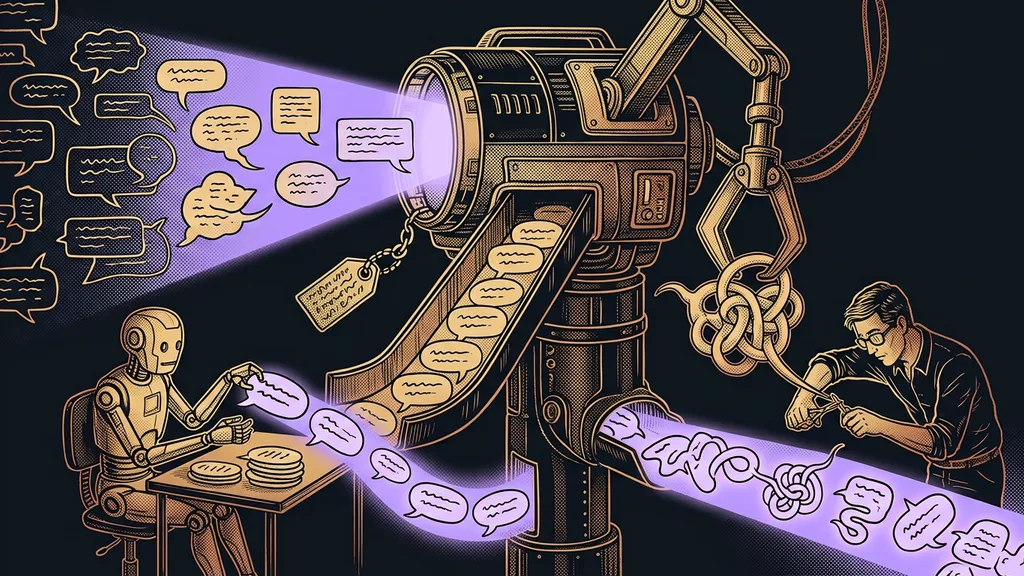
What I see most often is the opposite. The form gets one big “Your message” field, and everything goes into it: budget, timeline, address, and type of service. Readable for a person, invisible to automation. Then a yoga instructor wants to invite only the people who asked about morning classes to a new course. She has no choice but to read every message.
That’s why, for a question with only a few possible answers, I prefer a multiple-choice field. The answers then come in a consistent format, and you can sort by them. If people still write a lot in their own words, AI can read and sort their text, but it’s cheaper not to create that work in the first place.
In accounts I take over, a hidden source field is almost always missing. The customer doesn’t see it, but it records on the contact which page or campaign they came from. And when someone who’s already in your CRM fills in a form, GoHighLevel matches them to their existing record by email or phone. A second record only gets created if you’ve allowed duplicate contacts in the settings.
Conditional logic shows everyone only their own questions
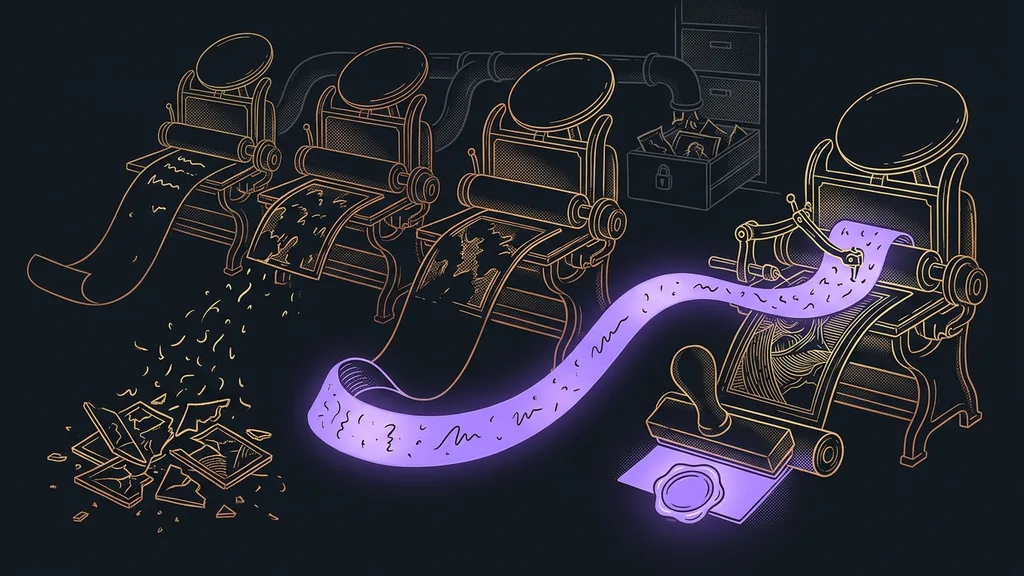
Conditional logic shows the next question only to the people it applies to. So a form can have lots of fields in the editor, and the customer still sees only a few.
Conditional logic
A rule that decides what shows up next based on a previous answer. In a GoHighLevel form, it hides and reveals individual fields; in a survey, it can skip a whole screen or end the survey. The customer fills in a shorter form, and you get more accurate data.
A real estate agent with a small office starts the survey by asking whether the person wants to sell or buy. Sellers get questions about the property type and location, buyers about budget and financing. Each answer lands in its own field and later triggers a different workflow. The agent doesn’t do rentals, so anyone looking for a rental gets a polite end to the survey and a link to a page that explains why.
I use logic sparingly, though, because every branch needs testing. And watch out when copying accounts: according to GoHighLevel’s help docs, survey logic rules don’t carry over in a snapshot, so you have to set them up again in the new account.
One dry-run submission
Fill in your own form as if you were a customer, using your own email. Then open the contact record and go through it: is every answer in its own field, was a tag added, was an opportunity created in the pipeline, and did you get a notification? Whatever is missing from the record isn’t happening after submission for any of your customers either.
What should happen right after a form is submitted?
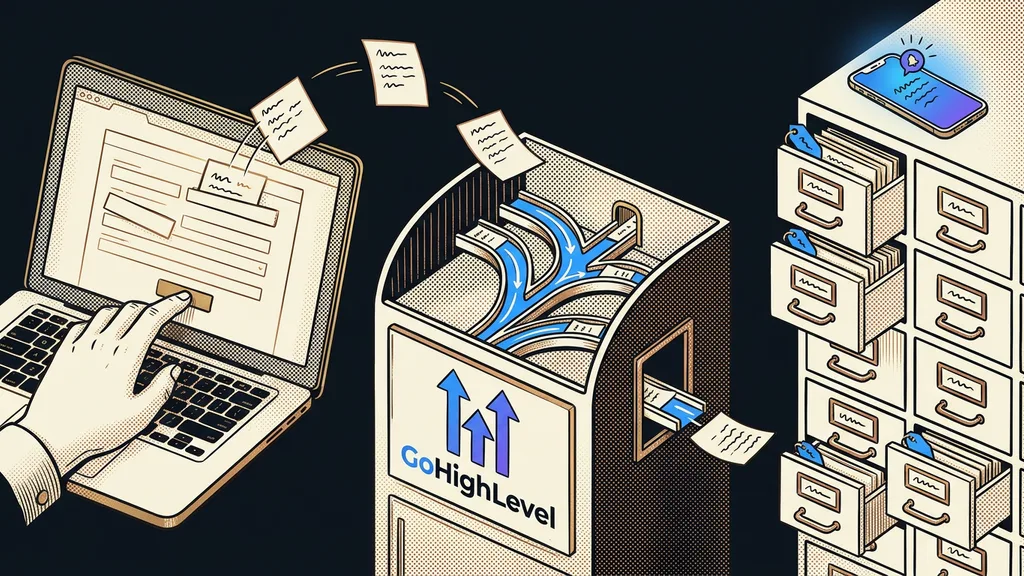
After submission, a workflow kicks in and does everything with the contact that a person would otherwise do. The trigger is called Form Submitted, or Survey Submitted for a survey. I always filter it to a specific form. Without a filter, one workflow would react to every form in the account. The workflow then typically does four things:
- adds a tag based on the form the contact came from,
- creates an opportunity in the first stage of the pipeline,
- sends the customer a confirmation by email or SMS,
- sends you a notification, ideally to your phone.
An inquiry you answer within five minutes has a completely different chance than one you open in the evening. After submission, I send the customer to a thank-you page instead of a short message. On it, you can tell them what happens next and measure how many people actually submitted the form.
One tag is enough for the source, named consistently by form type and topic. When every form slaps on three tags with different names, your contacts end up in a mess that’s one of the most common beginner mistakes. For a lead magnet, the workflow also sends a download link. For an order, payment, an invoice, and access follow: that’s the road from form to invoice, which has pitfalls of its own.
New this year is the Form Partially Completed trigger. It catches someone who started filling in a form and left halfway, so you can reach out while they still remember you. I use it sparingly: one short message, and that’s it.
When the built-in forms aren’t enough
GoHighLevel’s built-in forms cover a typical inquiry, application, or order. You hit their limits with complex calculations, lots of attachments, and cases where the answers need to turn into a finished document. That’s where I reach for a specialized tool and connect it to the CRM.
On the other hand, all this setup doesn’t pay off for a business that gets two inquiries a week through a simple contact form. A name, an email, a message, and an inbox notification are enough; a branching survey would just be extra work. It makes sense once inquiries pile up and you want to sort them by what people are asking for.
The whole system in a nutshell
- Decide whether you need a one-screen form or a step-by-step survey.
- Create a custom field for every important question, and offer answer choices wherever you can.
- Use conditional logic to hide questions that don’t apply to the person.
- Build a workflow with a trigger for that specific form: tag, pipeline, confirmation, notification.
- Do a dry-run submission and go through the contact record.
Your list of form submissions then stops being an archive nobody looks at. Every new answer finds its own field, tag, and place in the pipeline. If you want your forms and the automations behind them set up right the first time, you can book a GoHighLevel setup with me. The same person who walks through the form with you also sets it up. Then all you do is open the notification on your phone showing the name, budget, and timeline of a new inquiry.