You write two sentences about your business, and a moment later you’re looking at a finished page. A hero with a photo, three service cards, testimonials, a form with a button. It looks like a week’s work. But that form doesn’t lead anywhere yet: anyone who filled it out now wouldn’t show up in your CRM.
That’s the most important thing to know about AI Studio in GoHighLevel. It builds you a website, landing page, or booking page from a plain description. But you have to switch on the connection to contacts, the calendar, and automations explicitly. Let’s go through how to write the prompt, how to connect the page, and what to check before you send it to people.
From a business description to a site that collects leads
What AI Studio is and where to find it
AI Studio is a website builder you control through conversation. You open it from the left menu of a sub-account, describe what you want, and it generates the layout, copy, images, and even several linked pages. And it doesn’t stop at websites: it also builds multi-step forms, custom booking pages, branded forms, and online storefronts.
AI Studio vs. Agent Studio
Two different GoHighLevel tools with similar names. AI Studio builds pages and web apps from your description. Agent Studio is for building AI agents that react to events, reply to people, and do tasks for you.
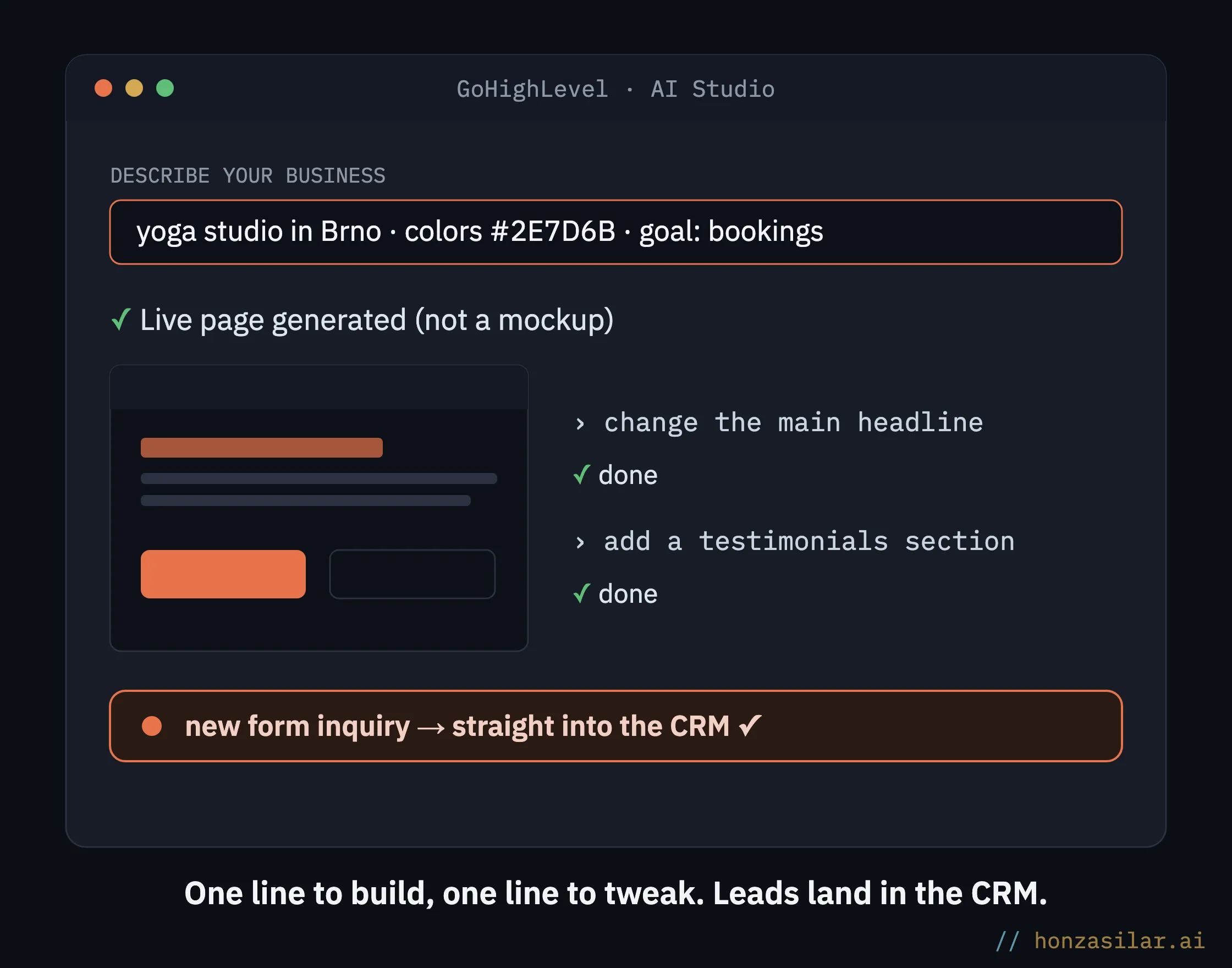
You refine the result in three ways. With another sentence in the chat (“change the colors to light green,” “add a Contact page”), by clicking directly in the preview, where you rewrite text or swap an image, and in the code editor, where you can change anything. Every change the AI makes is saved as a version you can go back to.
You set who on your team can see AI Studio in the user permissions. There are two levels: view only, or view and manage.
A prompt that produces a usable website
AI Studio knows how to ask follow-up questions. If you just write “build me a website for my business,” it offers you a choice of color palette, font style, layout, and the page’s main goal. But you’ll get a better result if you spell all of that out yourself right at the start. I always put five things in the first prompt:
Five things for your first AI Studio prompt
- The page’s goal: what the visitor should do (book, leave their details, buy).
- Your audience and what sets you apart from the competition; that’s how the AI picks the tone and the arguments.
- Brand colors in hex and font names, or the AI will invent its own palette.
- A list of sections in the order you want them.
- A link to a website you like, or a screenshot, as a layout reference.
Treat that reference as inspiration. GoHighLevel’s own documentation points out that AI Studio won’t copy a page from a link or image one-to-one; it mainly takes over the structure and style.
Write the prompt in Czech. One more thing has worked well for me: first write the section copy in an ordinary document and get it approved, and only then paste it into the prompt. AI Studio sticks to exact text in quotation marks, so you don’t end up rewriting its “inspiration” sentence by sentence.
The form and calendar won’t connect themselves
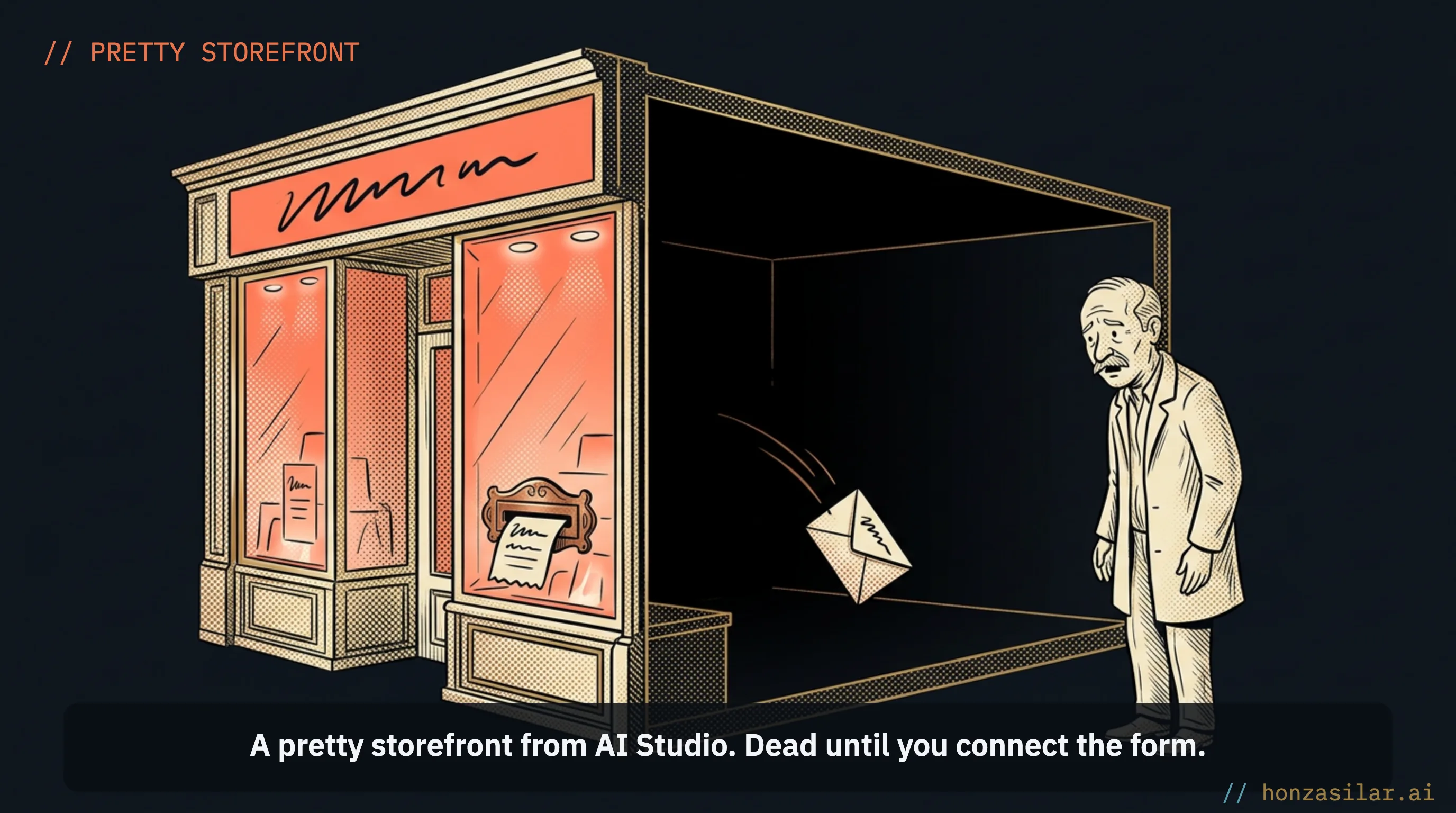
Here’s the trap from the beginning. At first, AI Studio builds the form as nothing more than design. You see it on the page, and you can fill it out, but the data doesn’t go anywhere yet.
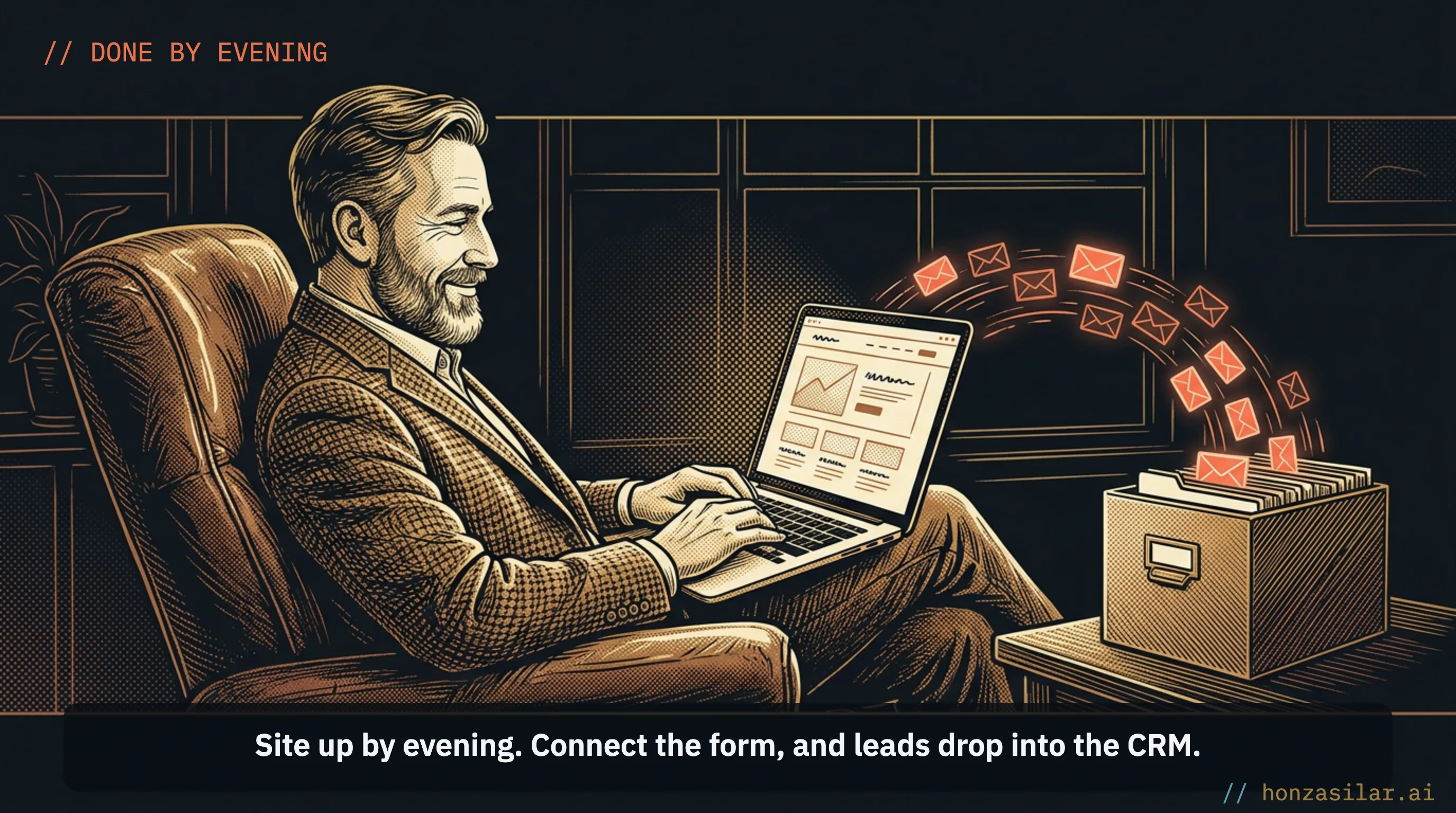
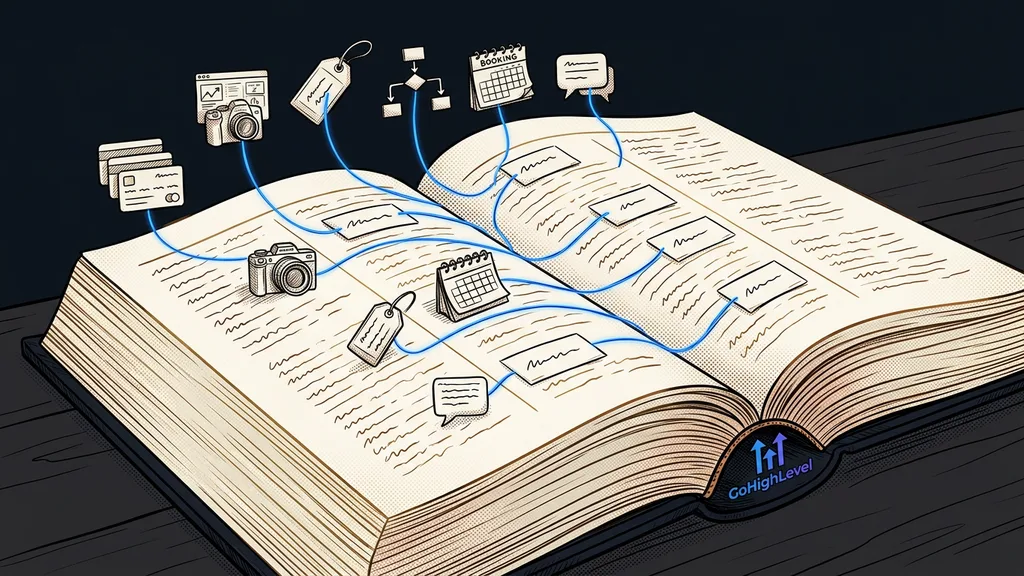
There are two ways to connect it. Either you ask AI Studio with the sentence “Connect forms to my CRM,” or you click Connect when it offers it to you in the chat. From then on, every submission becomes a contact in the sub-account. You’ll find submitted forms on the contacts and under Sites > Forms > Submissions > External Forms, where they’re listed as third-party forms.
The calendar works similarly. AI Studio builds the booking part of the page and then offers you the calendars you already have in the account. You pick one, and from then on, bookings from the website go into it. Its availability applies, along with everything tied to it: confirmations, reminders, and automations. That’s why you should set up the calendar first, before you start building the page. If you don’t have one, AI Studio will have nothing to offer you.
You attach an automation to the connected form with the AI Studio Form Submitted trigger. The workflow can then send a confirmation, add a tag, or create an opportunity in the pipeline. You can narrow the trigger down to a specific project, form, page, or domain. Without a filter, it fires after any form submission from all your AI Studio projects.
Test run
After publishing, fill out the form yourself, with your own email. Then check whether a contact was created and whether the run shows up in the workflow’s Execution Logs. Don’t share the page anywhere until this test passes. You also need a test submission so the filter options load in the trigger.
What to check before the page goes live
AI Studio gives you a good start, not a finished website. Before every launch, I go through the same list:
- Mobile. The preview can switch between desktop, tablet, and phone. The mobile layout can fall apart, so go through all of it.
- Copy. Czech grammar, buttons left in English, and above all anything the AI made up on its own.
- Made-up proof. A scrolling strip of logos from companies you’ve never worked with, “500+ happy clients,” or testimonials from people who don’t exist. On your website, that’s a lie, so either replace it with the real thing or delete it.
- Colors. Check the hex codes against your brand. A purple-to-blue gradient in the hero image is a typical AI signature and probably doesn’t belong in your brand.
- SEO. Turn on AI Studio’s advanced SEO support. It helps search engines and AI assistants read the page, creates a sitemap, and sets the title, description, and sharing image.
- Logo, favicon, and analytics for tracking visits.
To read your own website through a customer’s eyes, this simple test comes in handy too.
Publishing happens in two steps. First to a preview address, and only then do you connect your own domain. Changes you make after going live stay in draft until you publish again. So the live version won’t change under your hands.
What an afternoon in AI Studio costs you
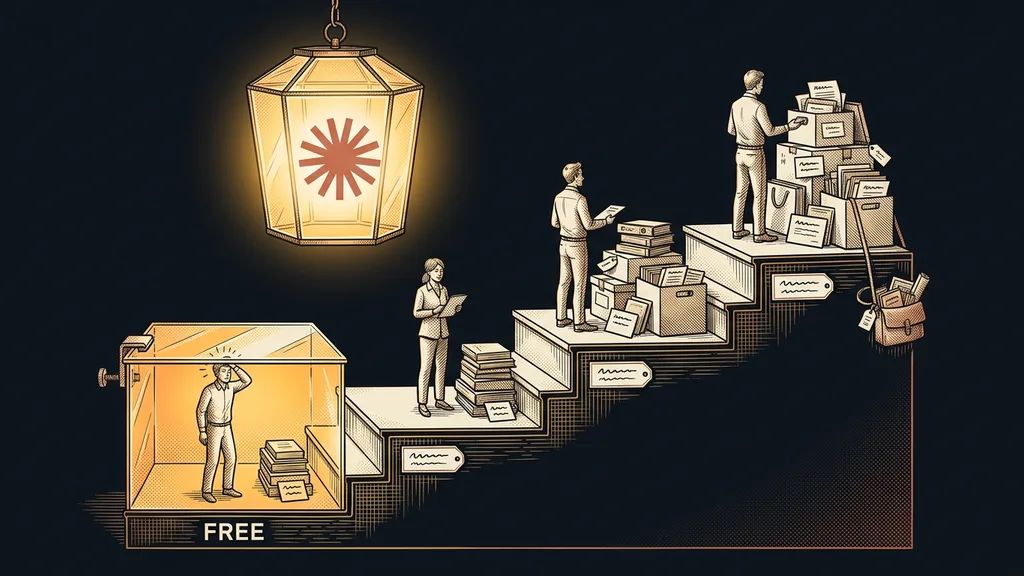
AI Studio is billed by usage, not by the number of pages. You pay for the work the AI does in a session: planning, generating copy and images, analyzing a reference website, connecting a form. AI Employee plans include a certain amount of usage, counted in five-hour windows; without a plan, you pay for tokens.
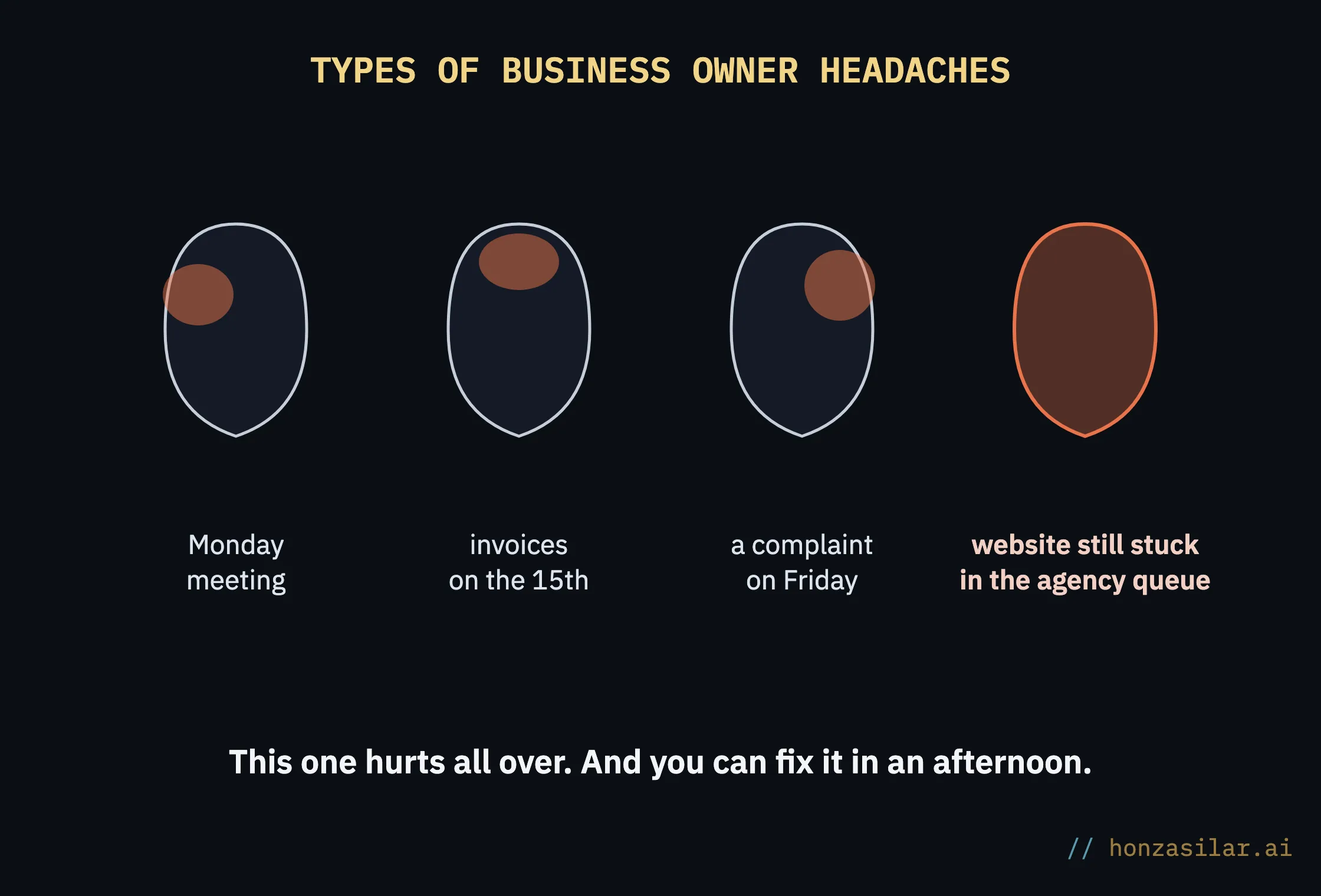
GoHighLevel’s documentation shows three sample builds and what they cost (as of October 2026). A landing page for yoga classes with a form came to $0.60, a seven-page travel agency website with a blog to $1.10, and a single fashion page full of generated photos and animations to $1.30. Images push the price up the most. If you have your own photos, upload them and tell AI Studio to use them.
You don’t have to keep an eye on it by hand. AI Studio shows a warning at 70% and 85% of your usage, and when you pay for tokens, it notifies you for every $50 you spend.
Agency website × AI Studio website
Agency website
Weeks in the queue before it’s your turn.
A price in the tens of thousands of CZK (from about €800), changes billed by the hour.
The form sends an email, and that’s the end of it.
AI Studio website
“Done by evening.”
You only pay for the AI’s work, and you refine it in the chat, sentence by sentence.
Once connected, form inquiries drop straight into the CRM.
Where the limits are, and who it won’t pay off for
You can’t move an AI Studio project into the classic websites and funnels editor. They’re two separate worlds. AI Studio publishes directly, and a project can be cloned into another sub-account or transferred with a snapshot, but you won’t be dragging blocks around with a mouse. So decide at the start where the page is going to live.
I’d pick AI Studio for a quick sales page, a booking page for a single service, a questionnaire, or a smaller company website. The classic editor makes sense where you already have finished funnel templates and a team that knows how to edit them.
And who won’t it pay off for? If you’re building a large brand website where your whole business grows through search engines and a blog, I’d still recommend building it separately and connecting GoHighLevel only for forms and data. The same goes for companies that don’t use GoHighLevel at all: without a CRM behind it, an AI Studio page is just a pretty storefront.
When to reach for AI Studio and when for the classic editor
AI Studio
A quick sales page, quiz, or booking funnel.
A campaign that needs somewhere to send people right away.
You already use GoHighLevel and have the CRM behind the page.
Classic editor
A large brand website built on SEO and a blog.
A sophisticated site with A/B tests (classic editor).
You don’t use GoHighLevel, so there’d be no CRM behind the page.
AI Studio in a nutshell
- Set up the calendar and pipeline in your account before you start building.
- Put the page’s goal, audience, hex colors, sections, and a reference in the prompt. In Czech, with Czech copy.
- Refine the result through the chat, by clicking in the preview, or in the code if needed.
- Connect the form and calendar via Connect, and attach a workflow with the AI Studio Form Submitted trigger to the form.
- Check mobile, copy, made-up numbers, colors, and SEO, then publish and do a test submission.
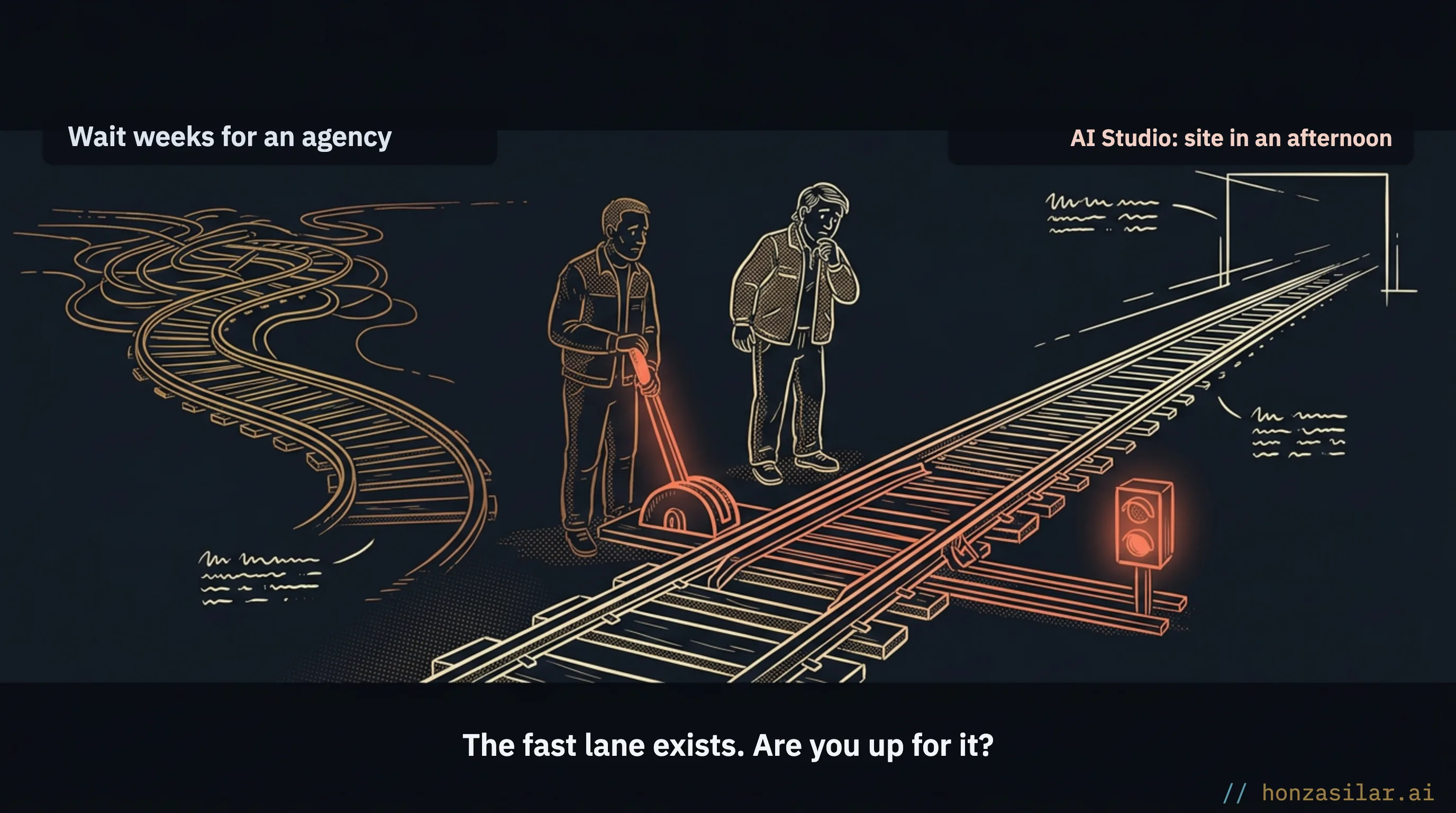
You can build a page in AI Studio yourself in a single afternoon. If you get stuck on connecting the CRM, the automations, or the Czech, I’ll help you with your running GoHighLevel account at €80–160 an hour, with no retainer.