
It’s Wednesday evening, and you want three simple things from your CRM: to remember where each contact came from, to give regular customers a VIP tag, and to let prospects book a half-hour consultation on their own. You know exactly what you want. And then you open the admin panel.
Is it under Settings or under Contacts? You’re opening your third submenu in a row, and in the next window a two-year-old video tutorial is playing, with the button in a completely different spot than on your screen. When you finally find the right screen after twenty minutes, you feel like a winner. But that was one field. And you need ten.

The system can do almost anything. If you know where it is
I set up GoHighLevel for clients every day, and I run into this snag with almost all of them. Businesses know what they want from the system. Where they get stuck is the way from “I want” to “it’s set up.” The platform can do a great deal, and that’s exactly why it has so many screens, tabs, and toggles. Every feature is in there somewhere; you just have to click your way to it.
You pay that tax in small change rather than all at once. Every time you think “I’d like this to work differently,” you picture the expedition through the menus, and part of you answers “leave it.” So the system stays on its default settings, which only half fit your business. You’re paying for a race car and driving it in second gear. You can drive just fine; the gears are simply never where you reach for them.

“I know exactly what I need. I just don’t know where to set it up in this system.”
I’ve heard this from clients so many times it could hang over every admin panel in the world. For a long time, there were two answers: learn it, or pay someone who knows how. Now there’s a third.
Type it, don’t click it
Right inside GoHighLevel, an assistant called Ask AI is waiting for you in the top bar. You click the icon, a side panel opens next to whatever you’re working on, and you tell the assistant in your own words what you need.
From “I want” straight to “done”
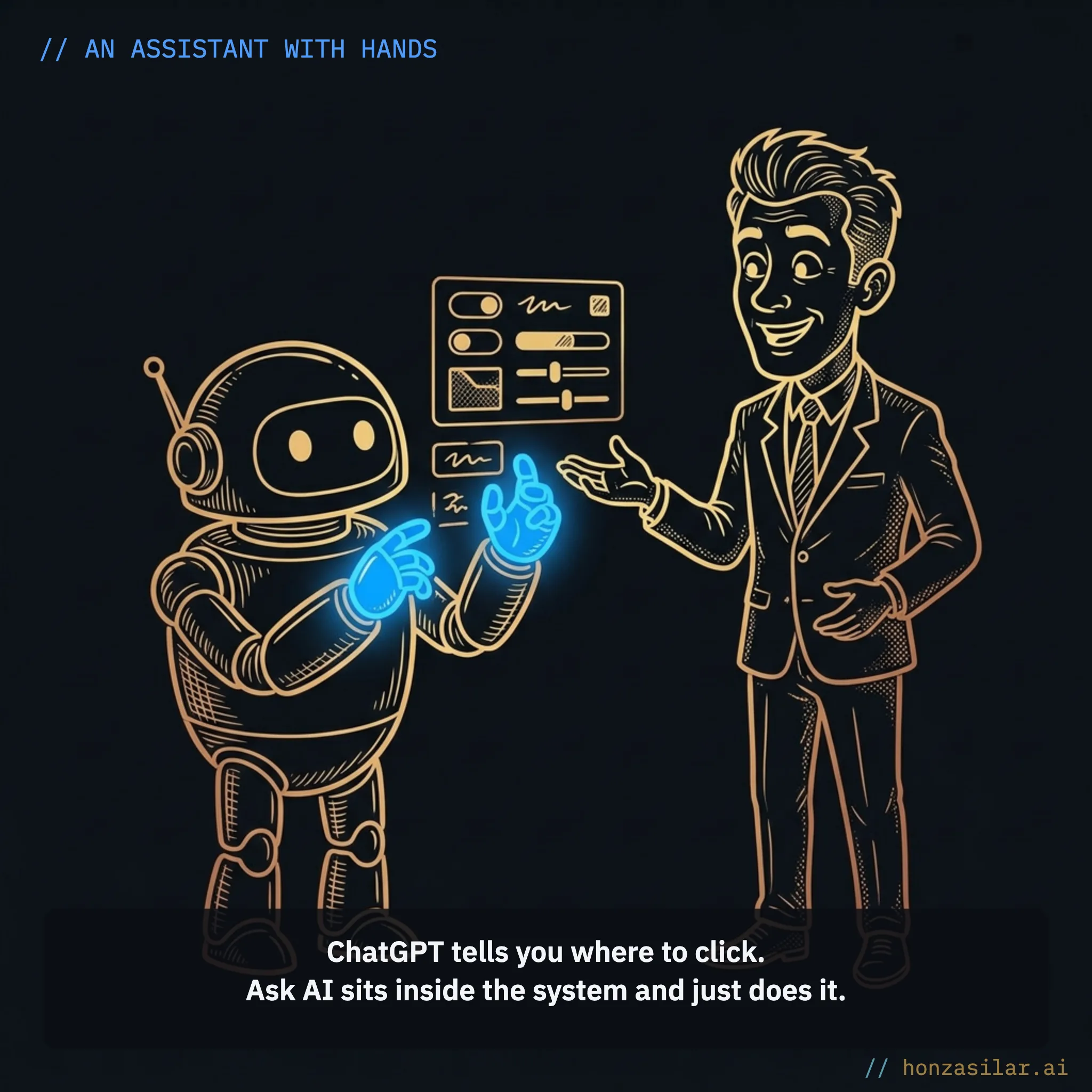
An assistant with hands
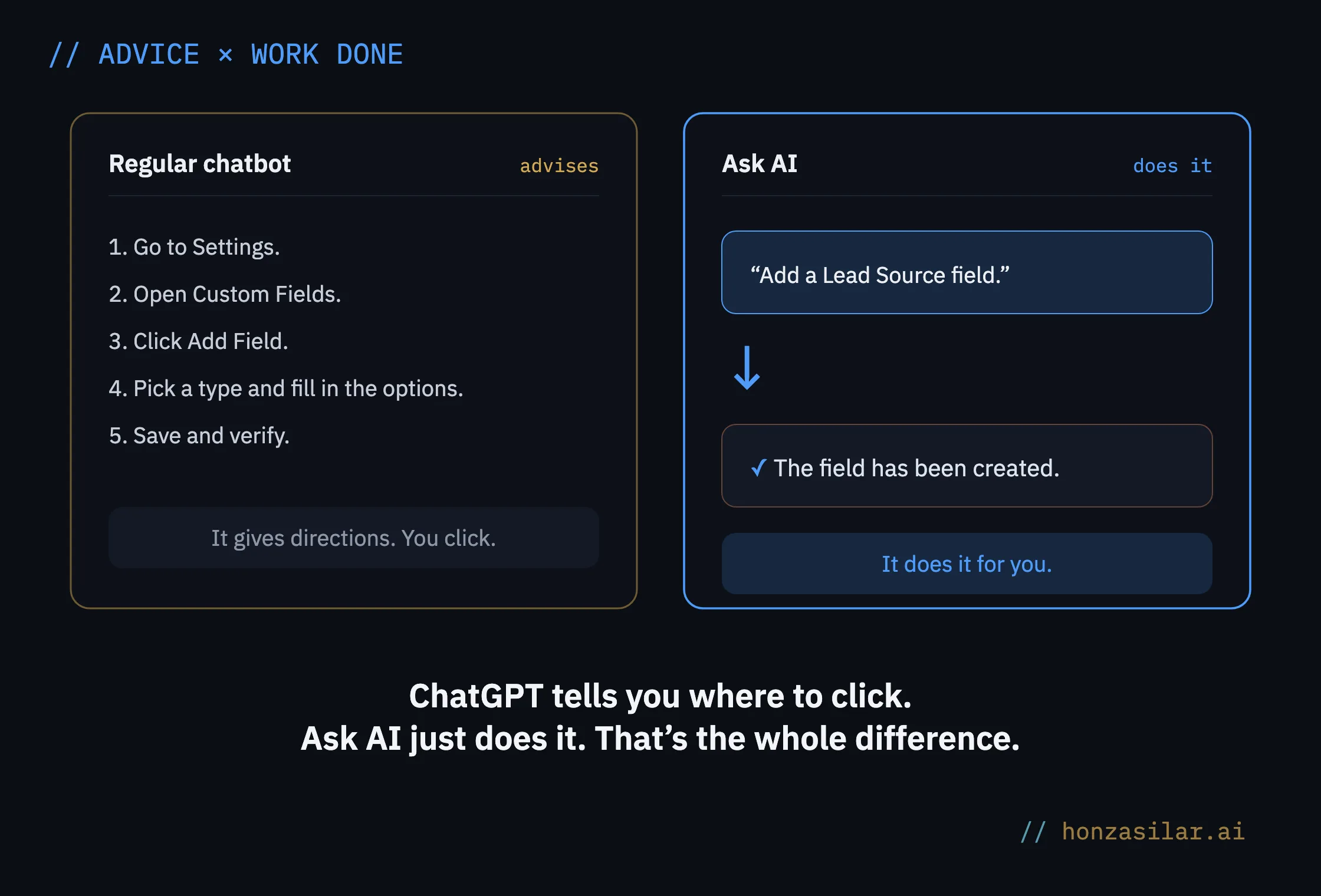
A regular chatbot like ChatGPT can give advice: it tells you where to click. Ask AI is a different kind of assistant. It sits inside the system and can reach its features directly, so it carries out the step it describes. The difference is like the one between a person who explains the way and a person who drives you there.
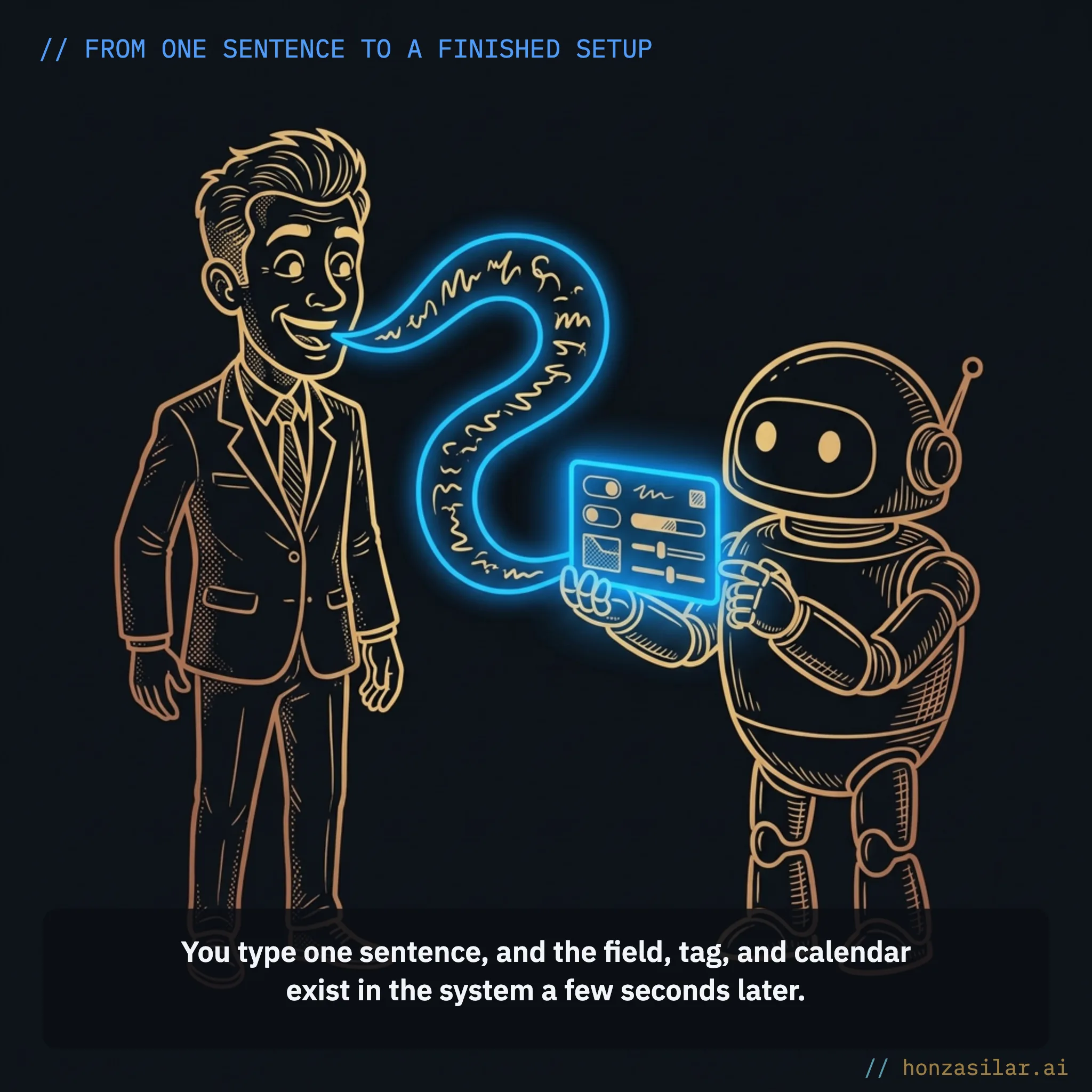
From one sentence to a finished setup
Let’s take the first wish from the start: I want the system to remember where each contact came from. I open Ask AI and type one sentence: “Add a Lead Source field to contacts with the options website, referral, and social.”
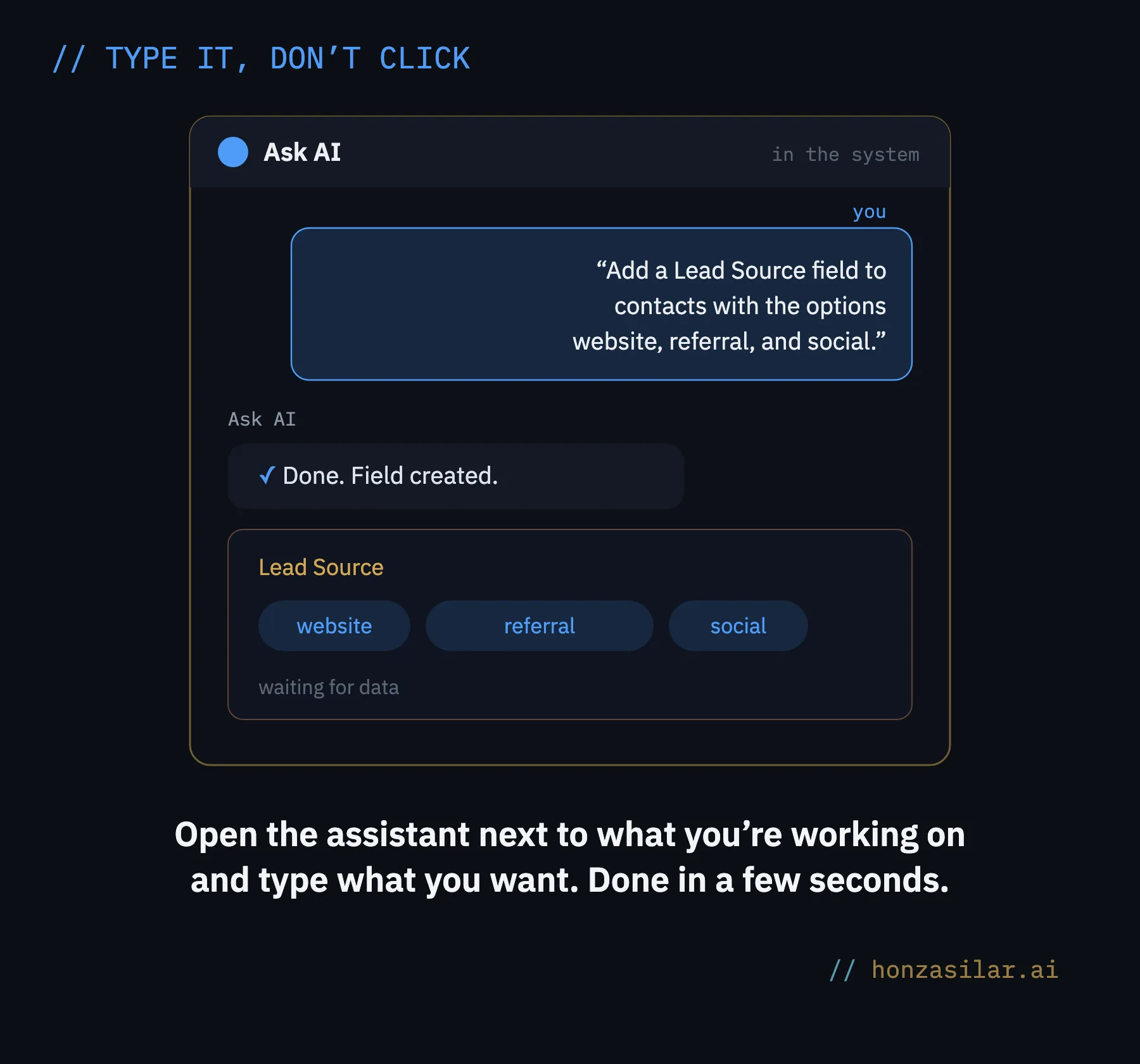
A few seconds later, the field exists in the system, three options included, waiting for data. I didn’t have to work out whether custom fields live under Settings or under Contacts, or what the feature is even called. If I wanted a fourth option, I’d add it with another sentence instead of another round of wandering. The whole difference lies in that jump: from “I know what I want” straight to “it’s done,” with no stop at “where on earth is it.”
ChatGPT × Ask AI: advice or finished work
ChatGPT
Describes how to click through the menus.
Sits outside the system and can’t reach its features.
You then do the work yourself.
Ask AI
Sits right inside the CRM and can reach its features.
Carries out the step you type.
You fine-tune with another sentence.
The assistant handles the rest of Wednesday’s list the same way, and plenty more:
- Tags. It creates a new tag and applies it right away to the contacts you describe.
- Custom Values. It saves a link to your price list or your opening hours as a value that flows into all your templates; next time, you change it in one place.
- Calendars. You tell it how long your meetings are and when you’re available, and it builds a booking calendar connected straight to the CRM.
- Automations. You describe what should happen, and the AI builds the whole workflow from your description, say, a follow-up that replies to every inquiry within a minute. You fine-tune it in another conversation.
- Working with what you already have. It summarizes a contact’s history, updates a deal in progress, moves a meeting. And if you need an email in your brand’s voice, it writes that too.
In practice
These days, I set up a new client’s account by sending the assistant one request after another: fields, Custom Values, tags, calendars. I send sentences instead of clicking through screens. For a single account, I’ll easily fire off ten of them in a row.
My system for setting up client accounts is built on this very assistant: a completed questionnaire produces a series of ready-made requests, and a setup that used to eat up three days is done in an afternoon.
What Ask AI creates from one sentence
- Custom fields, options included.
- A new tag, applied to contacts right away.
- A Custom Value that flows into all your templates.
- A booking calendar connected to the CRM.
- A whole automation built from a description.
- A contact summary, a deal update, and an email in your brand’s tone.
What you still click through yourself
So this isn’t all praise: there are limits, and it’s good to know them. There are two things the assistant can’t reach yet: forms and sales pipelines. You create those the old way, by hand. Luckily, these are parts of the system you usually set up once at the start, not every week.
The second note is about Czech. The assistant can work in Czech, but it’s wise to ask for it explicitly in your request, otherwise it sometimes slips into English. It costs you one extra sentence.
And the last limit is the most important one: the assistant executes, and you decide. What gets built and why is still your job. On top of that, I check the result after every request. The assistant isn’t often wrong. But in a client’s account, I can’t afford even the occasional exception.

What it costs and where to find it
And now the promised technical details. You’ll find Ask AI as an icon in GoHighLevel’s top bar; click it and a whole workspace unfolds in the side panel, so you type right next to the account you have open.
You won’t get the assistant with the base license, though: it’s unlocked by the AI Employee Unlimited add-on at $97 a month, and until you have it, the icon doesn’t even show up in the top bar. The same add-on also removes the limits on the platform’s other AI features, so it makes the most sense for accounts that really put AI to work, roughly from 5,000 messages or 200 calls a month. A smaller account pays for its AI features from the wallet, roughly €12–20 a month, but it can’t get to the assistant without the add-on.
Ask AI in a nutshell
- The icon in the top bar opens the assistant next to your work in progress.
- You type what you want in your own words: a field, a tag, a Custom Value, a calendar, an automation.
- The assistant creates it in the system right away, and you fine-tune with another sentence.
- You set up forms and pipelines by hand; always check the result.
- The assistant comes with a $97 add-on that also unlocks the other AI features.
Let’s go back to that Wednesday evening. It’s still you who decided to track lead sources, tag regular customers, and offer half-hour consultations. No AI will come up with that for you, and that’s a good thing. It’s just that twenty minutes of wandering through submenus no longer stand between your decision and the finished setup. One typed sentence does. And once a small tweak stops being painful, you finally make it right away instead of putting it off “until there’s time.”