Security
They left, but their password still works. Revoking access when people go
You probably close an ex-colleague’s account. The passwords they knew often work for months, for shared logins even years. Real cases and a one-afternoon fix.
 Honza Silar 18 min read Nov 11, 2026
- Google Workspace
- Microsoft 365
- 1Password
In this article
- 01A shared password nobody changed
- 02A four-year-old password and one night
- 03Temporary access that never went away
- 04Who paid the price and who weathered it
- 05An access list and a routine for every departure
- 06When someone leaves: the routine step by step
- 07Six rules for access in your company
- 08Sources
- 09Frequently asked questions
What you’ll take away
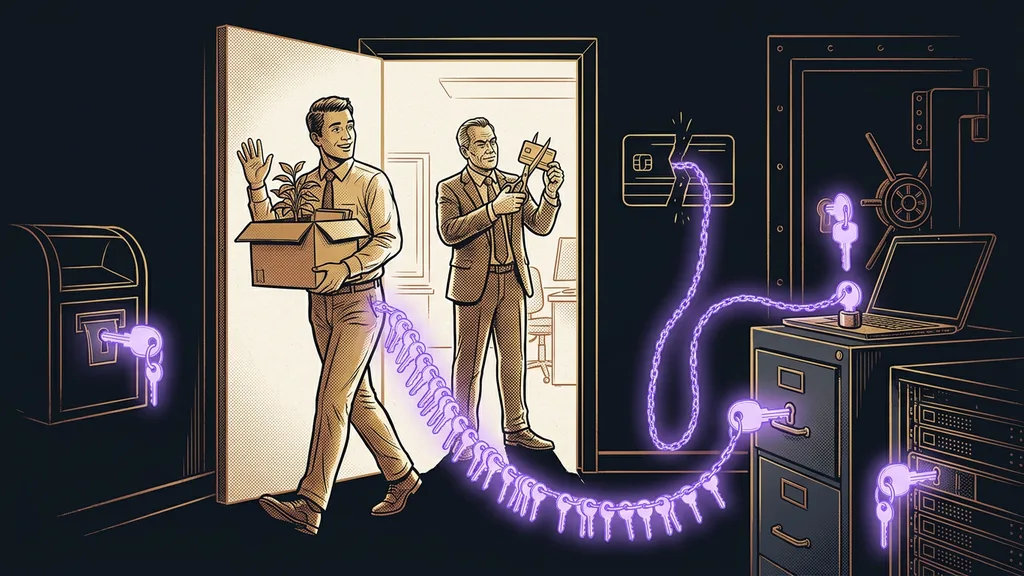
Over the years, an assistant, an outside accountant, an ad agency, and the person who built your website have all had a look inside your business. Each of them got keys to something. By the end, you’ll know how to lock every door when a working relationship ends, including the ones you wouldn’t think of on the day.
- How a fired sysadmin got into another company’s data two months after he left.
- Why closing someone’s account still leaves doors open.
- Two step-by-step offboarding routines: one for companies with an admin console, one for a shared Gmail account.
- A short test that shows whether the last person to leave still has a way in.
Two months after he was fired, a systems administrator at a US IT company tried logging in to its portal. His account still worked. Through the portal he reached the server of an accounting firm he used to manage and about 15,000 documents: bank details, tax returns, and photos of driver’s licenses and payment cards that clients had emailed to the firm. He downloaded some of them and sold them on a darknet forum for $600 in bitcoin. The buyer happened to be a security company, which handed the whole thing over to the FBI [1].
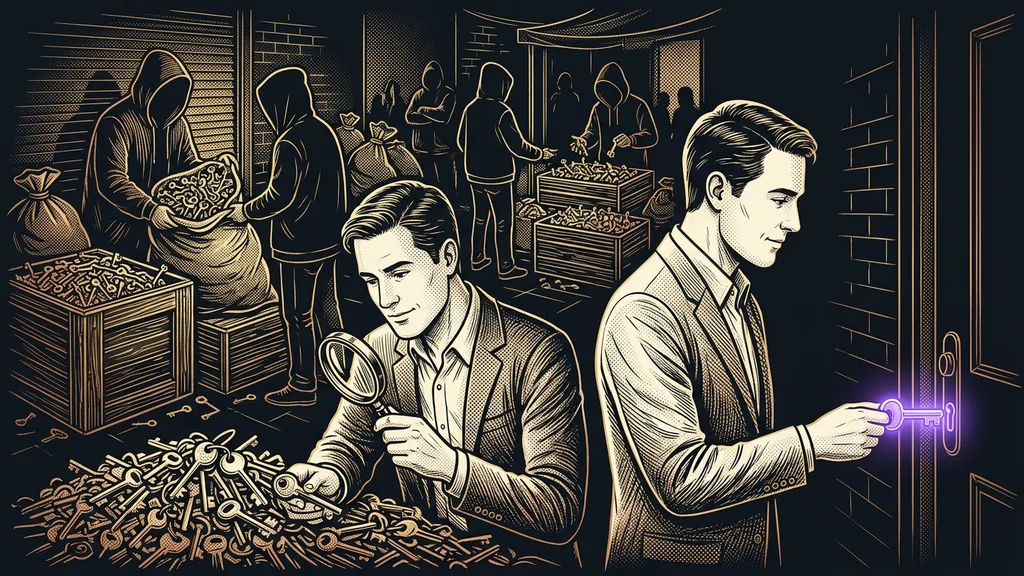
Even a small business has more of these doors than you’d guess. Your assistant has access to your email, your outside accountant to your bank, an agency to your ad account, and the person who built your website three years ago probably still knows the admin password. When someone stops working with you, you usually close one account and forget the rest, because none of it is written down anywhere.
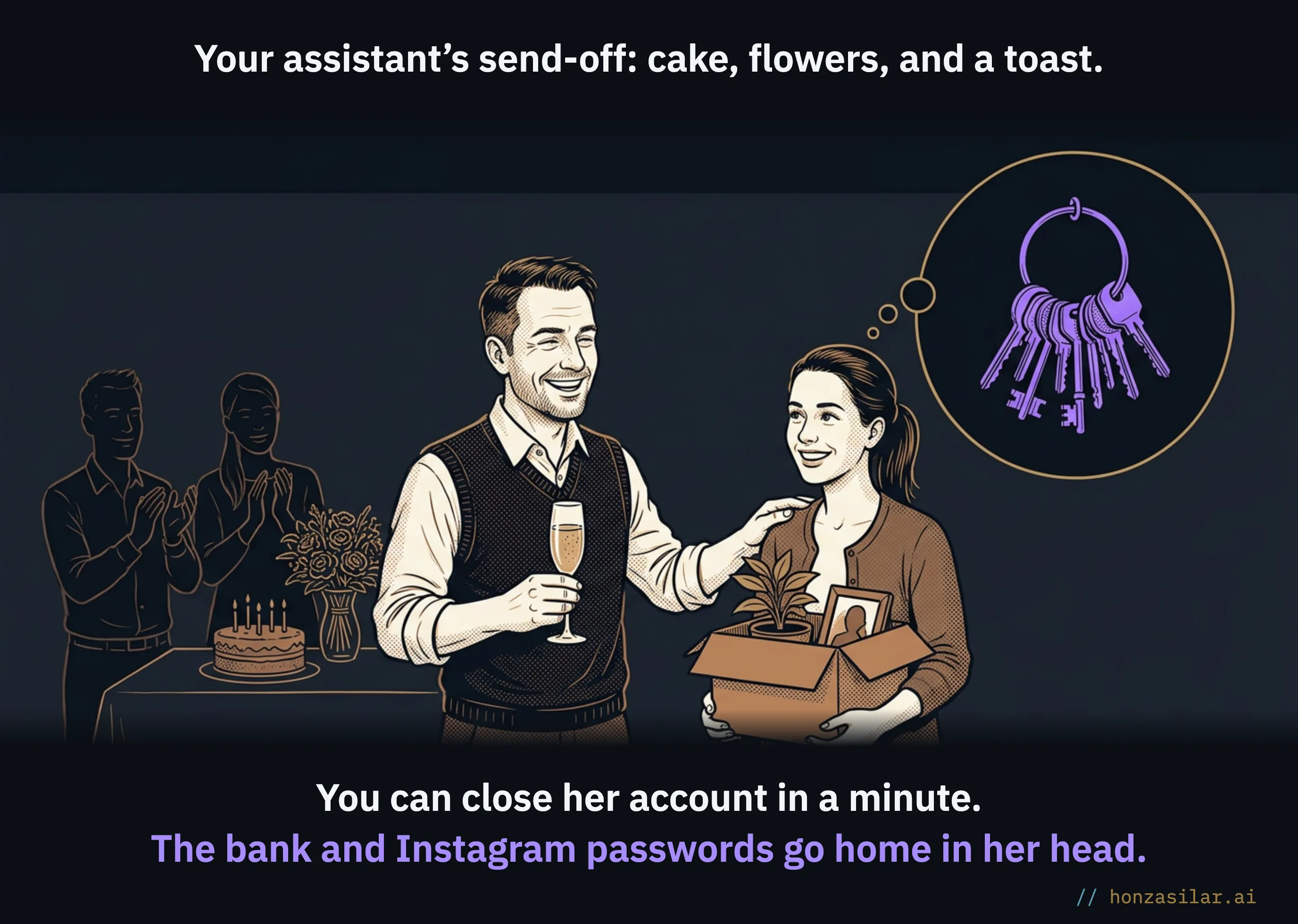
The only reliable way to close every door is a list of who has access to what and a fixed routine you run from start to finish every time someone leaves. First, though, three traps where forgotten access cost companies data, downtime, and money.
A shared password nobody changed#
The administrator goes by Marq on the Darknet Diaries podcast and tells his story there himself. His former employer ran IT for several companies and, after firing him, forgot to block his portal account. The second mistake was worse. The admins signed in to client servers with a shared username and password, which Marq knew by heart and which nobody changed after he left [1].
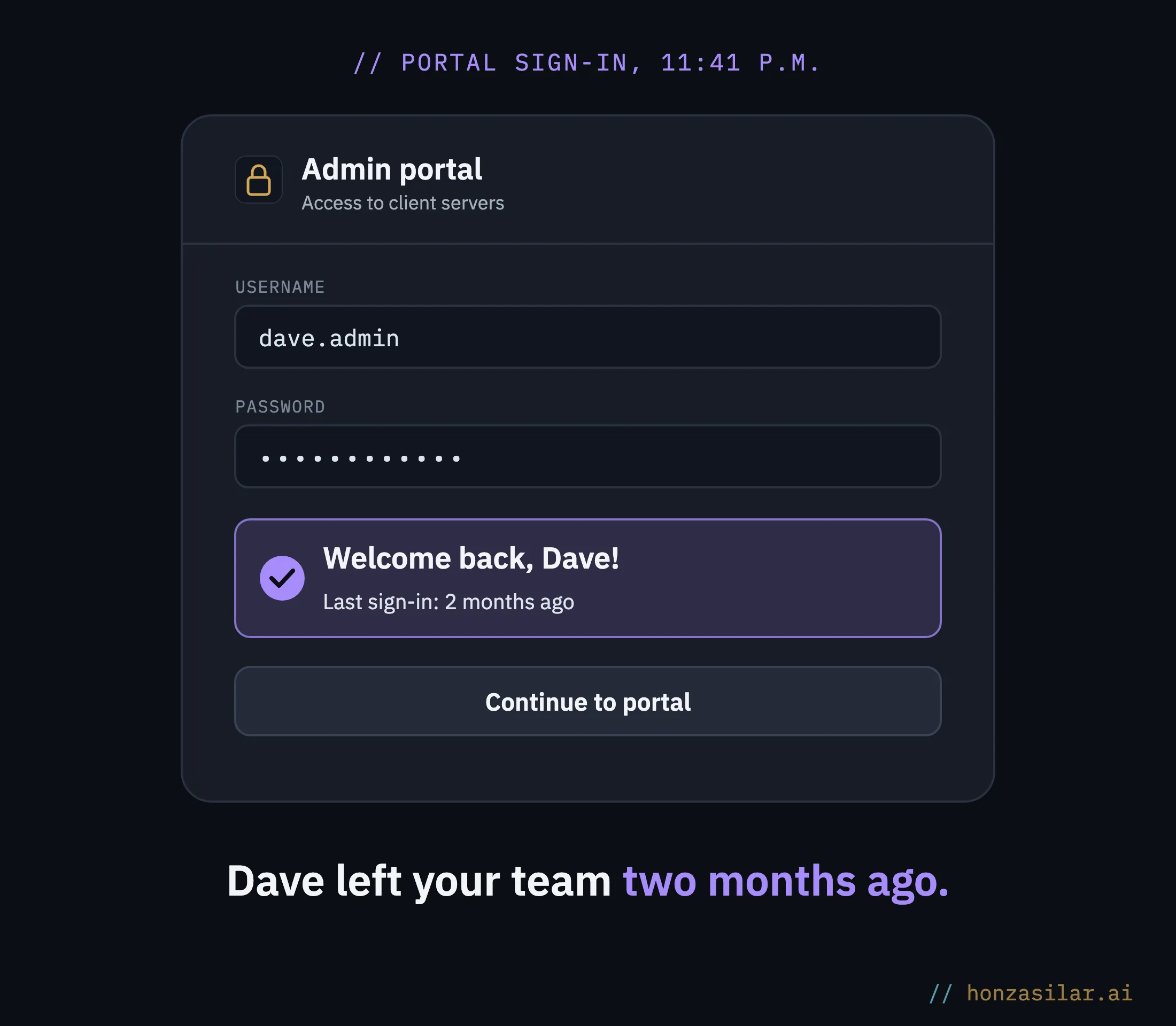
Blocking one personal account takes a minute. Changing a shared password means bothering everyone who uses it, so in practice people keep putting it off.
Offboarding
A written list of steps you go through every time someone leaves: take over their data, block their accounts, change shared passwords, and remove their access to every service and vendor. Without it, your company’s security depends on the memory of whoever happens to be handling the departure.
In the same episode, the host recalls an older case from a used car dealership in Texas. In 2010, the dealership fired 20-year-old Omar Ramos-Lopez and closed his account. He knew a coworker’s password, though. Using the system the dealership relied on to remotely disable the cars of customers who fell behind on payments, he immobilized more than 100 customers’ cars and set some of their horns blaring in the middle of the night [2].
Closing an account blocks one login. Most people who leave still know several others.
A four-year-old password and one night#
A private secondary school in England fared even worse. In January 2021, in the middle of the night, a former IT support apprentice named Adam tried an admin password he remembered from his time there. The school had parted ways with him four years earlier, and nobody had changed the password since [3]. It worked on the first try.
Within a few hours he was in the whole network. Through Office 365 he tried to wipe 2,947 phones and tablets belonging to students, teachers, and parents, and he destroyed servers and backups [3]. In the middle of remote learning, the school was left without email, shared drives, or logins. It was up and running again after about a week, but it took almost a month before everything was stable. Microsoft’s help alone cost the school £15,000 [3]. For this attack and a similar one on another employer, Adam got 21 months in prison [3].
How long the old password kept working after they left
One detail applies to small businesses too. The school used the same password on every classroom computer, and within his first two weeks on the job, Adam worked out the admin password from it, even though he was never supposed to have it [3]. A password used in several places is the hardest one to change when someone leaves.
Temporary access that never went away#
The third trap is help that’s “just for a while.” In November 2021, Sky Mavis, the maker of the game Axie Infinity, asked the community organization Axie DAO for help handling a surge of players. Axie DAO let Sky Mavis sign certain transactions on the DAO’s behalf. The arrangement ended in December, but nobody revoked the permission [4].
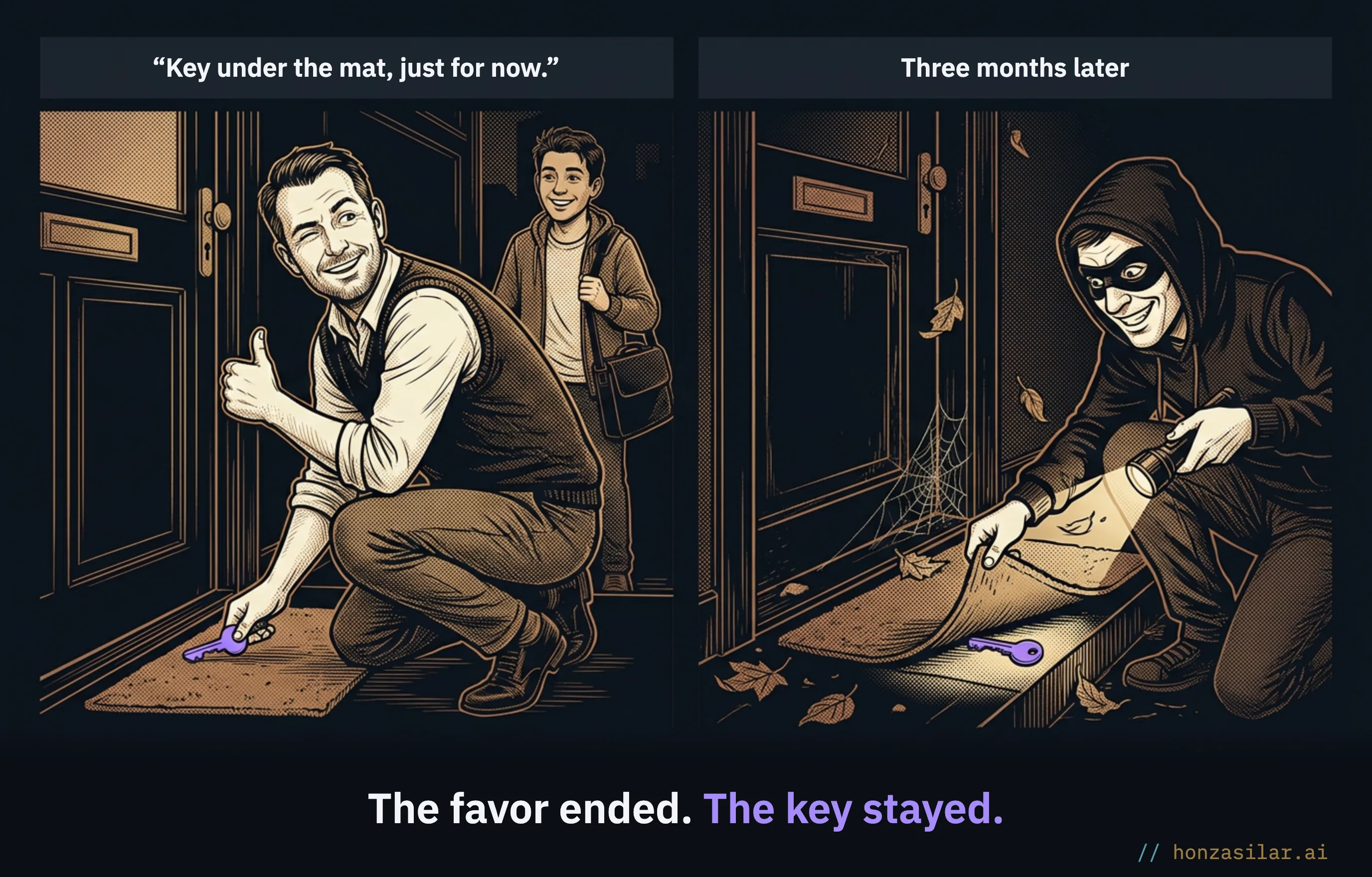
According to journalist Geoff White, the attackers got into Sky Mavis’s systems through a fake job offer sent to one of its engineers; the company itself hasn’t published the details [5]. The forgotten permission then gave them the last signature they were missing, the fifth of nine. On March 23, 2022, they made off with $625 million in cryptocurrency [4] [5].
How a forgotten permission cost $625 million
- November 2021Sky Mavis, the maker of Axie Infinity, asks the community organization Axie DAO for help with a surge of players. Axie DAO lets Sky Mavis sign certain transactions on the DAO’s behalf.
- DecemberThe arrangement ends. Nobody revokes the permission.
- LaterAccording to journalist Geoff White, attackers get into Sky Mavis’s systems through a fake job offer to one of its engineers.
- March 23, 2022The forgotten permission gives them the last missing signature, the fifth of nine. They make off with $625 million in cryptocurrency.
Perfectly ordinary work access can stay open forever too. While working at Cash App in the US, an employee had routine access to company reports on customers. In December 2021, after leaving the company, the former employee downloaded those reports without permission. The parent company, Block, then had to notify about 8.2 million current and former customers [6].
Who paid the price and who weathered it#
The accounting firm, the school, Sky Mavis, and Cash App all paid for access that stayed open after the work ended. The first three have even more in common: the attacker got in with a password or permission the company either didn’t know about or had forgotten.
The Texas dealership recovered fastest. Nobody could undo the five days of damage the culprit had done, but as soon as management changed every employee’s password, the attacks stopped. Police then tracked him down through the system provider’s access logs [2]. If the dealership had changed the passwords on the day Ramos-Lopez was fired, there would have been nothing to track down.
Lisa Forte, an insider threat specialist, offers two pieces of advice in the episode about Marq. Pay closer attention at the critical moment, when someone resigns or gets fired; there’s no need to watch everyone all the time. And tell people openly that this is what you do [1].
Companies where everyone has their own account and the shared passwords live in one place usually handle departures calmly. When someone leaves, they know exactly what to block and what to change. I don’t have statistics on this, but in all three cases, that setup would have kept the attacker out.
An access list and a routine for every departure#
Guarding against a forgotten key is mostly a matter of habit, and the habit rests on five principles:
- One access list in one spreadsheet. For each service: who has access, whether they use their own account or a shared password, and who revokes the access.
- Everyone gets their own account. Then you can block one person without changing the password for everyone else.
- Shared passwords only in a password manager. Where an account has to be shared, like a company social media profile, the password belongs in a shared vault. I use 1Password, and for each person it shows the vaults they had access to [7].
- Only the permissions people need. Your graphic designer doesn’t need invoicing, and your accountant doesn’t need your website admin.
- Temporary access with an end date. Anything that’s “just for a while” gets a day when it ends.
Least privilege
The rule that everyone gets only the access they really need to do their job. The fewer keys a person holds, the fewer you have to change when they leave, and the less an attacker can do with their stolen account.
1Password’s business plan costs $24.95 a month for a team of up to ten people, and larger companies pay $8.99 per person per month, both billed annually (prices as of November 11, 2026) [12]. The routine below works with any password manager that supports shared vaults, though.
Your access list should also cover the connections that work on your behalf: automations in Make or Zapier, an AI assistant connected to your email, API keys. If the person who’s leaving set them up, they often run under that person’s account with that person’s permissions. If you want to know what those connections can see, I’ve covered where your data goes with AI tools.
What an access list can look like
| Service | Who has access | How they sign in | Who revokes access |
|---|---|---|---|
| Company email | owner, assistant | own accounts | owner |
| Online banking | owner, outside accountant | own logins | owner, through the bank |
| Instagram profile | assistant, agency | shared password in the vault | owner |
| Website admin | web developer | own account until March 31 | owner |
| Automations in Make | assistant | under her account | owner (takes them over) |
Check your last departure
Think of the last person you stopped working with. Do you know, without looking it up, which services they had access to? Did you change the passwords to your email, bank, and social media after they left? Have they disappeared from the user list in every tool, including your automations? If you answered no or “I don’t know” even once, they probably still have access to something of yours.
When someone leaves: the routine step by step#
Writing up your access list the first time takes an hour or two, and after that each departure takes about an hour. There are two routines. The first is for companies that run email on Google Workspace or Microsoft 365 and manage users in an admin console. The second fits when you share one ordinary Google account with an assistant or colleague. Both are current as of November 2026, and I give the menu names as they appear in each product.
Companies on Google Workspace or Microsoft 365
- Pull everything they had access to from your list. If you don’t have a list yet, write one now, at least for email, bank, domain, website, accounting, social media, ad accounts, and automations. You’re done when you know, for every service, whether this person had access to it.
- Have them hand over what belongs to the company. Documents, work in progress, and work passwords have to be transferred before you close the account. In 1Password, have them move their work items from their own vault to a shared one. 1Password says not to delete their account until that vault is empty, because deleting the account erases those items for good [7]. You’re done when you have everything you’ll need.
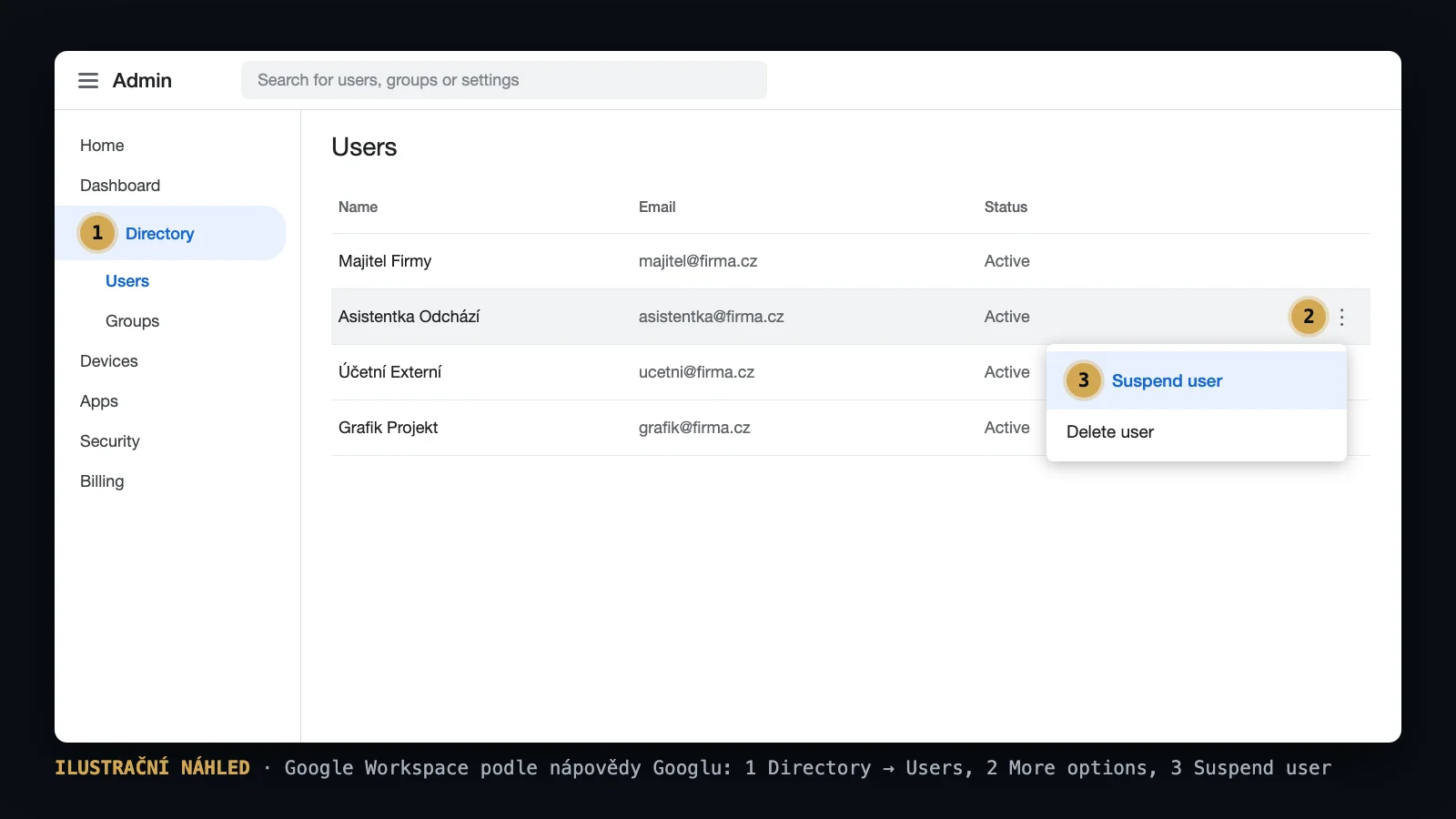
- In Google Workspace, suspend the account. In the Admin console, go to Directory → Users, hover over the name, and on the right click More options → Suspend user [8]. Suspending doesn’t delete anything. It blocks sign-in and, according to Google, also signs the person out of browsers and phones [13]. You’re done when they can’t sign in with their username and password, even from a phone.
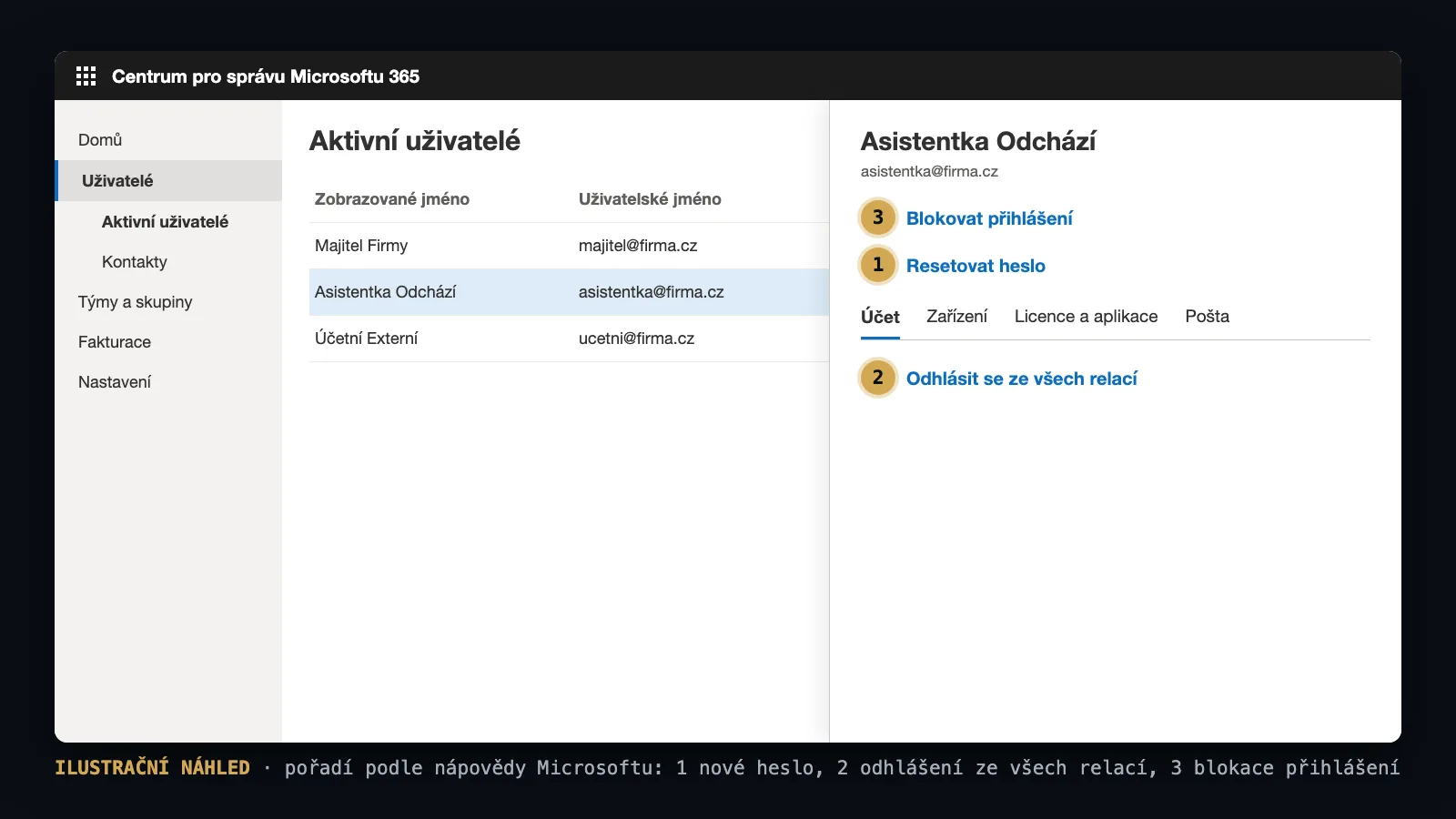
- In Microsoft 365, change the password, sign them out, and block them. In the admin center, go to Users → Active users, select the name, and choose Reset password. Then, for the same user, click Sign out of all sessions on the Account tab. Finally, choose Block sign-in next to the name, check Block this user from signing in, and click Save changes [9]. The order matters: according to Microsoft, the block can take up to 24 hours to take effect, while a new password works immediately [9]. You’re done when the person can’t sign in, even from a phone.
- Save their email and files. In Google Workspace, a super admin can transfer Drive files and the primary calendar to a colleague while deleting the account; other admins have to transfer them beforehand. Always transfer secondary calendars in advance, because they disappear when the account is deleted [14]. In Microsoft 365, you can convert the mailbox to a shared mailbox. It keeps all the email and the calendar, and as long as it stays under 50 GB, you don’t need a license for it [15]. If you only need to keep receiving their new email, open the Mail tab under the name, choose Manage email forwarding, check Forward all emails sent to this mailbox, enter your colleague’s address, and click Save changes [15]. Don’t delete the account afterward, though: according to Microsoft, both forwarding and the shared mailbox depend on it [15]. You’ll find their OneDrive files on the user’s page, on the OneDrive tab, under Create link to files, and you can move them to your own storage [16]. You’re done when you know where their email goes and where their files are.
- Suspend their access to the password manager. In 1Password on the web, click People in the sidebar, select the name, and choose More Actions → Suspend [10]. The person’s page also lists the vaults they had access to [7]. On 1Password Business, you can go to Reports and choose Create usage report: it shows the items the person opened in the last 12 months, so you know which passwords to start with [17]. You’re done when you’ve copied down the list of vaults and suspended the access.
- Change every shared password they knew. Go through the vaults from the previous step and replace the passwords one by one. According to 1Password, if the person was in the Owners or Administrators group, assume they saw every password in the vaults they managed [7]. Start with email, bank, domain, and social media. You’re done when no password they knew is left in your shared vaults.
- Go through the rest of the list. Website admin, CRM, accounting, ad accounts, bank, domain registrar, payment gateway: remove them from the user list everywhere. Be most careful with the domain registrar, because whoever controls the domain can redirect your email too (more on that in moving a domain). Move the automations and integrations they set up to your own account, or turn them off. You’re done when no row on your list still has their name in it.
- Once you’ve taken everything over, stop paying for the account. Google keeps billing a suspended account like an active one, so delete it with More options → Delete user [8] [14]. At that point, a super admin chooses Transfer and picks who gets the data. According to Google, a deleted user can be restored for another 20 days. On an annual plan, deleting the user won’t lower your bill, but you can give the freed-up license to someone else [14]. In Microsoft 365, open the Licenses and apps tab under the name, uncheck the licenses, and click Save changes. Microsoft then keeps the data for 30 days and deletes it permanently after that, except for documents stored in SharePoint [18]. You’re done when you no longer pay for the person who left and their data is with you.
- Give future contractors access with an end date from the start. With work accounts in Google Drive, you can set when sharing ends: in the Share dialog, click the arrow next to the person’s name, choose Add expiration, and pick a date up to a year out [11]. Anywhere else, write the end date in your access list. You’re done when you know the day every temporary access ends.
A shared Google account without an admin console
Plenty of sole proprietors don’t have Workspace and share one ordinary Google account, such as a business Gmail address, with their assistant. There’s no suspend option there. What’s left is to change everything the person knew and sign them out wherever they’re still signed in.
- Change the password. Open your Google Account, click Security & sign-in at the top left, then under How you sign in to Google, click Password, enter a new one, and select Change password [19]. Google then signs you out on all devices except the ones you use to verify sign-ins, smart home devices, and some devices with third-party apps you’ve given access to your account [19]. You’re done when you’re the only one who knows the new password.
- Sign out devices you don’t recognize. On the same page, under Your devices, click Manage all devices, select a device, and choose Sign out [20]. You’re done when the list shows only devices that belong to you.
- Check forwarding. In Gmail on a computer, click Settings → See all settings at the top right and open the Forwarding and POP/IMAP tab. If you find an address you don’t recognize there, click Disable forwarding and then Save Changes at the bottom [21]. You’re done when your email isn’t going to anyone else’s address.
- Remove delegates. On the Accounts and Import tab, find the Grant access to your account section, and next to any address that shouldn’t be there, click Delete [22]. You’re done when nobody who no longer works with you can get into the inbox.
- Review the apps they connected to the account. Apps with access to the account have their own authorization, separate from the password [23], and according to Google, some of them stay signed in even after the password changes [19]. On the Third-party apps & services page of your Google Account, remove anything you don’t recognize or don’t use [23]. You’re done when you know who uses each connected app and what for.
If you work with Claude or another AI assistant in a shared inbox, a departure gives you one more thing to handle. I go through what to decide up front for that kind of inbox in Claude and company email. And if the people you work with connect services through Make or n8n, this comparison of automation tools shows how they stack up.
Six rules for access in your company#
- Everyone has their own account, and shared passwords live only in the password manager.
- All access is written down in one spreadsheet, including automations and AI assistants.
- You get the data handed over before you block the account.
- You block the account the moment the work ends.
- You replace every shared password the person knew, starting with email, bank, and domain.
- Temporary access gets a date when it ends.
Marq got 30 days in jail (with credit for the time he’d already spent in custody, he served 24) plus three years of probation [1]. The accounting firm, whose clients emailed it photos of their cards, paid for someone else’s mistake. Changing that one shared password after Marq left would have been enough.
I can help with this
Departures that leave no stray keys behind
We’ll write up your access list together, move your shared passwords into a vault, and I’ll build an offboarding routine around your actual tools, so anyone on your team can run it next time. I do a lot of security work, on my own systems and for clients, and I’d be glad to help with yours.
Sources#
- Marq. Darknet Diaries, episode 108, 2022. Darknet Diaries
- Kevin Poulsen: Hacker Disables More Than 100 Cars Remotely. Wired, March 17, 2010. Wired
- Adam. Darknet Diaries, episode 113, 2022. Darknet Diaries
- CyberScoop and The Verge on the Ronin bridge theft, March 29, 2022 (both cite the Ronin network’s statement). CyberScoop, The Verge
- Tornado. Darknet Diaries, episode 147, 2024. Darknet Diaries
- Block, Inc.: Form 8-K, Item 8.01, April 4, 2022. SEC
- 1Password Support: Offboard a team member. 1Password
- Google Workspace Admin Help: Suspend a user temporarily. Google
- Microsoft Learn: Prevent a former employee from signing in and block access to Microsoft 365 (step 1 of removing a former employee). Microsoft
- 1Password Support: Add and remove team members. 1Password
- Google Drive Help: sharing files and setting an expiration date for access. Google
- 1Password: business pricing, accessed November 11, 2026. 1Password
- Google Workspace Admin Help: Sign a user out of a managed Google Account. Google
- Google Workspace Admin Help: Delete or remove a user. Google
- Microsoft Learn: Step 4, forward a former employee’s email or convert the mailbox to a shared mailbox. Microsoft
- Microsoft Learn: Step 5, give another employee access to OneDrive and Outlook data. Microsoft
- 1Password Support: Create reports (Usage report). 1Password
- Microsoft Learn: Step 6, remove a former employee’s license. Microsoft
- Google Account Help: Change or reset your password. Google
- Google Account Help: See devices with account access. Google
- Gmail Help: Automatically forward Gmail messages to another account. Google
- Gmail Help: Delegate access to your email. Google
- Google Account Help: Share access to your data with third-party apps. Google
Frequently asked questions
Is closing a former team member’s account enough?
No. Closing the account only shuts down their own login. Shared passwords they knew, apps they connected, and their access at your vendors keep working until you change or remove them.
What is offboarding?
A written checklist you run every time someone leaves: you take over their data, block their accounts, change the shared passwords, and remove their access in every service. That way, nothing depends on what you happen to remember that day.
Should I revoke access on someone’s last day or after it?
The moment the working relationship ends. Have the person transfer the data they’re handing over beforehand; blocking the account itself then takes a few minutes. If someone is leaving on bad terms, have the routine ready before you talk to them.
Do I need to change passwords if we parted on good terms?
Yes. The password stays in your former colleague’s head, phone, and browser. If someone steals their computer or breaks into their account, your password opens the door for the attacker too.
How do I handle access for contractors and agencies?
The same way as for employees: their own account instead of a shared password, only the permissions they need, and for temporary work, a date when access ends. With work accounts in Google Drive, you can set an expiration date for sharing right in the Share dialog.