Security
Locking down your website and store: what to ask your developer
Hidden code stole British Airways card data, and owners rarely find out on their own. Here’s what to ask your developer and what to set up yourself.
 Honza Silar 16 min read Nov 11, 2026
- Shoptet
- WordPress
In this article
What you’ll take away
Someone else builds your website, and you trust that everything’s in order. By the end, you’ll know what to ask them, what to keep an eye on yourself, and which answers should worry you.
- How a few lines of code on a checkout page turned into a record fine.
- Why putting off a security test doesn’t pay.
- The questions worth asking whoever builds your website or online store.
- The settings you can switch on yourself, without waiting for anyone.
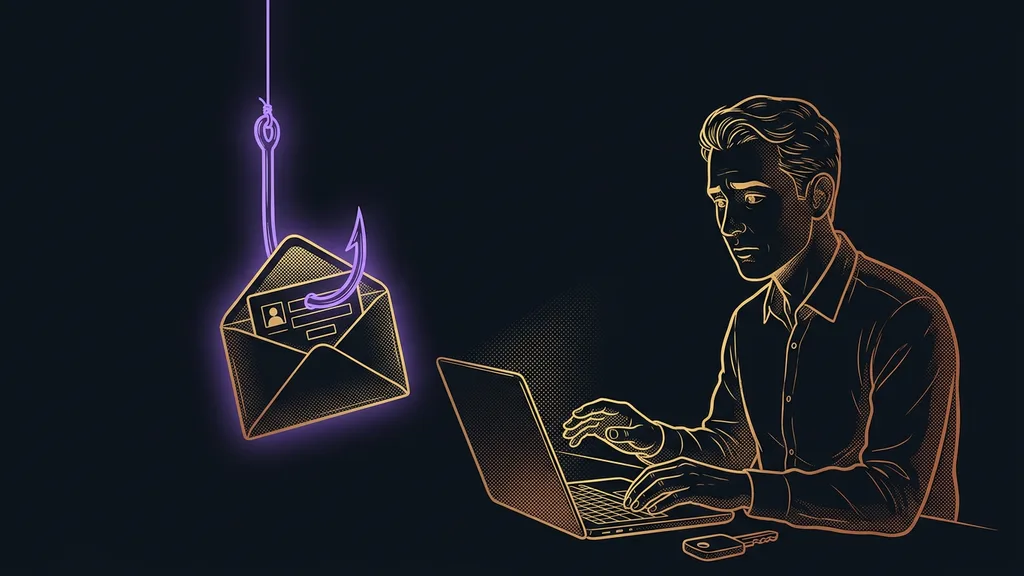
In August 2018, British Airways customers were booking flights the way they always had, on the website and in the mobile app. None of them knew that a small piece of code had been added to one file on the site. When a customer filled out the payment form, the code sent their card details to the attackers as well. The airline itself said about 380,000 people were affected [1].
What looks like a big-company problem comes down to mistakes plenty of small online stores make too. Your site was most likely built by a developer or an agency, and you trust them to have set it up properly. You won’t be digging into the code, and you don’t need to. A handful of good questions and a few settings you can change yourself will do.
I build websites and systems for clients myself, so I know which questions a good developer should be able to answer on the spot. First, though, three stories where this played out for real.
A few lines of code at checkout#
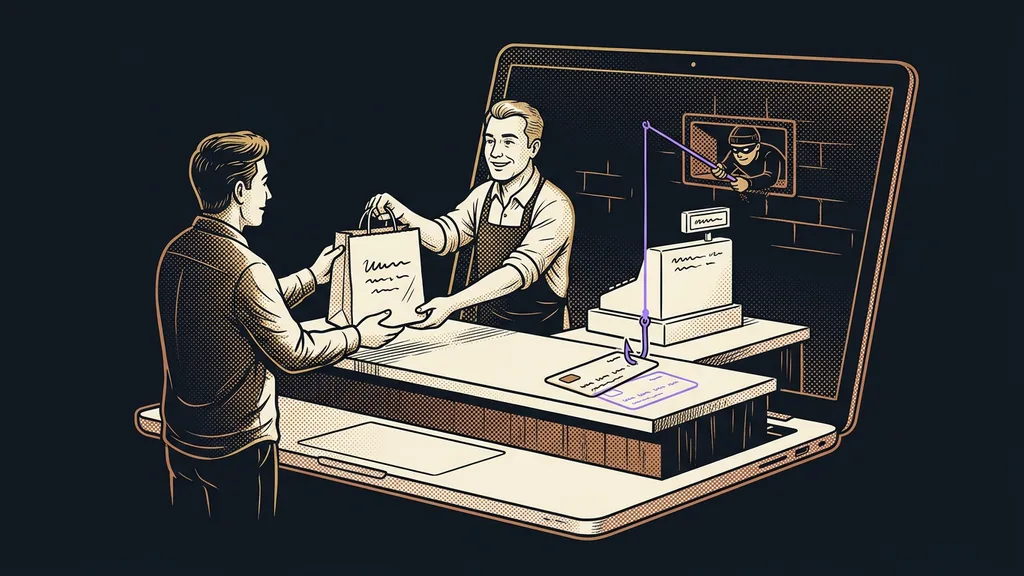
On the Darknet Diaries podcast, Jonathan from the security firm RiskIQ told the story. Since 2015, RiskIQ had been tracking groups of attackers who went after online stores. Their method never changed: get into the store and add a script to the payment page that copies card numbers. The payment still goes through as usual, so nobody notices a thing [1].
They got in one of two ways. Either straight into the store, where they slipped their code in next to something like the analytics tracking code, or through the back door: a third-party script the store loaded on its pages, such as an ad or a chat widget. According to RiskIQ, by compromising a single supplier of that kind, the attackers reached roughly 100,000 websites [1].
At British Airways, the attackers changed just one of the roughly one hundred files the site used, the one that loaded with every payment, on desktop and mobile alike. The injected code ran on the site from August 21 to September 5, 2018 [1]. According to the BBC, the airline only learned about the attack from a security researcher. In October 2020, the UK data protection regulator, the ICO, fined it £20 million, the largest fine in the ICO’s history up to then. The ICO had originally proposed £183 million and cut the amount partly because of the impact of Covid [2].
How a few lines of code at checkout copy card numbers
Web skimming
A piece of code an attacker smuggles onto a page with a payment form. It copies whatever the customer types in and sends it to the attacker, while the payment goes through as usual. The groups that specialize in this are collectively known as Magecart.
How quickly your developer answers a few simple questions tells you how secure your website is.
Six months without a test, and half a million dollars#
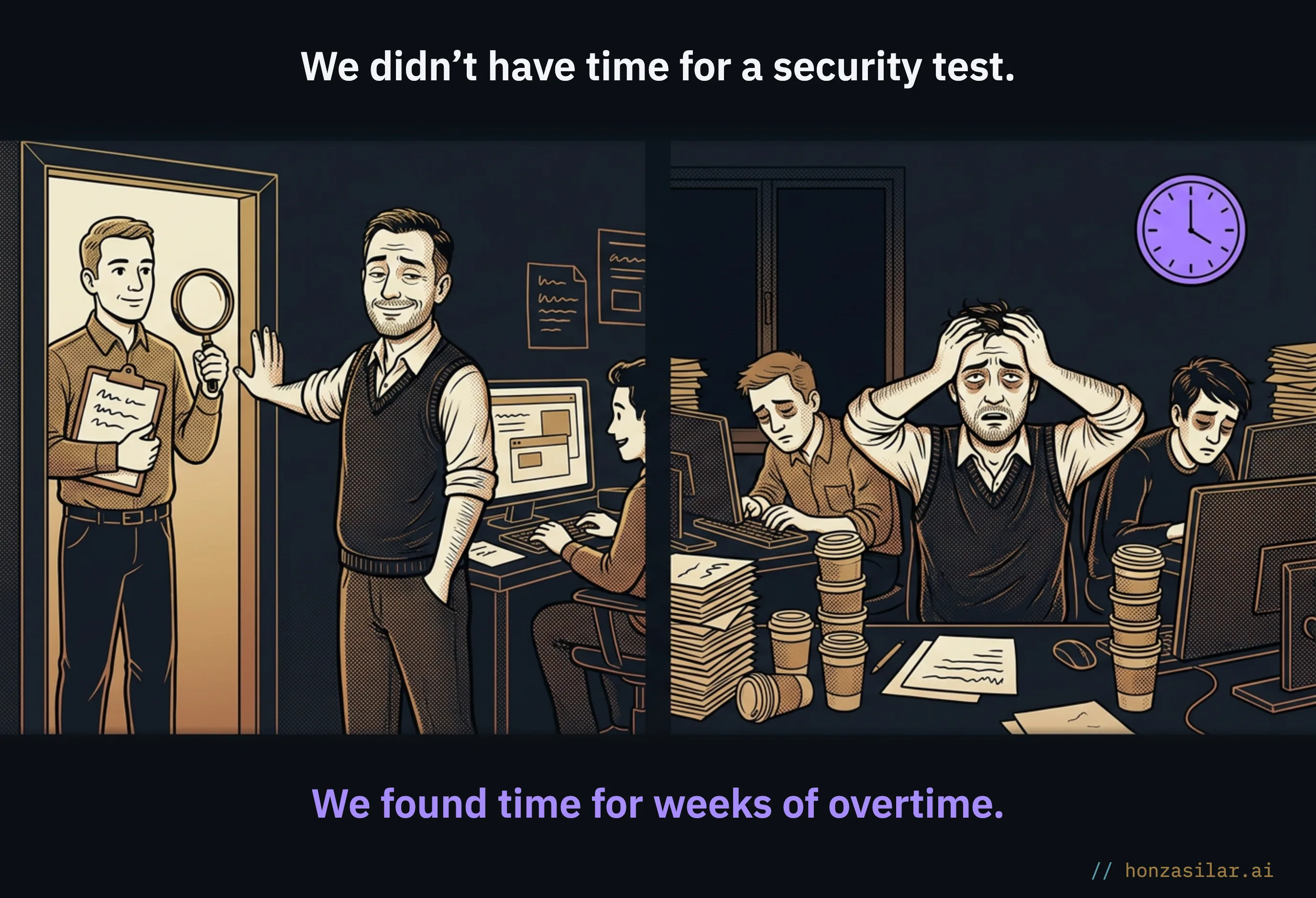
The second story comes from Tanya Janca, who works in application security. Not long after she started in the field, she joined an organization where her job was to test the apps of five development teams before they went live. The lead of one team brushed her off: his people didn’t have time for it, and the apps were fine. He put her off for six months and finally showed her the door [3].
Then her boss called the developers together and described the worst incident in recent memory. One app had an SQL injection flaw, attackers used it to steal sensitive data, and the organization had to report the breach to the privacy regulator itself. The server was sent off for forensic analysis, people worked weeks of overtime, and the whole thing cost over half a million dollars, enough, the boss said, to hire five engineers. The boss then added that it was their app, the very one Tanya had spent six months trying to get tested [3].
SQL injection
An attack through an ordinary field on a website, such as a username or a search box. Instead of text, the attacker types in part of a database command, and a badly written site obediently runs it. The defense has to live in the site’s code, which must check every input. You don’t have to handle that yourself: it’s the programmer’s job.
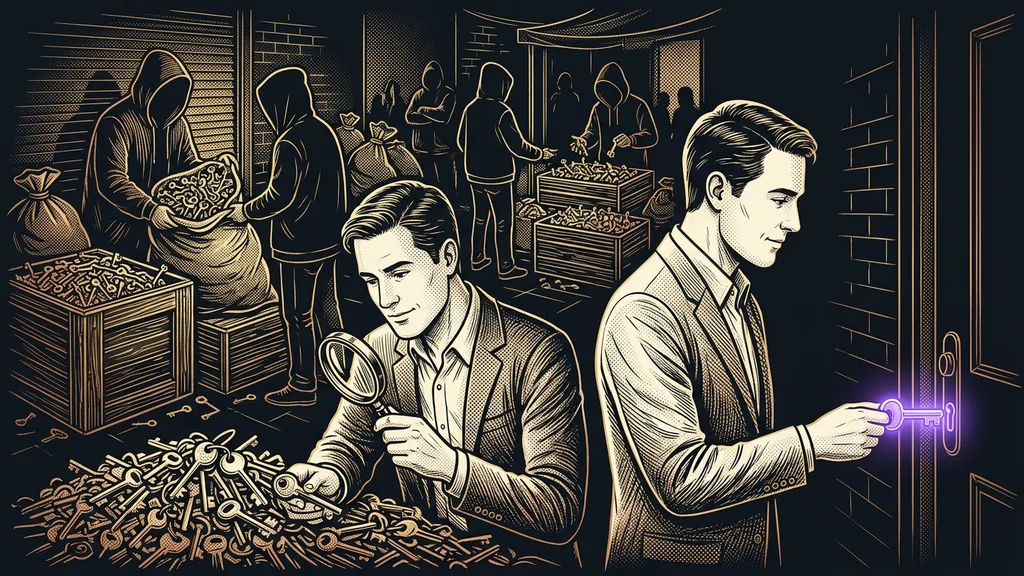
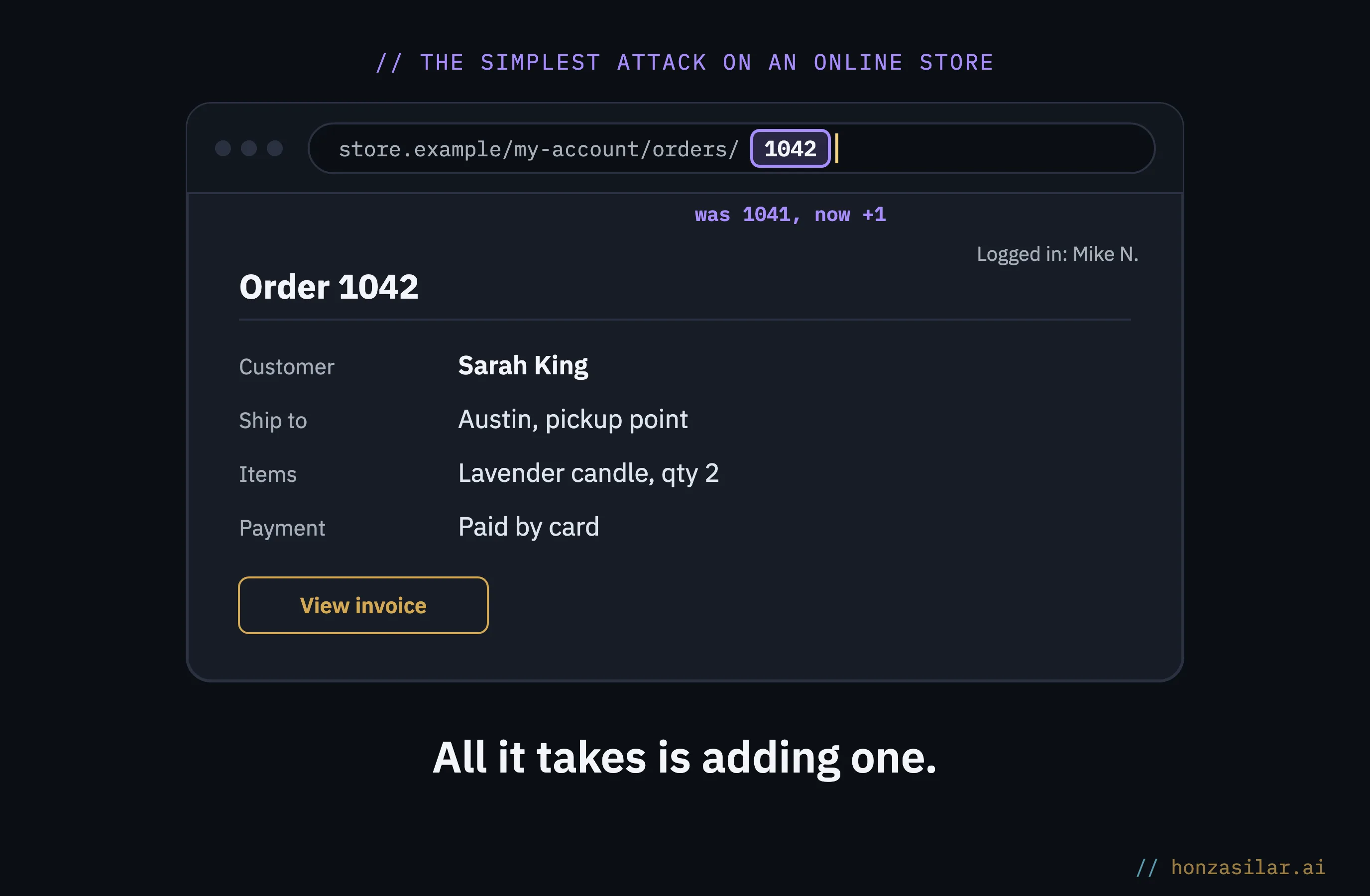
The third mistake is simpler still. On a scam site on the dark web, security expert and blogger Chris Monteiro tried changing the message number in the URL by one. The site showed him someone else’s message, so one by one he read what other users and the site’s admin had written to each other [4]. When a site doesn’t check who the data belongs to, the security community OWASP calls it broken access control and ranks it first on its list of the most serious web application risks [5]. In an online store, that would mean a customer could change the number in the URL and see someone else’s order.
Who got burned and who stayed safe#
Each of the three stories turned on a question nobody asked or nobody wanted to hear.
British Airways got burned. From August 21 to September 5, someone else’s code was running on its site, and according to the BBC, the airline only found out from a researcher. It ended with a £20 million fine [1] [2].
So did the organization Tanya worked for. The breach hit the same app the team lead had refused to have tested for six months. It cost the organization over half a million dollars, weeks of overtime, and a report to the regulator [3].
Online stores with third-party scripts at checkout got burned too. When an attacker compromised the script’s supplier, that gave them a way straight into every store that loaded it [1].
The stores that kept outside code off their checkout stayed safe. That’s what the RiskIQ researcher recommends on the podcast: no ads or anything else from third parties should run on the payment page. Not every compromised script ends up on a payment page in the first place [1]. Nobody has counted how many stores were spared because of it. Still, a script that never runs at checkout has no card numbers to copy.
Six questions about your website
Answer yes or no. Do you know everyone who has access to the admin? Does each of them have their own account with two-factor authentication turned on? Do the site and its plugins update automatically? Has anyone tried restoring the site from a backup in the past year? Are card payments processed by a payment gateway, away from your own site? Does the contract say who fixes a reported bug and by when? Every no is a question for your developer.
Three habits: ask, verify, and keep the keys#
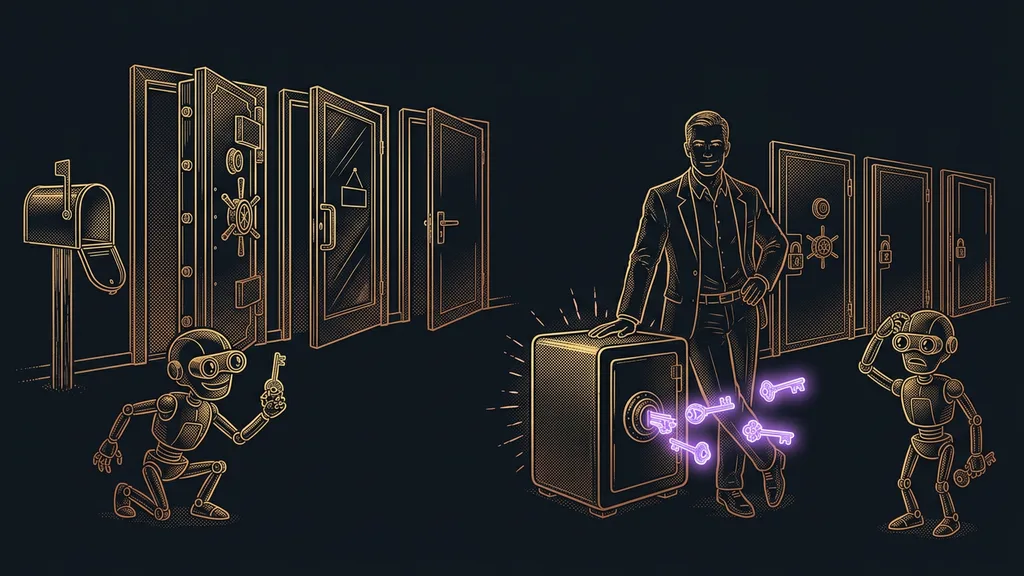
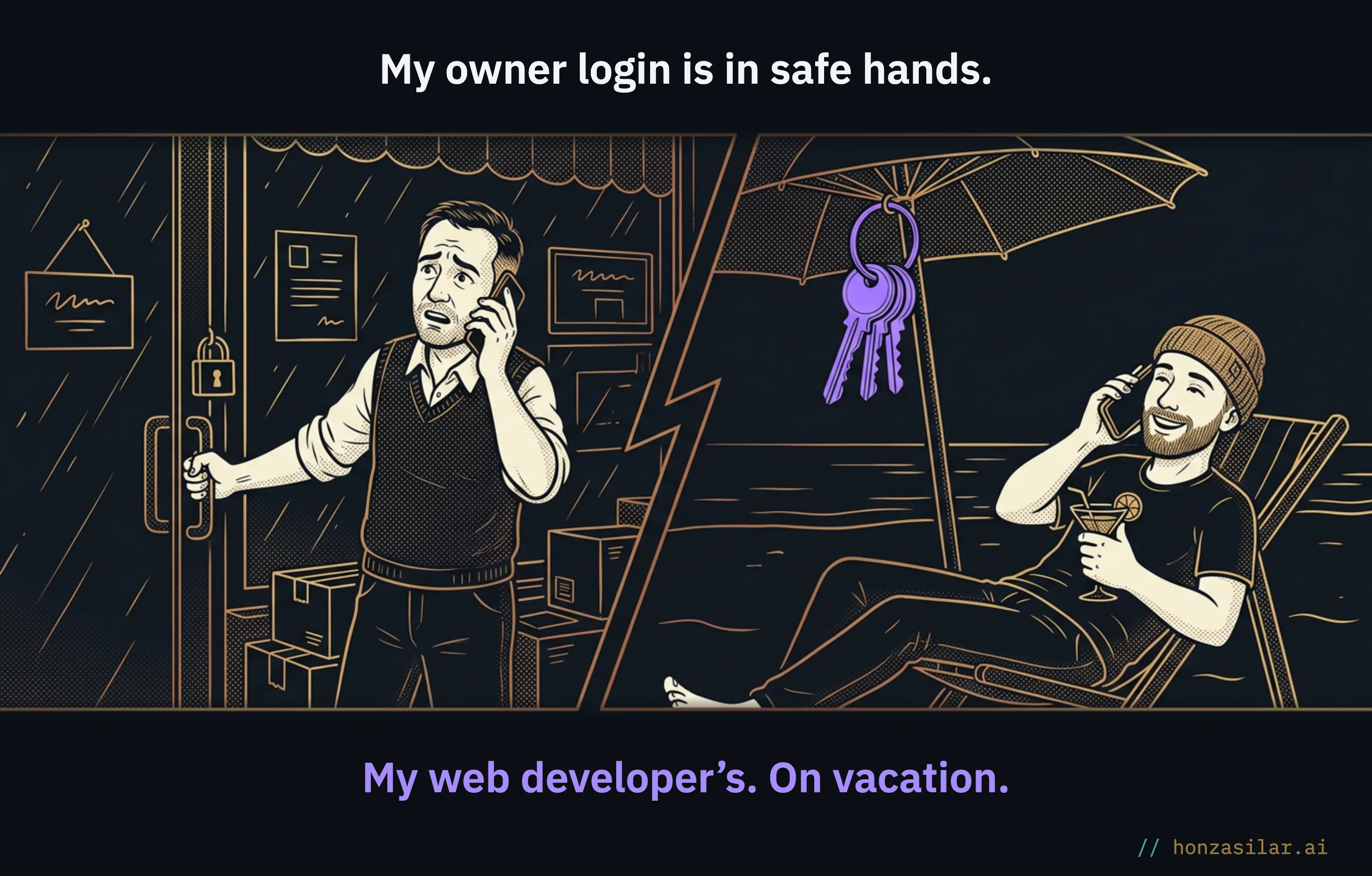
Website security starts with knowing who’s responsible for what, well before anyone pays for an expensive test. Three habits help. The owner keeps the keys to the site, and the developer gets their own. For anything important, you want a specific answer from your developer, not a “don’t worry, it’s fine.” And whatever you can set up yourself, you set up now, without waiting for anyone.
For the conversation with your developer, use the list of questions below. A good developer will answer most of them right away, without hedging. If yours starts to squirm, the site may still be fine. Someone should take a look anyway. The same questions apply if you build the site yourself or with a prompt and some help from AI.
What to ask your website or online store developer
- Who has access to the admin, the hosting, and the domain, and do I have an owner account?
- Who updates the system and plugins, and how often?
- Where are the backups, how old are they, and when did we last test a restore?
- Do payments go through a payment gateway, with no card numbers stored on the site?
- Which third-party scripts run on the payment page and on pages with forms?
- Does the site check every input, and will a logged-in customer see only their own orders?
- Has the site been through a security test, and who fixes a reported bug?
- What happens to the site and the logins when we stop working together?
Locking down your website and store, step by step#
Set aside an afternoon, an hour of which goes to the conversation with your developer. For online stores on Shoptet (a Czech e-commerce platform) and sites on WordPress, I give the exact menu paths, based on Shoptet’s official help center and on WordPress 7.1 (as of November 2026). On other platforms, look for similarly named options. The process has five parts, and Shoptet and WordPress each get one of their own.
Keys and access
- List everything you have. Write down your domains and subdomains, old sites and landing pages, plus where everything runs (hosting, platform) and where your domain is registered. Next to each item, note who has access to it. You’re done when you have the list and know who looks after each item.
- Keep the owner account to yourself. When you create a store on Shoptet, it sets up an account with the Owner role, which can’t be deleted and has access to everything. Shoptet explicitly advises against sharing its login details with anyone and recommends creating separate accounts for other people [6]. On WordPress, ask for your own administrator account tied to your email address. You’re done when you can log in to the admin without your developer’s help.
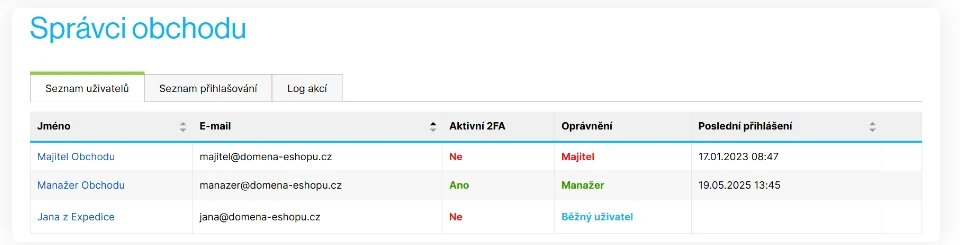
- Check who has access. On Shoptet, open Settings → Administration → Store administrators and go to the User list tab. You’ll see the name and email of every account, its permissions, a 2FA active column, and the last login [6]. Delete the accounts of people who no longer work for you. The next tab, Login list, shows every login attempt, and the Action log tab shows changes to the store over the past 90 days [6]. You’re done when nobody extra is on the list and you don’t see any logins you don’t recognize.
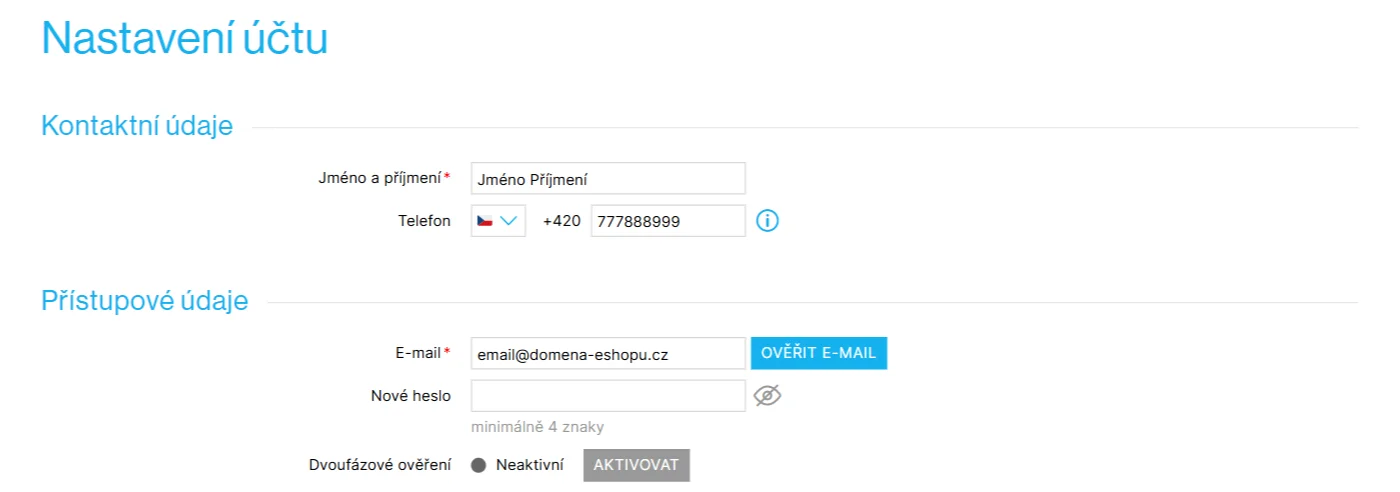
Two-factor authentication on Shoptet
Each person turns on two-factor authentication in their own account. You’ll need an authenticator app such as Google Authenticator or Microsoft Authenticator, or a password manager that can generate verification codes [7].
- Verify the account email. From the menu under your account name in the admin’s top bar, open My account → Account settings. If you see a Verify email button next to your email address, the address isn’t verified. Click it and open the link in the message you receive [7].
- Start the activation. Next to Two-factor authentication, click Activate and enter your account password [7].
- Scan the QR code. Open your authenticator app and point it at the code on the screen. The app will start showing six-digit codes; type one of them into the admin [7].
- Save the backup code. Shoptet shows you a backup code for restoring access, for example if you lose the phone with your authenticator app. Store it somewhere safe, such as your password manager, and click Activate [7]. You’re done when your account shows Yes in the 2FA active column, and so does every other account on the list.
Two-factor authentication and updates in WordPress
- Install the Two Factor plugin. In the admin, go to Plugins → Add New Plugin, search for Two Factor by WordPress.org, click Install Now, and then Activate [8] [10]. According to its plugin page, it requires WordPress 7.0 or later [8]. You’re done when the plugin shows up as active under Installed Plugins.
- Turn it on for every account. Each user opens Users → Profile and scrolls down to the Two-Factor Options section the plugin adds. They enable Authenticator App, scan the QR code with their authenticator app, generate Backup Codes, and save them. They set the app as the default method and finally click Update Profile [8] [10]. You’re done when every account with administrator rights has both the app and the backup codes set up.
- Turn on automatic plugin updates. Open Plugins → Installed Plugins and click Enable auto-updates next to each plugin [9] [10]. The WordPress documentation recommends regular automatic backups to go with them [9]. On hosted platforms, ask who takes care of updates. You’re done when every plugin shows auto-updates enabled.
Backups, checkout, and customer data
- Test a backup. Ask your developer where the backups are and how old they are, and have them restore one page or a copy of the site as a test. You’re done when you know how long a restore takes and you’ve seen it work.
- Clean up the checkout. Confirm with your developer that payments go through a payment gateway and that no ads, chatbot, or other third-party scripts run on the payment page. Tracking scripts belong only where you need them, and only with consent from your cookie banner. You’re done when you have in writing exactly what runs at checkout.
- Try the number in the URL. Log in to your store as a customer, open your own order, and change its number in the browser’s address bar by one. If you see someone else’s order, tell your developer immediately. You’re done when you get an error or a login link instead of someone else’s data.
The URL number test you can do yourself
The conversation with your developer
- Go through the questions with your developer. Use the list from the infographic above and ask for the answers in writing too. You’re done when you have them saved.
- Write down who fixes what. Put in the contract, or at least in an email, who fixes a reported bug and by when. You’re done when it’s in writing.
- Agree on what happens after a breach. If customer data leaked from your store, the report to the regulator falls to the company that manages that data, which most likely means you, and it’s due within 72 hours where feasible [11]. So agree with your developer on how quickly they’ll tell you when they discover something. You’re done when you know who you’ll contact first in that situation.
Six things a secure site has in place#
- The owner account and access to the domain belong to you, and your developer has their own account.
- Every admin account has two-factor authentication, and accounts of people who no longer work with you are deleted.
- The system and plugins update automatically, and the backups have been tested with a restore.
- Nothing from outside runs on the payment page, and a payment gateway handles the cards.
- It’s clear who handles security tests and fixes reported bugs, and by when.
- Once a year, you go through the same questions with your developer again.
British Airways learned about the code on its checkout from an outsider. A small online store may not be that lucky, so ask your questions before someone else does.
I can help with this
Let’s look at your website together
If you’re not sure where your website or online store stands, I’ll go through it with you. We’ll check access, two-factor authentication, updates, and backups, and put together questions for your developer. And if you’re planning a new site, feel free to ask me about all of this too. I go deep on security, in my own setup and for my clients.
Sources#
- Magecart. Darknet Diaries, episode 52, 2019. Darknet Diaries
- BBC News: British Airways fined £20m over data breach, October 16, 2020. BBC
- Tanya. Darknet Diaries, episode 165, 2025. Darknet Diaries
- Kill List. Darknet Diaries, episode 156, 2025. Darknet Diaries
- OWASP Top 10:2025, A01 Broken Access Control. OWASP
- Shoptet Help Center: Store administrators. Shoptet
- Shoptet Help Center: Account settings, Two-factor authentication section. Shoptet
- WordPress.org: Two Factor (plugin). WordPress.org
- WordPress.org: Plugin and themes auto-updates. WordPress.org
- Official WordPress 7.1 and Two Factor plugin language packs, cs_CZ, which pair each English interface string with its Czech translation (the menu items and buttons used in the steps above: Installed Plugins, Add New Plugin, Install Now, Activate, Users, Profile, Update Profile, Enable auto-updates, Two-Factor Options, and Authenticator App). WordPress.org
- Regulation (EU) 2016/679 (GDPR), Article 33. EUR-Lex
Frequently asked questions
What is web skimming?
A piece of code an attacker smuggles onto the payment page that copies customers’ card details. The payment goes through as usual, so neither the customer nor the store notices. The groups that specialize in this are collectively known as Magecart.
Does my online store save credit card numbers?
It doesn’t have to, and it shouldn’t. When payments go through a payment gateway, the customer enters their card details on the gateway’s page, and your site never sees the card number. Ask your developer how yours is set up, and don’t leave third-party scripts on the payment page.
How can I tell if someone changed something in my store’s admin?
It depends on the platform. On Shoptet, go to Settings → Administration → Store administrators. The Login list tab shows every login attempt, and the Action log tab shows changes from the past 90 days. On other platforms, ask your developer where to find a similar record.
What should I do if customer data leaks from my online store?
Under the GDPR, the company that manages the customer data (the data controller) must report the breach to the supervisory authority without undue delay and, where feasible, within 72 hours. In the Czech Republic, that’s the Office for Personal Data Protection. The exception is a breach that’s unlikely to put people at risk. I’m not a lawyer, so if you’re dealing with an actual leak, get advice from an expert.
Are automatic updates enough to keep my site secure?
They’re a good foundation. Bugs also turn up in the custom code your developer wrote for you, though, and no automatic update will reach it. So besides updates, ask about testing, backups, and access too.