Security
Reusing one password will fail you. Move to 1Password in an afternoon
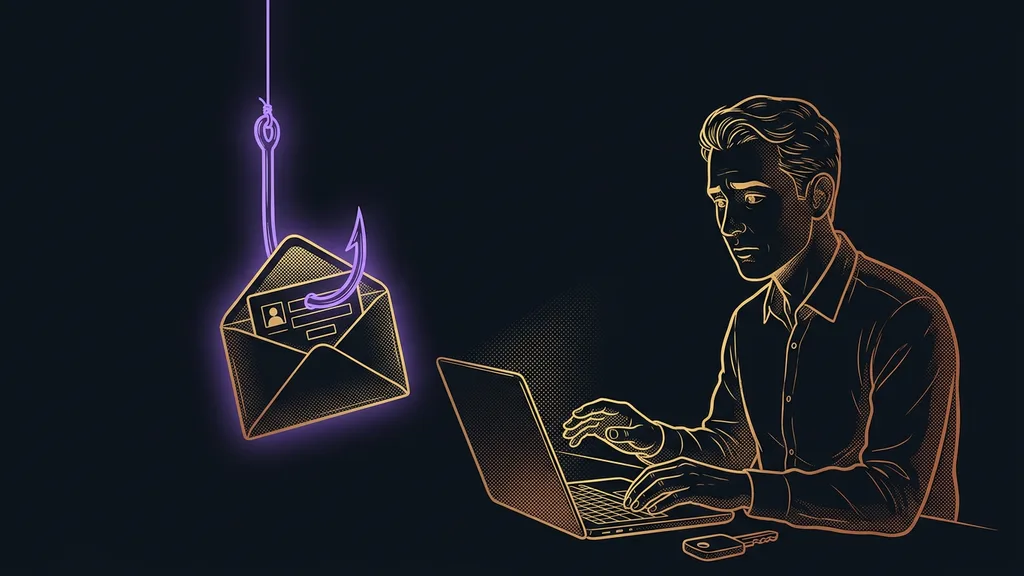
The same password for your email, store, and bank lasts until the first breach. Then bots try it everywhere and get into your email, accounting, and bank.
 Honza Silar 18 min read Nov 11, 2026
- 1Password
In this article
What you’ll take away
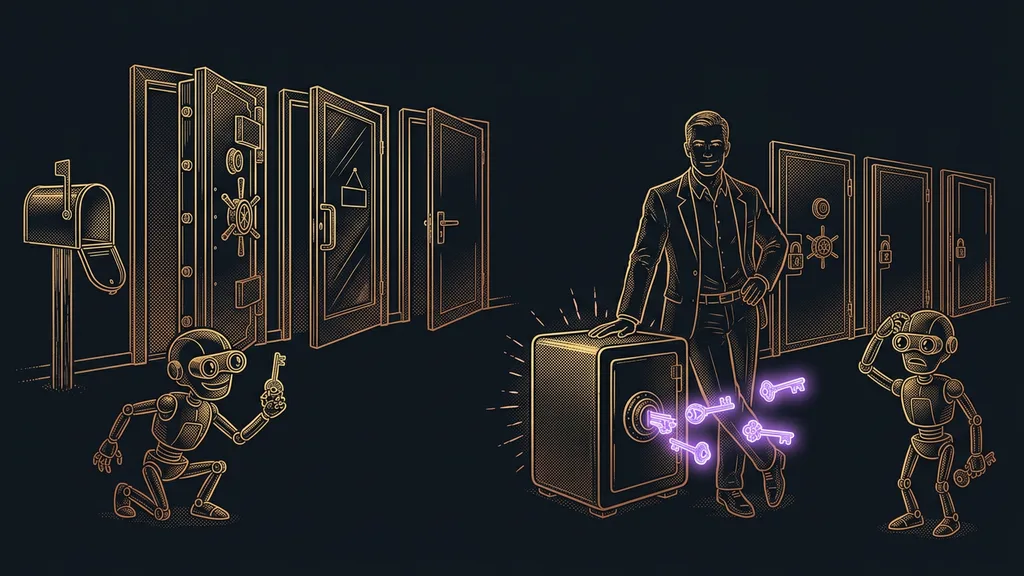
Your passwords live in your head, in your browser, and maybe in a notebook on your desk. I’ll show you how to move them into one vault that comes up with new ones for you. And the next time some site gets breached, you’ll only have to change one password.
- Why one leaked password opens accounts that had nothing to do with the breach.
- What set apart the people who got through the big breaches unharmed.
- How to move to 1Password on your computer, your phone, and across your company, step by step and with screenshots.
- Plus a two-minute check of where you stand today.
A Russian hacker spent years stealing credit card numbers from American restaurants, and what finally gave him away was an ordinary movie ticket website. He had signed up there with the password he used almost everywhere, and the site emailed it back to him in plain text in a welcome message. When the US Secret Service seized his encrypted laptop, that was the password they tried. The laptop opened on the first attempt [1].
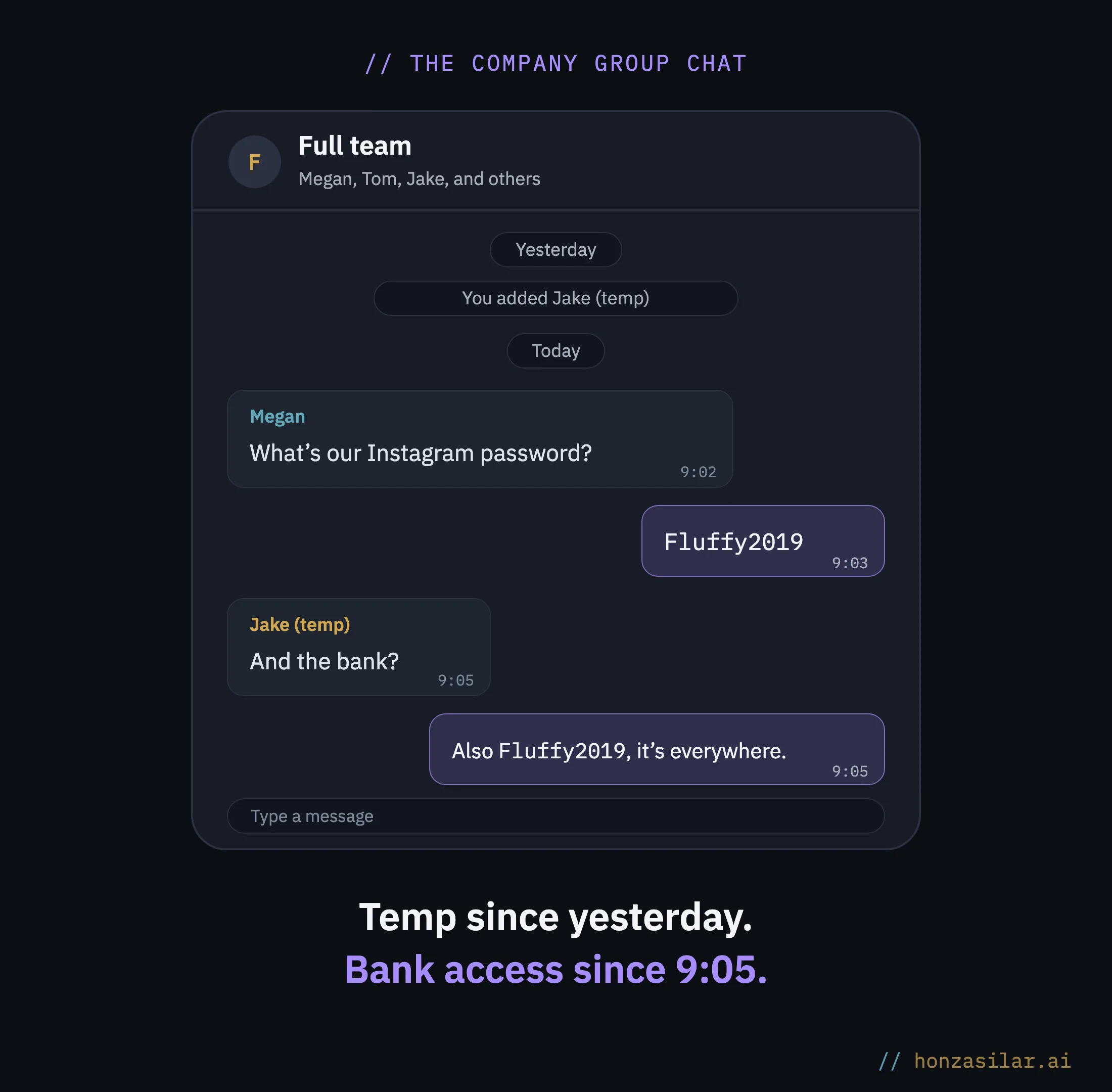
It sounds like a story about a dumb criminal. Yet plenty of business owners who would never steal anything make the same mistake: one password for their email, online store, accounting, and bank, or at most a different number at the end. That’s convenient right up until someone breaches any one of those sites. From then on, the safety of your bank account also depends on the sloppiest website you’ve ever had an account on.
The fix is a password manager. I use 1Password myself, so the instructions below are for it. First, though, let me explain why a single password for everything is bound to fail sooner or later.
How one breach opens ten doors#
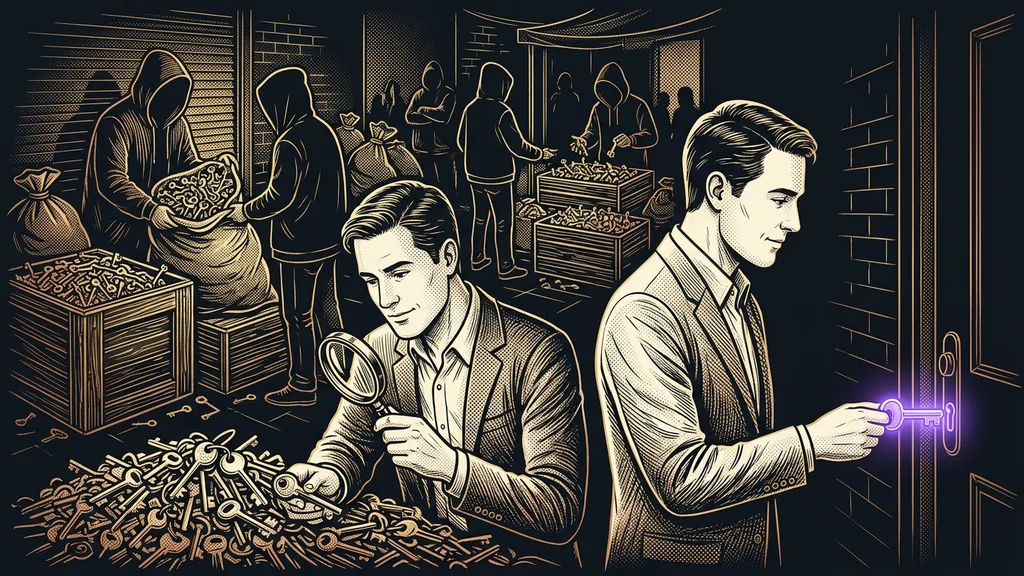
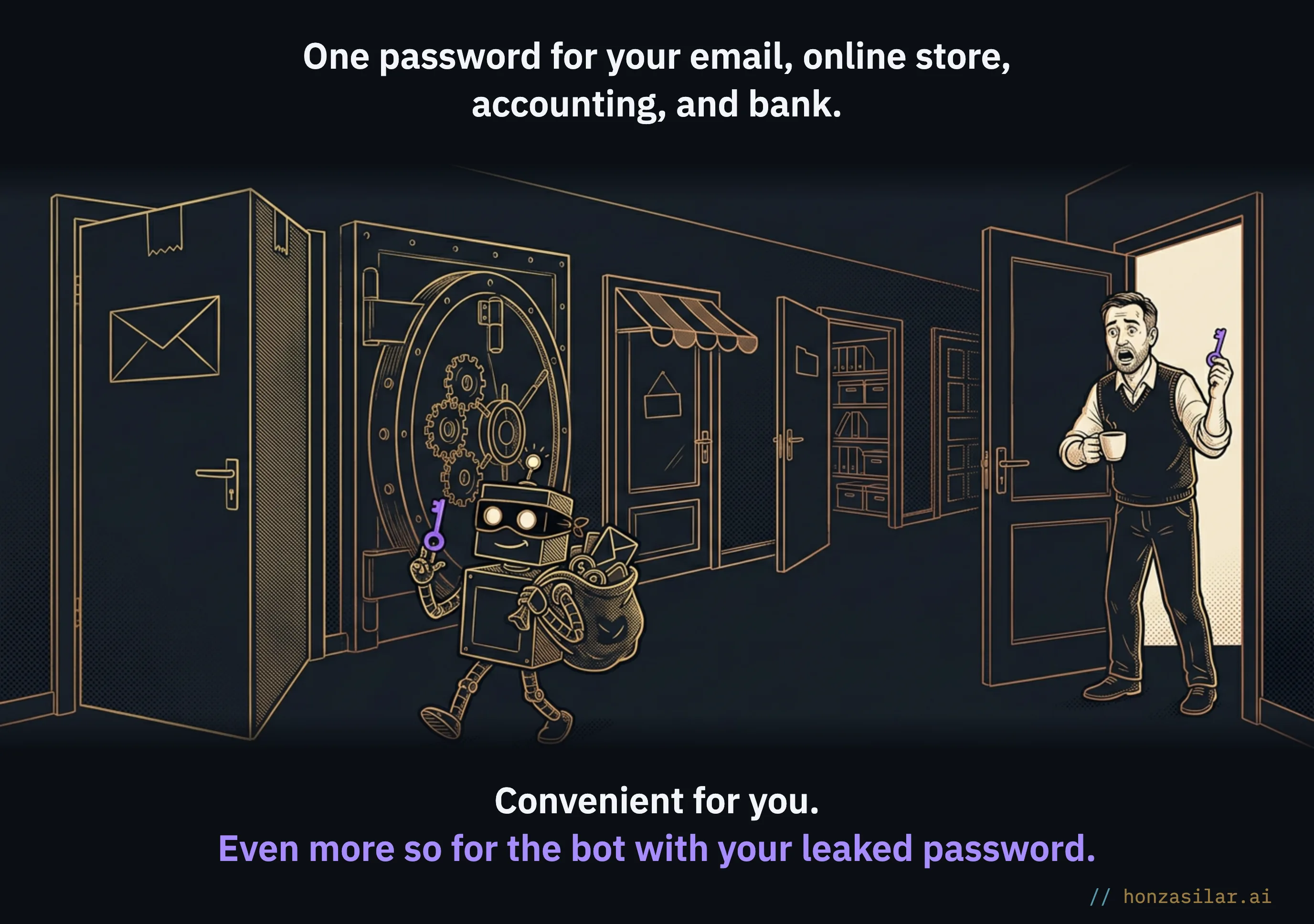
Once a password leaks, attackers load it into a program that automatically tries each email and password pair on email accounts, banks, social networks, and online stores. Wherever you use the same password, they’re in.
Credential stuffing
An attack in which a bot takes the emails and passwords from someone else’s breach and tries them in bulk on other services. The bot cracks nothing. It just checks whether you’ve used the same password somewhere else, so the only defense is a different password on every site.
In 2009, a breach at the US website RockYou showed how big these lists of leaked passwords get. RockYou stored passwords in plain text, and the attacker made off with 32 million of them [2]. The most common password was “123456,” used by 290,000 people. Imperva, a security firm, worked out from the leak that the 5,000 most common passwords would open a fifth of all accounts [2]. To this day, the RockYou list is one of the standard wordlists attackers use to try passwords.
Before RockYou, the same attacker had warmed up on ČSFD, the Czech movie database, and made off with the data of 187,000 users [2].
A strong password won’t protect you if you use it everywhere. One leak from the weakest site you’ve ever used is enough.
How a LinkedIn password brought down Dropbox#
In 2012, Russian hacker Yevgeniy Nikulin breached LinkedIn and stole the passwords of millions of users. He then tried the cracked passwords on other sites. One of his victims was a Dropbox engineer who, as he later admitted, used the same password on LinkedIn, Twitter, Facebook, and Google [3]. Through that engineer’s Dropbox account, the attacker got hold of a list of at least 20 million Dropbox users [3]. The full breach, 68 million accounts, didn’t come to light until 2016 [4].
Czech police arrested Nikulin in October 2016 at a restaurant in Prague [3]. After a year and a half of fighting over his extradition, he ended up in the US, and in 2020 he was sentenced to seven years and four months in prison [5]. It still surprises me that the weak link was an engineer at a tech company, someone who knew more about threats than most of us. Even he chose convenience.
Who got burned and who came through fine#
Most of the stories in this article come from the Darknet Diaries podcast, and one pattern runs through its episodes. Who ends up paying for a breach usually depends on whether one password opens one door or every door.
Small restaurants and shops across the US, including in Seattle, got burned. Roman Seleznev, the hacker from the movie ticket story, got into their cash registers through remote desktop. Many of the businesses were looked after by the same IT support company, and it used one password for all of them [1]. Seleznev was sentenced to 27 years in prison, and the losses topped $169 million [6]. Broadway Grill, a restaurant in Seattle, went bankrupt after the attacks [7].
So did some users of the LastPass password manager. In 2022, attackers stole encrypted copies of LastPass vaults. Researchers who talked to journalist Brian Krebs believe the vaults have been getting cracked ever since: they counted more than 150 victims who lost over $35 million in cryptocurrency, and nearly all of them had kept the keys to their wallets in the vault. One victim locked their vault with an eight-character password and lost about $3.4 million [8], proof that a password manager is only as strong as the password you lock it with.
One company came through untouched when a pentester, a hacker hired to break in, tested it in episode 36. The company required passwords of at least twelve characters, and people strung whole phrases together. The pentester set up a machine with eight graphics cards and, with the standard wordlists, didn’t crack a single one [9]. The only way he got any further was the administrator password on the company laptops, the company name plus a year, which was the one password the rule didn’t cover.
And then there are the people nobody writes about, because nothing happened to them. Anyone who used a different password on LinkedIn than on their email changed one password after the breach and was done. I don’t have statistics on this, but it follows directly from how the attack works.
Someone breaches a small online store. What happens next?
One password everywhere
A bot tries to sign in to your email with the leaked password
It gets in and uses your email to reset the passwords to your other accounts
You’re changing passwords everywhere with no idea where to start
Password manager
A bot tries to sign in to your email with the leaked password
It fails, because your email has a different password
Watchtower points to the one password you need to change
Why 1Password#
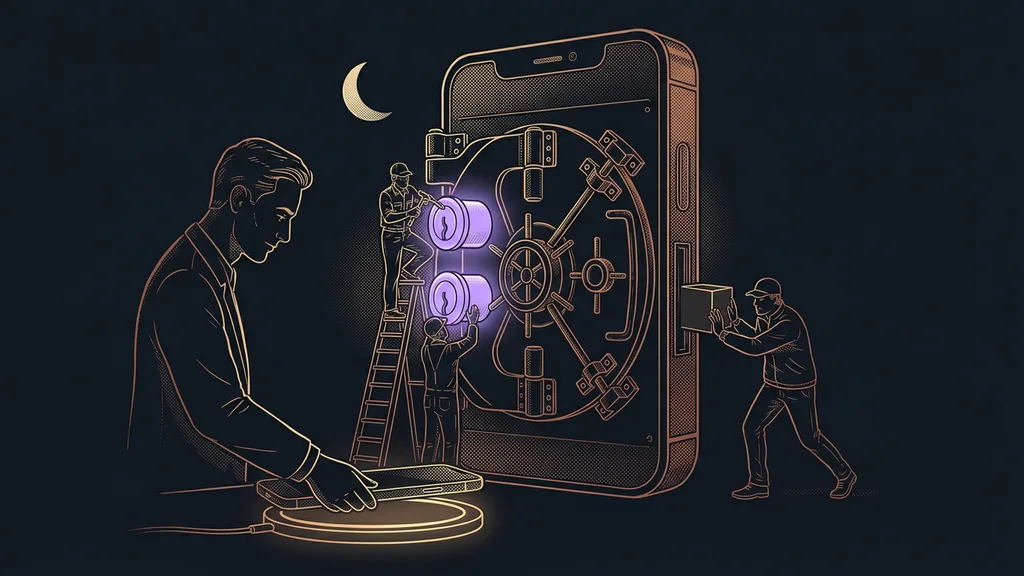
A password manager creates a long random password for every account, stores it in an encrypted vault, and fills it in for you when you sign in. You only have to remember one master password. I recommend 1Password for three reasons.
The first is protection in case attackers breach the company itself, which is what happened to LastPass. 1Password encrypts your data with your master password plus a Secret Key that’s created on your device and never reaches the company [10].
Secret Key
A 34-character code of letters and numbers that 1Password adds to your master password. You don’t need to memorize it, because it’s stored on your devices and in your Emergency Kit. Without it, nobody can unlock stolen data, even by guessing your password. Not even 1Password.
The second reason is visibility. A feature called Watchtower keeps track of which of your passwords have shown up in breaches, which ones you’ve reused, and which are weak [11]. And when you enter a password on a site that isn’t saved in your vault, 1Password warns you [12]. That comes in handy now that scammers use AI to write fake emails without a single mistake (see AI scams aimed at small businesses).
The third is sharing. At work, you put shared accounts into a shared vault, and passwords stop making the rounds in spreadsheets and messages.
The table below shows the pricing [13]. Teams and business plans are billed annually.
What 1Password costs (pricing as of November 11, 2026)
| Plan | Price |
|---|---|
| Individual | $3.99 a month billed annually, $2.99 in the first year for new customers |
| Families, up to five people | $5.99 a month, $4.49 in the first year |
| Teams Starter Pack, a team of up to ten | $24.95 a month |
| Business | $8.99 per person per month |
There are two good alternatives. If all your devices are from Apple, the built-in Passwords app will do, and it also flags passwords that have turned up in breaches [14]. If you want a free manager that also works on Windows and Android, take a look at Bitwarden, whose basic version costs nothing [15].
When 1Password is worth it and when another manager will do
1Password is worth it
- You switch between Mac, Windows, and Android
- You share passwords with people at work
- You want protection even if attackers breach 1Password itself
Another option will do
- You only use Apple devices: the built-in Passwords app
- You want a free manager on Windows and Android too: Bitwarden’s basic version
Two minutes with a pen
Write down five accounts your business can’t do without for even a day: your email, bank, accounting, website, and main social network. For each one, say the password to yourself. Do at least two of them match, or differ only by the number at the end? Then you’re in the same spot as the Dropbox engineer, and the instructions below are written for you.
Switching to 1Password, step by step#
The switch has three parts. The computer takes an hour or two, your phone about fifteen minutes, and the company part an hour or more, depending on how many of you there are. You can spread the job of changing your other passwords over a week. These instructions reflect how things looked in November 2026 and cover Chrome, Mac with Safari (macOS 27), iPhone (iOS 27), and Android.
On your computer
- Create an account and come up with a master password. At 1password.com, click Get started free in the top right, pick a plan, and start your trial. Build your master password from four or five random words that have nothing to do with each other [9], and don’t use it anywhere else. Don’t write it down on your computer or phone; the sheet of paper from the next step is where it goes. You’re done when you’re signed in at 1Password.com.
- Save your Emergency Kit. At 1Password.com, click your name in the top right, then Manage Account and Save Emergency Kit [16]. A PDF downloads with your email address and Secret Key. Print it, write your master password on it by hand, and keep it with your important documents. You’re done when you’re holding the printout.
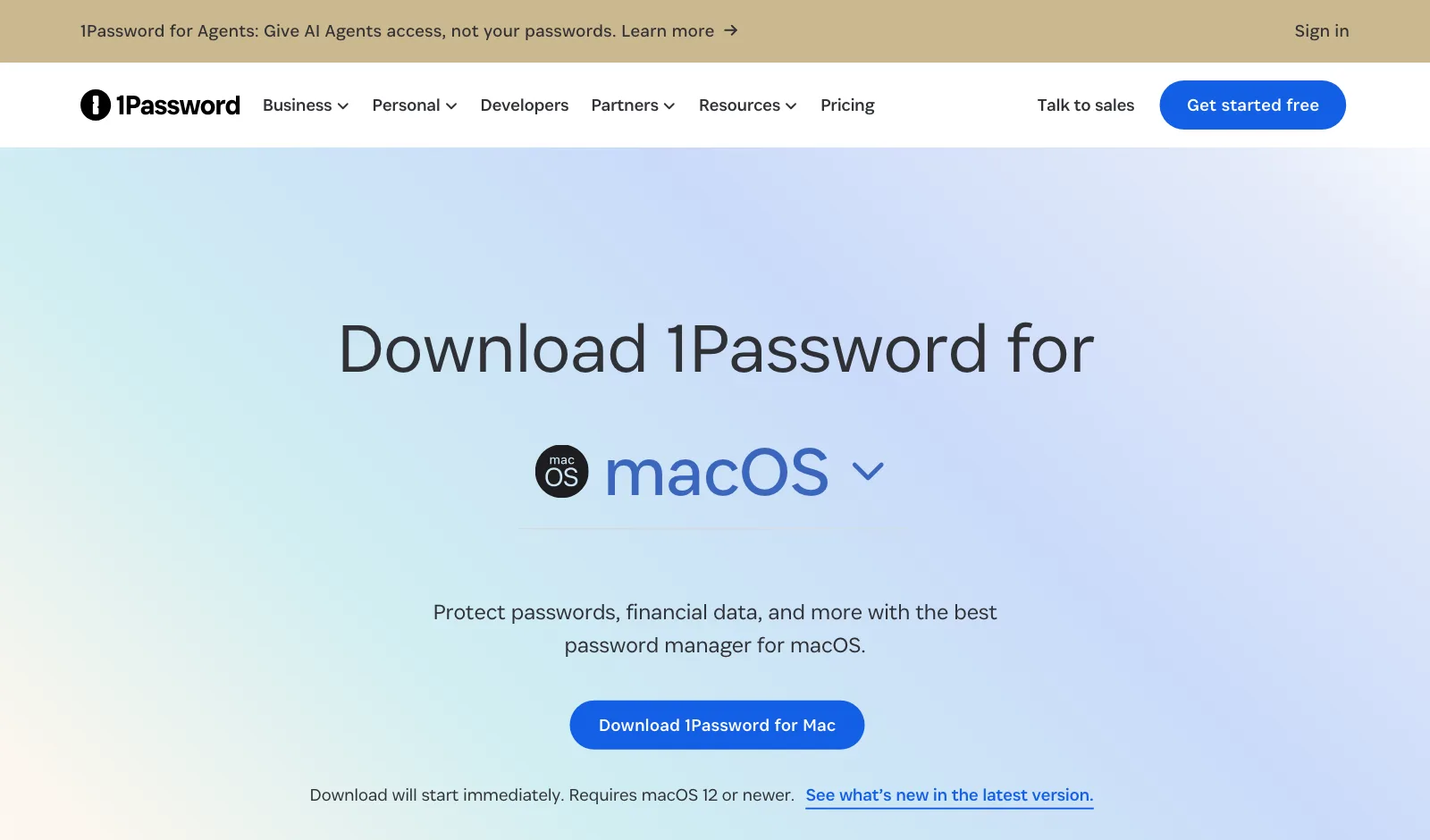
- Install the app on your computer. Open the downloads page, check at the top that your operating system is selected, and click the blue button, which on a Mac reads Download 1Password for Mac. The Mac version needs macOS 12 or later [33]. After installing, sign in to the app with the details from your Emergency Kit: your email, Secret Key, and master password. Then, for an individual or family account, create a recovery code in the app under Manage Accounts → Sign-in & Recovery → Set up recovery code [17]. You’re done when the app shows your vault, empty for now.
- Add the browser extension. The same page also has extensions for Chrome and Safari [33]. Install the one for the browser you work in. You’re done when you see the 1Password icon in your browser toolbar and clicking it shows you’re signed in.
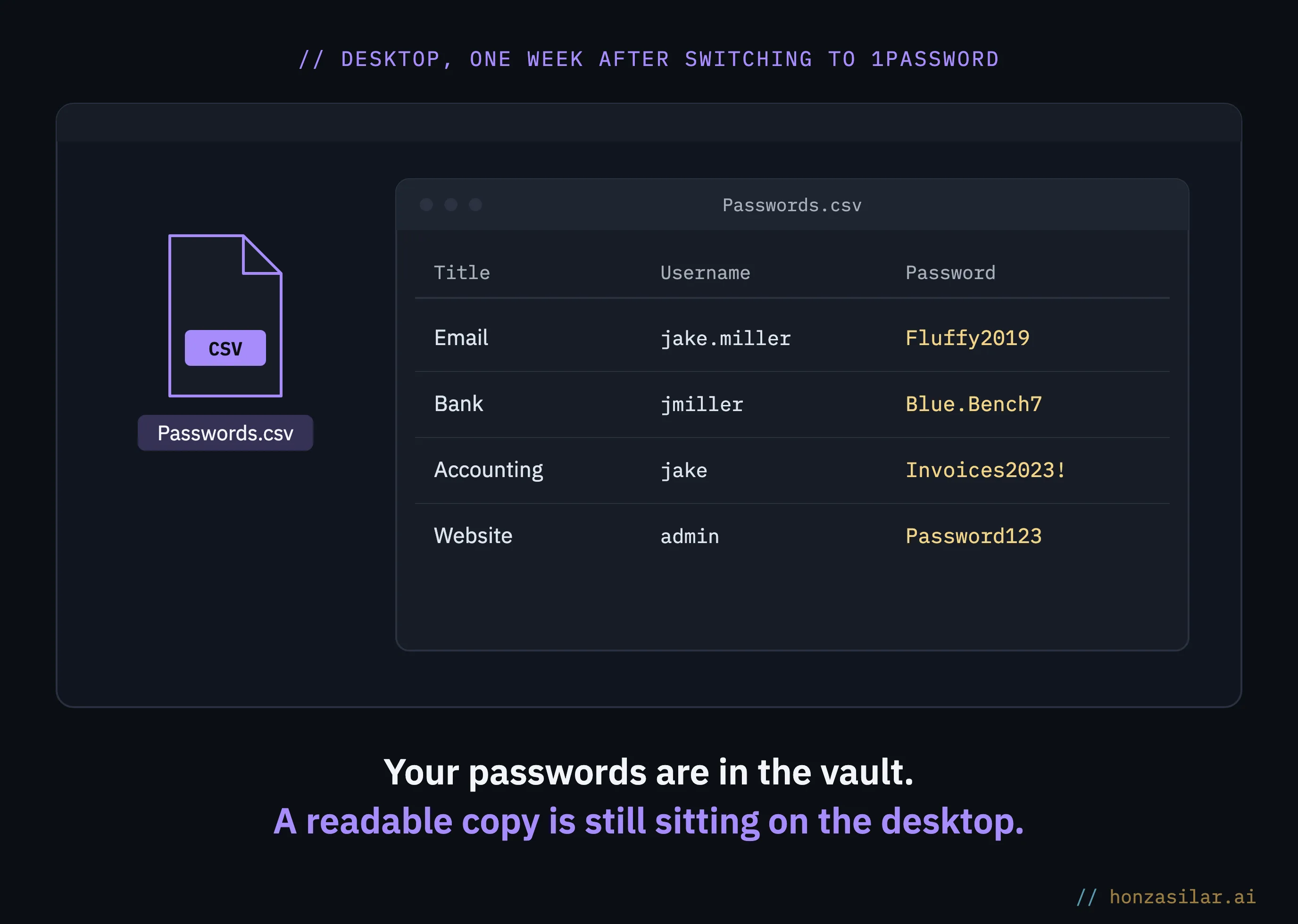
- Export the passwords from your browser. In Chrome, click the three-dot menu in the top right and choose Passwords and autofill → Google Password Manager → Settings on the left, then click Download file next to Export passwords [18]. On a Mac with Safari, open the Passwords app and choose File → Export All Passwords to File [19]. You’re done when there’s a CSV file on your desktop.
- Import the passwords and delete the file right away. In the 1Password app on a Mac, choose File → Import, select Chrome or Safari, and upload the file with Add File. On Windows, you’ll find Import under the three dots at the top of the sidebar [20]. The exported file isn’t encrypted, and anyone who gets hold of it can read it, so delete it after the import and empty the trash [19]. You’re done when you can see your passwords in 1Password and the file is gone from your desktop.
- Turn off password saving in your browser. In the 1Password extension, open Settings → General and turn on Make 1Password the default password manager in this browser [21]. Then, in Chrome’s Google Password Manager settings, turn off Offer to save passwords and passkeys [18]. In Safari, choose Safari → Settings → AutoFill and turn off User names and passwords [21] [22]. Once you’ve made sure everything is in 1Password, delete the passwords from Chrome as well, through Delete all Google Password Manager data → Delete data → Delete [18]. You’re done when your browser no longer offers to save a password after you sign in to a site and Google Password Manager is empty.
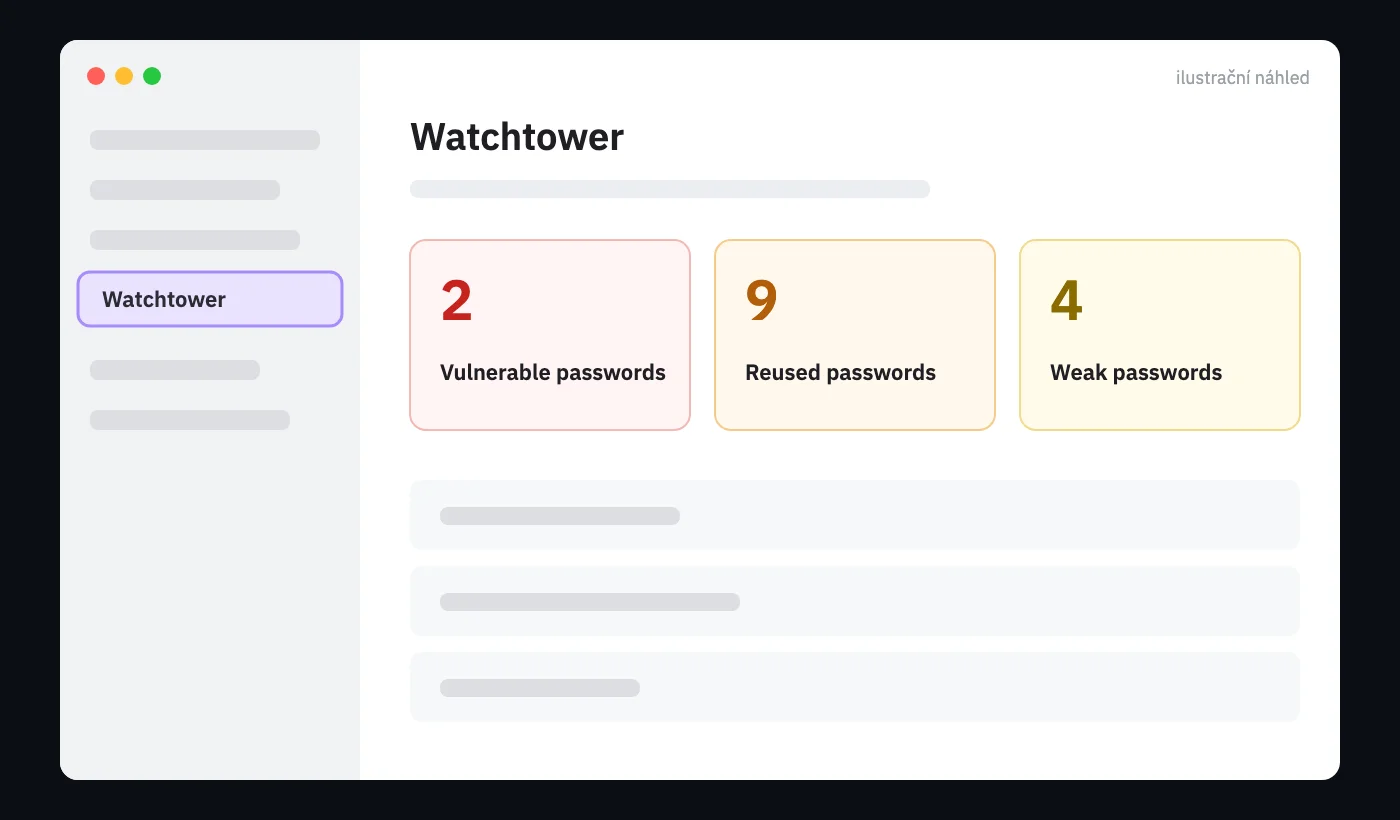
- Go through Watchtower, starting with your email. Click Watchtower in the 1Password sidebar. You’ll see breached passwords (Vulnerable passwords), reused ones (Reused passwords), and weak ones (Weak passwords) [11]. Start with your email, because almost everything else can be reset through it. Then move on to your bank, your accounting software, and your domain registrar. Whoever controls your domain controls your email too (more on that in my post about moving a domain). You’re done when you have a list of the accounts whose passwords need changing.
- Change the breached and reused passwords. Sign in to the service’s website and find the page for changing your password. In 1Password, open the item for that account and click Edit, then click the password field and choose Create a New Password. Set the length and characters to match the site’s requirements, click Use, then click Save to save the item [29]. Copy the new password into the form on the website and confirm the change. You’re done when you can sign in with the new password and Watchtower has nothing to report about it.
- Create new accounts with 1Password from the start. When you sign up on a website, click the password field and choose Use Suggested Password. 1Password generates a strong password and offers to save it once you’ve registered. Click Save [28]. You’re done when the new account appears in 1Password and you didn’t have to think up a password.
On your phone
- Install the app and sign in. On iPhone, you’ll find it in the App Store; on Android, in Google Play. Sign in the same way as on your computer, with the details from your Emergency Kit. You’re done when you can see your passwords in the app.
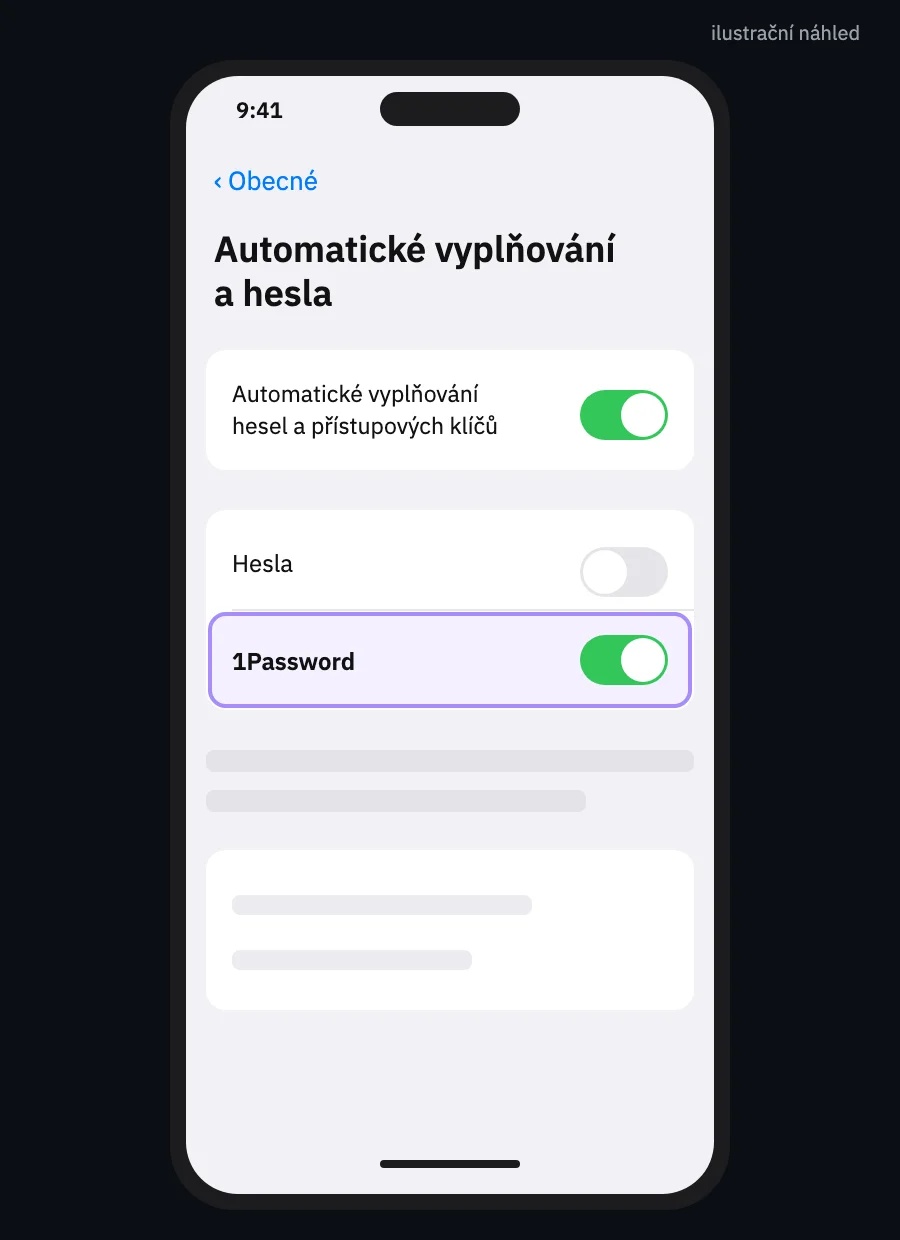
- On iPhone, turn on AutoFill. Open Settings → General → AutoFill & Passwords and turn on AutoFill Passwords and Passkeys [26]. In the list below it, turn on 1Password [25]. You can switch off the built-in Passwords app in the same list, so your phone doesn’t offer passwords from two places. You’re done when your iPhone suggests a password from 1Password on a sign-in page.
- On Android, set 1Password as your autofill service. In the 1Password app, tap your account picture in the top right and choose Settings → Autofill. Then tap Open Settings and select 1Password from the list [27]. Chrome 141 and later needs one more setting: in the three-dot menu, open Settings, find Autofill services, choose Autofill using another service, and restart Chrome [27]. You’re done when your phone offers a password from 1Password when you sign in.
At your company
- Invite your colleagues. At 1Password.com, click Invitations in the sidebar and then Invite by email. Enter the email addresses and click Invite [30]. The Teams Starter Pack only supports invitations by email, and each one is valid for five days. Once a colleague has created their account, you’ll get an email asking you to confirm them. You can also confirm new members directly on the Invitations page [30]. You’re done when all your colleagues are confirmed.
- Create a shared vault. At 1Password.com, click Vaults and then New Vault in the sidebar; in the app, click the plus button in the sidebar [23]. Give the vault a name like Shared accounts, move the passwords for your shared accounts into it (social media, suppliers, company tools), and add only the people who really need them. You’re done when nobody at your company passes passwords around in a spreadsheet or a message.
- Name a backup for account recovery. If someone in a business account forgets their master password, an administrator restores their access. To keep that from depending on one person, add a second administrator: choose People in the sidebar, click a colleague’s name, click Manage next to Groups, select Administrators, and click Update Groups. You add a second owner the same way, through the Owners group [31]. You’re done when at least two people at your company can restore access.
- When someone leaves, suspend their access and change the passwords. First, work with them to move their work items from their own vault (Employee vault) into the shared one [32]. Then, in People, click their name and choose More Actions → Suspend [30]. Their page shows which vaults they had access to, so change the passwords stored in those [32]. You can delete the account for good through More Actions → Delete, but only after the data has been moved, because deletion can’t be undone [30] [32]. You’re done when your former colleague can’t open anything and the passwords they knew no longer work.
Whatever you do, don’t skip step 7 on the computer. In episode 154, a former attacker describes how, after taking over someone’s Gmail, he went through all the passwords saved in Chrome on a single page [24]. If your passwords live only in 1Password, a hijacked email account won’t hand that list over.
Passwords belong in your password manager, never in a chat with AI. My posts on setting up Claude and on letting AI work with your company email without a password explain why.
The switch in seven steps#
- Every account needs its own password, so that a breach on one site doesn’t let an attacker into the others.
- Stop keeping passwords in your head. Let a password manager such as 1Password create them and keep watch over them.
- Build your master password from four or five random words, and keep your Emergency Kit printed out.
- Move your passwords out of the browser, delete the exported file, and turn off password saving in the browser.
- On your phone, set 1Password as your autofill service.
- Use Watchtower to change breached and reused passwords, starting with your email, then your bank, accounting, and domain.
- At work, share passwords through a shared vault, and suspend a departing colleague’s access right away.
Investigators needed a single welcome email from a movie ticket site to open everything Seleznev had spent years carefully hiding. For your business, the rule is simple. Give every account its own password, and a breach on one site stays on that site.
I can help with this
Let’s move your passwords to 1Password together
If you’d rather not tackle the move on your own, I’m happy to do it with you. I’ll set up 1Password for you and your team, we’ll move your passwords out of your browsers, put shared accounts into a shared vault, and go through whatever Watchtower flags. Security is a big part of my work, and I use 1Password myself.
Sources#
- The Carder. Darknet Diaries, episode 32, 2019. Darknet Diaries
- RockYou. Darknet Diaries, episode 33, 2019. Darknet Diaries
- The LinkedIn Incident. Darknet Diaries, episode 86, 2021. Darknet Diaries
- Have I Been Pwned: Dropbox breach entry (68,648,009 accounts, breached in mid-2012, disclosed in 2016). Have I Been Pwned
- U.S. Attorney’s Office, Northern District of California: Russian Hacker Sentenced To Over 7 Years In Prison For Hacking Into Three Bay Area Tech Companies, September 2020. Justice.gov
- U.S. Department of Justice: Russian Cyber-Criminal Sentenced to 27 Years in Prison for Hacking and Credit Card Fraud Scheme, April 21, 2017. Justice.gov
- Courthouse News Service: Ninth Circuit Upholds 27-Year Sentence for Russian Hacker. Courthouse News
- Krebs on Security: Experts Fear Crooks are Cracking Keys Stolen in LastPass Breach, September 5, 2023. Krebs on Security
- Jeremy from Marketing. Darknet Diaries, episode 36, 2019. Darknet Diaries
- 1Password Support: About your Secret Key. 1Password
- 1Password Support: Watchtower. 1Password
- 1Password Support: About 1Password browser autofill security. 1Password
- 1Password: pricing for individuals and families, and pricing for businesses, accessed November 11, 2026. Personal plans, business plans
- Apple Support: Change Passwords settings on Mac. Apple
- Bitwarden Help Center: Password Manager Plans, accessed November 11, 2026. Bitwarden
- 1Password Support: Get to know your Emergency Kit. 1Password
- 1Password Support: Generate and use recovery codes. 1Password
- Google Chrome Help: Manage passwords in Chrome. Google
- Apple Support: Export passwords from your Mac to a file. Apple, Czech version, Apple, English version
- 1Password Support: Move your passwords from Chrome to 1Password, and Move your iCloud Passwords from Safari to 1Password. Chrome, Safari
- 1Password Support: Turn off the built-in password manager in your browser. 1Password
- Apple Support: Change Safari settings on Mac. Apple
- 1Password Support: Create, share, and manage vaults in your organization. 1Password
- Hijacked Line. Darknet Diaries, episode 154, 2025. Darknet Diaries
- 1Password Support: Use 1Password to save logins and sign in to apps and websites on your iPhone and iPad. 1Password
- Apple Support: Automatically fill in strong passwords on iPhone (iOS 27). Apple
- 1Password Support: Use 1Password to save logins and sign in to apps and websites on your Android device. 1Password
- 1Password Support: Save and fill passwords in your browser. 1Password
- 1Password Support: Use the password generator to change and strengthen your passwords. 1Password
- 1Password Support: Add and remove team members. 1Password
- 1Password Support: Implement a recovery plan for your organization. 1Password
- 1Password Support: Offboard a team member. 1Password
- 1Password: downloads page for apps and browser extensions, accessed November 11, 2026. 1Password
Frequently asked questions
Is it safe to keep all your passwords in one place?
It’s safer than one password everywhere, but only with a strong master password. After the 2022 breach of the LastPass password manager, people who had locked their vaults with a short master password lost money too. 1Password encrypts your data with your password plus a Secret Key the company doesn’t have, so nobody can unlock stolen data by guessing the password.
How much does 1Password cost?
An individual plan costs $3.99 a month billed annually, and new customers pay $2.99 in the first year (prices as of November 11, 2026). The Families plan for five people costs $5.99 a month, and the Teams Starter Pack for a team of up to ten costs $24.95 a month. You can try every plan free for 14 days.
Aren’t the passwords saved in my browser or on my iPhone good enough?
They’re still better than one password everywhere. But anyone who takes over your Google account can see the passwords saved in Chrome. If all your devices are from Apple, the built-in Passwords app will do. 1Password is worth it when you switch between Mac, Windows, and Android, or when you share passwords with people at work.
What if I forget my 1Password master password?
1Password can’t remind you, because the company doesn’t know it. With an individual or family account, create a recovery code right at the start. In a business account, an administrator restores your access. Keep a printed copy of your Emergency Kit, which includes your Secret Key.
What languages is the 1Password app available in?
English, German, French, and several other languages, but not Czech. The app is easy to use, and the instructions in this article give every menu item the English name you’ll see on screen.