Security
The link anyone can open and the app you forgot: who sees your files
The folder link you once sent a designer opens your files for anyone who has it. The app you let read your email may still read it. Check both in a morning.
 Honza Silar 15 min read Nov 11, 2026
- Disk Google
- OneDrive
- Google Workspace
In this article
- 01A link has no lock and no memory
- 02The app a new password won’t disconnect
- 03When the company holding your key gets robbed
- 04Who got burned and who held up
- 05Rules for sharing and connected apps
- 06Cleaning up sharing and apps, step by step
- 07What to remember about shared links and apps
- 08Sources
- 09Frequently asked questions
What you’ll take away
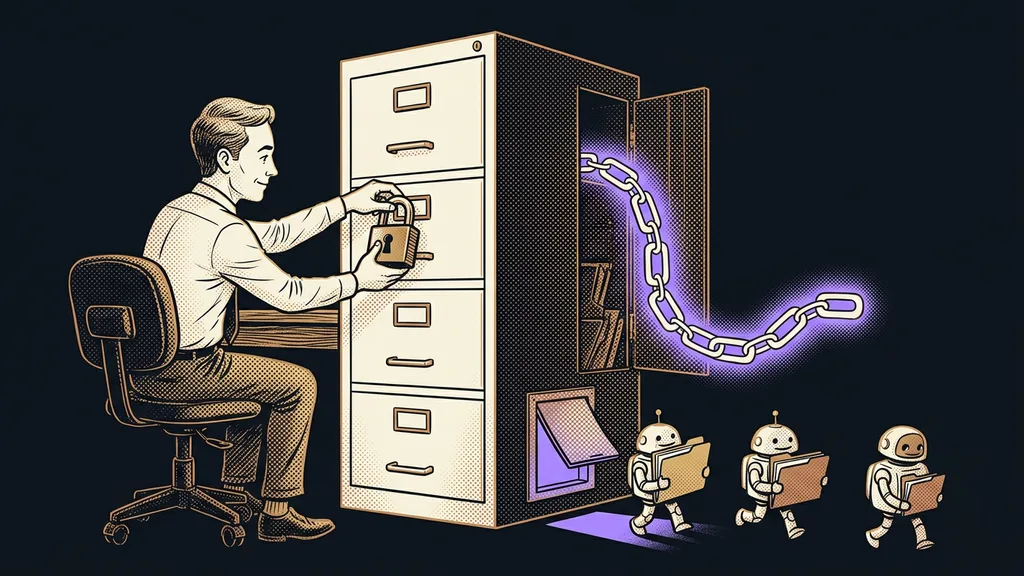
Sharing a file by link takes two seconds, and letting an app into your email takes one click. Taking either back is something nobody thinks of. You’ll learn how to find both, shut them, and check on them once a quarter.
- You’ll see how two leak hunters kept getting back into a music manager’s cloud storage without his password.
- Why a password change often leaves a connected app connected.
- A step-by-step routine for Google Drive, OneDrive, and your Google Account, plus a second one for company admins.
- A search that lists your public files in ten seconds.
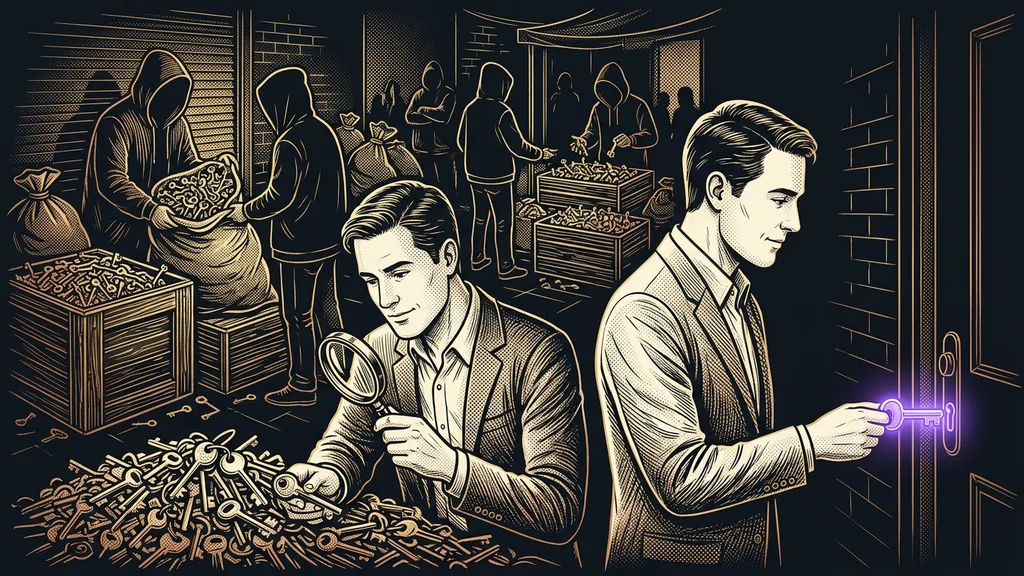
At the end of 2016, two leak hunters chasing unreleased music, a 15-year-old and his accomplice of about 30, signed in to the cloud storage of Skrillex’s manager. They’d found his password in databases of leaked passwords, and he’d reused it for this account. Inside were about two terabytes of files, from unreleased tracks to promotional plans [1]. The manager had turned off alerts for sign-ins from unknown devices, so he never knew they’d been there.
Then they made sure they’d keep their access even if the manager changed his password. They created shared links to the folders, and anyone who knew those links could open them without signing in. They also used invitations that no password protected to add themselves to the folders as collaborators from other accounts. They even advised the manager to change his password [1]. The links and invitations would have kept working anyway.
Using the same method, they later got into the storage of the management company that represented Diplo and Major Lazer. It held documents belonging to the artists and the crew, from driver’s licenses to Social Security numbers and saved passwords, in folders shared with more than fifty people [1].
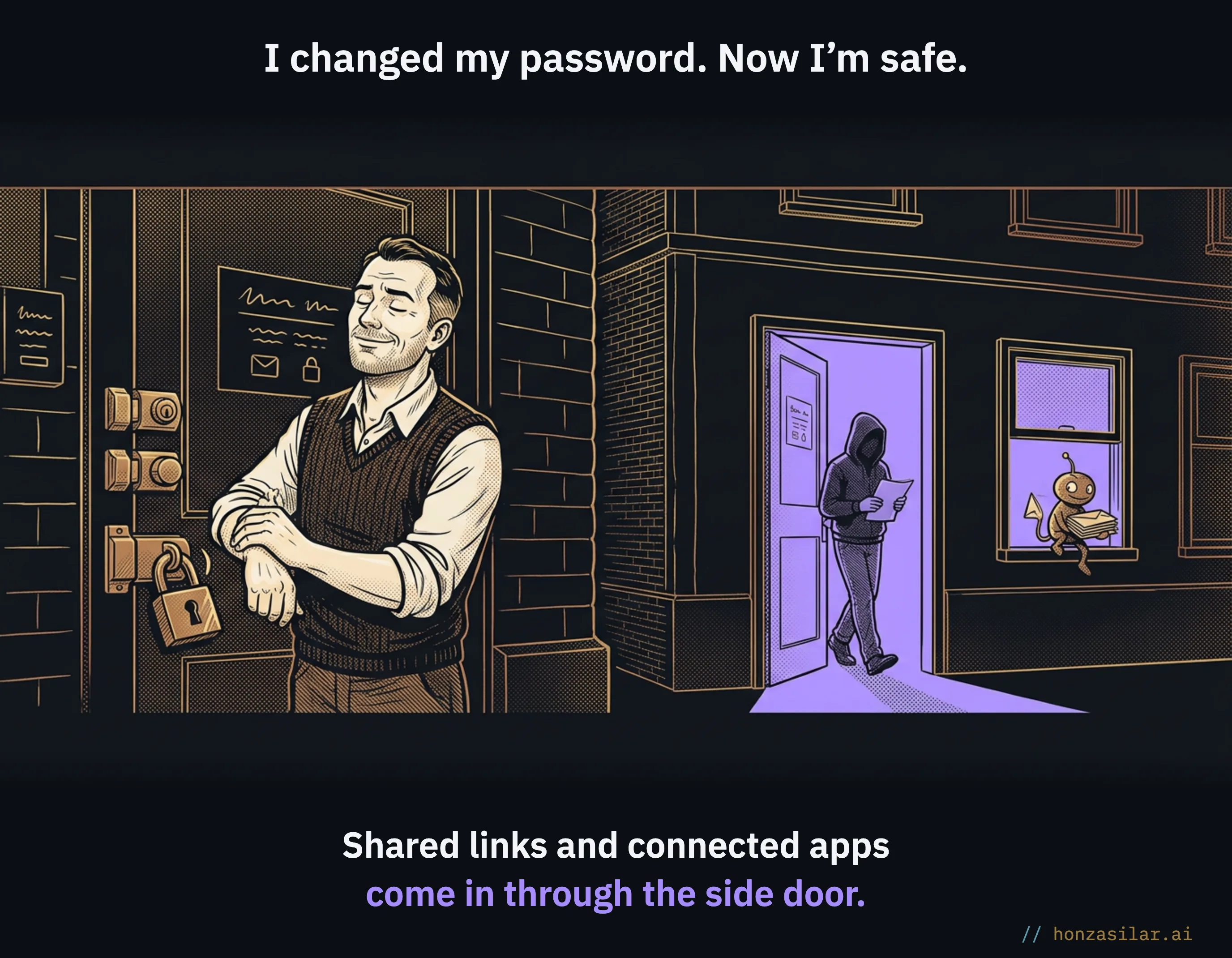
Shared links and connected apps are two doors that businesses open themselves and then forget about. A password only locks them halfway. I’ll go through a few cases where this backfired, and then a routine for cleaning up both in a single morning.
A link has no lock and no memory#
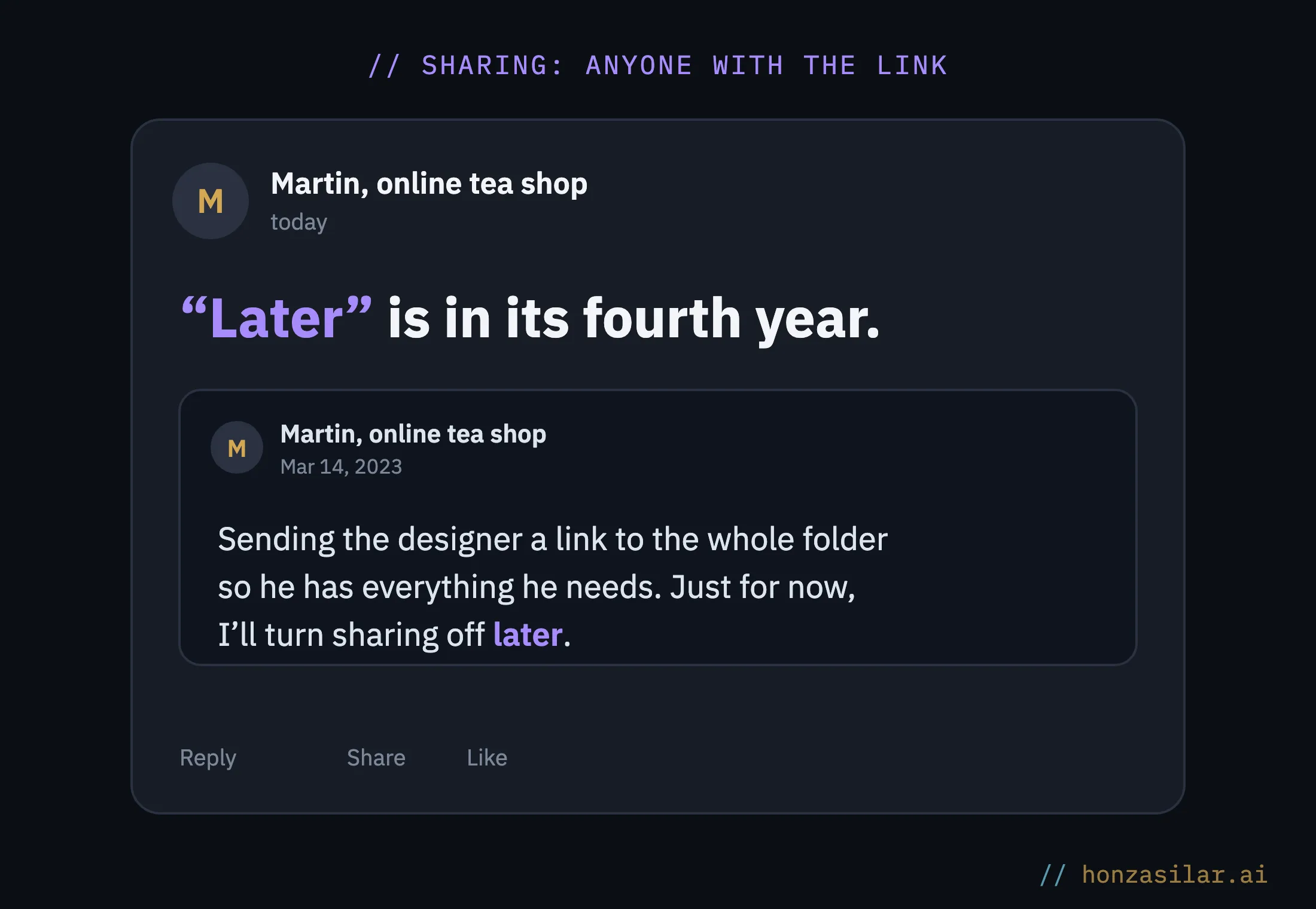
A file shared with “anyone who has the link” is practically public. Google’s help says so plainly: anyone on the internet with the link can open such a file, even without signing in to a Google Account [4]. And the link doesn’t stay with the person you sent it to. They forward it to a coworker or paste it into a spreadsheet or a chat. Jack Rhysider, host of the Darknet Diaries podcast, points out that links also end up in URL security scanners that can be searched [1].
Link sharing
A setting that lets anyone who knows a file’s address open it without giving a name or signing in. In Google Drive it’s called “Anyone with the link”; in OneDrive, it’s a link for anyone. The alternative is sharing with specific people by name, where each of them has to sign in with their own account.
In March 2019, the security firm Adversis showed what this looks like at scale. On Box enterprise accounts, anyone could guess links to internal files that companies had given custom names, just by trying addresses. That left terabytes of sensitive data open to anyone, from passport photos to bank account numbers [3]. Box then advised companies to set default sharing to only people inside their own company and to review their list of public links regularly [3].
Jason, an ethical hacker featured in episode 130 of Darknet Diaries, found a similar hole at a bank. Photos of checks that customers had submitted through the mobile app sat in cloud storage open to anyone who knew the address. There were about two million of them, and every one showed an address and an account number [2].
Whoever has the link has the key, and a link is easier to pass around than any key.
The app a new password won’t disconnect#
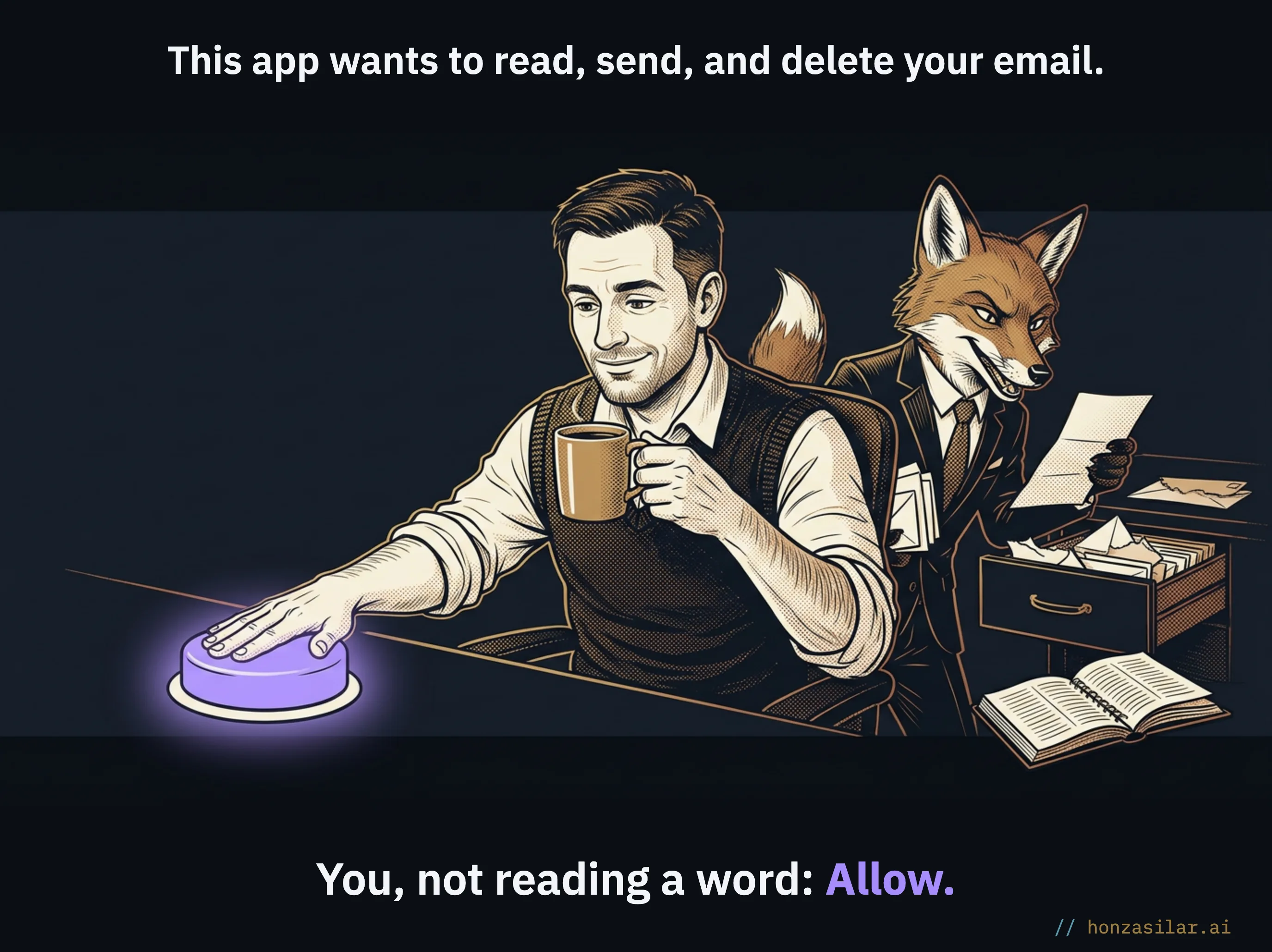
You open the second door with the Allow button. A connected app gets permission from Google or Microsoft to read your email, calendar, or files, and it never sees your password, so changing the password may not disconnect it. Its access lasts until you remove it in your account settings yourself [1] [5].
Connected app (OAuth)
A service you’ve allowed, by signing in with Google or Microsoft, to access part of your account, such as your email or files. It gets permission for a precise scope; your password never reaches it. You’ll find the list of these apps in your account settings, and that’s also where you disconnect them.
Jack Rhysider gives an example of how this can be abused. Someone who gets into your Dropbox and sees you run automations through Zapier connects their own Zapier account to your Dropbox. From then on, they can watch what’s inside, even after you change your password [1].
What a new password shuts off, and what it leaves open
| Access | After a password change | Where you shut it off |
|---|---|---|
| Signing in with your password | ✓ ends | A new password is enough |
| Link for anyone who has it | ✕ still works | Share → General access → Restricted |
| Folder invitation for an outside account | ✕ still works | Remove the person from sharing |
| Connected app | ✕ may keep working | Linked apps → Remove access |
| Someone else’s Zapier account connected to your Dropbox | ✕ keeps watching | The list of connected apps in Dropbox |
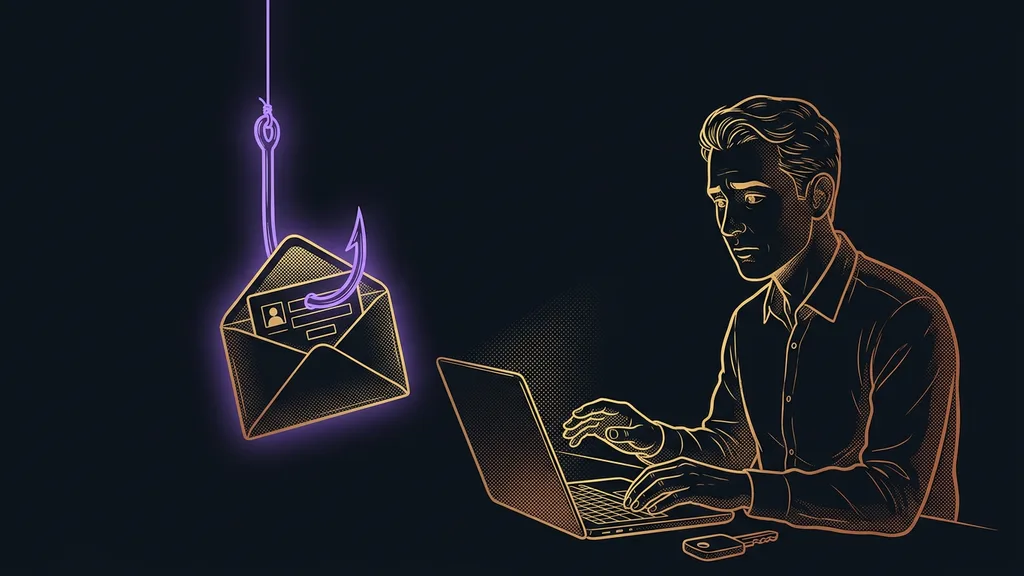
In May 2017, it happened on a mass scale. People got emails from their contacts, inviting them to a document, and the link led to Google’s real page for granting apps access to an account. But the app asking for permission was a fake that had named itself Google Docs. It wanted to read, send, and delete email and to manage contacts [6]. Whoever clicked Allow also handed the attacker their address book, and the invitation then went out to more people in their name. Google says it stopped the scam within an hour and estimated that the attack hit fewer than 0.1% of Gmail users [6].
When the company holding your key gets robbed#
In August 2025, a third way to abuse a connected app came to light. Hundreds of companies had connected the Drift chat widget from Salesloft to their Salesforce CRM [8]. Attackers stole that integration’s access tokens and, from at least August 8 to August 18, pulled data out of companies’ Salesforce instances in bulk. According to Google, they were mainly looking for passwords and access keys that someone had left there [7]. On August 20, Salesloft and Salesforce revoked every token Drift used to connect to Salesforce [7].
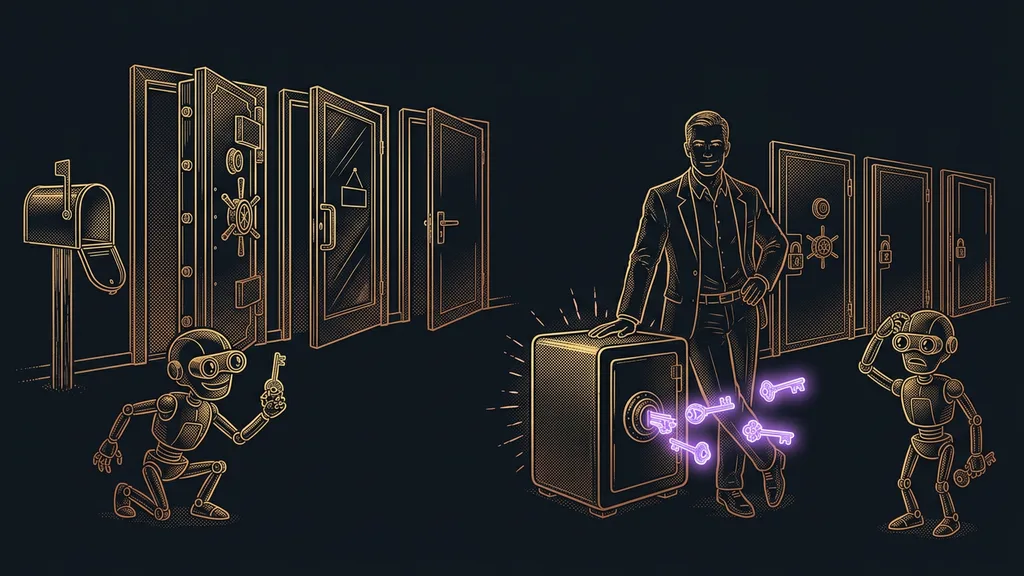
An attacker doesn’t have to go through you at all. Getting to the vendor of an app you once let into your account is enough, so treat every integration as one more vendor holding a key.
Who got burned and who held up#
The worst hit were those who kept sensitive material in folders shared far and wide. The Diplo and Major Lazer management company kept artists’ documents in folders shared with more than fifty people, and Skrillex’s manager had sign-in alerts turned off [1]. At the companies in the Adversis research, sensitive data sat behind links anyone could guess [3]. And companies using Drift lost data without anyone breaking into their own systems [7].
Cloudflare was among the companies hit, and its response is a good model. It disconnected all third-party apps from Salesforce. In the stolen text of support requests, it found 104 Cloudflare API tokens that customers had pasted in over time, and even though it found no sign of misuse, it replaced every one of them. It issued new secrets to the disconnected services and started rotating them every week [8].
Keys that ended up in support requests
Two examples show you can come out of this unharmed. The bank from episode 130 learned about its open storage from the person it had hired to test its security, not from a thief [2]. And Box recommends that companies set default sharing to “only people in your company,” because in its view that cuts down on unintended public links [3]. Both come down to the same habit of checking your doors before someone else finds them.
Rules for sharing and connected apps#
You don’t need any special software for this. Google and Microsoft have everything you need built into Drive, OneDrive, and your account settings, free of charge. A few rules and a habit are enough. The first round takes an hour or two, and after that it’s fifteen minutes every quarter:
- Use a link for anyone only on things meant to be public. A price sheet or a flyer is fine. A contract, an ID document, or a spreadsheet of Social Security numbers never is.
- Share with outside people by name, with an end date. When the work together ends, so does their access.
- Keep your list of connected apps short. Disconnect anything you don’t recognize or don’t use.
- Leave sign-in alerts on. The music manager never noticed his visitors because he’d turned them off [1].
- Don’t paste passwords and access keys into messages, spreadsheets, or support requests. Those are what the attackers searched for in the data stolen through Drift [7] [8].
AI assistants belong on the list of connected apps today too. Claude, ChatGPT, and Gemini connect to your email and Drive the same way other apps do, and Google gives the ones that work with Gemini and Google’s agents their own filter in the overview [5]. If you use Claude, I’ve written up what to watch out for with your company data. My overview of eight tools shows where data goes in other tools, including the automations that connect your systems.
A link for anyone, or sharing by name?
Anyone with the link
Anyone with the address can open the file
No sign-in needed
You don’t know where the link has traveled
Good for a price sheet or a flyer
Specific people by name
Only the people you add can open the file
Everyone signs in with their own account
Google Drive lets you set an end date for access
The place for contracts, IDs, and numbers
A ten-second search
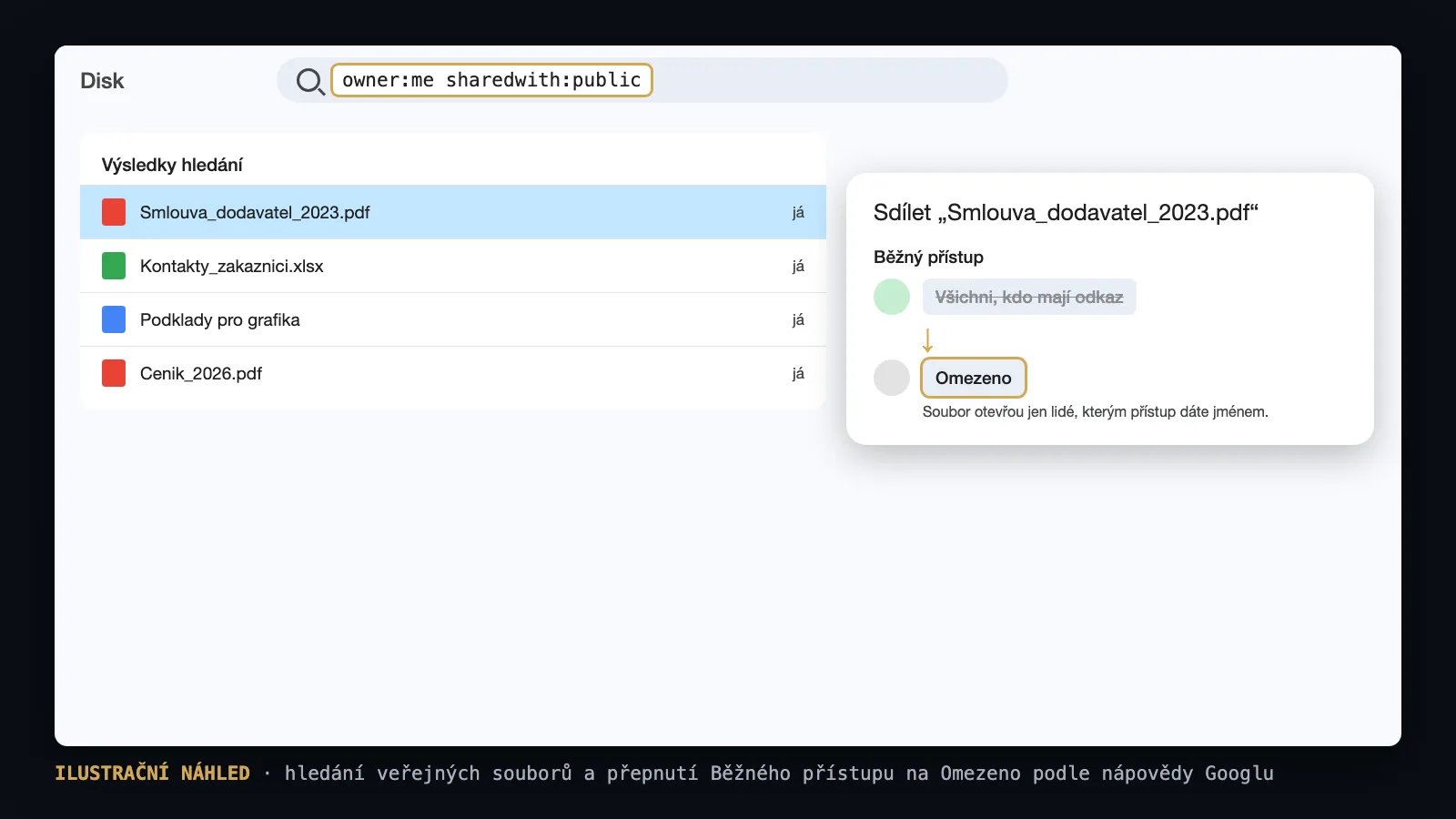
Open Google Drive and type owner:me sharedwith:public into the search box. If the list comes up empty, you’re done. If it doesn’t, go through each file and ask yourself whether you know who you once sent the link to, and whether you’d be fine with a complete stranger opening it. Wherever the answer is no, start with the steps below.
Cleaning up sharing and apps, step by step#
The first time, plan on an hour or two, depending on how many years you’ve been sharing. After that, a quarterly check takes about fifteen minutes. There are two routines. Anyone can do the first one with their own files and account. The second is for whoever manages Google Workspace at the company and can set rules for everyone at once. These steps are current as of November 2026, and menu names are given as they appear in each product’s English interface and help.
Your files and your account
- Find the files you’ve shared by link. In Google Drive, type owner:me sharedwith:public into the search box. The filter lists your files that are public or open to anyone with the link [10], and Google mentions it in its search help too [9]. You’re done when you have the list in front of you.
- Close whatever shouldn’t be open. For each file, click Share, click the arrow under General access, and choose Restricted [4]. Add anyone who really needs the file by name. You’re done when a new search shows only what’s meant to be public.
- Review sharing outside your company. In a Google Workspace work account, type owner:me sharedwith:external into the search box to see files shared with people outside your organization [9]. Remove former vendors, and give current ones an end date for their access: in the Share dialog, click the arrow next to the person’s name and choose Add expiration [4]. You’re done when you know why every outside person has access.
- Check shared files in OneDrive. Select a file, open Details at the top right, and under Has access, choose Manage access. To delete a link, go to the Links tab and use the Remove link icon; to end all sharing, choose Stop sharing. A link you want to keep can get an expiration date [11]. You’re done when no sensitive file is left with a link for anyone.
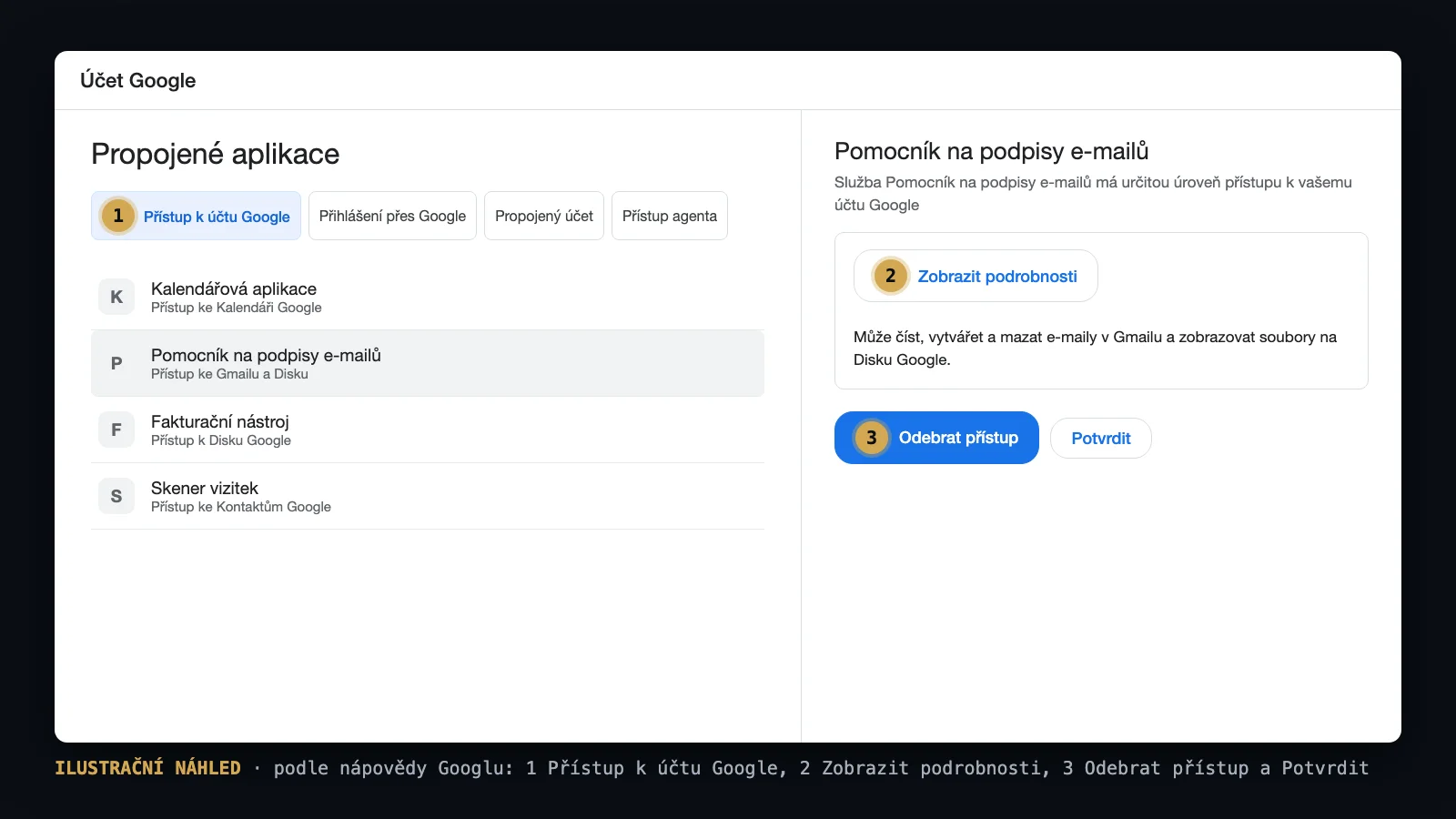
- Review the connected apps in your Google Account. Open the Linked apps page there and choose Access to your Google Account. For an app you don’t use, click See details, then Remove access, and Confirm [5]. The Agent access filter shows apps connected to Gemini or Google’s agents; you take an agent’s access away with Stop using [5]. For apps under Sign in with Google, Stop using only ends automatic sign-in, and any data the app already has stays with it [5]. If you’re done with a service for good, delete your account there too. You’re done when the list holds only apps you recognize and use.
- Do the same in your other services that hold business data. Dropbox, your CRM, your accounting software, and your team chat tool each have a list of connected apps or integrations in their settings. If you connect your systems with automations, you have more of these than you’d guess; a side-by-side look at automation tools shows which ones people use for that. Remove anything you don’t recognize, and when you stop working with a vendor, disconnect their integration right away. You’re done when you know who uses each integration and why.
- Keep alerts on, change any passwords you’ve sent around, and schedule the next round. Don’t turn off alerts for sign-ins from unknown devices. Change every password you’ve ever sent by email or message. You’re done when a reminder repeats in your calendar every three months.
For Google Workspace admins
- See which apps reach into company data. In the Admin console, go to Security → Access and data control → API controls and click Manage App Access. Under Accessed apps, click View list to see the apps that have already accessed data in your company’s accounts [12]. You’re done when you know who uses each one.
- Block what nobody needs. Hover over the app and click Change access. To apply it to the whole company, keep the top organizational unit selected, click Next, choose Blocked, and click Next again. Finally, review the scope and settings and confirm them with the Change access button [12]. According to Google, a blocked app can’t access any Google service [12]. You’re done when the list holds only the apps the company really uses.
- Decide where people can share. In the console, go to Apps → Google Workspace → Drive and Docs and open Sharing settings → Sharing options [13]. Choosing Off blocks sharing outside the company entirely, and outside people then lose access even to files they’ve already received [13], so choose it only after you’ve talked it over with your team. On allows sharing and offers restrictions, such as a warning before a file goes to someone outside or a ban on sharing by link. You can also limit sharing to selected domains that use Google Workspace, such as your accountant’s firm [13]. Then click Save. Google says the change can take up to 24 hours to apply [13]. You’re done when the default settings match how the company actually works with others.
What to remember about shared links and apps#
- Treat a link for anyone who has it as public.
- Share sensitive documents by name, and give outside people an end date.
- A new password may not disconnect a connected app; you have to remove it yourself.
- Every integration is a vendor holding a key; when you stop working with a vendor, disconnect its integration.
- The cleanup takes an hour or two the first time, then fifteen minutes every quarter. Leave sign-in alerts on.
The two leak hunters kept getting back into the manager’s folders through links they’d made themselves, and the manager had no idea those links existed. A look at his shared links and the list of people with access would have shown him the uninvited guests within a few minutes.
I can help with this
A link and app cleanup we do together
I’ll go through sharing in Drive and OneDrive with you, along with the connected apps and integrations in your tools. We’ll set rules so links for anyone don’t creep back, and I’ll show your company admin how to keep an eye on this across every account. I know security in depth, and I’m glad to help you with it.
Sources#
- Dubsnatch. Darknet Diaries, episode 148, 2024. Darknet Diaries
- Jason’s Pen Test. Darknet Diaries, episode 130, 2022. Darknet Diaries
- Bitdefender HotForSecurity: Misconfigured Enterprise Box accounts leak terabytes of sensitive internal data, March 12, 2019 (Adversis research and Box’s statement). Bitdefender
- Google Drive Help: sharing files and folders, general access, and managing access. Google
- Google Account Help: Manage connections between your Google Account and third-party apps. Google
- TechNewsWorld: Google Neutralizes Docs Phishing Scam, May 2017. TechNewsWorld
- Google Threat Intelligence Group: Widespread Data Theft Targets Salesforce Instances via Salesloft Drift, August 2025. Google Cloud
- Cloudflare: The impact of the Salesloft Drift breach on Cloudflare and our customers, September 2025. Cloudflare
- Google Drive Help: Search for files in Google Drive. Google
- Overdrive: How to find externally shared files in Google Drive. Overdrive
- Microsoft Support: Manage sharing and permissions in OneDrive and SharePoint. Microsoft
- Google Workspace Admin Help: Control which apps access Google Workspace data. Google
- Google Workspace Admin Help: Manage external sharing for your organization. Google
Frequently asked questions
Is a file shared with “Anyone with the link” public?
For all practical purposes, yes. According to Google’s help, a file set to “Anyone with the link” can be opened by anyone on the internet who has the link, even without signing in. And links get forwarded, saved in chats and spreadsheets, and you have no idea where they’ve all ended up.
How do I find files I’ve shared by link in Google Drive?
Type owner:me sharedwith:public into the Drive search box. The filter lists your files that are public or open to anyone with the link. For each one, open Share and switch General access to Restricted.
What is a connected app, and why doesn’t changing my password disconnect it?
A connected app is a service you gave access to your email, Drive, or calendar by clicking Allow. It got permission and never saw your password, so a new password may not affect it. You have to remove it in your account settings, which for Google is the Linked apps page.
Do AI assistants count as connected apps?
Yes. Claude, ChatGPT, and Gemini connect to your email and Drive the same way other apps do. Google lists the ones that work with Gemini and Google’s agents under a separate Agent access filter. The same rule applies to them: if you don’t use it, disconnect it.
How often should I review shared files and connected apps?
Once a quarter is enough, and it takes about fifteen minutes. Do it also whenever you end work with a vendor or a person who had access to your files.