Security
Your phone holds your bank and email. Three settings make it a vault
Your phone holds your email, bank, and login codes, and scammers know it. They use fake apps and unpatched bugs. Three settings keep them out in 15 minutes.
 Honza Silar 15 min read Nov 11, 2026
- iPhone
- Android
In this article
What you’ll take away
Your phone is with you almost all the time, and it unlocks your email, your bank, and your business accounts. By the end, you’ll know which three things to set up so no stranger gets in, and when the stricter Lockdown Mode is worth turning on.
- How customers of three Czech banks lost money after installing an app from a link in a text message.
- Why the fake WhatsApp worked just like the real one.
- Step-by-step setup for both iPhone and Android.
- Whether Lockdown Mode is worth it for you.
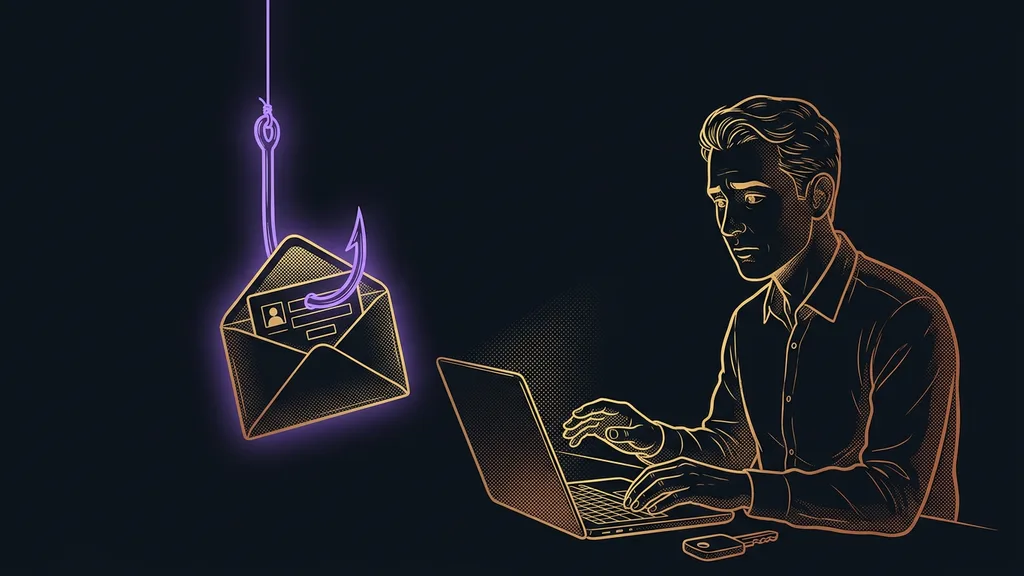
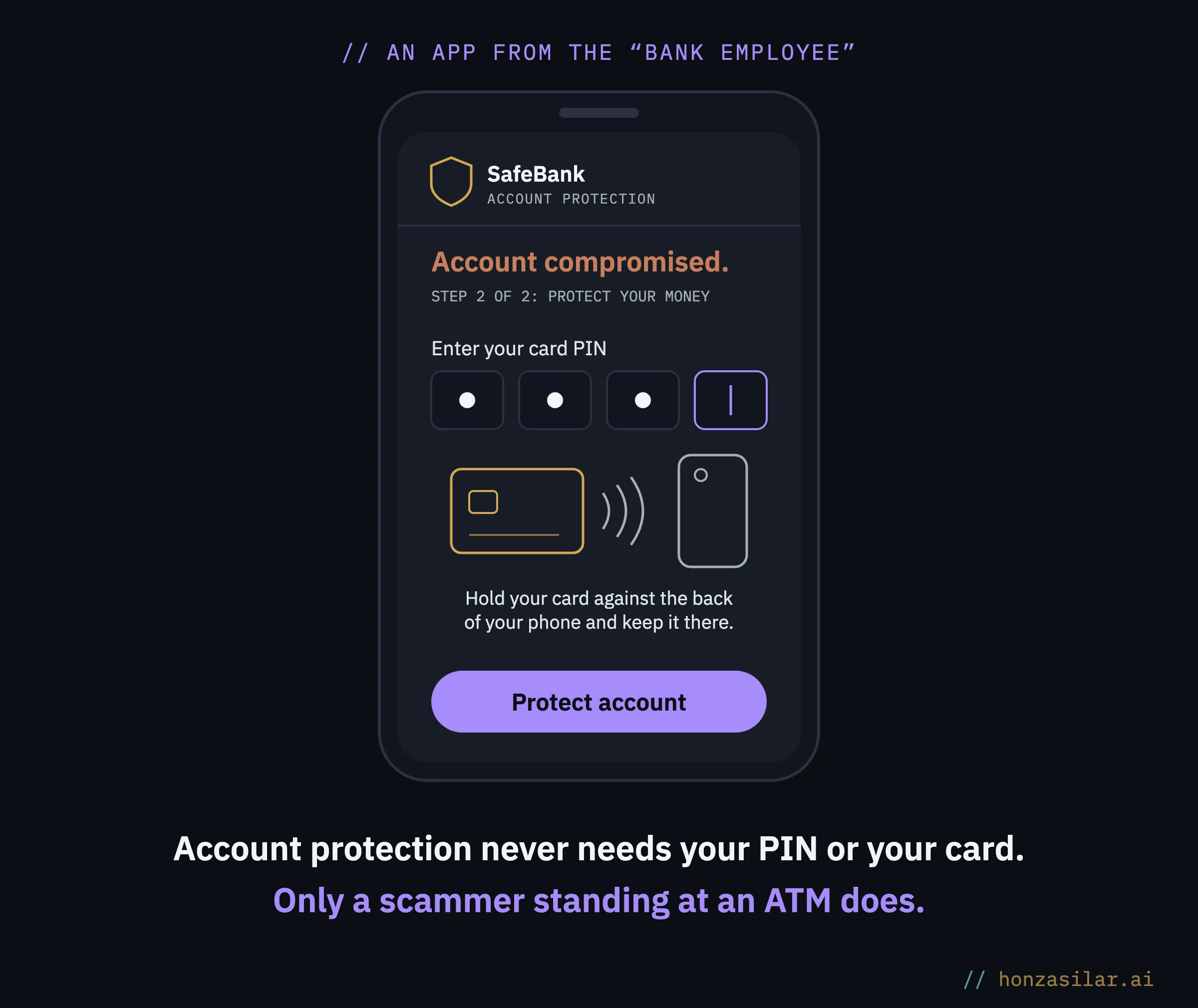
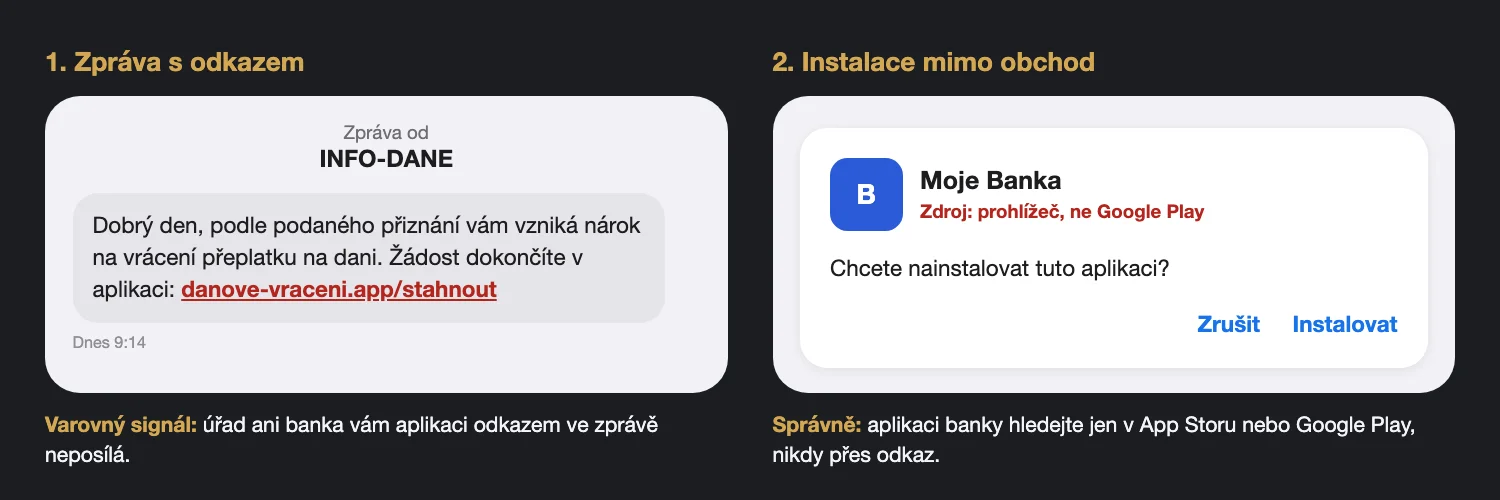
From November 2023 to March 2024, a group of scammers in the Czech Republic went after customers of three banks. According to the police, the attack started with a text message about a tax refund. People who clicked the link installed an app that posed as their banking app and typed their login details into it. Then a “bank employee” called to say their account had been compromised. On that point he was right. To protect their money, he said, they needed to change their PIN and verify their card through another app, again from a link in a text message. That app asked for the card’s PIN and for the card to be held against the back of the phone [1].
Through the phone’s NFC chip, the second app sent the card data to a scammer’s phone at an ATM, where he withdrew the cash. The security firm ESET named the trick NGate and found six different apps aimed at customers of three Czech banks. Czech police arrested a 22-year-old man who had been withdrawing money from ATMs in Prague and found CZK 160,000 (about €6,600) on him from the last three victims alone. The app was never on Google Play [1].
How NGate moved money from an account to an ATM
These days your phone carries your email, your bank, your login codes, and WhatsApp chats with clients. The attacks in this article got into phones in one of two ways: through an app from somewhere other than the official store, or through a software bug that nobody had fixed yet. The podcast Darknet Diaries has two stories where far more was at stake, and both make a good case for locking your phone down properly.
A fake WhatsApp that worked like the real one#
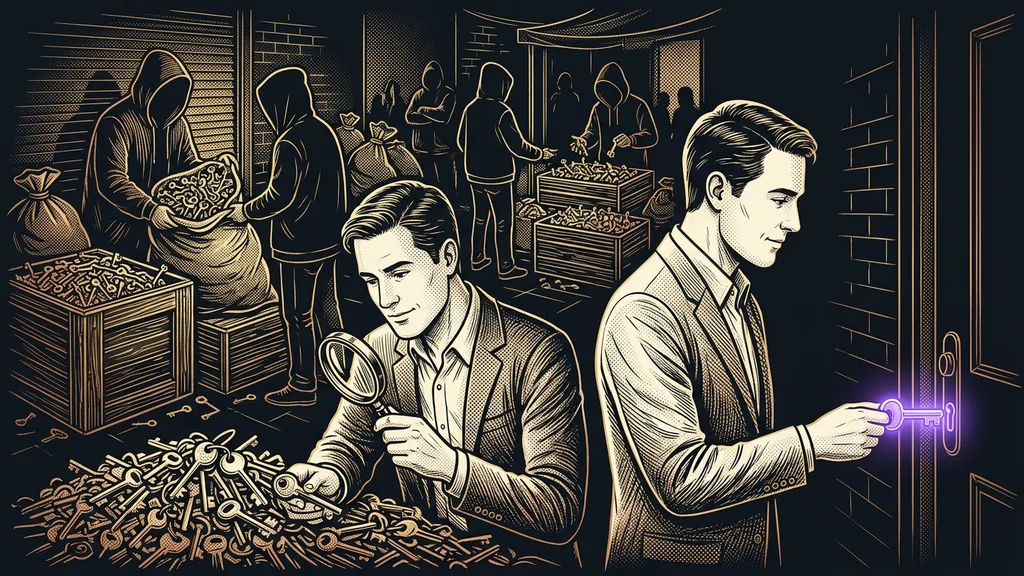
For an attacker, nothing costs less than getting the owner to install the app themselves. In 2018, the digital rights group EFF and the security firm Lookout showed how that works when they uncovered Dark Caracal, a spying campaign that infected thousands of people in more than twenty countries and handed the attackers hundreds of gigabytes of data [3].
Trojanized app
An app that looks and works like a well-known program, such as WhatsApp or a banking app, but also secretly works for an attacker: it may read your messages or send off your location or card details. It usually gets onto a phone through a link outside the official store.
The victims had downloaded “secure” versions of Signal and WhatsApp. The apps sent and received messages normally, and all the while they took photos, reported the phone’s location, and recorded audio for the attackers [3]. According to episode 38, people were lured in by a site called secureandroid.info that promised secure communication. Researcher Cooper Quintin says in the episode that it still makes him laugh, because all you could get at “secure Android” was insecure Android [2]. The trail of the campaign led to a building in Beirut belonging to Lebanon’s security service [3].
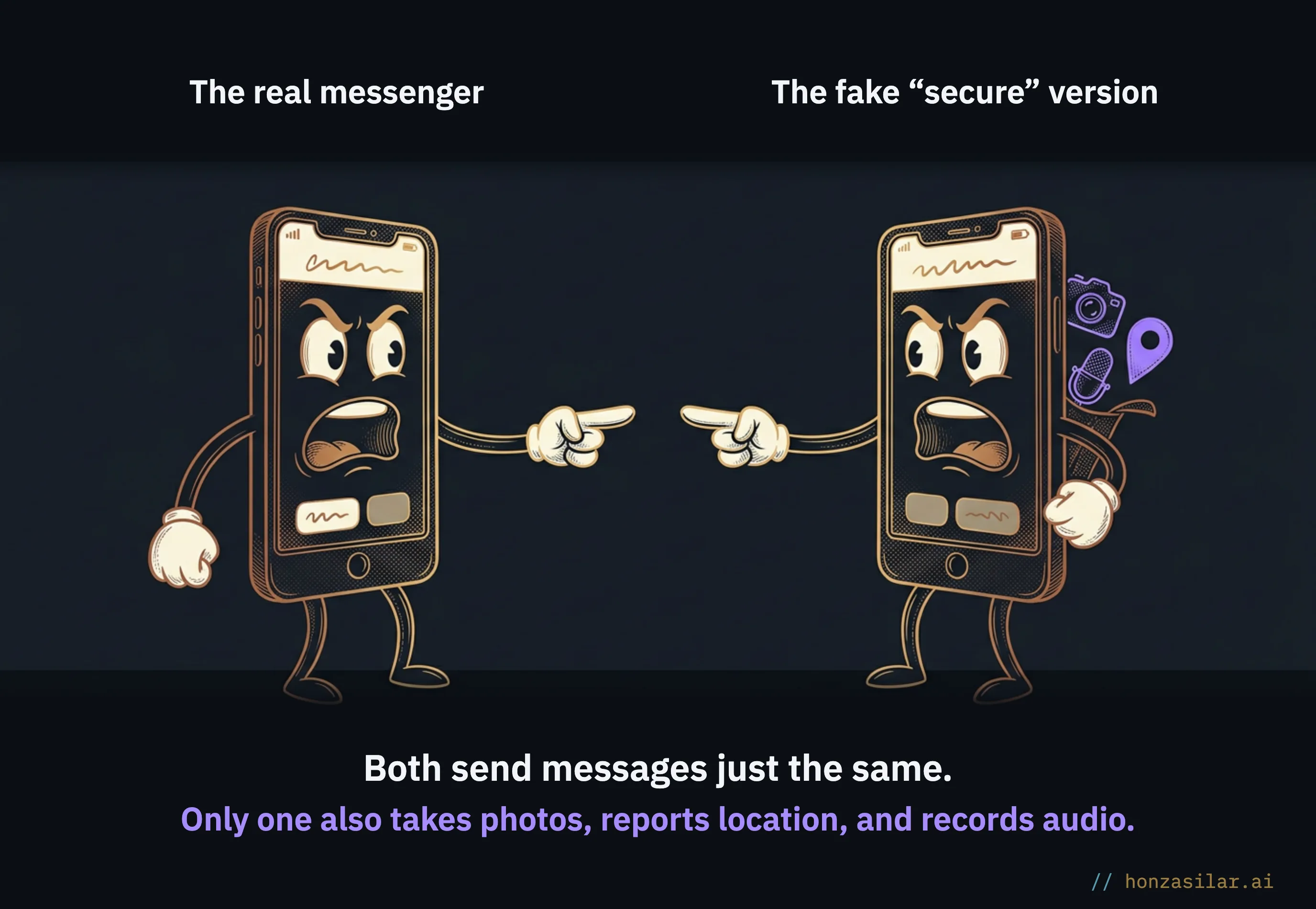
In EFF’s press release, Quintin added that the attackers didn’t need an expensive system bug. The permissions people had granted the apps during installation were enough [3].
The cheapest way into your phone is an app you let in yourself.
The message Ahmed Mansoor didn’t click#
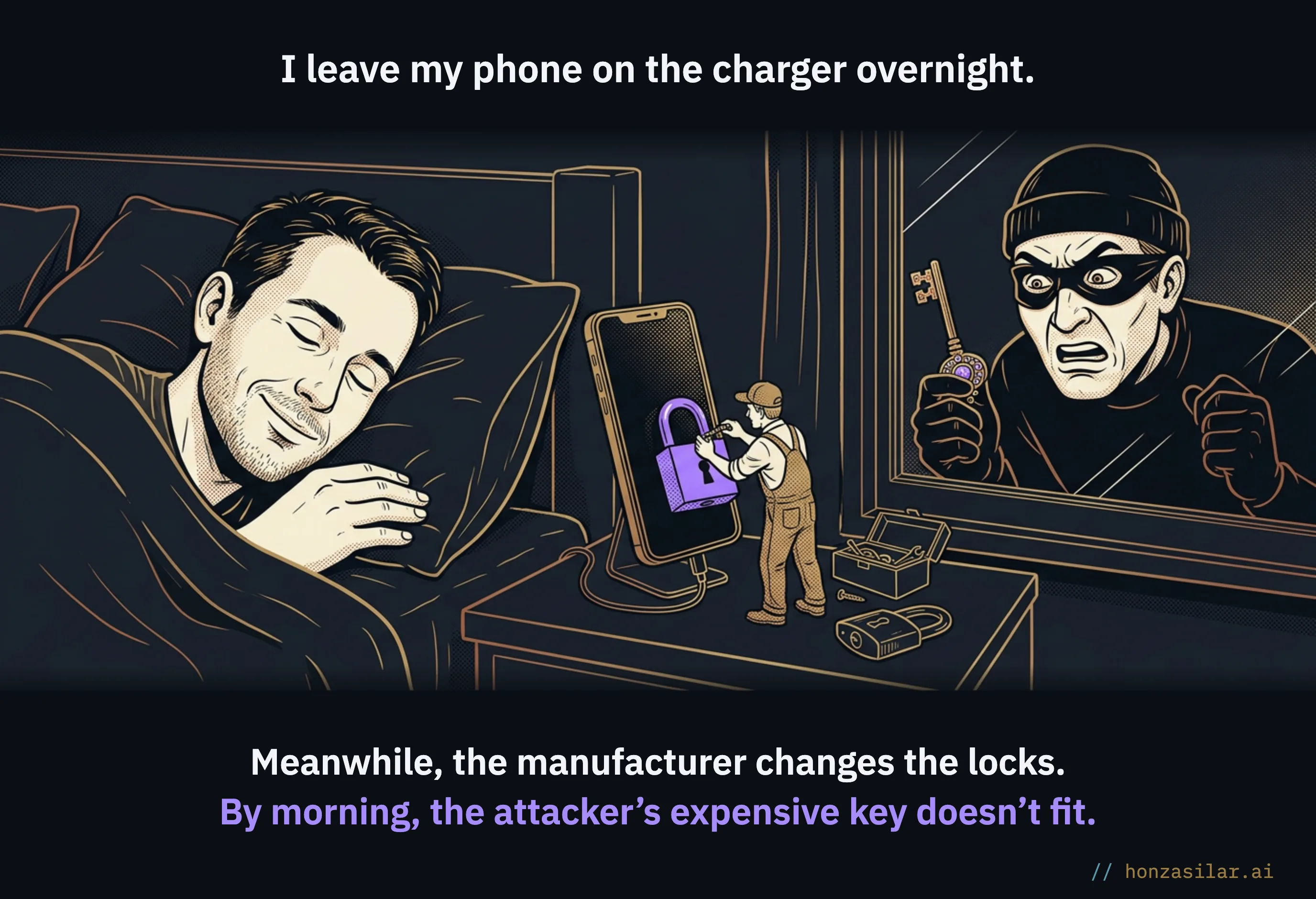
The other way into a phone runs through bugs the manufacturer doesn’t know about yet. Your best defense is installing updates as soon as they come out.
Ahmed Mansoor, a human rights defender from the United Arab Emirates, received two text messages on his iPhone on August 10 and 11, 2016. They promised “new secrets” about the torture of prisoners and contained a link [5]. Mansoor had been the target of several surveillance attempts before, so he didn’t click and sent the messages to researchers at Citizen Lab [5] [4].
Zero-day vulnerability
A security hole the manufacturer doesn’t know about yet, so no fix exists. Attackers pay a lot of money for these bugs and use them on specific targets. Once the manufacturer fixes them, an update closes them for everyone.
Behind the link was a chain of three such bugs. A single click would have let spyware take over Mansoor’s iPhone, spyware that can turn on the camera and microphone, record WhatsApp calls, and track location [5] [4]. Citizen Lab and Lookout alerted Apple, which released iOS 9.3.5 about ten days later, and the update blocked the whole chain [5]. In episode 100, one researcher says Mansoor’s own vigilance uncovered something that had slipped past researchers for almost a year [4].
Who paid for it, and who got away#
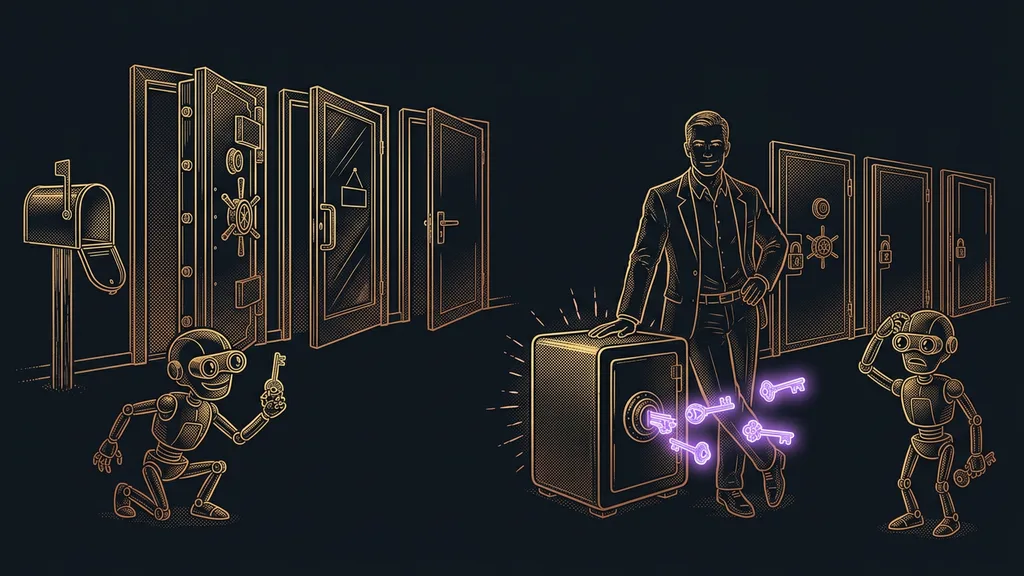
In each of these stories, the outcome came down to whether the attacker had one of the two ways in: an app from outside the official store, or a system without the fix.
Customers of three Czech banks lost out. An app from a link in a text message got them to hand over their online banking logins, and a second app, which they installed on the advice of a “bank employee,” took their card details and PIN as well. The attackers then withdrew the money at ATMs and kept a transfer to another account as a backup plan [1].
So did the people with the fake Signal and WhatsApp. The apps did just what they expected, so they had no reason to suspect anything [3].
Caution wouldn’t have helped the lawyer targeted through WhatsApp in 2019. He represented victims of the Pegasus spyware, and missed video calls kept waking him up, calls that then vanished from his call log. Citizen Lab found it was an attack that doesn’t need you to click on anything at all. The podcast host adds that the attacker can then erase every trace from the phone [4]. The only thing that helped was the fix WhatsApp released for its app.
Ahmed Mansoor came through unharmed. He didn’t click, he reported it, and the update his messages triggered closed the hole for everyone who installed it on their iPhone [5].
People with Lockdown Mode would have been safe too. It’s a stricter level of iPhone protection; more on it below. In September 2023, Citizen Lab disclosed a bug that let attackers infect an iPhone without a single click, using malicious images attached to an iMessage. It urged everyone to update immediately and added that, according to both Citizen Lab and Apple’s security team, Lockdown Mode blocks this attack [6].
Three settings that turn your phone into a vault#
You don’t need a paid tool for any of this. Three settings are enough, and once you switch them on, they run by themselves.
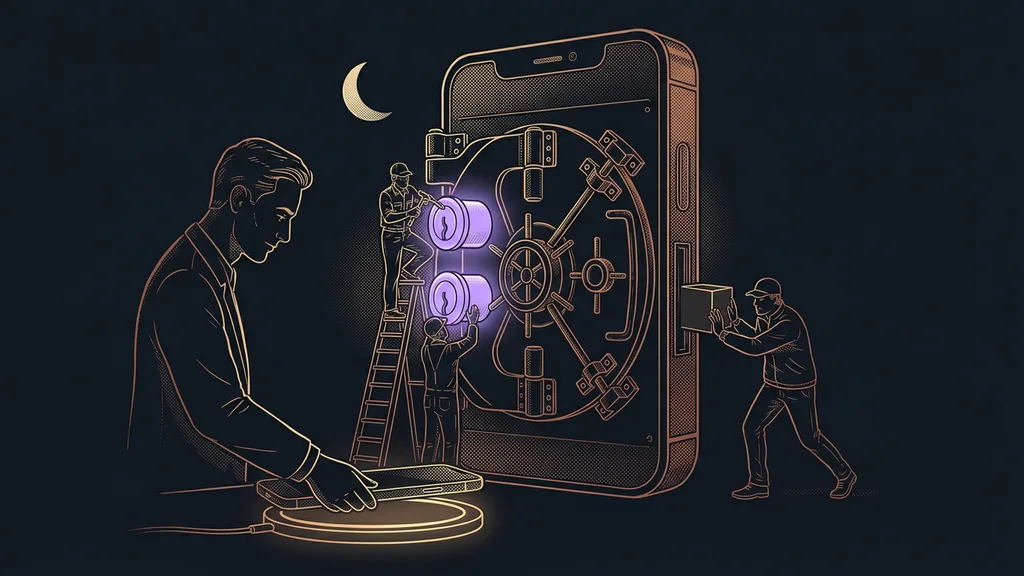
- Automatic updates for the system and your apps. Fixes then arrive even when you forget about them. On the iPhone, Apple offers to install them overnight while the phone is charging and on Wi-Fi [7].
- Apps only from the App Store and Google Play. Don’t install anything from a link in a message, from a website, or because a “bank employee” told you to. On Android, Google Play Protect also keeps watch, and according to Google, it can stop the installation of an unverified app with sensitive permissions [10].
- A screen lock with a passcode. It stops anyone who picks up your phone.
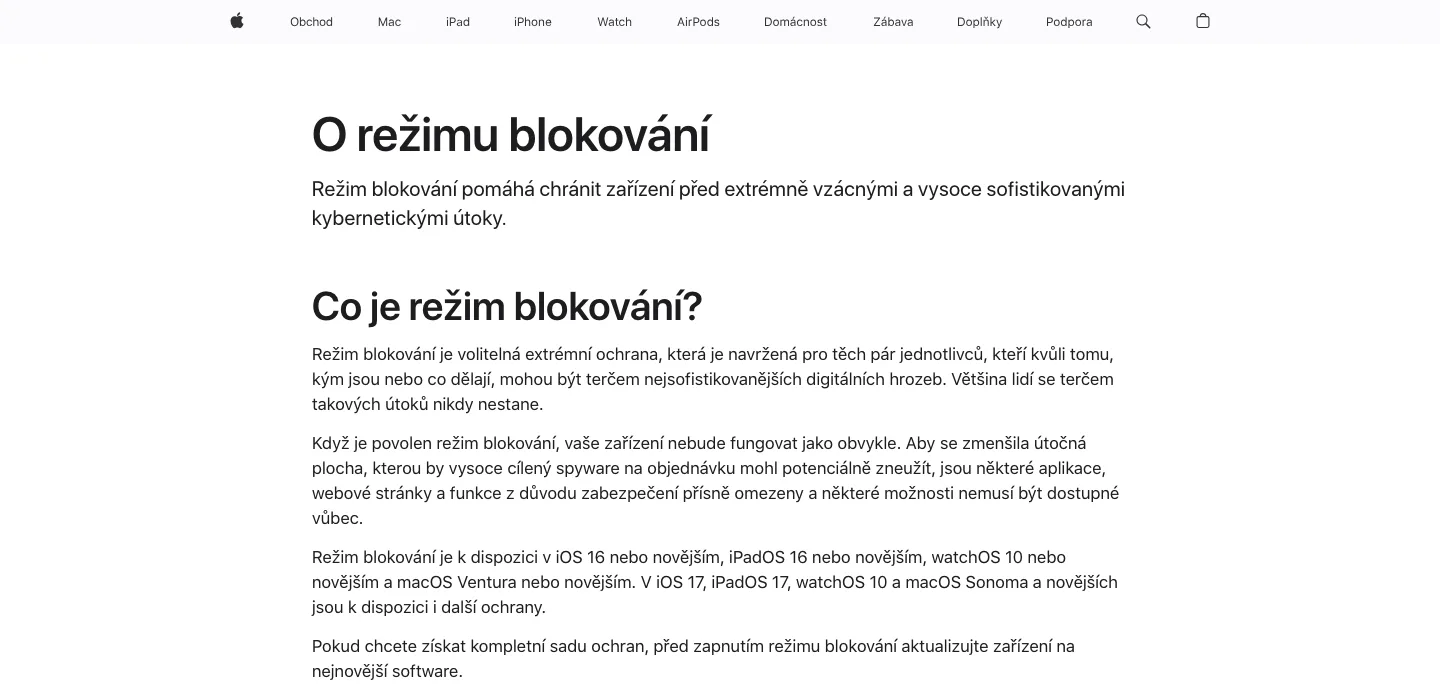
A fourth one is only for some people. Apple describes Lockdown Mode as an optional, extreme protection for the very few people who, because of who they are or what they do, may be targeted by the most sophisticated digital threats. Most people, Apple says, are never targeted by attacks of this kind [13]. If you’re involved in a sensitive dispute or publicly criticize powerful people, consider turning it on. Everyone else would lose most attachments in Messages for nothing, and some websites would load less smoothly.
Is Lockdown Mode worth turning on?
Worth it if
- Because of who you are or what you do, you may be targeted by the most sophisticated digital threats.
- You’re involved in a sensitive dispute or publicly criticize powerful people.
- According to Citizen Lab and Apple, the mode blocks BLASTPASS, the September 2023 attack that arrived as malicious images attached to an iMessage.
For everyone else, just a hassle
- According to Apple, most people don’t need it.
- Messages blocks most attachments.
- Some websites load less smoothly.
- FaceTime calls from people you haven’t called in the past 30 days don’t connect.
The store-only rule applies to business tools, too. Get your CRM’s mobile app and WhatsApp for client chats from the official store as well.
A check before your coffee goes cold
Pick up your phone and open the software update screen (Settings → General on an iPhone, Settings → System on Android). Does it say you have the latest version? Then go through your list of apps. Is there anything you installed from a link and not from the App Store or Google Play? If so, find out what it is, and if you don’t need it, delete it.
Setup guide for iPhone and Android#
Setting up one phone takes about fifteen minutes. If your business has several phones, a second set of steps follows below. This guide matches Apple’s and Google’s help pages as of November 2026. On Android, the menu paths differ between some manufacturers; I describe them as Google’s help pages do. Menu names are as you’ll see them on a phone set to English.
iPhone
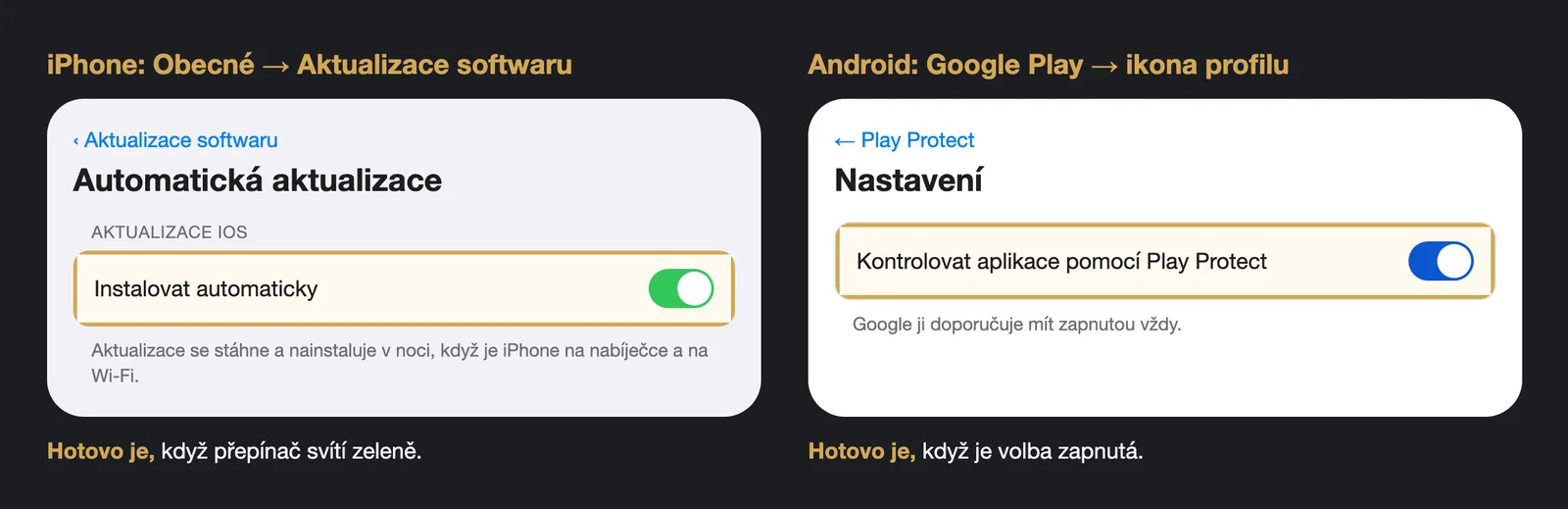
- Install pending updates and turn on automatic updates. Go to Settings → General → Software Update. You’ll see which version of iOS you have and whether a newer one is available. If it is, tap Download and Install [7]. Then, on the same screen, open Automatic Updates and turn on Automatically Install. From then on, your iPhone downloads and installs each update overnight while it’s charging and on Wi-Fi, and it lets you know beforehand [7]. You’re done when the phone shows the latest version and the switch is on.
- Turn on automatic app updates. Go to Settings → Apps → App Store and turn on App Updates. It’s usually on by default [9]. You’re done when your apps aren’t waiting for a manual update.
- Set a strong passcode. On an iPhone with Face ID, go to Settings → Face ID & Passcode → Turn Passcode On. If you already have a passcode, choose Change Passcode. Under Passcode Options, you’ll find Custom Alphanumeric Code and Custom Numeric Code, which Apple says offer the best protection [12]. Face ID unlocks the phone quickly, but the phone always asks for the passcode after you turn it on or restart it [12]. You’re done when, after a restart, the phone asks for a passcode nobody could guess from your date of birth.
Android
- Find out how old your system is. Go to Settings → About phone → Android version. You’ll see your Android version, the Android security update, and the Google Play system update [8]. You’re done when you know how old the fixes on your phone are.
- Install pending updates. Go to Settings → System → Software updates and follow the steps. After that, most fixes install by themselves, and your phone notifies you about new ones [8]. Newer versions of Android don’t work on some older devices, though [8], so a phone that no longer gets fixes is worth replacing. You’re done when the phone says it’s up to date.
- Turn on automatic app updates. Open Google Play, tap the profile icon in the top right, choose Settings → Network preferences → Auto-update apps, and pick an option such as Over Wi-Fi only [11]. You’re done when your apps aren’t waiting for a manual update.
- Check Play Protect. In Google Play, tap the profile icon → Play Protect → Settings and make sure Scan apps with Play Protect is on. Google recommends keeping it on at all times [10]. You’re done when the switch is on.
- Set a screen lock. Go to Settings → Security → Screen lock and choose PIN, Pattern, or Password [14]. Google warns that a swipe gives no protection at all and recommends a PIN of at least six digits [14]. If you can’t find Security, check your phone manufacturer’s help pages [14]. You’re done when the phone asks for a code after it wakes up.
Both phones
- Agree on a rule for apps and cards. You install apps only from the App Store or Google Play, and only when it was your own decision. You never type your card PIN into your phone, and you never hold your card to the phone because someone told you to, even a “bank employee.” After the NGate case, ESET gives exactly this advice: install apps only from official sources and keep your card PIN secret [1]. You’re done when you and everyone in your household know the rule.
Only for people at risk
- If you’re at risk, switch your iPhone to Lockdown Mode. Go to Settings → Privacy & Security, scroll down to Lockdown Mode, tap Turn On Lockdown Mode, and then Turn On & Restart. Apple recommends updating to the latest version first and turning the mode on separately on your iPhone, iPad, and Mac [13]. You’re done when the phone restarts with the mode on.
Second set of steps: company phones
- List who has which phone. For each company phone, write down who uses it, whether it’s an iPhone or Android, and which system version it runs, as in step 1 or 4. You’re done when you know which phone is furthest behind.
- Go through the steps above with each person. Updates, store-only apps, and a screen lock belong on every phone used to read company email or message clients. Replace any phone that no longer gets new fixes. You’re done when every row on your list has all three settings checked off.
- Tell people what to do with a suspicious message or call. The rule from step 9 applies to the whole company: apps only from the store, never the card PIN into the phone, and never the card against the phone on someone else’s instructions, even when “the bank” is calling. Anyone who suspects they’ve already done something like that should let you know right away. You’re done when everyone with a company phone knows the rule.
Where to find each setting on iPhone and Android
| Setting | iPhone | Android |
|---|---|---|
| System updates | General → Software Update → Automatic Updates | System → Software updates |
| App updates | Apps → App Store → App Updates | Google Play → Settings → Network preferences |
| App scanning | App Store only | Google Play → Play Protect |
| Screen lock | Face ID & Passcode | Security → Screen lock |
| For people at risk | Privacy & Security → Lockdown Mode | Not covered in this guide |
Tradespeople now send quotes from their phones, and business owners approve payments on them. The more of your work you move onto your phone, the more those three settings matter.
What to set up today#
- Turn on automatic updates for the system and your apps, and leave your phone charging overnight.
- Install apps only from the App Store and Google Play, never from a link in a message.
- On Android, keep Google Play Protect on.
- Lock your phone with a passcode; a swipe isn’t enough.
- Never type your card PIN into your phone, and never hold your card to it because someone tells you to.
- Turn on Lockdown Mode only if you’re among the people high-end spyware might target.
What cost customers of three Czech banks their money was an ordinary app they let onto their phones themselves. Ahmed Mansoor beat a far more expensive attack by not clicking and by reporting it. Your phone becomes a vault once nothing gets in through the back door and the manufacturer can change the locks every night.
I can help with this
Make sure your company phones don’t let anyone in
I’ll go through your company’s phones with you (updates, apps, locks, and rules for banking), and we’ll agree on who really needs Lockdown Mode. I work on phone security in depth, on my own phones and my clients’.
Sources#
- ESET WeLiveSecurity: NGate Android malware relays NFC traffic to steal cash, August 22, 2024. ESET
- Dark Caracal. Darknet Diaries, episode 38, 2019. Darknet Diaries
- EFF: EFF and Lookout Uncover New Malware Espionage Campaign Infecting Thousands Around the World, January 18, 2018. EFF
- NSO. Darknet Diaries, episode 100, 2021. Darknet Diaries
- Citizen Lab: The Million Dollar Dissident, August 24, 2016. Citizen Lab
- Citizen Lab: BLASTPASS, September 7, 2023. Citizen Lab
- iPhone User Guide: Update iOS on iPhone. Apple
- Android Help: Check and update your Android version. Google
- Apple Support: Updating apps and automatic updates. Apple
- Google Play Help: Google Play Protect. Google
- Google Play Help: Update Android apps. Google
- iPhone User Guide: Set a passcode on iPhone. Apple
- Apple Support: About Lockdown Mode. Apple
- Android Help: Set screen lock on an Android device. Google
Frequently asked questions
How can I tell if there’s spyware on my phone?
There’s almost no reliable way. High-end spyware can get onto a phone without a single click, as in the attack through a missed WhatsApp video call, and it can wipe its own traces. That’s why prevention beats hunting for it: an up-to-date system, apps only from the official store, and Lockdown Mode for people at risk.
Is it safe to install apps from outside the App Store and Google Play?
For a typical business owner, no. The scammers who robbed customers of Czech banks sent their app through a link in a text message, and it was never on Google Play. Google Play Protect can also stop the installation of an unverified app that asks for sensitive permissions.
Why update my phone right away if it works fine?
Because an update closes holes that someone is already exploiting. In September 2023, when Citizen Lab disclosed an iPhone bug that let attackers infect a phone without a click, it urged everyone to update immediately. Until you install the update, the hole stays open on your phone.
What is Lockdown Mode on iPhone?
An optional, extreme protection for people who, because of who they are or what they do, may be targeted by high-end spyware. With it on, the phone blocks most attachments in Messages, some web technologies, and FaceTime calls from people you haven’t called in the past 30 days. Most people don’t need it.
Is a screen lock enough to protect my phone?
No, it only covers the basics. A screen lock stops someone who picks up your phone. It won’t help against an app you let in yourself or a bug in a system you haven’t updated, so pair it with automatic updates and apps only from the official store.