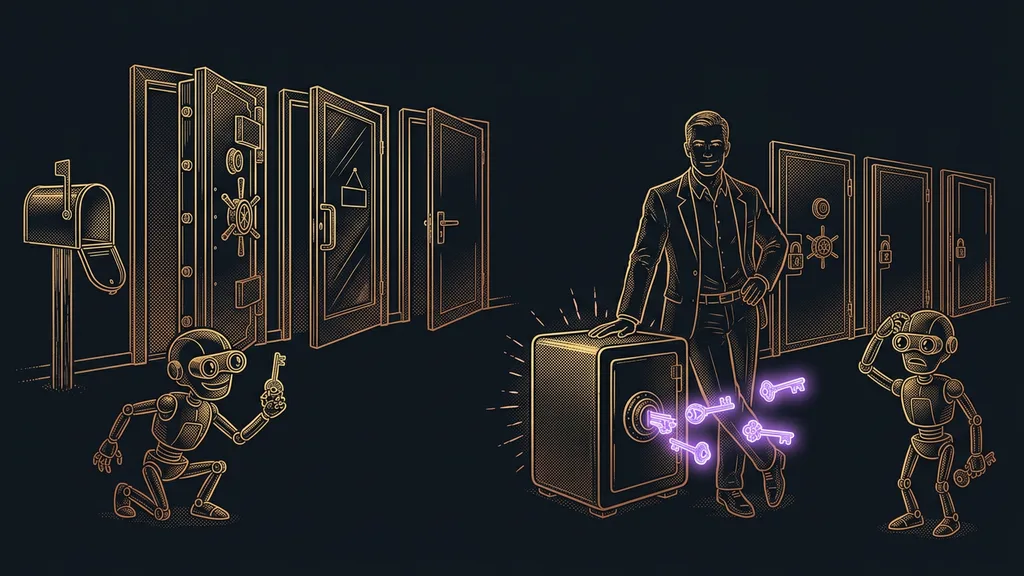
Security
Whoever gets your number gets your email and bank. How to stop a SIM swap
If a scammer convinces your carrier you lost your phone, your number moves to their SIM, and so do the codes to your email and bank. Lock it down in an hour.
 Honza Silar 18 min read Nov 11, 2026
- iPhone
In this article
- 01How a stranger gets hold of your number
- 02The SEC and one fake post
- 03Who lost everything and who held out
- 04What Czech carriers offer, and where the weak spot is
- 05Three safeguards so your number alone opens nothing
- 06Guide: lock down your number in under an hour
- 07What to take away for your own number
- 08Sources
- 09Frequently asked questions
What you’ll take away
Your email, your bank, and probably your WhatsApp chats with clients all depend on your phone number. By the end, you’ll know where the number is the only key and how to change that. And if your phone ever shows No Service, you won’t spend an hour figuring out what to do.
- I’ll describe how a stranger takes over your number without ever touching your phone.
- What separated the victim who lost all his bitcoin from the one who fought the attack off.
- Safeguards with your carrier, in your Google account, on iPhone, and on Android, step by step, plus how to set them up for your whole company.
- A plan you’ll write down for the moment your phone loses signal.
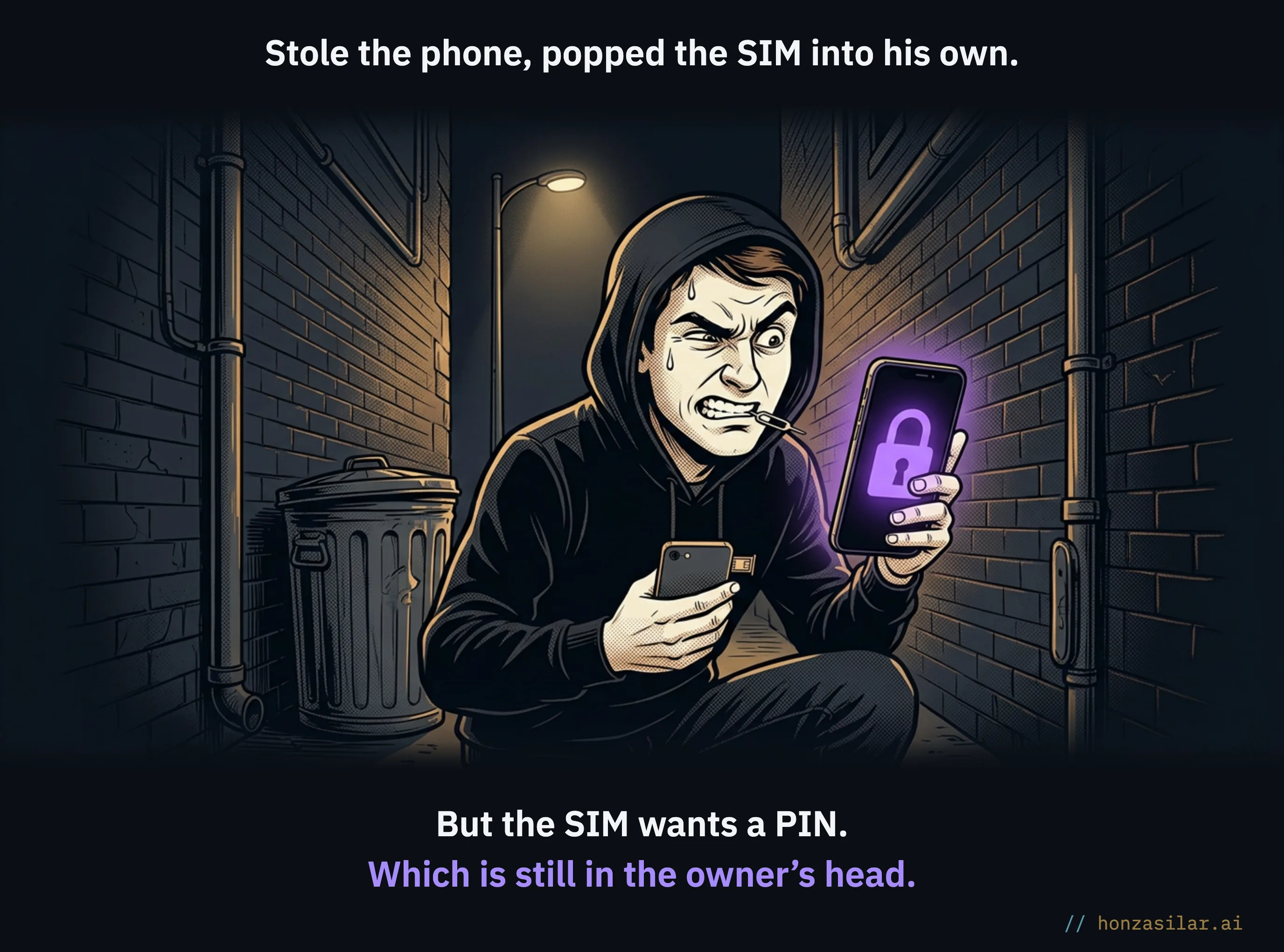
In 2018, Mark Kreitzman was driving at night across the Arizona desert to visit his father, whom he hadn’t seen in two years. Their call dropped mid-sentence, and SOS appeared on the screen. In the desert, that’s nothing unusual, so he kept driving. He felt safe for another reason too: he had asked his carrier to allow changes to his number only in person at a store, with two forms of ID [1].
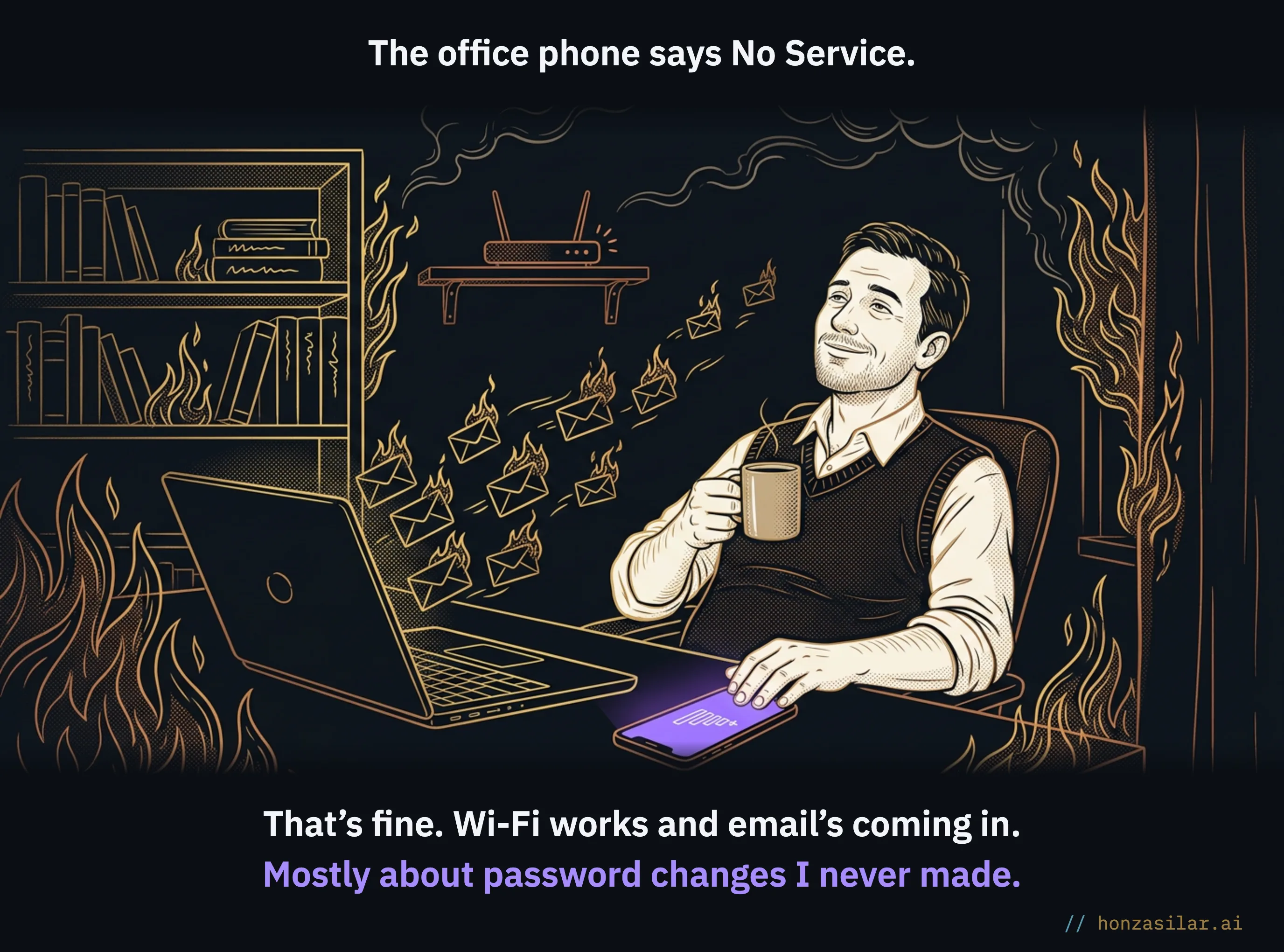
As soon as he connected to Wi-Fi at his father’s place, six password reset alerts landed on his phone. His bank account, two cryptocurrency accounts, two cloud storage accounts, and his email. Nobody had touched his phone. His number had simply spent an hour ringing in someone else’s [1].
The attack is called a SIM swap, and as a business owner, you’re more exposed to it than you might expect. Your phone number is on your website, your invoices, and your business card, and yet your email, your bank, and often your WhatsApp chats with clients depend on it. Mark’s story was featured on the Darknet Diaries podcast, where host Jack Rhysider collects real hacking cases. I’ll show you how the attack works, what carriers offer, and how to make sure your number alone can’t open your accounts.
How a stranger gets hold of your number#
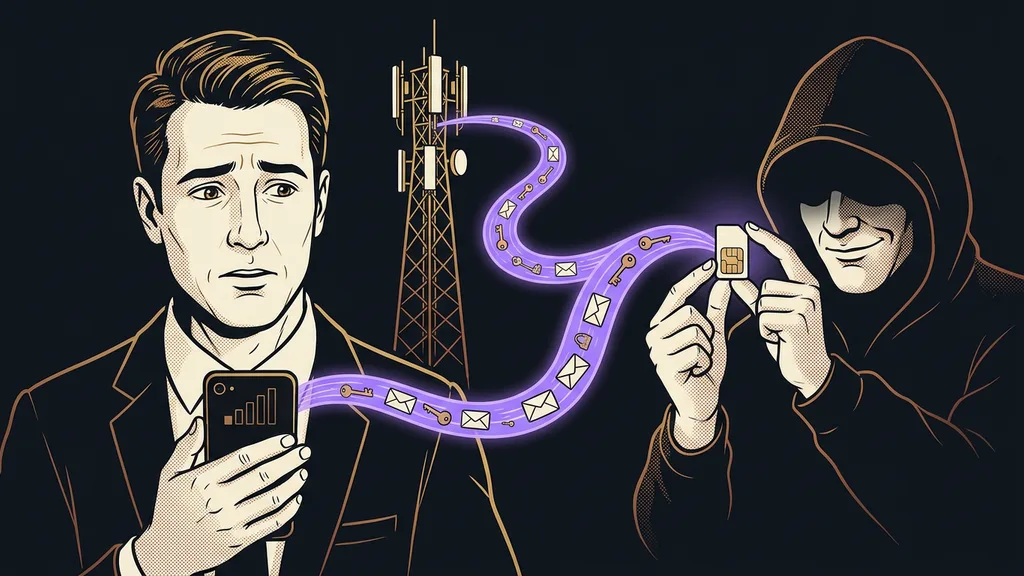
All they have to do is convince your carrier to move your number to a SIM card they hold. Your phone stays on your desk the whole time.
SIM swap
An attack in which a scammer pretending to be you asks your carrier for a new SIM card or eSIM with your number. Your card stops working, and your calls, texts, and verification codes start going to them. With those codes, they click “forgot password” to open your email, and from there, your other accounts.
In episode 154, Irish hacker Conor Freeman describes how his group did it. Someone would call the carrier and give the victim’s name and the last four digits of their US Social Security number. The caller claimed to have lost their phone and asked for the number to be moved to a new card. According to Freeman, the easiest target was T-Mobile in the US, where a single call was often enough [2]. The group pieced together the victim’s details in advance from leaked databases and paid people-search sites [2].
The second route runs through employees. According to episode 112, attackers paid people at carriers, most often store managers, around ten thousand dollars per swap. A newer trick from the same episode: an accomplice runs into a store, snatches a logged-in tablet out of the manager’s hands, and bolts. The store usually locks the tablet within ten minutes, and that’s enough time for the attackers to reassign several numbers [3].
What attackers paid for one SIM swap
From there, it runs like clockwork. One member of the group sits with a blank SIM card in a phone and waits. Another has the victim’s Gmail sign-in page open, clicks “forgot password,” and asks for a code. The moment the number comes through, the first one reads the code to him over the phone [2].
Your phone number lives in your carrier’s system, and anyone the carrier lets through can reassign it.
The SEC and one fake post#
SIM swaps hit more than people with cryptocurrency. On January 9, 2024, shortly after 4 p.m. local time, someone took over the X account of the U.S. Securities and Exchange Commission (SEC). At 4:11 p.m., the account announced that the commission had approved bitcoin exchange-traded funds. It hadn’t, and within fifteen minutes the SEC refuted the post through its chair’s account [4].
Two days later, the SEC and the carrier determined that the attacker had most likely used a SIM swap to take over the phone number linked to the account, then used it to reset the password. Two-factor authentication on the account was turned off. Staff had asked for it to be disabled in July 2023 because they couldn’t log in, and they turned it back on only after the attack [4].
Anyone who controls your number or your account can write to your clients and suppliers in your name. From there, it’s a short step to the scams that target small businesses.
Who lost everything and who held out#
In each of these SIM swap stories, the outcome came down to two things: what the number alone could unlock, and how quickly the owner noticed something was wrong.
Mark Kreitzman lost everything. He had protection with his carrier, but only on paper. An employee at a store in Memphis did the swap. The store claimed to be an authorized dealer for the carrier and was nowhere near where Mark lived. The employee simply recorded in the system that he had seen both IDs and that Mark had stood at the counter in person. By all accounts, he was paid for it, and that day was his last at work [1]. The attackers had an hour’s head start. They changed the password to Mark’s Coinbase account and took 2.2 bitcoin, everything he had there. For two to three months afterward, every time Mark woke up, even at three in the morning, he checked whether his phone showed LTE, and he avoided Wi-Fi so it couldn’t hide the fact that his texts and calls had stopped working [1].
Miles, from episode 97, lost the first time too. He was a web designer with a short, sought-after handle on Twitter and Instagram. In 2016, his phone lost signal, and his carrier, AT&T, told him he had called in himself about a new SIM. Meanwhile, the attacker had reset his Gmail password by text message and gone from there into his Twitter and Instagram [5].
Three years later, the same Miles came through fine. In the meantime, he had switched carriers and numbers, started using a password manager, and set up a PIN for account changes with his new carrier, T-Mobile. In 2019, his signal disappeared again: the attacker took over the number anyway, most likely with a story told over the phone, as the host suggests. This time, though, Miles knew at once what was happening. He called his carrier immediately and stopped the attack before the attacker got into his accounts. Afterward, he made sure every number on his plan had a PIN [5].
Both endings point the same way. A safeguard at your carrier depends on people you don’t control, and they can be bribed. So build your main defense in your own accounts: make sure the number alone can’t open your email or your bank. And know what to do in the first hour.
What Czech carriers offer, and where the weak spot is#
Any carrier will move your number to a new SIM once you prove you’re you. What matters is how you prove it, because that’s what the attacker will try too.
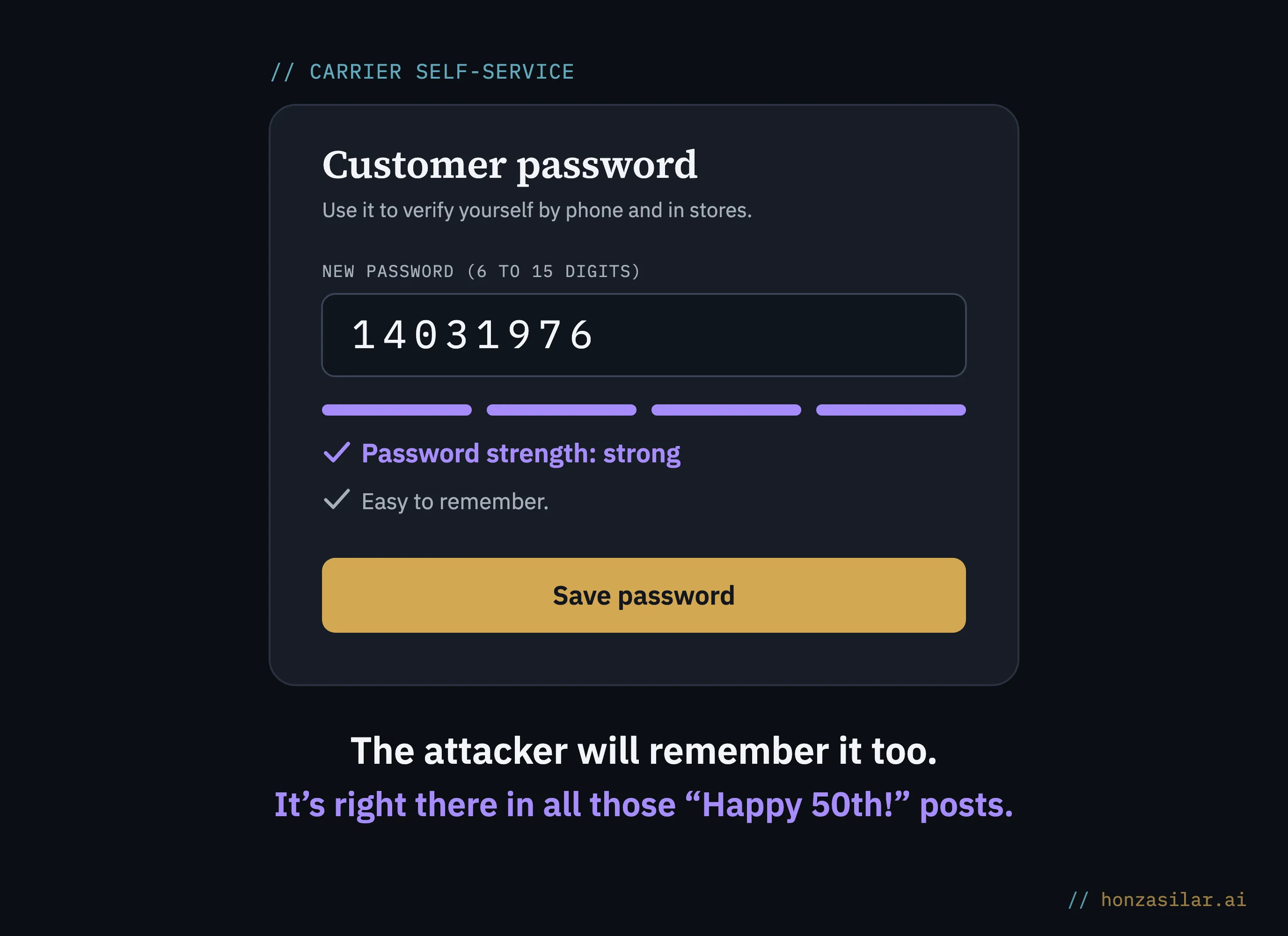
- Vodafone sends you a text with a customer password of 6 to 15 digits when you get your first number. You use it to verify yourself on the customer service line and in stores. According to Vodafone, you get a new SIM in a store on the spot as long as you know the administrator password. With administrator rights, you can also order a new SIM or a switch to eSIM in Vodafone’s self-service account [6].
- O2 swaps your SIM card in a store while you wait, as long as you show your ID card. To switch to an eSIM online, it requires an active O₂ ID on the original number, and it says outright that this is to protect against hacking attacks [7].
- T-Mobile issued eSIMs through an activation QR code in a store or in the customer section of its app. In February 2026, it announced eSIM transfers directly between two phones, which require both devices to be together and the original one to have a screen lock [8].
So with your carrier, you prove who you are with a customer password, a sign-in to its self-service account, and your ID card. A password you know by heart because it’s your date of birth won’t stop a scammer, and a self-service sign-in that shares its password with ten other websites is just as easy to get into.
Imagine losing signal tomorrow
Imagine that at ten tomorrow morning your phone shows No Service, even though you’re sitting in your office. Do you know how you’d reach your carrier without your own phone, and which of your accounts would send a code to someone else’s phone the moment someone clicks “forgot password”? If you can only shrug, work through the guide below.
Three safeguards so your number alone opens nothing#
Three safeguards are enough to protect you from a SIM swap, and none of them costs anything.
- A strong password with your carrier and a locked-down self-service account. This makes the attacker’s easiest route harder: a phone call or a store visit with your details.
- Your number can’t be the only key. Your email, your bank, and your Apple or Google account should each have another way to recover them and a second factor through an app or a security key. My guide to two-factor authentication explains why a text message code isn’t enough and what to use instead.
- A plan for the moment you lose signal. The second time around, Miles held on because he reacted right away. A plan written in advance saves you the hour the attackers had on Mark.
The most important account is your email, because you recover almost everything else through it. That’s also why I don’t let anyone into mine without careful thought, not even an AI assistant (more on that in my post about AI and business email).
Guide: lock down your number in under an hour#
On your own, you’ll get through this guide in about 45 minutes. If your company has several numbers, the second part of the guide covers them. The guide is based on the help pages of carriers, Apple, and Google as they looked in November 2026. I give the menu names you’ll see on a phone set to English.
With your carrier
- Find out how you verify yourself with your carrier. At Vodafone, it’s the customer password of 6 to 15 digits that came by text when you got your first number. You use it on the customer service line and in stores [6]. At O2, it’s your ID card in a store and, for switching to an eSIM online, an active O₂ ID [7]. With other carriers, search their help pages for “SIM swap” or “SIM replacement.” You’re done when you know what your carrier wants to hear, and that information isn’t in your email or on social media.
- Change your customer password if it’s easy to guess. An attacker can find your date of birth, the year you founded your company, or the last digits of your phone number in a few minutes. At Vodafone, the account administrator can change customer passwords, and the help page also explains how to get a new password if you don’t know the old one [6]. Choose a combination of digits that means nothing and save it in your password manager. You’re done when nobody could connect the password to you and you have it stored somewhere safe.
- Lock down your carrier’s self-service account. In Vodafone’s self-service account, in O2’s (for monthly plans), and in T-Mobile’s app, you can request a new SIM or eSIM [6] [7] [8]. You sign in to Vodafone’s self-service account with your email and your own password of at least eight characters, and you confirm the sign-in with a verification code [6]. Give the self-service account a long password from your password manager that you don’t use anywhere else, and sign in with an email address that’s well protected. You’re done when you can only get into the account with your password manager and a verification code.
On your phone
- Lock your SIM card with a PIN on iPhone. If someone steals your phone, they can’t use the SIM in another device and won’t receive your texts on it. Open Settings → Cellular → SIM PIN and turn the feature on. If your iPhone has two SIMs or eSIMs, first tap the number you want to lock. The phone asks for the current PIN. If you’ve never changed it, enter the default PIN, which you’ll find in the documents that came with the card or on your carrier’s website. Finally, tap Done [9]. Don’t guess the PIN: after repeated wrong attempts, the SIM locks, sometimes permanently, and you’ll need a new one [9]. You’re done when your phone asks for the SIM PIN after a restart.
- Lock your SIM card with a PIN on Android. On Google Pixel phones, open Settings → Security, and under Advanced security settings, choose SIM card lock [13]. Turn the lock on and enter the current PIN. Google itself notes that the steps vary from device to device [13], so on other brands, search your settings for “SIM.” The check is the same as on iPhone: you’re done when your phone asks for the PIN after a restart.
In your accounts
-
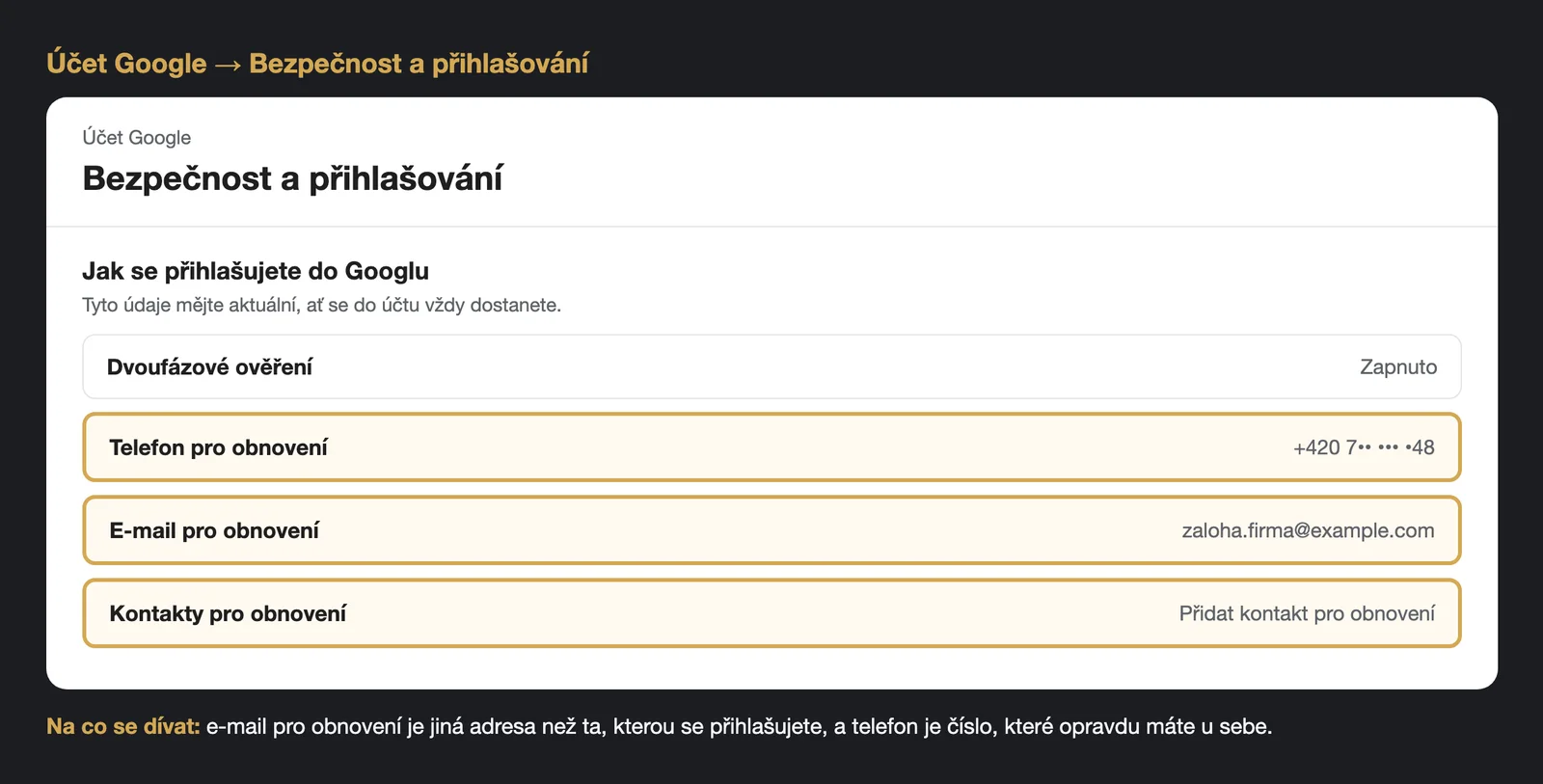
Check how your email account gets recovered. In your Google Account, click Security & sign-in, and in the How you sign in to Google section, go through three items [10]:
- Recovery phone. Keep the number. It’s also your way back into your email. Just make sure it’s yours and up to date.
- Recovery email. Google recommends an address you use regularly, but not the one you sign in with [10].
- Recovery contacts. Add someone you know well and trust. They get the request by email, and it’s valid for 7 days [10]. According to Google, some recovery options aren’t available in every region or for every account.
Google warns that after you change your recovery details, it may keep sending codes to your previous phone or email for another 7 days [10]. You’re done when your email has at least two ways to recover it.
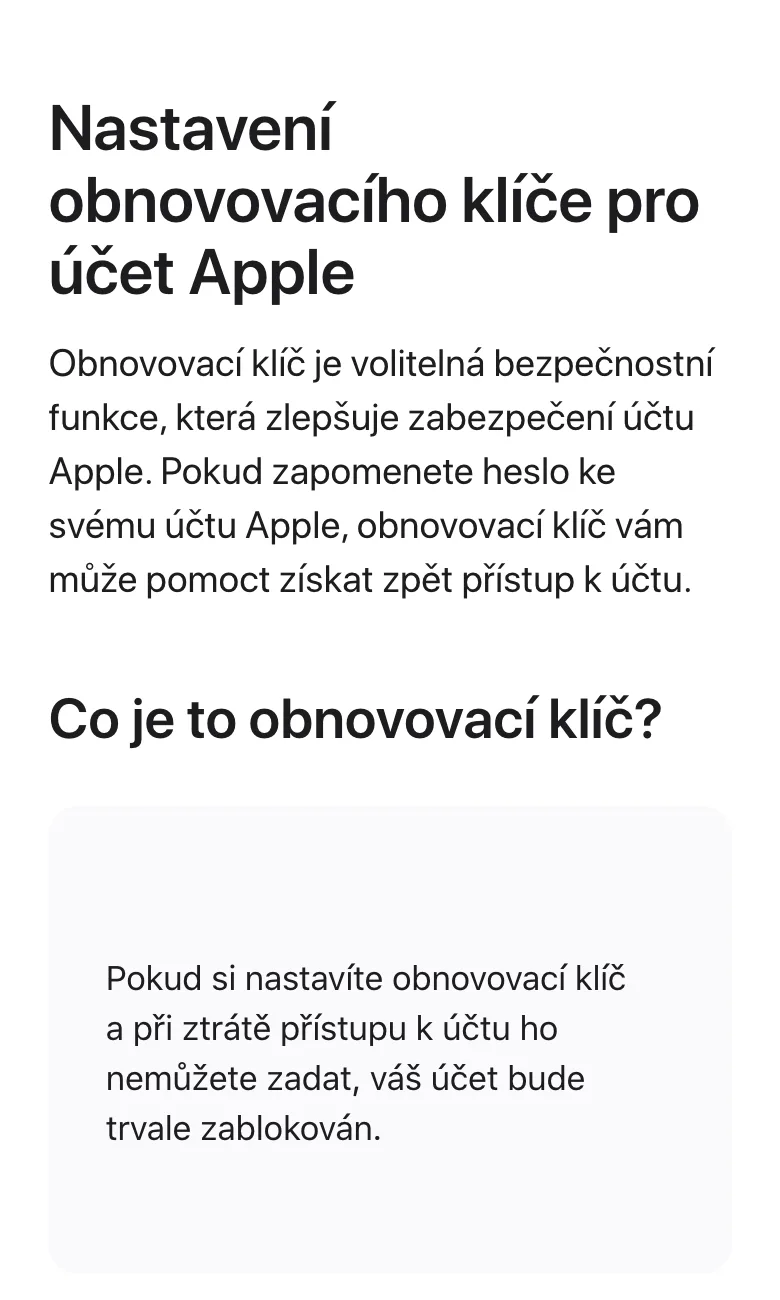
- For your Apple Account, consider a recovery key. On your iPhone, open Settings → your name → Sign-In & Security → Recovery Key [11]. The key is 28 characters long. Once you turn it on, standard Apple Account recovery is switched off, and you can then reset your password only with the recovery key and a trusted phone number. The number alone isn’t enough to reset your password, and Apple says this can keep an attacker out of your account. There’s a catch, though: if you lose the key, you can lose the account for good [11]. You’re done when you have the key printed out and kept in two safe places outside iCloud.
- Go through the accounts that hold money. Your bank, your payment gateway, your accounting software: wherever signing in or resetting a password relies on texts alone, find out whether confirmations can move to an app. You’re done when you have a list of the accounts where text messages remain the only option, and you know why.
- Write a “No Service” plan and keep a copy somewhere other than your phone. In your password manager and on paper, write down your carrier’s customer service number and the order in which you’ll check your accounts [6] [7]. Leave the customer password off the paper copy. Only your password manager should hold it. Tell the person you share an office with about the plan too. You’re done when you can find the plan without your own phone.
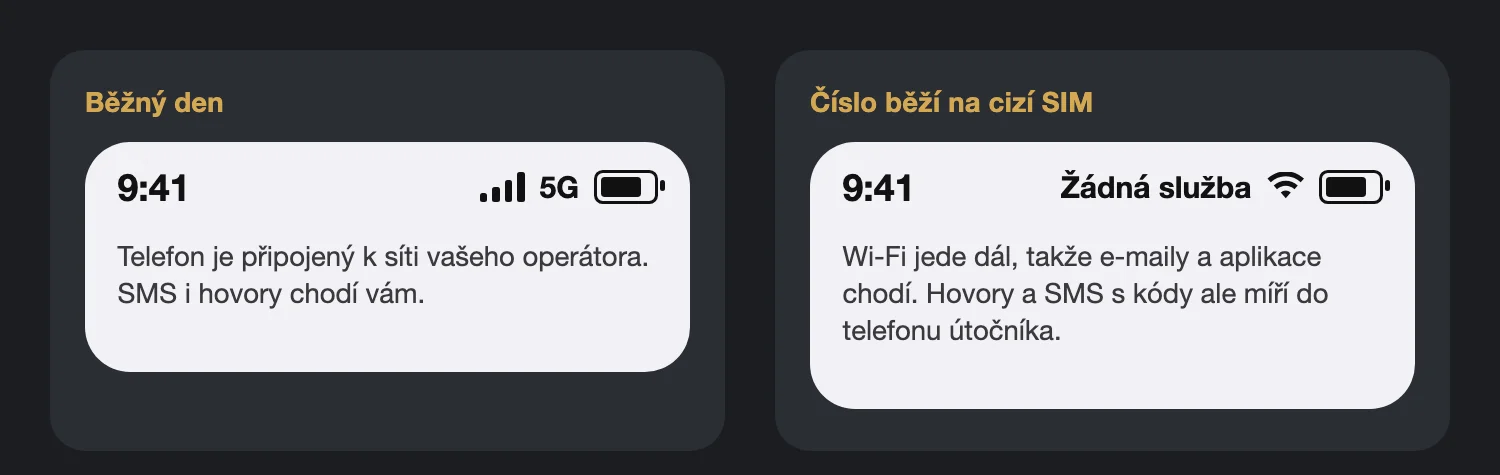
The plan only helps if you recognize the alarm in time. In the US, an iPhone that loses your carrier’s network shows SOS or SOS only. The SOS label Mark saw appears only in Australia, Canada, and the US [12]. If you’re somewhere you normally have signal and your phone suddenly drops off the network, treat it as an alarm, not a network outage.
The first thirty minutes without signal
- Check that you’re somewhere you normally have signal. If you are, act now.
- From another phone or through chat, ask your carrier whether your SIM was swapped, and have the unknown card blocked.
- From a computer, change your email password and sign out all unfamiliar devices.
- Go through any password reset emails and change your password everywhere one arrived.
- Let your bank know and check the latest transactions on your account.
Part two: for the whole company
In a company, every number has someone’s email riding on it, and often a WhatsApp chat with clients too. This part takes about another half hour.
- List all your company phone numbers. For each one, note who uses it, which carrier it’s with, and which company accounts depend on it, above all email, banking, and WhatsApp with clients. You’re done when the list sits in a shared vault in your password manager. A spreadsheet attached to an email doesn’t count.
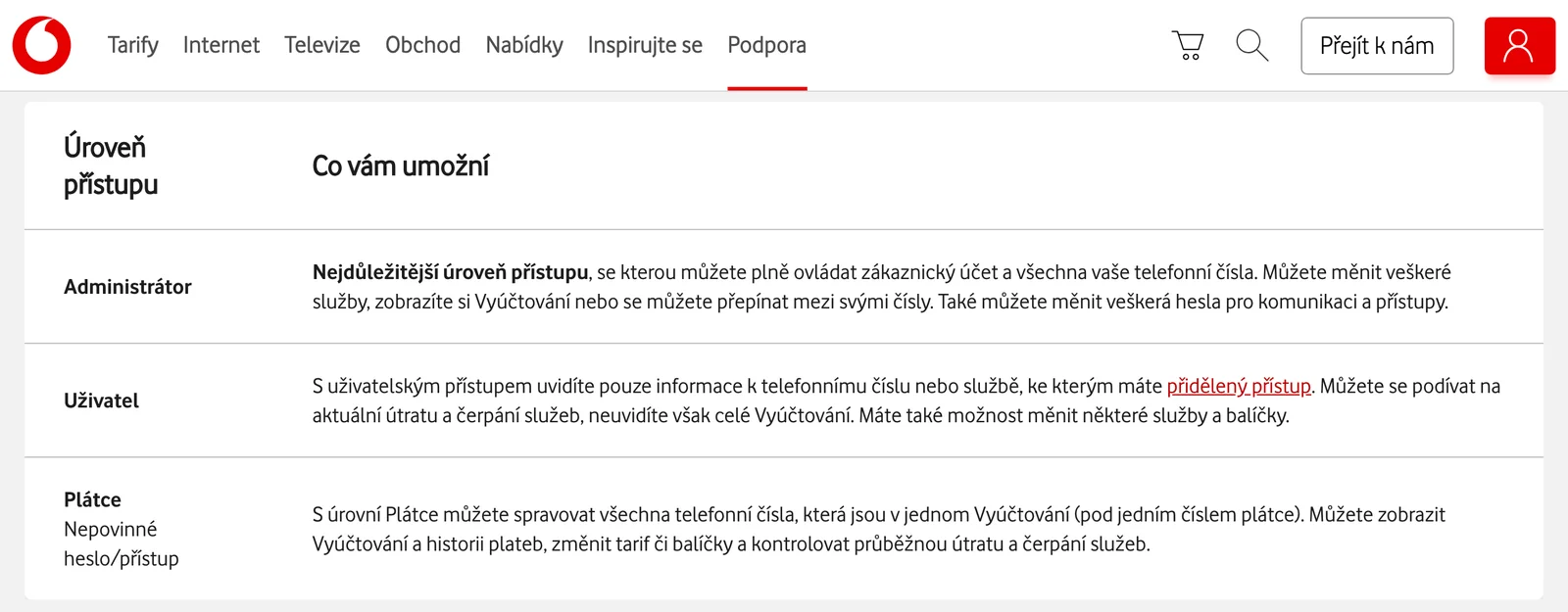
- Keep track of who has administrator access. At Vodafone, the administrator controls the entire customer account, every number, and every customer password. A user only sees the numbers they’ve been given access to [6]. No more than two people should know the administrator password, and everyone else can make do with user access. You’re done when you know who has administrator access and nobody has it who shouldn’t.
- Give every number its safeguards. After the second attack, Miles from episode 97 made sure every number on his plan had a PIN with the carrier [5]. Do the same: every company number should have a strong password with the carrier and a PIN on the SIM. Everyone’s email should have more ways to recover it than texts alone. You’re done when every number on your list from step 10 has all its safeguards checked off.
- Extend the “No Service” plan to the whole team. Add who a person should tell when their phone loses signal, and who in the office contacts the carrier. You’re done when everyone with a company number knows the plan.
What goes into your “No Service” plan
- Your carrier’s customer service number (in the Czech Republic, Vodafone 800 77 00 77, O2 800 02 02 02)
- The order of the accounts you’ll check first
- A copy in your password manager and one on paper, so it’s never only on your phone
- The person you share an office with knows about it too
- Your customer password doesn’t go on paper, only in your password manager
What to take away for your own number#
- Your phone number lives in your carrier’s system, and it can be reassigned without your phone.
- Use a customer password with your carrier that means nothing and that you don’t use anywhere else.
- Lock your carrier’s self-service account with its own password from your password manager.
- Your email, your bank, and your Apple or Google account should have more ways to recover them than texts alone.
- Lock your SIM card with a PIN so a phone thief can’t put it in another phone.
- Keep your plan for losing signal written down somewhere other than your phone.
Mark Kreitzman had set up everything his carrier offered, and he still lost his number because of one confirmation that someone at a store far from his home typed into the system. You can’t control what happens at your carrier’s counter, but you decide who gets into your email and your bank.
I can help with this
Keep your phone number from unlocking your email and bank
Together, we’ll go through which of your accounts depend on your phone number and set up email recovery, safeguards with your carrier, and a PIN on your SIM. Then we’ll write a plan for the moment you lose signal, for you and for your whole company. Protecting phone numbers and recovering accounts is something I work on in depth, for myself and for my clients.
Sources#
- Ricky. Darknet Diaries, episode 181, 2026. Darknet Diaries
- Hijacked Line. Darknet Diaries, episode 154, 2025. Darknet Diaries
- Dirty Coms. Darknet Diaries, episode 112, 2022. Darknet Diaries
- U.S. Securities and Exchange Commission: SECGov X Account, statements of January 9, 12, and 22, 2024. SEC
- The Pizza Problem. Darknet Diaries, episode 97, 2021. Darknet Diaries
- Vodafone Czech Republic: How passwords work at Vodafone, and How to get a new SIM or eSIM after your phone is lost or stolen, accessed November 11, 2026. Passwords, new SIM
- O2 Czech Republic: When and how to replace your SIM card, accessed November 11, 2026. O2
- T-Mobile Czech Republic, press center: T-Mobile will make it easy to transfer an eSIM to another phone, February 11, 2026. T-Press
- Apple Support: Use a SIM PIN for your iPhone or iPad. Apple
- Google Account Help: Set up recovery options. Google
- Apple Support: How to set up a recovery key for your Apple Account, September 21, 2026. Apple
- Apple Support: If you see SOS, No Service, or Searching on your iPhone or iPad. Apple
- Google Pixel Help: Manage your Pixel phone’s security and privacy settings. Google
Frequently asked questions
What is a SIM swap?
A scam in which an attacker talks a mobile carrier into moving your phone number to a SIM card in their phone, or bribes or bypasses the carrier to do it. From then on, your calls, texts, and verification codes go to them, and they use those codes to reset the passwords to your email and other accounts.
How can I tell if someone has taken over my phone number?
Your phone suddenly shows No Service or Searching in a place where you normally have signal, and you can’t make calls. Meanwhile, emails can keep coming in over Wi-Fi, for example alerts about a password change you didn’t make. Contact your carrier right away from another phone or through its chat.
Does an eSIM protect me from SIM swapping?
Not on its own. To get a new eSIM, the attacker only has to convince your carrier, or get into your carrier’s self-service account and request one there. It helps if the carrier requires strong verification for the switch. The Czech carrier O2, for example, requires an active O₂ ID to switch to an eSIM.
Should I remove my phone number from all my accounts?
Not from all of them. A phone number is fine as one of several ways to recover an account. The danger is when it’s the only key. For your email and any account that holds money, add another recovery option and a second factor through an app or a security key, and for your Apple Account, consider a recovery key.
What should I do if my phone suddenly loses signal?
If you’re somewhere you normally have signal, treat it as an alarm. From another phone or through chat, ask your carrier whether your SIM was swapped, and have the unknown card blocked. Then change your email password from a computer, sign out any unfamiliar devices, and let your bank know.