Security
SMS codes are the weakest lock. Use 2FA that phishing can’t get past
Scammers get SMS and app codes through fake pages or a call in a colleague’s voice. A security key can’t be phished. Secure Google and Apple in about an hour.
 Honza Silar 16 min read Nov 11, 2026
- YubiKey
- Google Authenticator
In this article
- 01A second lock that opens from the outside
- 02Passwords and codes that people handed over themselves
- 03Twilio and Cloudflare: one summer, two endings
- 04What to switch to: an app everywhere, a key where the stakes are highest
- 05Which accounts to lock down first
- 06Setup, step by step
- 07Your two-factor checklist
- 08Sources
- 09Frequently asked questions
What you’ll take away
You probably already use two-factor authentication, but your codes still come by text. By the end, you’ll know what to replace them with and which accounts to start on. And if you ever lose your phone, you’ll still be able to get into your accounts.
- How attackers get around codes from text messages and authenticator apps.
- A close look at two attacks from the same summer that ended in opposite ways.
- Which accounts to secure first, with a setup guide for Google, Apple, and your whole company.
- Plus a five-minute check of your own phone.
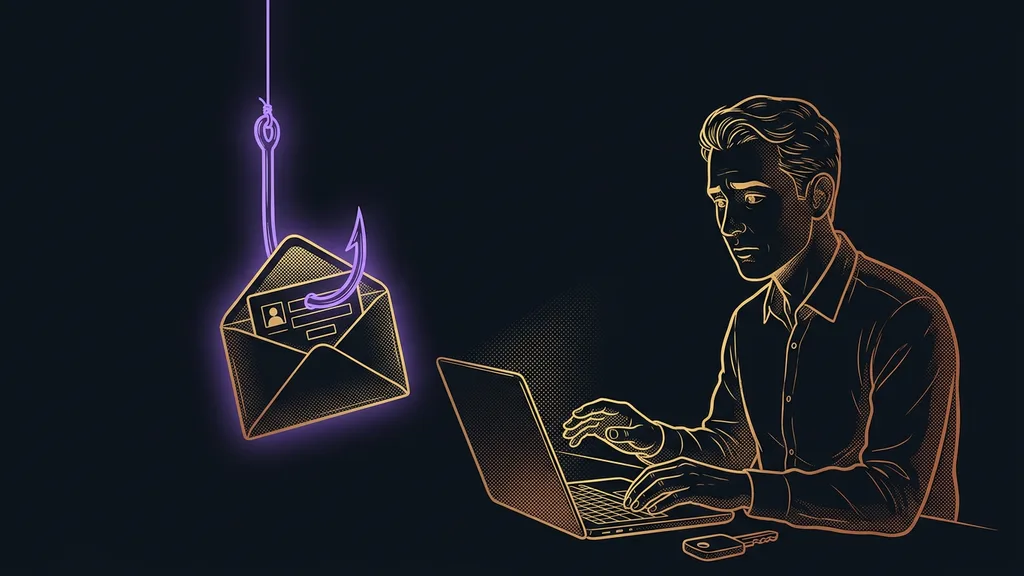
In late August 2023, an employee at Retool, a US software company, got a text saying their payroll details needed to be fixed. They clicked the link and logged in. Then someone called, posing as a colleague from IT. The caller knew the office layout, people’s names, and internal procedures, and wanted one more verification code. The employee grew more and more suspicious but handed over the code in the end. According to the company, the voice on the phone was an AI-generated imitation (a deepfake) [1].
That wasn’t the end of it. The employee’s authenticator app codes were backed up to their Google account, so the attacker who got into that account got all the other codes along with it. Retool then had to tell 27 customers that someone had taken over their accounts [1].
Almost everyone has two-factor authentication by now: on top of your password, you enter a code. But a code from a text or an app can be read, forwarded, and read out over the phone. That’s how attackers get in these days. They already have your password from a data breach, and they ask you for the code.
A second lock that opens from the outside#
Two-factor authentication is a good thing. How well it protects you, though, depends on what your second step is, and the difference is huge.
Two-factor authentication (2FA)
A sign-in that asks for a second proof that it’s you, on top of your password: a code from a text message, a code from an app on your phone, a confirmation on your phone, or a physical key. An attacker with a stolen password can’t sign in unless they get that second proof too.
A code by text message is the weakest. Even Google says in its help pages that codes sent by text or phone call can be vulnerable to attacks through your phone number [2]. An attacker can talk your carrier into moving your number to their SIM card, and from then on, the codes go to them.
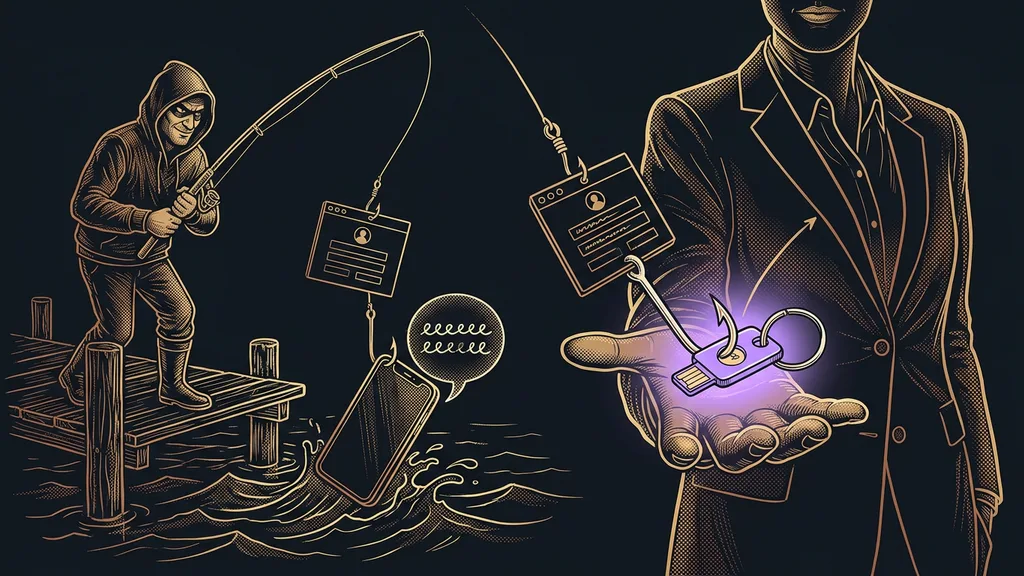
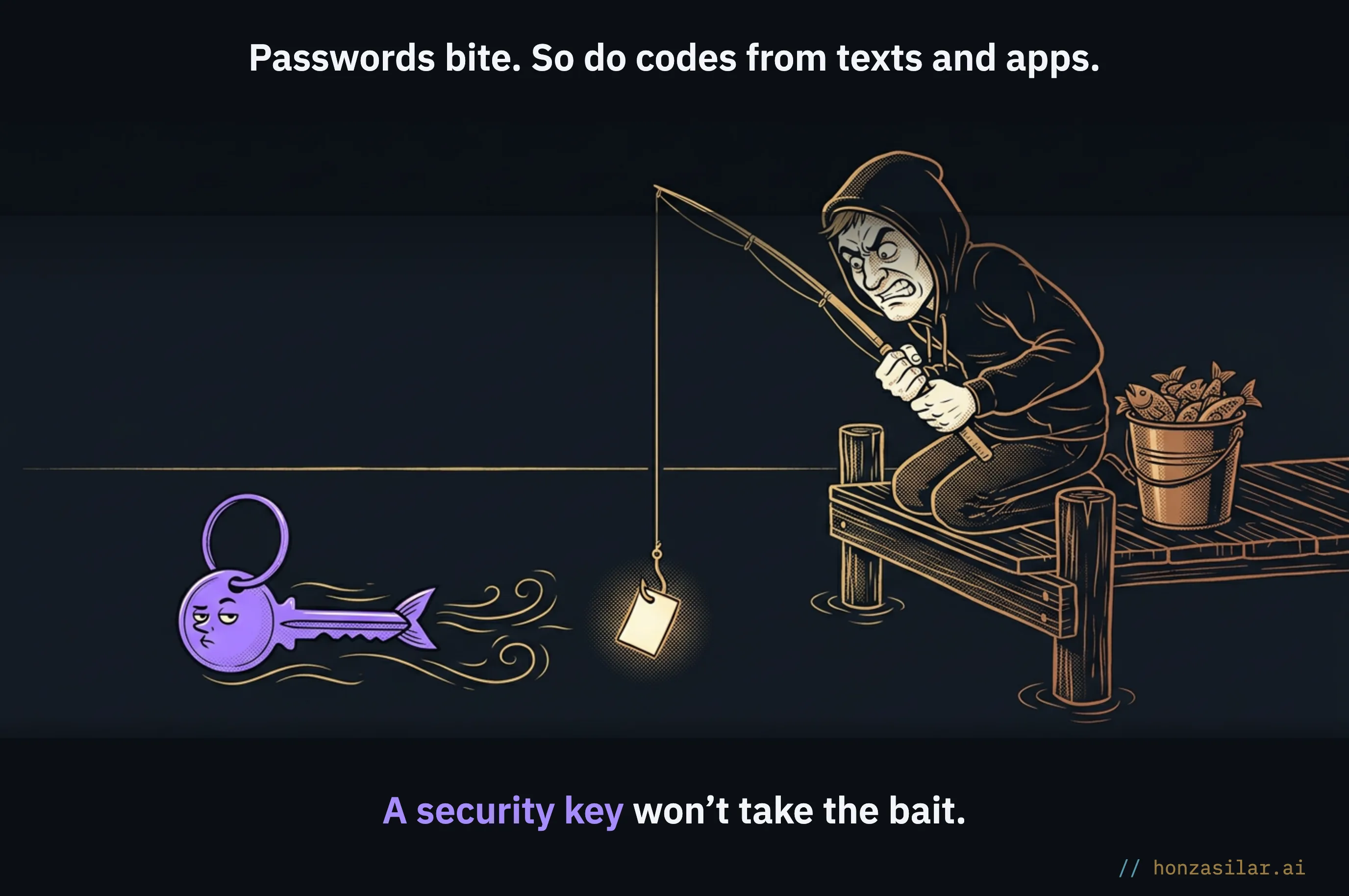
A code from an authenticator app is stronger because it never gets sent anywhere. It’s still six digits you can read, though. A fake sign-in page takes your password and the code, and the attacker types them into the real page right away, before the code expires [3].
A passkey (signing in with your fingerprint or face) and a security key (a small device on your keychain) work differently. They show you nothing, so there’s nothing for you to read. When you sign in, they check the website’s address, and a fake page gets no response from them [3].
Code or key: what a fake page can get out of each
Code from a text message or an app
Six digits you can read, forward, and read out.
A fake page takes your password and the code, and the attacker enters them on the real page before the code expires.
A text message code also goes to any attacker who gets your carrier to move your number to their SIM card.
Passkey or security key
Shows you nothing, and there’s nothing to read off it.
Checks the website’s address when you sign in.
Simply doesn’t respond to a fake page.
A passkey can’t be shared, copied, written down, or accidentally handed to someone else.
A code you can read is a code you can read out to a caller. Your most important accounts need a key that shows you nothing.
Passwords and codes that people handed over themselves#
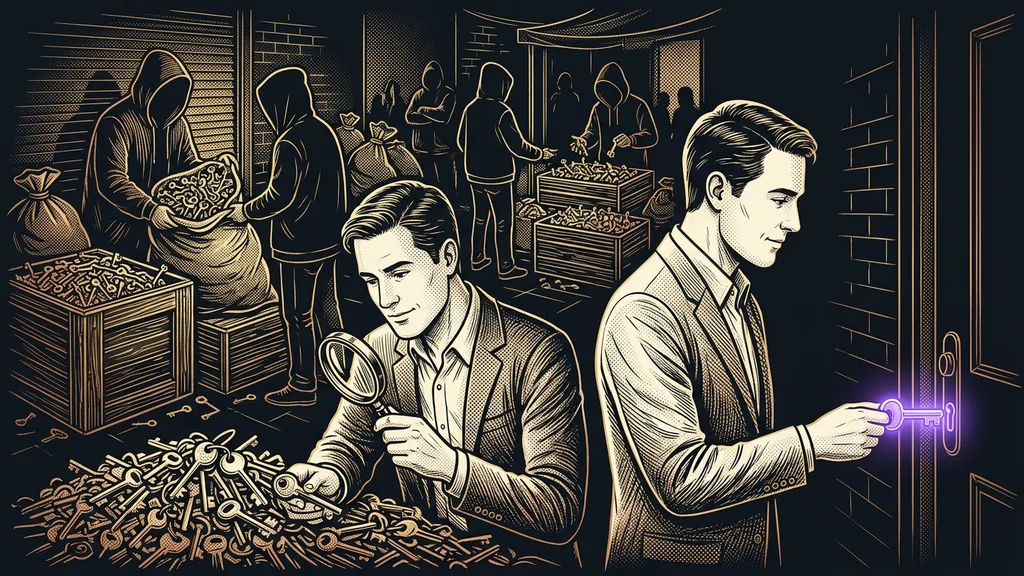
On the Darknet Diaries podcast, passwords and two-factor codes show up more often as loot than as obstacles, and almost always because someone gave them away.
Celebgate. From 2012 to 2014, attackers sent famous people emails made to look like alerts from Apple or Google. The link led to a fake sign-in page. One of the attackers, Ryan Collins, got into at least 50 iCloud accounts and 72 Gmail accounts this way, and a court sentenced him to 18 months in prison [4]. The FBI later found 572 different iCloud accounts accessed from the same IP address [5]. All the attackers needed was a password from the fake page or the answer to a security question guessed from social media photos.
The TeaMp0isoN group called BlackBerry employees in 2011. They had Google send a Gmail password reset code to the employees, and according to one of the attackers, people read it out over the phone with hardly a second thought [6].
In episode 36, a hacker hired to test a company ran into a login that asked for an SMS code. He called an employee, introduced himself as a colleague from IT, and had the code from her within a minute [7]. And this was a company that required passwords of at least twelve characters.
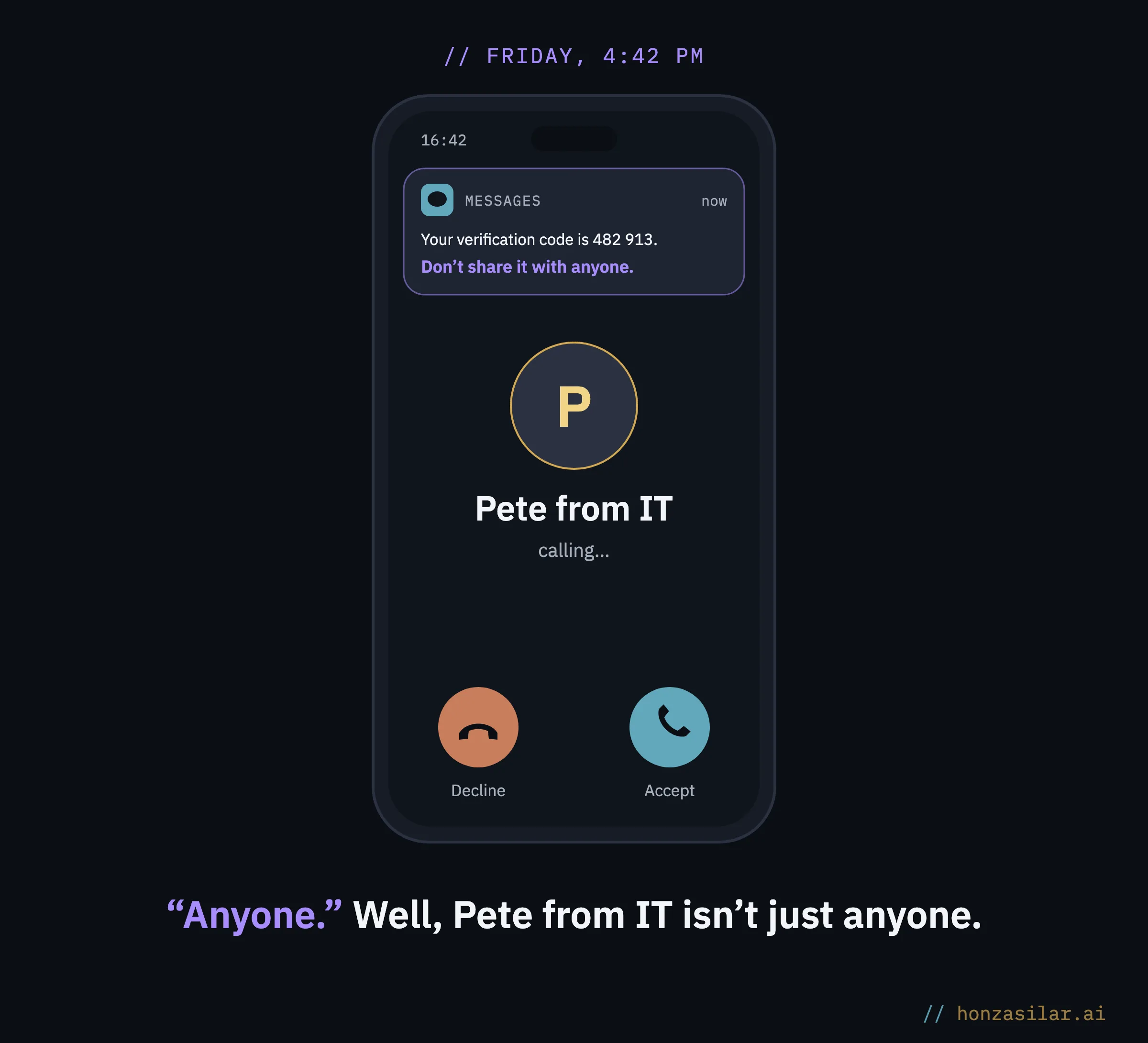
In all three cases, the technology worked flawlessly. The weak spot was that whatever protected the account could be talked out of someone and passed along.
Twilio and Cloudflare: one summer, two endings#
In the summer of 2022, the same wave of attacks hit a number of companies, including two in tech. Employees got texts with a link to a fake sign-in page, and at Twilio the texts posed as messages from the company’s IT team. Cloudflare says the attack it faced closely resembled the one on Twilio [3].
Twilio got burned. Other businesses use it to send text messages and make calls. Some employees signed in on the fake page, and according to the company’s final report, the attackers got into the accounts of 209 customers out of more than 270,000 [8].
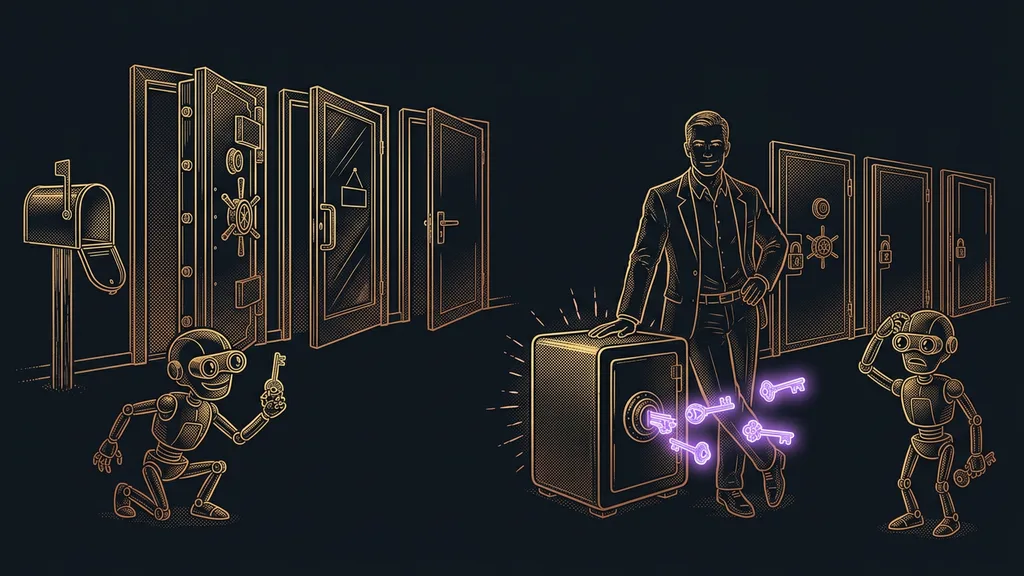
Cloudflare came through unscathed. On July 20, 2022, at least 76 employees got a text with a link in under a minute. Three of them actually entered their username and password on the fake page. Even so, the attackers didn’t get into any systems. Every Cloudflare employee has a security key, and their keys wouldn’t work on the fake site [3].
Cloudflare, July 20, 2022: how far the attack got
Google described a similar experience back in 2018. From early 2017, all of its employees, more than 85,000 at the time, had to use a physical security key. Since then, the company hasn’t recorded a single case of someone taking over a work account through phishing [9].
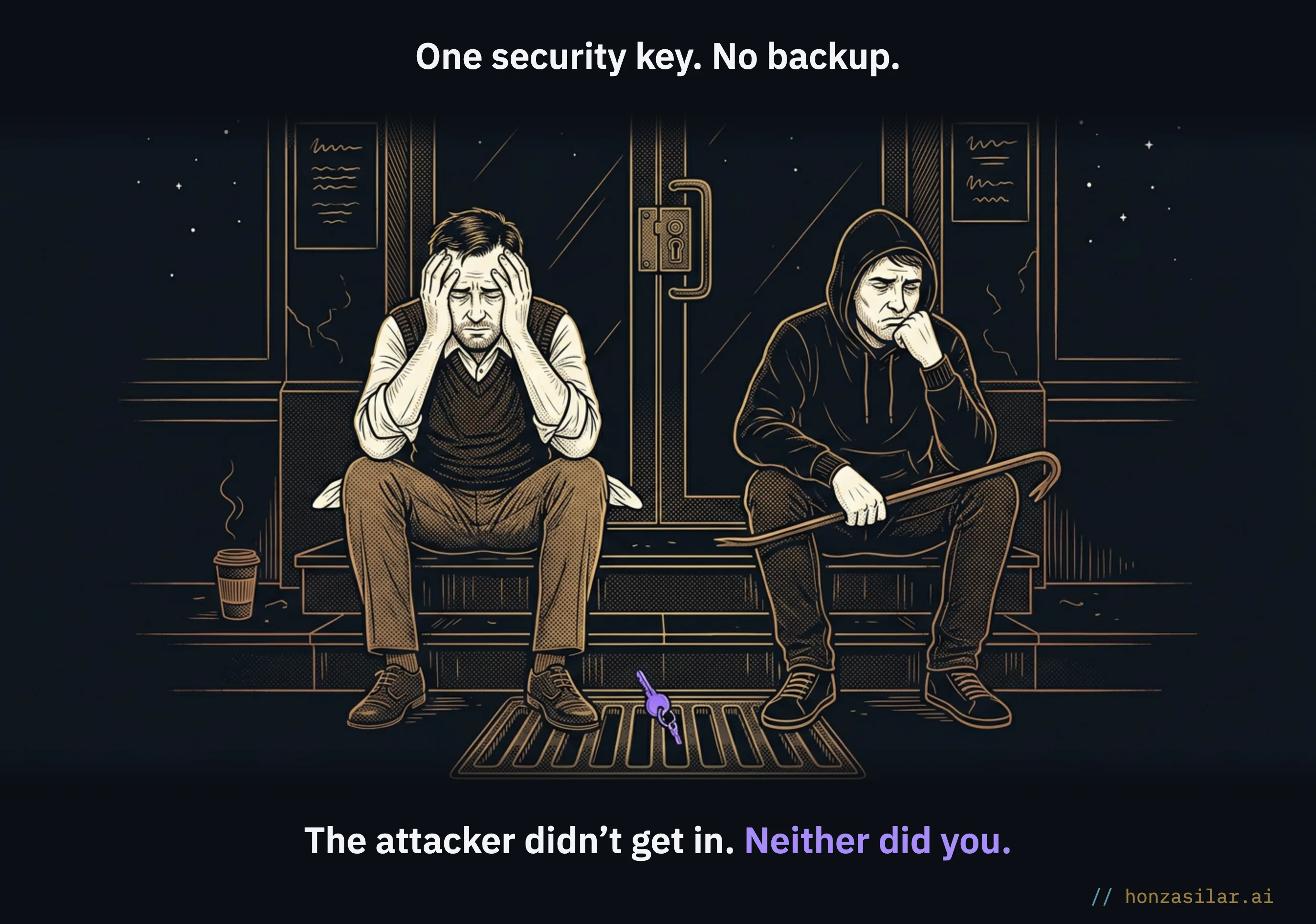
Keys have a downside, though. Police seized every two-factor device belonging to the hacker from episode 25, and afterward he couldn’t sign in to his own accounts [10]. With only one key and no backup, you’ll lock yourself out too.
What to switch to: an app everywhere, a key where the stakes are highest#
You don’t have to buy keys for the whole company right away. Start by splitting your accounts into two groups.
An authenticator app for most accounts. Google Authenticator and similar apps are free and generate codes even without a signal [11]. Watch out for the trap Retool fell into, though. If you let the app save your codes to your Google account, the codes are only as safe as that account. If you turn syncing on, lock your Google account with a key.
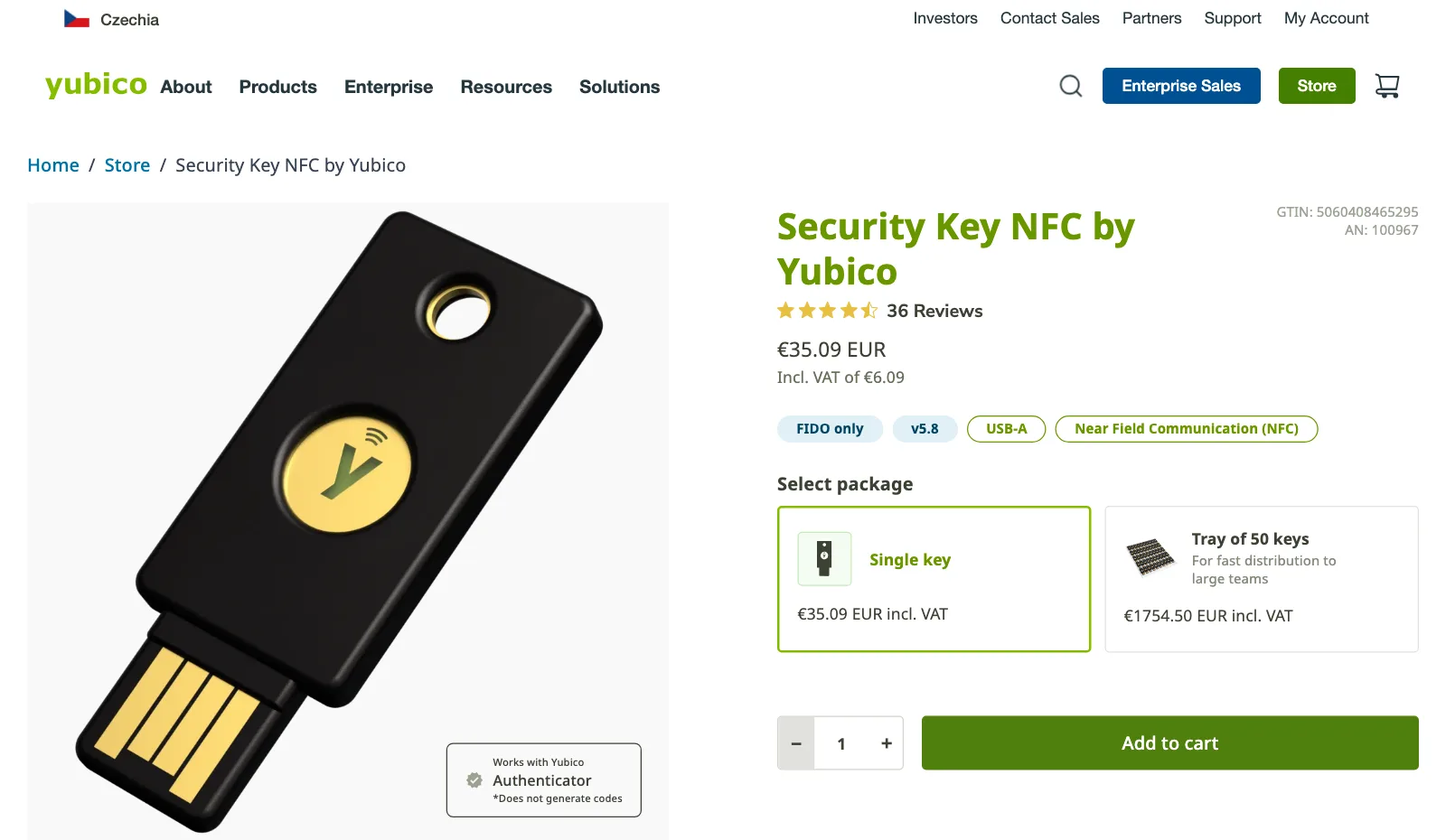
A passkey or a security key for your most important accounts. A passkey is free and lives on your phone. A security key is a small device you keep on your keychain. I use one on my own most important accounts. In Yubico’s official store, the YubiKey 5 NFC costs €70.18 including VAT (price as of November 11, 2026). The simpler Security Key NFC, which only handles sign-in, costs €35.09 [12]. Always buy two.
Passkey
A way to sign in with your fingerprint, your face, or your phone’s screen lock instead of a password. The passkey is stored on your device and can’t be shared, copied, written down, or accidentally handed to someone else. A fake page has nothing to pull out of it [13].
A prompt in your banking app or a Google prompt on your phone is also better than SMS. Still, against a well-made fake page, nothing you can read or tap through without thinking protects you 100%.
Which accounts to lock down first#
Start with email. Whoever controls your inbox can reset almost everything else through “forgot password.” The host of Darknet Diaries says again and again that email should be priority number one [14].
Which accounts to lock, in order
| Order | Account | Why | Second step |
|---|---|---|---|
| 1 | Everything else gets reset through it | Key and backup codes | |
| 2 | Password manager | Holds the passwords to everything | Key or app |
| 3 | Bank and payments | Money leaves fastest | Confirmation in your banking app |
| 4 | Domain and website | With your domain, an attacker controls your email too | App or key |
| 5 | Accounting and CRM | Client data and invoices | App, a separate account for each person |
| 6 | Social media and ad accounts | Your company’s name and your ad spend | App |
The domain ranks this high because whoever controls it can redirect your email as well. My post on moving a domain shows how that works. For tools that several people use, such as GoHighLevel, one rule applies: everyone gets their own account and their own second step, with no shared login that sends the code to one phone.
A five-minute look at your texts
Open the messaging app on your phone and scroll through the last month of texts. Behind every text with a verification code is a service where your second step is SMS. Write them down in the order the table above lists them. Now you have your list of what to switch to an app or a key.
Setup, step by step#
The setup has four parts: preparation, your Google account, your Apple Account, and the rest of your services, including rules for your company. Plan on about an hour for Google and Apple, then switch the other services over gradually, working through the list you made from your texts. The steps reflect how things looked in November 2026.
Preparation
- Get two security keys. The simpler Security Key NFC from Yubico costs €35.09 including VAT. You plug it into a USB-A port or hold it to a phone with NFC [12]. Before you buy, check what devices you have. With Apple, NFC keys work only with an iPhone. A USB-C key plugs into an iPhone 15 or later and into most Macs, and a Lightning key into an iPhone 14 or earlier [17]. You’re done when you have two keys and know which one will be the backup.
Your Google account
- Switch on 2-Step Verification. Open your Google account, click Security & sign-in, and under How you sign in to Google, select Turn on 2-Step Verification [2]. You’re done when 2-Step Verification shows as on.
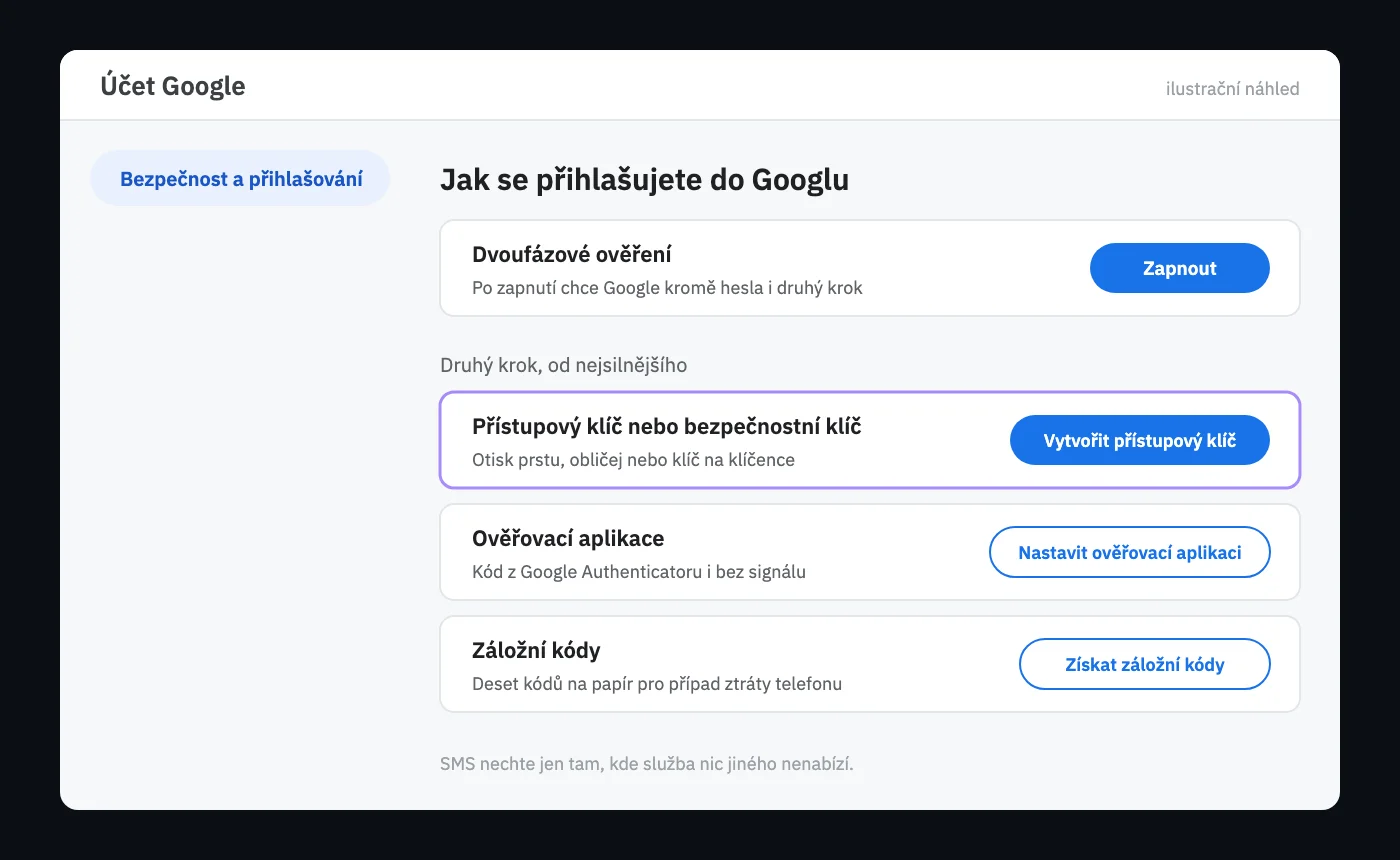
- Create a passkey. Go to myaccount.google.com/signinoptions/passkeys, click Create a passkey, and unlock your device [13]. Do it on both your phone and your computer. On an iPhone, the system may ask you to turn on iCloud Keychain if you don’t use it yet [13]. You’re done when you see your passkeys in the list.
- Register both security keys. In Chrome, open your 2-Step Verification settings, add a security key, and follow the on-screen prompts to plug it into your computer or hold it to your phone. Right after that, add the second key the same way. That’s the one you’ll keep somewhere else, say in a drawer at home with your important papers. If you hold the key to an Android phone, NFC has to be on and you need to take off any case that might block the signal [15]. Google warns that you may not be able to sign in with a newly added key for up to seven days [15]. You’re done when both security keys appear in the list.
- Add an authenticator app. In your 2-Step Verification settings, choose Set up authenticator and scan the QR code with the Google Authenticator app. Here, too, it can take up to seven days before the app shows up as a sign-in option [11]. You’re done when Google offers you an app code at sign-in.
- Download your backup codes. In your 2-Step Verification settings, under Backup codes, click Continue and then Get backup codes. You’ll get ten codes, and each one works only once [16]. Print them and keep them with your important papers. You’re done when you have the codes on paper, away from your computer.
- Test your sign-in a week later. Once the waiting period for new keys is over, open a private browser window, sign in to your Google account, and use a security key as the second step. Then try the other key. You’re done when Google lets you in with each of them.
Your Apple Account
- Check that your devices support security keys. Apple requires two-factor authentication to be on and every device to run at least iOS 16.3, iPadOS 16.3, or macOS Ventura 13.2. The device you add the keys on needs a passcode or password [17]. You’re done when all your devices are up to date.
- Add the keys on an iPhone or iPad. Go to Settings → [your name] → Sign-in & Security → Two-Factor Authentication → Security Keys → Add Security Keys. Hold an NFC key to the phone, or plug in a key with a connector [17]. You’re done when Apple accepts both keys.
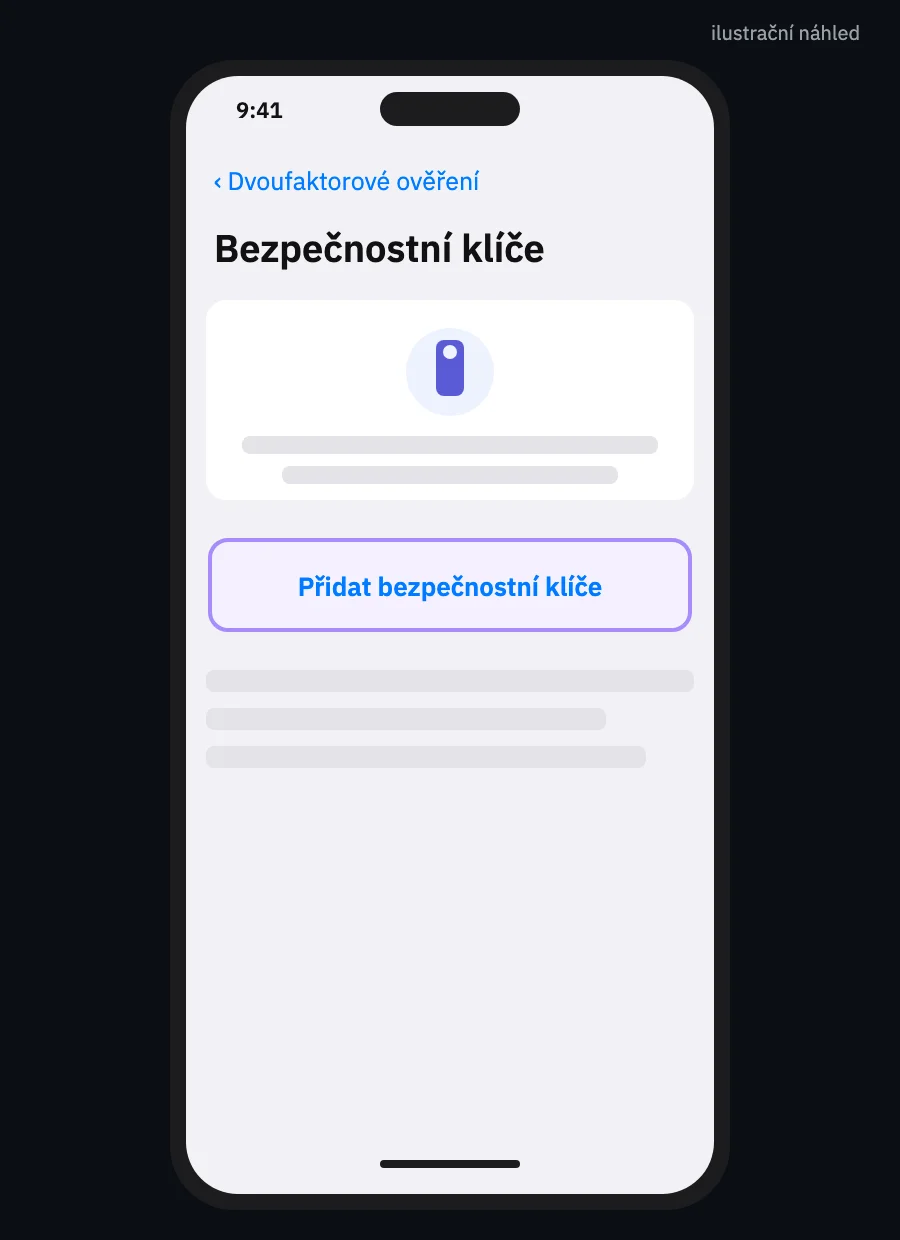
- Or add them on a Mac. From the Apple menu, choose System Settings, click your name, then Sign-in & Security, then Two-Factor Authentication, and finally Set Up next to Security Keys [17]. You’re done when Apple accepts both keys.
- Review your connected devices. At the end of setup, Apple shows you the devices linked to your account. For each one, you decide whether it stays signed in or gets signed out. Apple automatically signs out devices you haven’t used in more than 90 days [17]. You’re done when the only devices left on the list are ones you recognize.
- Keep the keys in two different places. Apple recommends keeping one at home and the other at work. When you travel, leave one at home. You always need at least two active keys, and you can add up to six [17]. If you lose all your devices and keys, you could lose your account for good [17]. You’re done when each key is in a different place.
Other services and your whole company
- Work through the rest of your list. For your password manager, bank, domain, accounting, and social accounts, look in the account settings for Security or Two-factor authentication. Where you have a choice, pick a key or an app. Where a service only offers SMS, keep SMS. It’s still better than nothing [2]. You’re done when the only services left on SMS are the ones that offer nothing else.
- If your company uses Google Workspace, allow 2-Step Verification first. As a super administrator, open the Admin console and go to Menu → Security → Authentication → 2-step verification. Check Allow users to turn on 2-Step Verification, leave Enforcement set to Off, and click Save [18]. Then ask your colleagues to switch it on using the Google account steps above. You’re done when everyone has it on.
- Then enforce it. In the same settings, set Enforcement to On, or choose Turn on enforcement from date and pick a start date. Under New user enrollment period, you can give new people anywhere from one day to six months to turn it on [18]. Under Methods, you can block codes sent by text or phone call (Any except verification codes via text, phone call) or allow only security keys and passkeys (Only security key). For the first option, Google explicitly warns that anyone who has been relying on those codes won’t be able to get into their account once enforcement starts. With the second, only people who have a security key or passkey can sign in. So tell everyone ahead of time to add a different second step [18]. You’re done when nobody in your company can sign in without a second step.
- Agree on one rule for the whole company. Never read a verification code out to anyone, not even to a colleague from IT on the phone. Google itself says it will never call you to verify a code [2]. AI can fake a colleague’s voice these days, as I explain in my post on scams targeting small businesses.
Your two-factor checklist#
- SMS is better than nothing, but a code sent by text can be stolen through your phone number or talked out of you on a call.
- An app code never gets sent anywhere, but you can still read it and read it out.
- Passkeys and security keys check the website’s address and don’t respond to a fake page.
- Start with email, then move on to your password manager, bank, domain, accounting, and social accounts.
- Always keep two keys and printed backup codes so you don’t lock yourself out.
- Never read a code out to anyone, even to a voice that sounds like a colleague.
The Retool employee grew more and more suspicious and still gave up the code, because the caller knew the office, the people, and the procedures. A key on a keychain would have left that caller with nothing to ask for.
I can help with this
Let’s set up your second lock together, without locking anyone out
If you want two-factor authentication set up properly across your company, get in touch. We’ll go through your accounts in order of importance, add passkeys and security keys for you and your colleagues, and store the backup codes so only the right people can get to them. Security is a big part of my work, and I carry a key on my keychain too.
Sources#
- Retool: When MFA isn’t actually MFA, September 13, 2023. Retool
- Google Account Help: Turn on 2-Step Verification. Google
- Cloudflare: The mechanics of a sophisticated phishing scam and how we stopped it, August 9, 2022. Cloudflare
- SecurityWeek: “Celebgate” Hacker Sentenced to 18 Months in Prison. SecurityWeek
- For Your Eyes Only. Darknet Diaries, episode 34, 2019. Darknet Diaries
- TeaMp0isoN. Darknet Diaries, episode 109, 2022. Darknet Diaries
- Jeremy from Marketing. Darknet Diaries, episode 36, 2019. Darknet Diaries
- Twilio: Incident Report, Employee and Customer Account Compromise (August to October 2022). Twilio
- Krebs on Security: Google: Security Keys Neutralized Employee Phishing, July 23, 2018. Krebs on Security
- Alberto. Darknet Diaries, episode 25, 2018. Darknet Diaries
- Google Account Help: Get verification codes with Google Authenticator. Google
- Yubico: YubiKey 5 NFC and Security Key NFC by Yubico, prices checked November 11, 2026. YubiKey 5 NFC, Security Key NFC
- Google Account Help: Sign in with a passkey instead of a password. Google
- Hot Swaps. Darknet Diaries, episode 118, 2022. Darknet Diaries
- Google Account Help: Use a security key for 2-Step Verification. Google
- Google Account Help: Sign in with backup codes. Google
- Apple Support: About Security Keys for Apple Account. Apple
- Google Workspace Admin Help: Deploy 2-Step Verification. Google
Frequently asked questions
Is SMS two-factor authentication still better than nothing?
Yes. Google says that any form of 2-Step Verification makes your account more secure, but SMS codes can be vulnerable to attacks through your phone number. Where a service offers nothing else, keep SMS, and where an app or a key is available, switch to it.
What is a passkey?
A way to sign in with your fingerprint, your face, or your phone’s screen lock instead of a password. A passkey can’t be shared, copied, written down, or accidentally handed to someone else, which is why it protects against phishing better than a password plus a code.
How much does a YubiKey cost?
In Yubico’s official store, the YubiKey 5 NFC costs €70.18 including VAT and the simpler Security Key NFC €35.09 (prices as of November 11, 2026). Buy two right away. The second one is your backup in case you lose the first.
What if I lose my phone or my security key?
That’s the case you prepare for during setup: download your backup codes and register a second key, then keep that key somewhere else. Google gives you a set of ten backup codes, each valid only once, and Apple requires at least two security keys.
Does everyone in my company need two-factor authentication?
Yes, and everyone on their own account. A shared login where the code goes to just one phone pushes people to forward codes to each other, and scammers exploit that habit.