Security
A router on “admin” is an open door. Lock down your network and smart devices in an hour
Attackers find devices with factory passwords in minutes. You’ll see what your network exposes just as fast and fix passwords, updates, UPnP, and guest Wi-Fi.
 Honza Silar 19 min read Nov 11, 2026
- Shodan
In this article
- 01The drive in the entryway the whole world could see
- 02Printers with a stranger’s note and a botnet made of cameras
- 03Who got burned and who came out fine
- 04One habit, no extra tools: new device, new password
- 05VPNs and coffee shop Wi-Fi: two common misconceptions
- 06Locking down your network and smart devices, step by step
- 07Your locked-down network in five sentences
- 08Sources
- 09Frequently asked questions
What you’ll take away
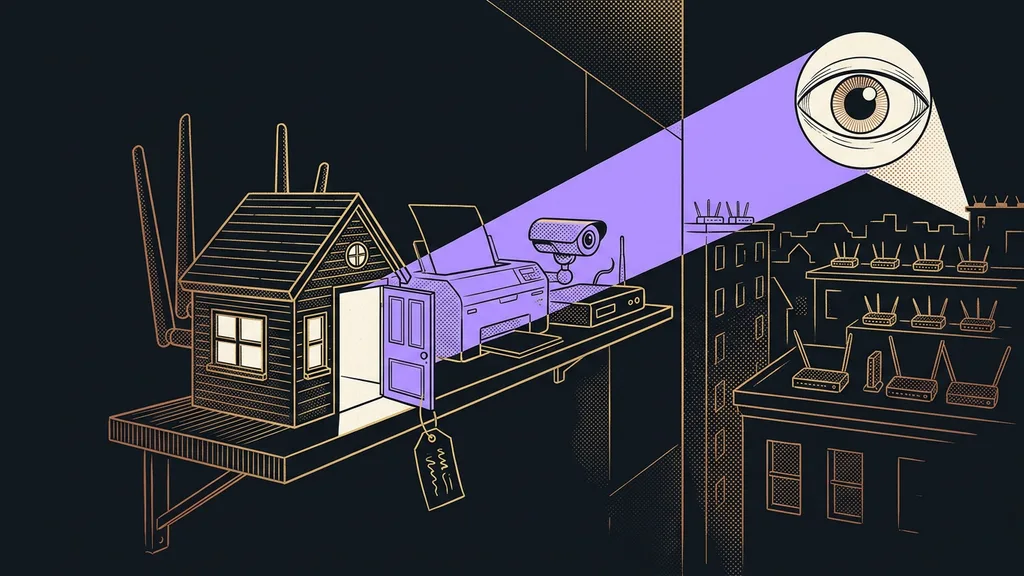
There’s a box from your internet provider blinking in the entryway and a smart TV on the conference room wall. You’ll learn which of them the whole internet can see, and how to lock them down in an hour, even if you’re not an IT person.
- Why a factory password never stays secret.
- How printers around the world printed a note from a stranger all by themselves.
- Step-by-step instructions for your router, Wi-Fi, and smart devices.
- How to see your network from the outside, the way others see it.
In 2013, American security researcher Kyle Lovett bought a new Asus router for his home, paying a little over $300. While setting it up, he noticed two things. The router came with admin as both the default username and password, and it never asked him to change them. And when he plugged in an external drive and turned on file sharing, he found that anyone on the internet could browse his photos and documents without a password [1].
A small business has more of these boxes than it realizes. The router from the internet provider in the entryway, the printer in the hallway, the camera over the entrance, the smart TV in the conference room. Each one is a small computer that nobody updates, still on its factory password, and it sits on the same network as the laptops with your invoices and your clients’ personal data. Small businesses rarely have an IT department, so nobody keeps an eye on them.
You can lock them down without an IT person or an expensive tool. All it takes is an hour in your router’s admin panel and one look at your network from the outside. The stories below show why it’s worth the hour.
The drive in the entryway the whole world could see#
Shodan is a search engine that constantly crawls the internet and records what’s running where. Kyle used it to count at least 50,000 people with a drive exposed the same way. He started writing to Asus in February, first anonymously, then under his own name. Asus fixed some of the bugs, but the open drive sharing was still unpatched in August and September [1].
Meanwhile, others knew about the hole too. An unknown group scanned the internet, found more than ten thousand of these routers, and uploaded a text file to every drive with a warning: anyone in the world can read your router and your documents, so turn off sharing immediately [1].
According to the US Federal Trade Commission (FTC), attackers got into drives connected to the routers of more than 12,900 Asus customers in February 2014. The complaint also says every router shipped with the same username and password, admin, and that the update tool often said the firmware was up to date even when a fix was already out [2].
A router with the password admin: from purchase to the FTC settlement
- 2013Kyle Lovett buys an Asus router. The factory username and password are both admin. When he plugs in a drive and turns on sharing, anyone on the internet can see his files without a password.
- MeanwhileAn unknown group finds more than ten thousand of these routers and uploads a warning to every drive, telling the owner to turn off sharing immediately.
- February 2014According to the FTC, attackers get into drives connected to the routers of more than 12,900 Asus customers.
- February 2016Asus agrees to settle with the FTC. Under the proposed order, it has to maintain a security program for twenty years, checked by independent auditors.
- Three and a half years after the scandalKyle still sees two to three thousand routers on Shodan with old firmware and a drive open to the world.
Default password
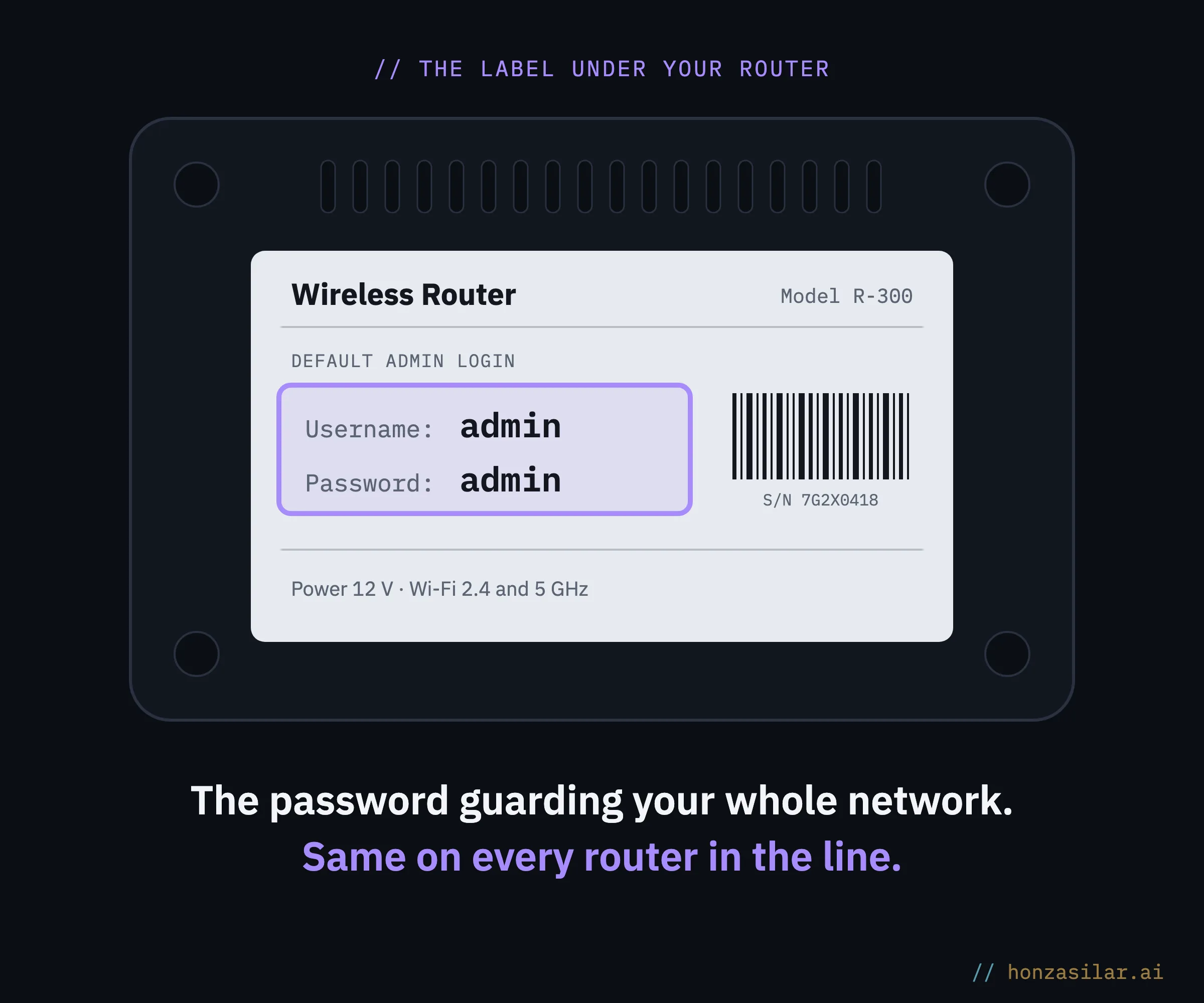
The password a device ships with. On many routers, cameras, and printers, it’s the same across a whole model line, and lists of these passwords circulate freely online. The only password that protects you is the one you set yourself after unboxing.
A factory password isn’t a secret. It’s the first line on the list an attacker tries.
Printers with a stranger’s note and a botnet made of cameras#
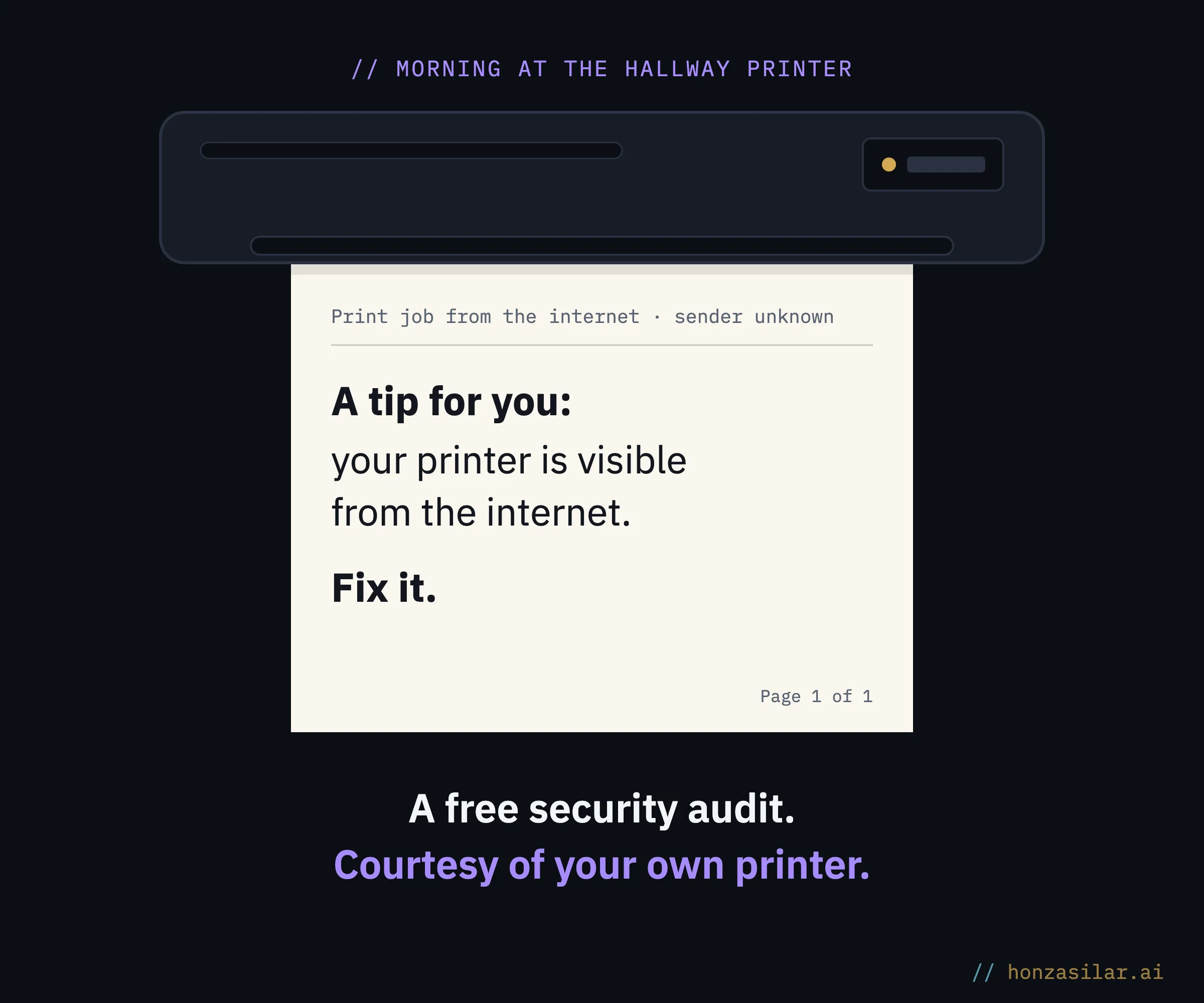
In late November 2018, a college student who calls himself Hacker Giraffe got bored and started browsing Shodan for printers visible from the internet. He found more than 800,000. About 50,000 of them accepted print jobs with no authentication at all, which made them the easiest targets, so he wrote a short program and sent each one a page with a joke about YouTubers. Underneath it read: tip for you, your printer is visible from the internet, fix it [3].
Within about a day, printers all over the world had printed the note, including one at the front desk of a police station. By his own account, he didn’t need any special skills, just an ordinary search on Shodan [3].
Next came Chromecasts, the little Google devices that plug into a TV. He found about 120,000 of them on Shodan and started playing a video on them that urged people to secure their networks. Google closed one way in after five to ten minutes, but Hacker Giraffe switched to another, and the video ended up playing on about 65,000 TVs [3].
Why could the whole world see those printers and Chromecasts? Most of them sat behind routers with a feature called UPnP switched on. After telling this story, Jack Rhysider, host of the Darknet Diaries podcast, tells listeners to check UPnP on their home routers and adds: “I have it disabled completely.” [3]
UPnP (Universal Plug and Play)
A router feature that lets a printer, a game console, or a TV box ask for a way in from the internet, and the router opens it without asking you. It’s convenient, but nobody knows the door is open. CISA, the US cybersecurity agency, advises turning UPnP off unless you really need it [5].
Back in 2012, an anonymous researcher measured how many of these boxes were hanging off the internet by trying just four username and password combinations [4]. Four years later, a piece of malware called Mirai exploited the same weakness. It took over hundreds of thousands of routers and cameras (an army of hijacked devices like this is called a botnet), and in September 2016 it used them to flood Brian Krebs’s security blog with one of the largest attacks measured up to that point [5].
Same weakness, two outcomes: Carna and Mirai
Carna, 2012
An anonymous researcher tried just four username and password combinations, including admin and admin and root with no password.
1.2 million devices let him in.
He uploaded a small program to 420,000 of them and used them to measure the entire internet.
Mirai, 2016
The malware tried a short list of 62 default usernames and passwords.
It took over hundreds of thousands of devices, mostly home routers, IP cameras, and camera recorders.
In September 2016, it flooded Brian Krebs’s blog with an attack of more than 620 gigabits per second.
Who got burned and who came out fine#
In every one of these stories, what made the difference was whether anyone looked after the box once it was out of the packaging.
Asus owners who turned on drive sharing and then left the router alone were out of luck. The fix existed, yet three and a half years after the whole affair, Kyle could still see two to three thousand routers on Shodan with old firmware and a drive open to the world [1]. Anyone who relied on the button that checks for updates was often told by the router that everything was fine, according to the FTC [2].
So was the father of a security researcher who goes by D3ada55 on the podcast. He brought home some cheap TV boxes loaded with thousands of pirated channels and movies. From then on, the family’s internet was slower. When D3ada55 took a closer look at one of the boxes, she found that it was constantly probing every device on the network, to the point of knocking them offline, and talking to servers in China [6]. In June 2025, the FBI warned that devices like these, sold with malware preinstalled, make up a network called BADBOX 2.0 with millions of infected units [7].
D3ada55 herself stayed safe. She plugged the box she didn’t trust into a separate network behind a firewall at her own place, so it couldn’t learn anything about her home network or bother her other devices [6]. Most current routers offer the same protection and call it a guest network.
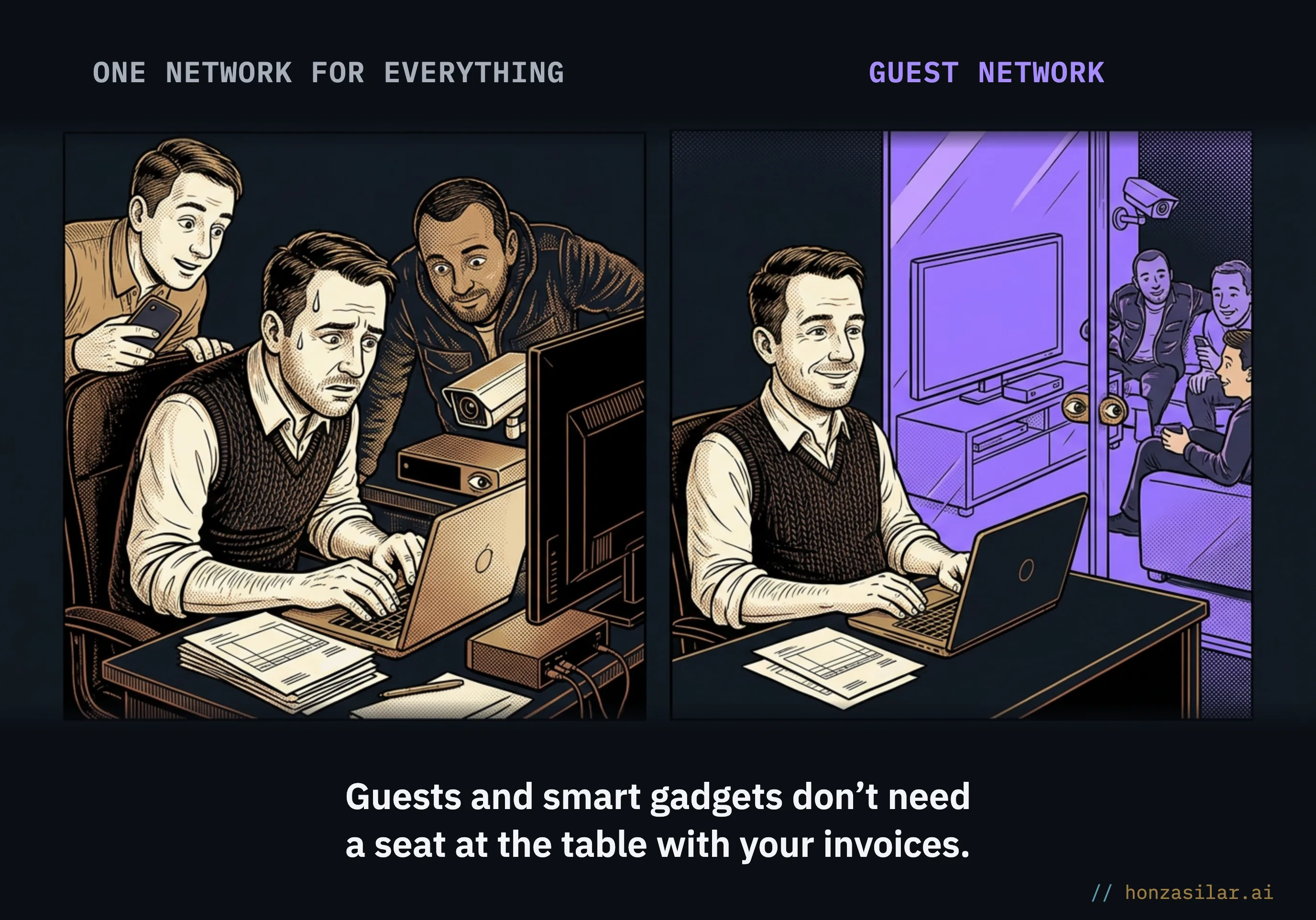
Kyle was a step ahead. He changed the factory password as soon as he set the router up, and he was the first to spot the open drive, because he looked at his own address from the outside the way an attacker sees it [1]. And printers behind a router with UPnP turned off never showed up on Shodan at all, because the router didn’t open a way in for them. Nobody published numbers on this, but it follows from how the printers ended up on the internet in the first place.
Five questions about the box in your entryway
Answer yes or no. Do you know the admin password for your router, and is it different from the one on the label? Is automatic updating turned on in the router? Do guests and the smart TV have their own Wi-Fi, separate from your computers? Is UPnP turned off? Did you buy every smart device from a manufacturer you know? Every no is one step in the guide below.
One habit, no extra tools: new device, new password#
Securing a home or office network takes one habit and one free look from the outside. The habit: every device you connect to the network gets its own password, updates turned on, and a spot on the guest network if it doesn’t need to reach your computers.
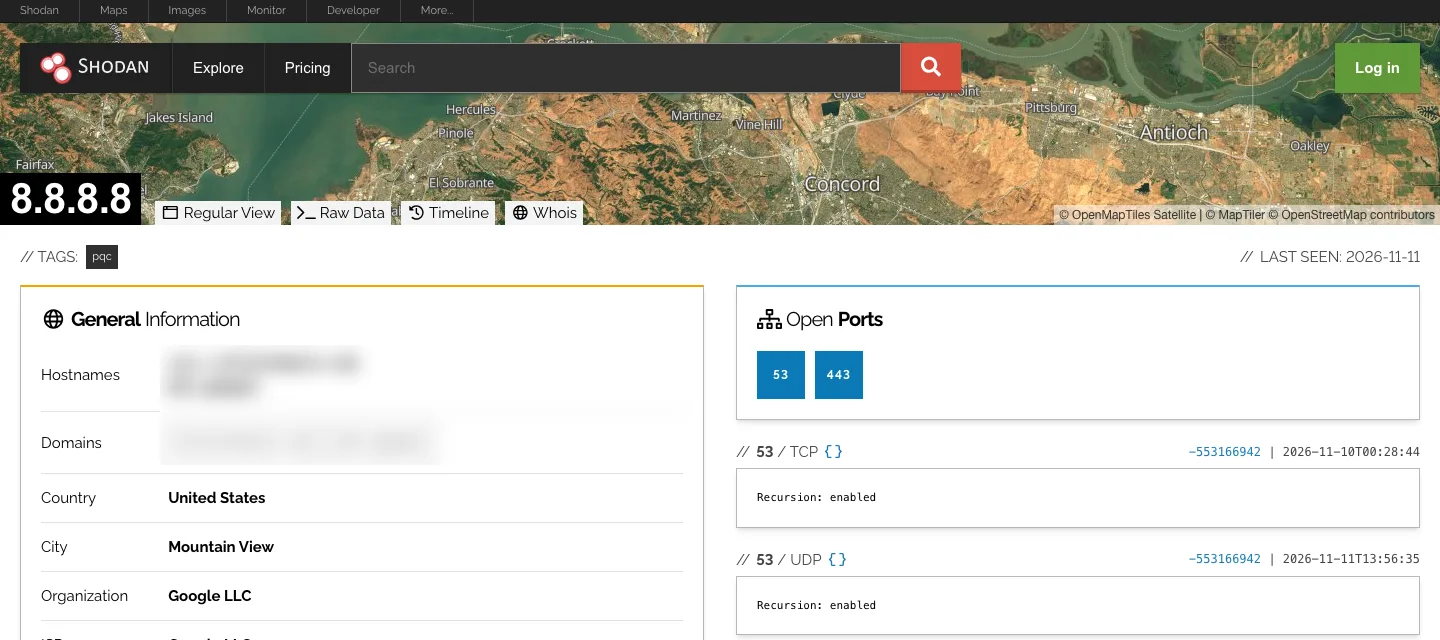
For the outside look, use Shodan, the same search engine Kyle and Hacker Giraffe used. You enter your network’s public address on its site and see whether anything is exposed. A basic lookup of a single address works without an account and costs nothing (checked November 11, 2026).
VPNs and coffee shop Wi-Fi: two common misconceptions#
Two pieces of advice about home networks make people feel safer than they are. The first says a VPN hides you from everything. All it does is encrypt the path from your device to the VPN provider. The admin password on your router stays where it is, and a VPN won’t stop scammers with convincing emails either. On top of that, the VPN provider knows about you: British hacker Daniel Kelley, known for the TalkTalk case, relied on nothing but a VPN during one extortion attempt, and he believes it was the VPN provider that gave him away [8].
The second says coffee shop Wi-Fi is just as safe as your own. After the episode about SuperBox TV boxes, Jack Rhysider admitted he never connects to it. He imagines the owner has plugged an infected box into the TV, one that tries every device on the network, so he carries his own hotspot [6]. When you’re out, use a hotspot from your own phone.
What you hear about home networks, and the reality
Locking down your network and smart devices, step by step#
The whole process takes about an hour. I’m using Asus routers as the example, because the first story started with one and Asus documents these settings step by step in its help pages. The menu names follow Asus’s help pages and its English interface, and the instructions reflect how things looked in November 2026. With other brands, look for similarly named options. If your router came from your internet provider, ask the provider first.
On a computer, in the web admin panel
- List what’s on your network. Walk through the office and your home and write down the router, printers, cameras, TVs, TV boxes, smart plugs, and speakers. You’re done when you have a list with the manufacturer next to each device.
- Sign in to the router’s admin panel. Connect your computer to the router with a cable or over Wi-Fi, open www.asusrouter.com in your browser, and sign in with the details from the label on the bottom of the router [9]. On the left, you’ll see a menu with items like Guest Network, WAN, and Administration. You’re done when you’re signed in.
- Change the admin password. In the left menu, click Administration, then the System tab at the top. Next to the login password, click Change, enter your current password, then the new one, and save with OK. Confirm with OK once more and sign in with the new password. Change the login username, which is usually admin out of the box, the same way [9]. Asus recommends a password longer than ten characters with no sequences like 1234567890. Save the new password in a password manager, because if you forget it, the only way back in is a factory reset. You’re done when you can sign in with the new password.
- Turn on automatic updates. Click Administration → Firmware Upgrade, turn on automatic firmware upgrades, and pick a time when nobody uses the network, say 3 a.m. Whenever Asus releases a new version, the router will update itself at that time [10]. Don’t switch the router off during an update. If it says it can’t reach the Asus server, upload the firmware manually as described in the same help page. You’re done when automatic updating is on and the router reports the latest version.
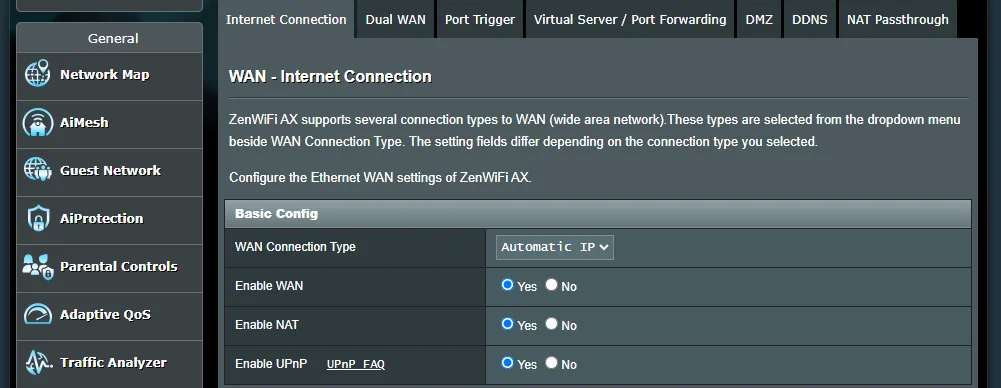
- Turn off UPnP. Click WAN, then the Internet Connection tab at the top. The Enable UPnP row is right in the first block. Choose No, scroll to the bottom of the page, and click Apply [11]. You’re done when No is still selected after you reload the page. If something stops working afterward, at least you’ll know where to look.
- Give your Wi-Fi a long password. On newer firmware (version 3.0.0.6.102_35404 and later), click Network → Main Network Profile. On older firmware, click Wireless → General [12]. Click in the password field and type a new one. The router accepts passwords of up to 63 characters, so feel free to use a whole sentence. Save with Apply. Devices connected with the old password will have to reconnect. You’re done when your devices connect with the new password.
- Set up a guest network. In the left menu, click Guest Network and pick a band, such as 2.4 GHz. The network name and password are generated for you, so save them with Apply. Leave Access Intranet turned off, which is the default, so guest devices can’t reach the other devices on your network, such as shared folders or a network drive. That holds in the router’s standard mode. Move guests, the smart TV, TV boxes, and cameras to the guest network. You’re done when every device on the list from step 1 has a note saying which network it’s on.
On your phone, in the ASUS Router app
You can handle most of the steps in the ASUS Router app for Android and iPhone, too. For firmware updates, Asus even recommends the app [10]. The main menu is in the bottom right corner under the Settings icon.
- Get the app ready. Install ASUS Router from Google Play or the App Store and make sure you have the latest version [13]. You’re done when you can see your router in the app.
- Admin password. Tap Settings → System Settings → Router Login Configuration → Edit. Enter your current password, then the new username and the new password, and save with Apply [9].
- Updates. Tap Settings → Firmware Upgrade and choose Check Firmware Version. If a new version is available, tap Update (Upgrade Now on Android), and on iPhone confirm with OK. According to Asus, it takes about three minutes, and the devices then restart on their own [15].
- Wi-Fi password. On newer firmware, tap Settings → Network → Main Network Profile. On older firmware, tap Settings → WiFi → Wireless Settings → Network Settings. Tap the network name and password, edit them, and save with Apply [12].
- Guest network. Tap Settings → WiFi → Wireless Settings → Guest Network, then the plus sign, and pick a band. Set the name, the password, and, if you like, how long the network should stay on, then save with OK [13].
Turn off UPnP on a computer, as in step 5 above. You’re done when your phone shows the same state as after steps 3, 4, 6, and 7 on the computer.
Printers, cameras, and other boxes
The router is just one door. Every smart box has its own settings, and often its own factory password too. The menus differ from one manufacturer to the next, but the process is always the same:
- Find out where the device is configured. Printers and cameras usually have an admin page at an address on your network, which you’ll find in the manual or in the manufacturer’s app. Smart plugs and speakers are controlled only through an app. You’re done when you’ve noted this for every device on your list.
- Change the factory password. Wherever a device has a username and password, set your own and save it in your password manager. You’re done when no device still uses the login from its label or manual.
- Turn on updates and turn off what you don’t use. If a device offers automatic updates, turn them on. Keep remote access and sharing through the manufacturer’s cloud turned off unless you really need them. You’re done when you know how each device gets updated.
- Make a rule for new devices. Before you buy a smart device, check that the manufacturer releases updates. The FBI warns about TV boxes from unknown brands that promise free content and want you to install apps from outside the official store [7]. You’re done when every new device goes through these steps and onto the guest network on the day you plug it in.
Checking from the outside
- Find your public address. On a computer connected to the office network, open a what’s-my-IP site such as mojeip.cz and write down your public IP address. On a phone using mobile data, you’d see your carrier’s address instead of your office’s.
- Look it up on Shodan. Add the address after shodan.io/host/ (for example, shodan.io/host/8.8.8.8). If Shodan says No information available, it can’t see anything exposed on your network.
- Go through whatever shows up. If Shodan lists Open Ports you don’t know about, find out which device opens them and turn the service off, above all drive sharing over the internet. Shodan shows what it found on its last crawl, so a service you’ve turned off may keep showing up for a while. You’re done when nothing appears at your address that you don’t recognize. Repeat the check every time you add a new device.
Your locked-down network in five sentences#
- A factory password isn’t a secret, so your router, printer, and camera each get their own password the moment you unbox them.
- Turn on automatic updates wherever you can, and once a year compare your router’s version with the manufacturer’s website.
- Turn off UPnP so no device can open a way in from the internet without you knowing.
- Guests and smart boxes belong on the guest network, away from your computers.
- Every so often, look at your network from the outside through Shodan, the same way attackers do.
Kyle Lovett found the hole in his router because he first looked at his own address through an attacker’s eyes. Today that same look takes you five minutes. Do it once, and you won’t have to learn about your open doors from a stranger’s note on your own drive.
I can help with this
Let’s lock down your network together
If you’d rather not dig into your router’s admin panel, I’ll go through it with you. We’ll list what’s on your network, change the factory passwords, move guests and smart boxes to the guest network, and check from the outside that nothing on your network is exposed. I go deep on network and account security, both in my own setup and with clients, and I’m happy to help you with yours.
Sources#
- #ASUSGATE. Darknet Diaries, episode 5, 2017. Darknet Diaries
- Federal Trade Commission: ASUS Settles FTC Charges That Insecure Home Routers and “Cloud” Services Put Consumers’ Privacy At Risk, February 23, 2016. FTC
- Hacker Giraffe. Darknet Diaries, episode 31, 2019. Darknet Diaries
- Carna Botnet. Darknet Diaries, episode 13, 2018. Darknet Diaries
- CISA: Heightened DDoS Threat Posed by Mirai and Other Botnets (TA16-288A), October 14, 2016. CISA
- SuperBox. Darknet Diaries, episode 172, 2026. Darknet Diaries
- FBI, IC3: Home Internet Connected Devices Facilitate Criminal Activity (I-060525-PSA), June 5, 2025. IC3
- Daniel the Paladin. Darknet Diaries, episode 117, 2022. Darknet Diaries
- ASUS Support: How to change the login username and password of an ASUS router (in Czech). ASUS
- ASUS Support: How to update the router’s firmware to the latest version (in Czech). ASUS
- ASUS Support: How to set up the internet connection (WAN connection types), and How to disable NAT-PMP from ASUS router. Czech, English
- ASUS Support: How to change the wireless network (WiFi) name and password (in Czech). ASUS
- ASUS Support: How to set up a guest network on an ASUS router (in Czech). ASUS
- Shodan: the page for the address 8.8.8.8 and for an address with no record, accessed November 11, 2026. Shodan
- ASUS Support: How to update the router’s firmware to the latest version using the ASUS Router app (in Czech). ASUS
- www.asusrouter.com (asusrouter.com)
Frequently asked questions
How can I tell if my router still uses the factory password?
Look at the label on the bottom of the router. If you can sign in to the admin panel with the details from that label, or with admin and admin, nobody has changed the password. Change it right away and save the new one in a password manager.
What happens if I turn off UPnP on my router?
Your devices stop opening a way in from the internet on their own. A typical office keeps working fine without UPnP. If something does stop working afterward, a game console for example, find out which device it is and decide whether you really want to let it through.
Will a VPN protect me?
On someone else’s Wi-Fi, it encrypts the traffic between your device and the VPN provider. It won’t protect you from a factory password on your router, a scam email, or an infected box on your network. And the VPN provider knows where you’re connecting from.
Can I change the settings on my internet provider’s router myself?
The login details for the admin panel are usually on the router’s label. Before you change any settings, write to your provider and ask how the router gets updated and whether you’re allowed to change the admin password yourself.
Is it safe to connect a work laptop to coffee shop Wi-Fi?
The simplest option is a hotspot from your own phone. If you have to use someone else’s network, turn on a VPN and don’t sign in to anything when your browser shows a security warning for the page.