GoHighLevel
Moving a 48-lesson course from Mioweb to GoHighLevel in one day
After Mioweb, my course survived only in a backup. I moved all 48 lessons and videos to GoHighLevel in a day. You’ll get the steps, screenshots, and snags.
 Honza Silar 14 min read Nov 11, 2026
- GoHighLevel
- Mioweb
- YouTube
In this article
What you’ll take away
Your course lives on Mioweb and the thought of moving it scares you. Using a real migration, I’ll show you everything that has to move, in what order, and where to slow down even when the work goes fast.
- A lesson and the course overview before and after the move, on a computer and on a phone.
- The move in nine steps: what you do, what you see, and how you know each step is done.
- One path for a site that’s still running and one for when all you have is a backup, plus building the course by hand or by import.
- What I left out of the new course on purpose, and where a course migration stalls.
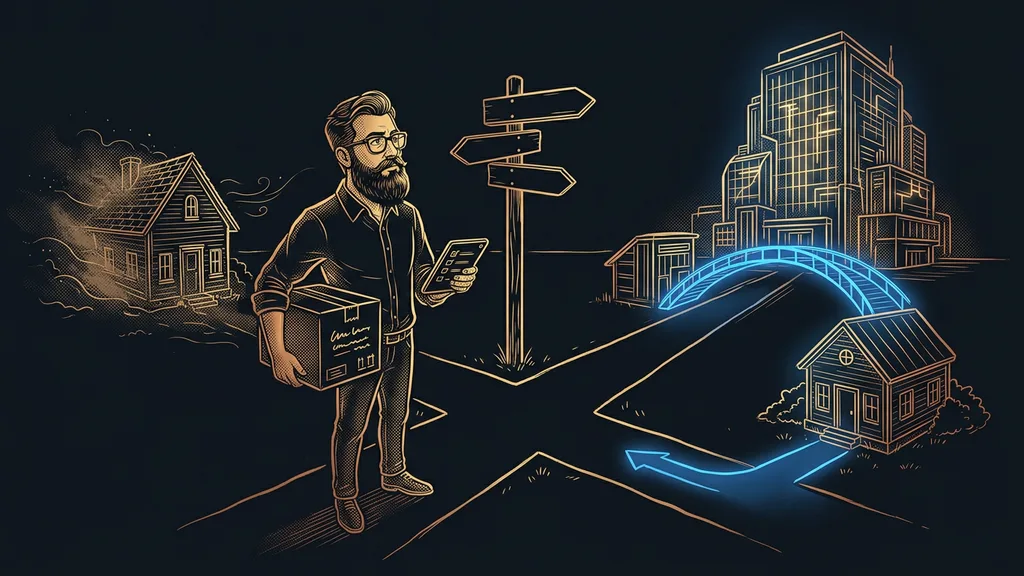
A course on Mioweb (a Czech website builder that runs on WordPress) lives exactly as long as the site it’s built on. The lessons and downloads sit at that site’s addresses, and once the site changes or its subscription ends, the course has nowhere to go. That’s when most course creators ask, too late, where to put it now.
This November, I had to ask it about my own course. My online course Alergie & Astma (“Allergies & Asthma”), on functional breathing for people with allergies and asthma, lived in the members’ area of my old website. In August a new site replaced the old one, and the lesson texts survived only in a backup. The move to GoHighLevel went like this, step by step, with before-and-after screenshots.
All that was left was a backup of the old site#
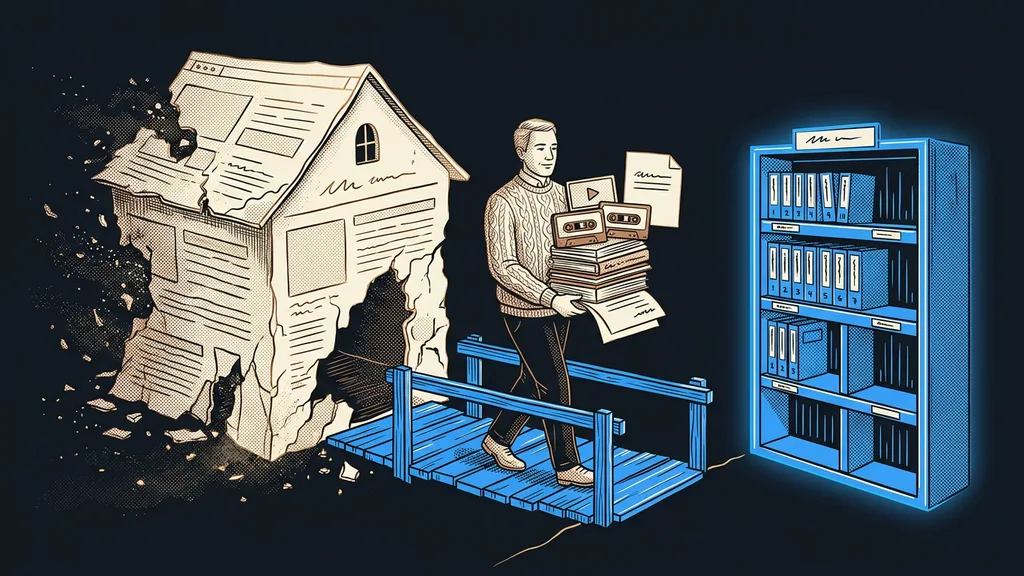
The old site ran on WordPress with Mioweb, and the course had its own dashboard and five parts in the members’ area. In August 2026 I rebuilt the site as my own setup, and the members’ area went with it. The lesson texts survived only in a static backup from January 22, 2026; the videos were on YouTube, and the recordings and PDFs in my archive.
Static website backup
A copy of a website saved as finished pages, without the admin or the database behind them. You see the pages the way a visitor saw them, but you can’t edit anything in them or let anyone log in. It’s a good source of text for a migration, but a course can’t live there.
What mattered was that the course kept working without the old site, for everyone who should have access. And since my contacts and automations are in GoHighLevel, putting the course there was the obvious choice. That way the student, the course, and the access email all live in one system.
Everything that had to move#
Besides the text, every lesson has a video, often a practice recording or a PDF, and a link to the next lesson. Each of those moves in its own way.
The allergy and asthma course by the numbers
The course has an intro part with preparation and breathing tests, plus four parts with exercises. Each of the four parts has a protocol that tells people what to practice and how often. On top of that come four timed practice recordings, a printable chart, and a manual.
Deciding what stays behind mattered just as much. I left nine recordings of group calls out of the new course because other participants appear in them. Old sales blocks, empty pages for booking calls, a bonus built on someone else’s video, and invitations to a WhatsApp group stayed out too. Instead of call booking, the course now links to WhatsApp and email. With a bigger library, moving hundreds of lessons also means deciding what carries on and what goes to the archive.
The move, step by step#
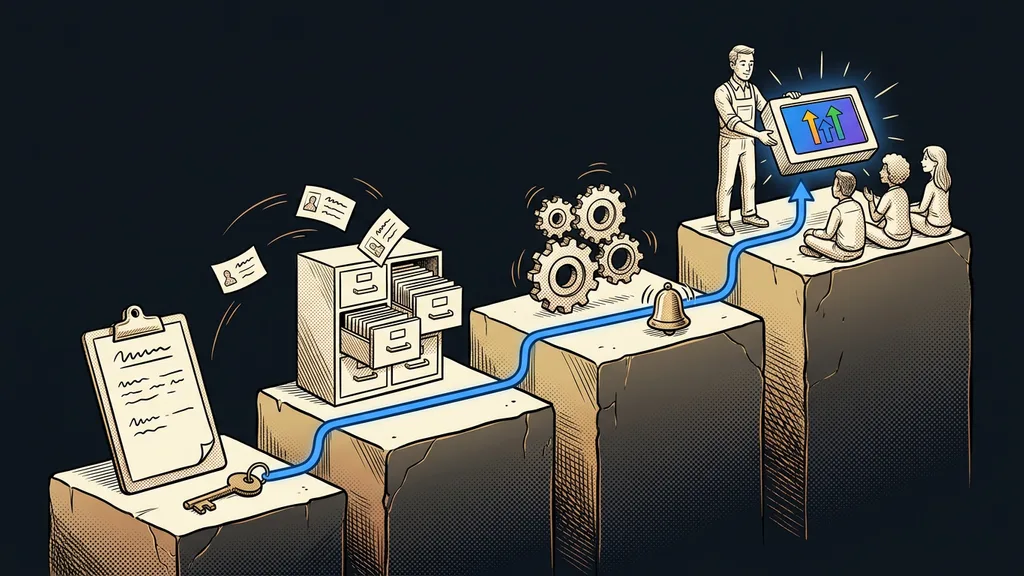
I split the move into nine steps. Menu and button names below are the ones in GoHighLevel’s English interface.
What moved and how
| What | Where it was | Where it went and how |
|---|---|---|
| Text of 48 lessons | In the static site backup from January 22, 2026 | One import, wording unchanged |
| 58 videos | On YouTube, with the address hidden by the player | Embedded again, in privacy-enhanced mode |
| 6 files | 4 MP3s and 2 PDFs at the old site’s addresses | Into GoHighLevel storage, 25 MB max per file |
| Access | The old site’s members’ area | A tag and an automation, course unlocked within 20 seconds |
1. Inventory: what the course contains
Before you move anything, list the course in a spreadsheet. One row per lesson, with columns for where the text is, which video belongs to it, which files it offers for download, and where the links in the text point. Mine came to 48 rows in five parts.
An empty cell in that spreadsheet is what you need to track down while the site or its backup still exists. You’re done when you know where you’ll get the text, video, and files for every lesson.
2. Lesson text: from the live site or from a backup
If your Mioweb site is still running, log in to the members’ area and go through every lesson the way a member sees it. Save the text page by page. Open the collapsible blocks and check that the text is really there: they depend on a paid add-on and stay empty without a valid license.
If the site is already gone, the backup is your source. Mine was a static backup from January 22, 2026, and the lessons in it were complete, text and players included. Without a backup, all you have is whatever sits in your own documents.
I kept the lesson wording as it was, down to the casual tone the course uses with participants. You’re done when the text of every lesson is saved somewhere other than the old site and the lesson count matches your inventory.
3. Videos: find them and embed them again
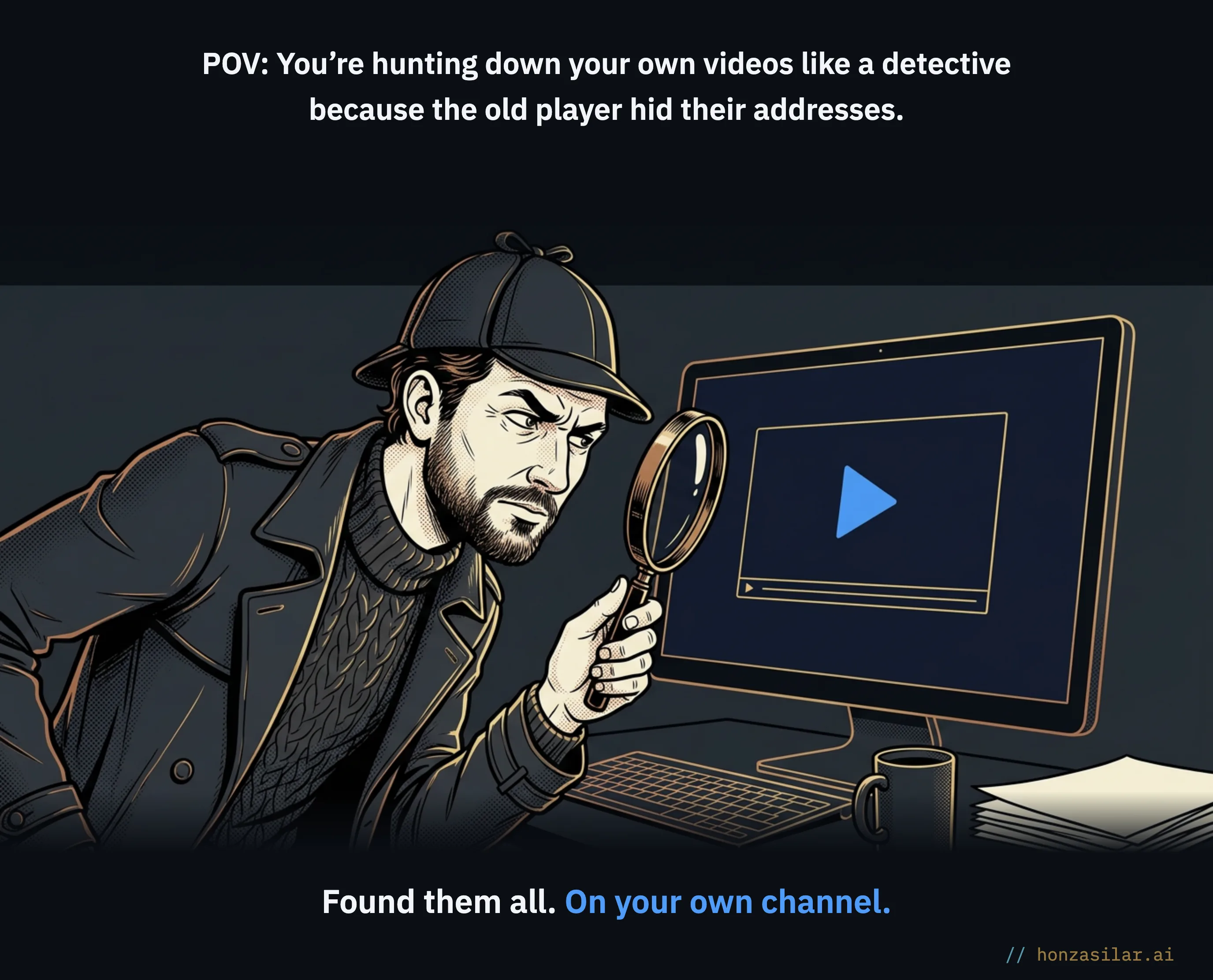
The Mioweb player hid the video address, so the page text didn’t show which video belonged to which lesson. I loaded each page in a browser as a visitor and pulled the address out of the player. Every video then turned up as unlisted on my own YouTube channel. You can check this in YouTube Studio under Content, where these videos show Unlisted as their visibility.
I embedded the videos in the lessons in privacy-enhanced mode, which YouTube offers specifically for embedding on other sites [1]. The player address then starts with youtube-nocookie.com. You’re done when every lesson in your inventory has a video and it plays in a private browser window where you’re not logged in.
4. Files: download, shrink, upload
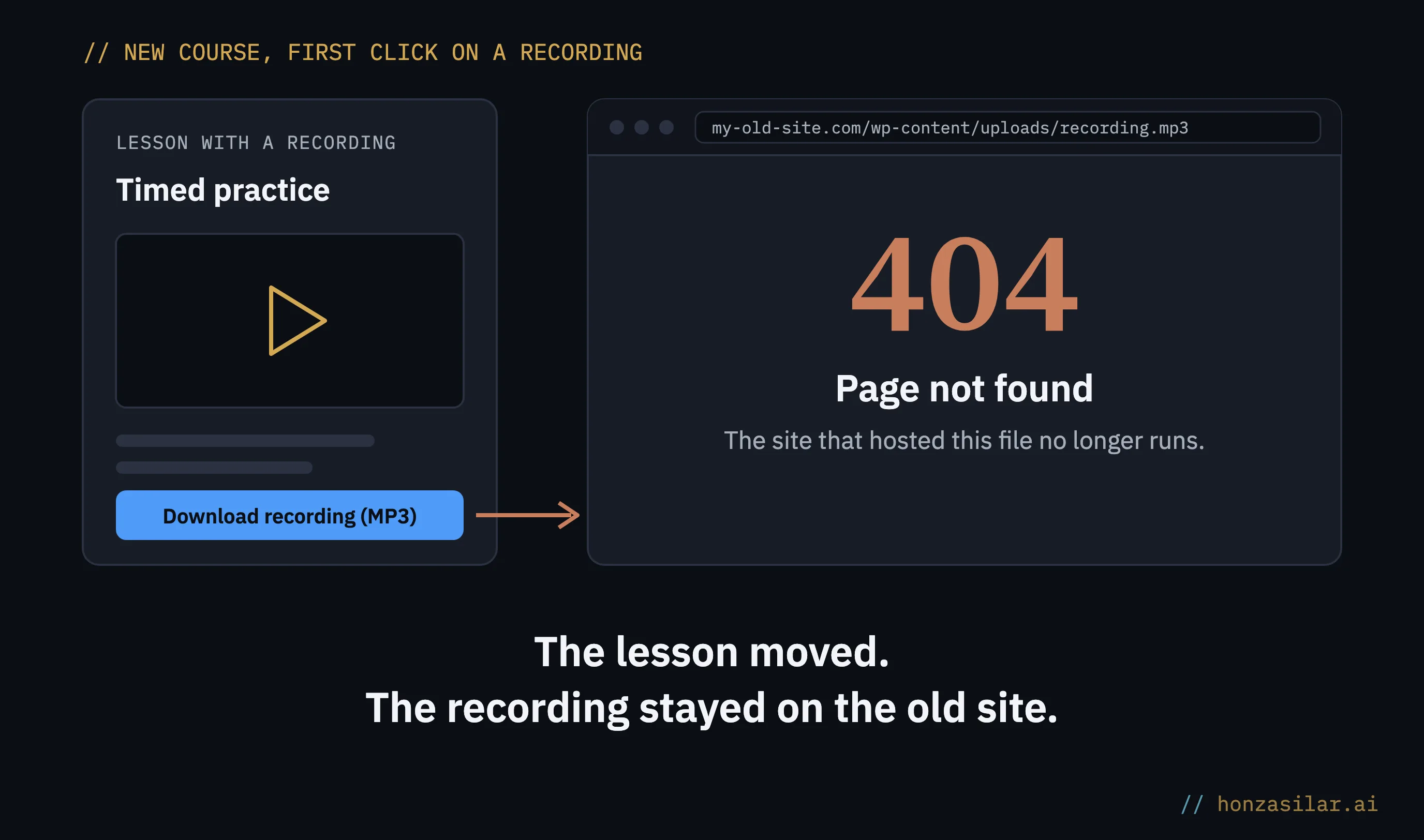
The links to recordings and PDFs pointed to addresses on the old site, so I downloaded all six files from my archive and uploaded them to GoHighLevel’s Media Storage. Storage takes non-video files up to 25 MB [2]. It wouldn’t accept a 60-minute recording in m4a format at all, so I converted it to a smaller MP3.
A link to a file on your old site isn’t the file. When the site goes, the file goes with it.
Then comes the unglamorous but necessary part: swapping the old links in the lesson text for new ones. The quickest way to find them is to search the text for the old domain name. You’re done when that search comes up empty and every file downloads from its lesson.
5. The course in GoHighLevel: by hand or by import
You can build a few lessons by hand. In GoHighLevel, open Memberships → Courses → Products, click Create New, and choose Start from Scratch [3]. Fill in Course Title and Course Description and upload a course image. Then create the parts in the course editor and add lessons to them [3]. The help center itself warns that button labels can vary by account version, and an older help article says Create Product where the newer one says Create New [4].
With dozens of lessons, an import is worth it. I uploaded the whole course to GoHighLevel in one go from texts I’d prepared on my computer, so I never had to click through the lessons one at a time. Summaries, practice schedules, and tips got their own boxes, and every lesson ends with a card linking to the next one.
Read-back check
A check after the upload: you pull down what the new system actually saved and compare it with the source. It catches a lesson that silently failed to save, a shuffled order, or truncated text. In my course, all 48 lessons matched character for character.
You’re done when the number of parts and lessons in GoHighLevel matches your inventory and the read-back check finds no differences.
6. Lessons that hold up on a phone
GoHighLevel’s mobile player ignores the design settings for the course as a whole. Boxes, colors, and spacing have to sit inside the text of each lesson, or the lesson turns into plain text on a phone.
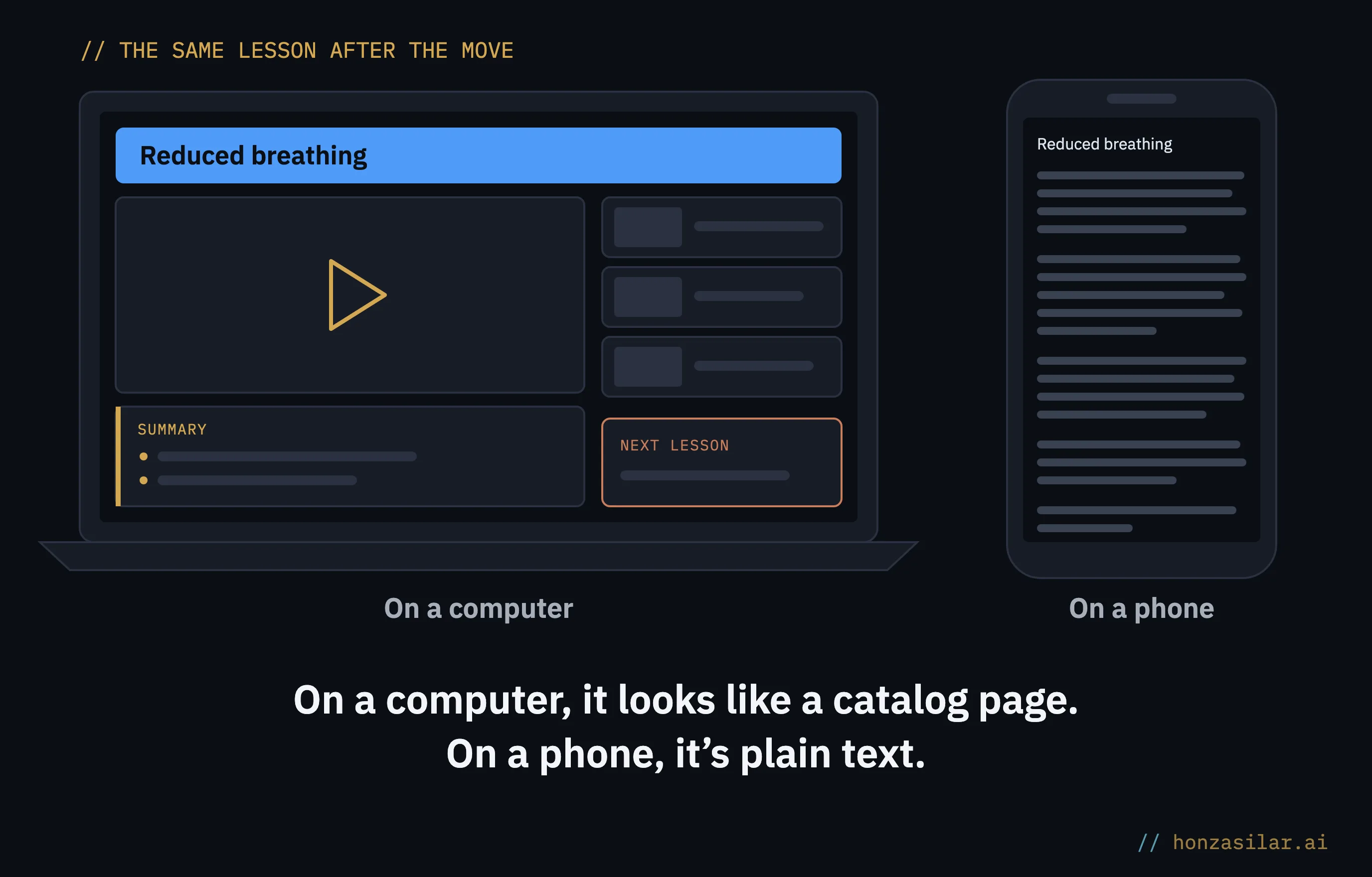
The second trap is the lesson editor. It can break a more complex lesson when you save it, and it won’t save a very long lesson at all, with no warning. So I make fixes in the source file and upload the lesson again; I never save it in GoHighLevel’s editor. You’re done when you open a lesson with boxes on your phone and it looks the same as on your computer.
7. Design and language
A bare GoHighLevel course looks like a thousand others: default labels, gray tiles, no cover. Mine got a cover with an illustration of lungs, a page background, an instructor photo, and a thumbnail for every lesson. I had the cover and the background generated in the illustration style of my breathing website.
You set the language of the client portal in Memberships → Client Portal → Settings [3]. My course isn’t in English, so on a computer, the course’s custom code translates the player labels that stay in English, and students see a translated label (“I’m done” in the course’s language) instead of “Mark As Complete.” The mobile player doesn’t run custom course code, so go through the course on a phone too and see what’s still untranslated. You’re done when the course overview has a cover, every lesson has a thumbnail, and no untranslated buttons show on a computer.
8. Access: an offer, an automation, and a test on yourself
Access to a course runs through an offer. A course you build by hand gets one automatically; an imported course doesn’t. You create it in Memberships → Courses → Offers with the Create Offer button, assign the course to it, set a price, and switch it from Draft to Published [3].
An automation then lets people in. In Automation → Workflows, create a new workflow (Create Workflow, Start from Scratch). The trigger is Contact Tag with the Tag Added filter and your course tag, and the action is Course Grant Offer with your offer [3]. For more detail, see how to give students access through a workflow.
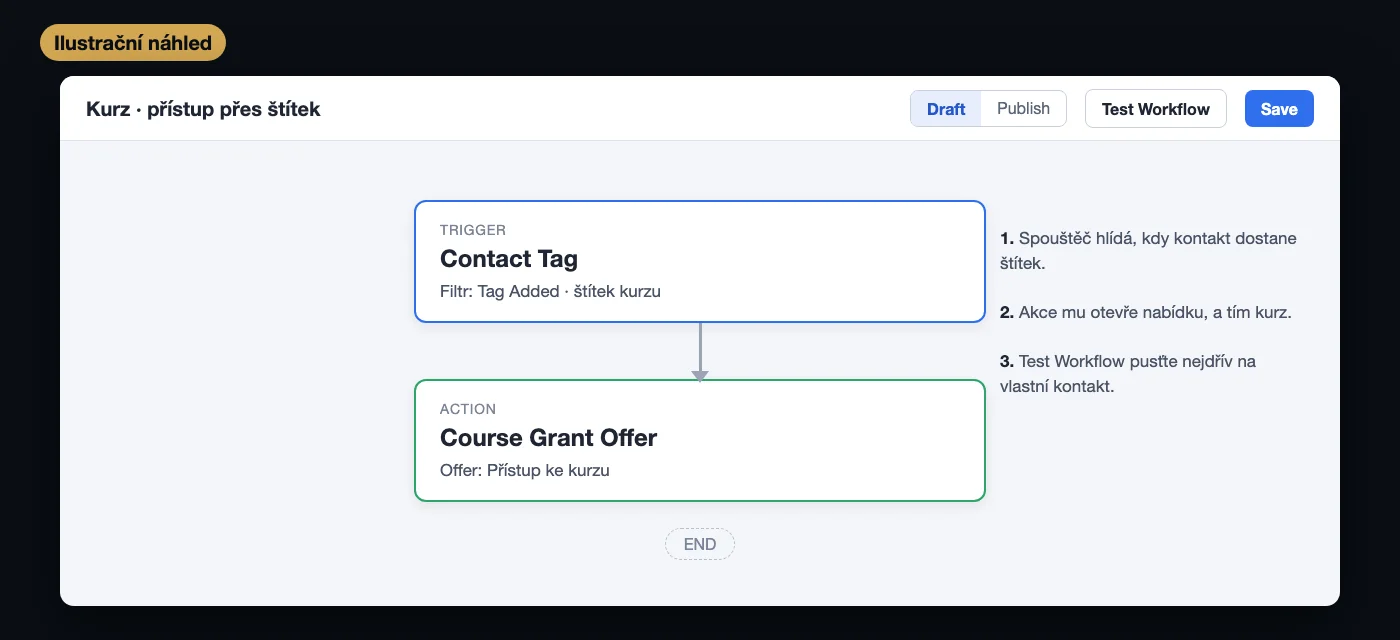
I ran that test on my own contact first. The course opened within 20 seconds and the access email arrived. You’re done when adding the tag to your own contact makes the course appear in your client portal.
Before you publish
Lock the course before you publish it for the first time. Anyone who gets in while it’s open to everyone keeps access after you lock it, and you can’t take it back.
9. Emails and launch
You’ll find the system emails for courses in Memberships → Client Portal → Settings → Email Settings, on the Courses tab. Check which templates go out and in what language. Mine were already set up in the course’s language, in a formal tone, and the test email arrived in that language, so there was nothing to redo here.
Finally, publish the course and all its lessons, and make sure the course overview shows no lessons still in draft. You’re done when the course, every lesson, and the offer are published and the access test on your own contact has passed.
Before and after: what changed for students and for me#
The screenshots show the same lesson on reduced breathing before and after the move, and below them the course overview on a phone.
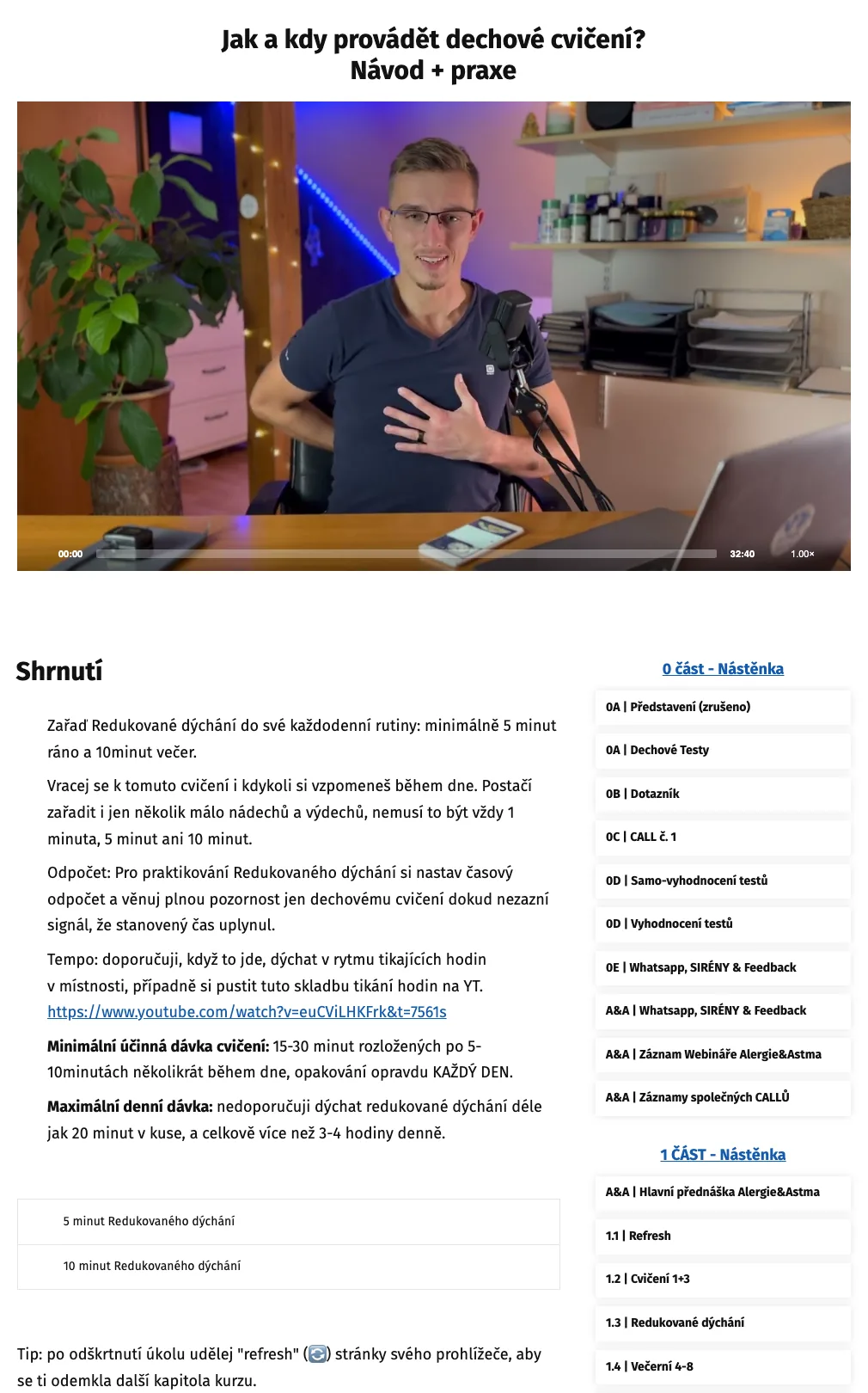
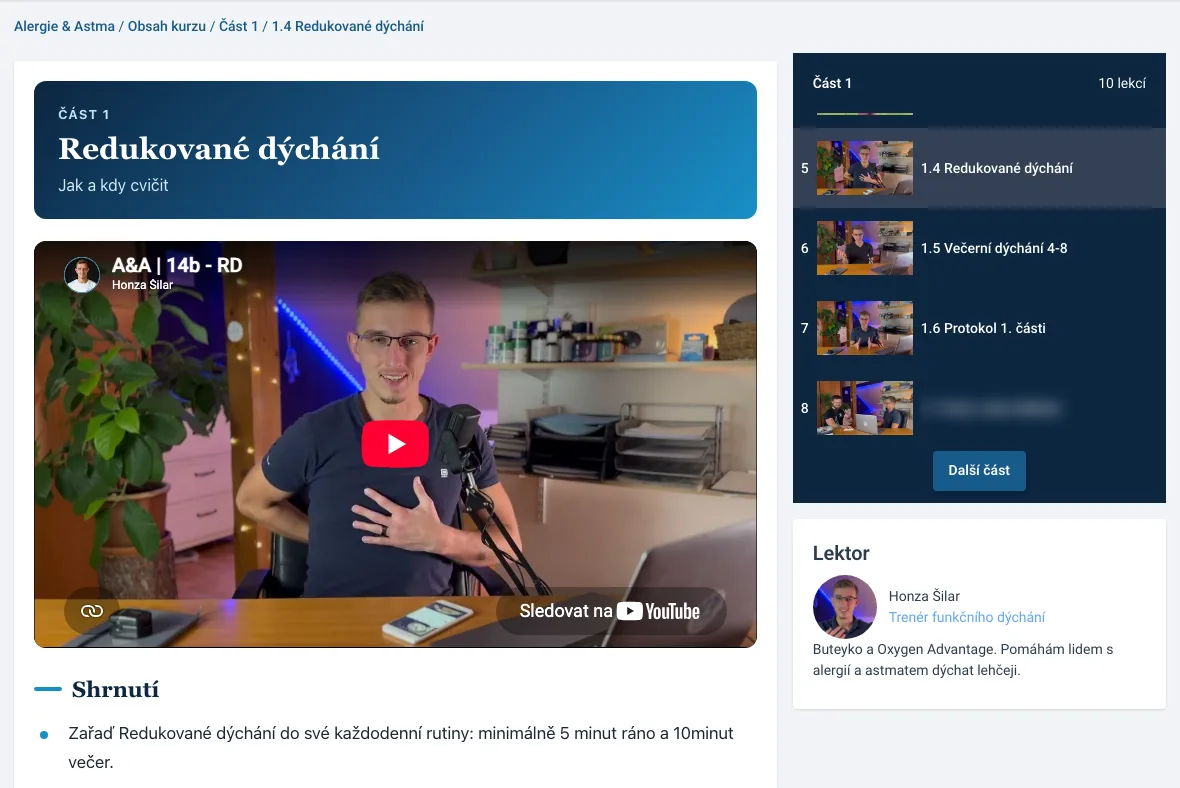

The course on Mioweb and in GoHighLevel
On Mioweb
The course depended on the old site’s subscription
Recordings and PDFs lived at the site’s addresses
Summary as a single paragraph of text
A list of every lesson next to each lesson
In GoHighLevel
“Course, contacts, and automations in one system”
Files sit in GoHighLevel storage
Summary, practice schedule, and tips in boxes
A progress bar and a card for the next lesson
For students, the changes are mostly small ones they notice every day. They can see how many lessons they’ve finished, a card for the next lesson waits at the end of each one, and on a phone they don’t have to scroll past a list of every lesson in the course. They log in at my own subdomain instead of a platform address.
For me, the biggest change is that the course no longer depends on any old website. I fix a lesson in the source file and upload it again, and I give access with a single tag.
Five places a course migration stalls#
I ran into most of them while moving a client’s course in October, so with my own course I watched for them from the start.
- Files at the old site’s addresses. The link in a lesson works as long as the old site is running. Move the files and swap the links in the text.
- Videos hidden in the player. Track them down before the pages you can pull the address from disappear.
- The phone. A lesson can look great on a computer and like plain text on a phone. Check both.
- The GoHighLevel lesson editor. Make fixes in the source file, and after uploading, make sure every lesson is there.
- A course open to everyone. Lock it before you publish it.
What would I do the same way today? I’d leave the text unchanged and upload the whole course in one import with a read-back check. Before letting anyone else in, I’d test access on my own contact first. And recordings with other people in them would stay out again, even the ones that seemed valuable. I wrote up a more general list of nine places where any move to a new system runs into trouble.
When you move a course, the text is the easy part. Patience matters most with the things nobody sees: files, the phone, and access.
I can help with this
I’ll move your course off Mioweb
I’ll handle the Mioweb move for you, including videos, files, and access for students who already have the course. In a consultation, we’ll go through what your course contains and where it fits, and agree on what we do together and what I move for you. I move courses for clients as well as for myself.
Sources#
- YouTube Help: Embed videos & playlists, section Turn on privacy-enhanced mode. support.google.com
- HighLevel API Documentation: Upload File into Media Storage (files up to 25 MB, videos up to 500 MB). marketplace.gohighlevel.com
- HighLevel Support Portal: How to Build Courses and Membership Sites (Memberships, Courses, Products, Offers, the Course Grant Offer action). help.gohighlevel.com
- Getting Started: Launch a Course. An older HighLevel help article. help.gohighlevel.com
Frequently asked questions
How long does it take to move a course from Mioweb to GoHighLevel?
For my 48-lesson course, the transfer, the design work, and the launch all happened in a single day. It mostly depends on the state of your materials: whether the lesson texts are complete and whether you know where the videos and files are. If you have to track content down first, plan on several days.
Do videos carry over when you move a course off Mioweb?
YouTube videos get embedded in the lessons again, in privacy-enhanced mode. Files that lived directly on the old site are the harder part: they have to move to GoHighLevel’s storage, or they disappear with the site and the links in your lessons lead nowhere.
Will my GoHighLevel course look the same on a phone?
Yes, but only if you plan for the phone from the start. GoHighLevel’s mobile player ignores the design settings for the course as a whole, so the styling has to sit inside the text of each lesson. That’s why I always go through a course on both a computer and a phone.
How do students get into the course after the move?
An automation in GoHighLevel grants access. The contact gets a tag, and in my case the course was unlocked within 20 seconds, along with an access email. You can add the tag by hand, or another automation can add it, for example after a payment.
Do I have to move everything into the new course?
No, and often you shouldn’t. Recordings of group calls that show other participants, old sales blocks, and empty pages left over from retired features belong in an archive.